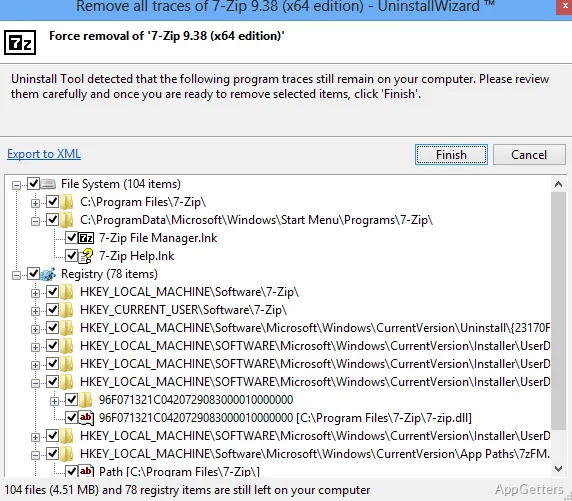
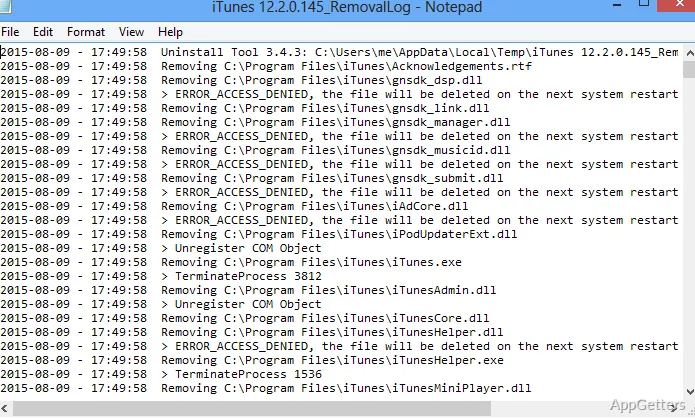
In regular Windows operations, uninstalling software is considered by many users as a straightforward task. However, experienced users who have tried the default Windows method of uninstalling can tell that the reality is quite different. A lot of times, even after uninstalling the application, some folders, registry entries, services running in the background, and startup traces can be left as a trace. Not only does such residual information affect the performance of the system silently over time, but it also consumes extra storage and changes the behavior of the system at startup. For frequent software installers and testers, this leaves a huge build-up of excess data to manage, creating a desire for easier manual cleanup. Uninstall Tool was developed to fill this gap. It qualifies for a deeper cleanup besides controlled software management in a method that non-technical users will understand. Whereas precision can be achieved when required.
Windows Uninstallation Troubles
Windows built-in uninstaller is quite capable of handling very limited functions only. You will certainly face leftover files and registry components, especially the configuration files of the program that the uninstalling program did not take care of. These leftover files might not create a problem at the moment. But with time, they will result in the system getting cluttered, and there could be conflicts with new installations. At times, users also find it difficult to identify the files that can be removed safely, hence they create a mess while trying to clean manually. In essence, it is almost the same as if the program were uninstalled, but in reality, it is not completely uninstalled. This means that system maintenance will be done only when a noticeable problem occurs instead of controlled maintenance by the user. Especially for users who install a lot of utilities, games, or trial applications.
The New Method of Software Removal via Uninstall Tool
Uninstall Tool spells a new method of software removal by following the installation of software more closely than the built-in Windows list. When a user accesses it in practice, a list of installed programs and components is displayed more clearly. After a user initiates the command to uninstall, not only is the usual uninstaller run, but it also searches for leftover files and registry entries. This is the main difference in its uninstallation workflow. Instead of depending on several manual steps, users are guided through almost the entire removal process in a single operation. For many users, it is not just speed that is the benefit, but also not having to wonder whether a program is actually gone from their system.
Reality Check: Performance and Impact on Your System
During normal usage, Uninstall Tool is very quick. It consumes very few system resources, so you would hardly notice its presence on a powerful Windows system. The post-uninstallation scanning may need a little bit of extra time when compared to the standard removal. However, the deeper clean it provides will usually compensate for this. The program is designed in a very user-friendly manner. It ensures users do not make many errors while removing programs. Lastly, it is important to note that these tools operate at the system level. Consequently, utmost caution should be exercised while using them. Even though it reduces the number of residues that are left behind, user intervention is still required. This applies when dealing with entries of unfamiliar software.
Use at Home and in Schools
Uninstall Tool is a great help to a user who frequently installs and removes software or changes system setup. However, it is not ideal for users who rarely change system settings on their computer. Users in the category of students who always have testing of software as part of their work. Home users who are operating shared computers, or anyone who experiments with freeware and trial software are targeted by this software with a more organized method. It can help with a cleaner environment without getting lost in the advanced technical stuff or getting into a hassle. On the other hand, it doesn’t really make a difference if you seldom make changes to your computer.
When you can do without it, and it is something that is pretty much stable. In such a case, you could still make use of the tools that come with Windows. It is over a period of time that a user gets to see its true worth. This becomes especially clear when the system becomes cluttered. At that stage, a large amount of excess data has already piled up.
What does Uninstall Tool do?
It removes programs and scans for leftover files and registry entries.
How does removal work?
Select a program from the list, run its uninstaller, then scan for remaining items.