One of the major problems with Windows is that it doesn’t crash entirely all of a sudden. It just slows down gradually. This happens due to the accumulation of temporary files, the increasing number of startup apps, and the running of multiple background operations. These compete for CPU time. Advanced users often make use of various built-in tools located in different places in the system. However, for many people, the challenge of keeping track of all the tools in different places prevents them from making the most of them. Microsoft PC Manager is the company’s effort to transform the process of PC upkeep/maintenance into something totally easy and simple. It also provides a single interface.
The key areas of PC Manager focus are cleaning the computer fast and effectively monitoring the performance of the computer. The goal is to eliminate the problems involved with continually maintaining a PC in a very user-friendly manner. This can be done without even needing to be an expert/technically skilled.
Collating main upkeep operations in a single unit
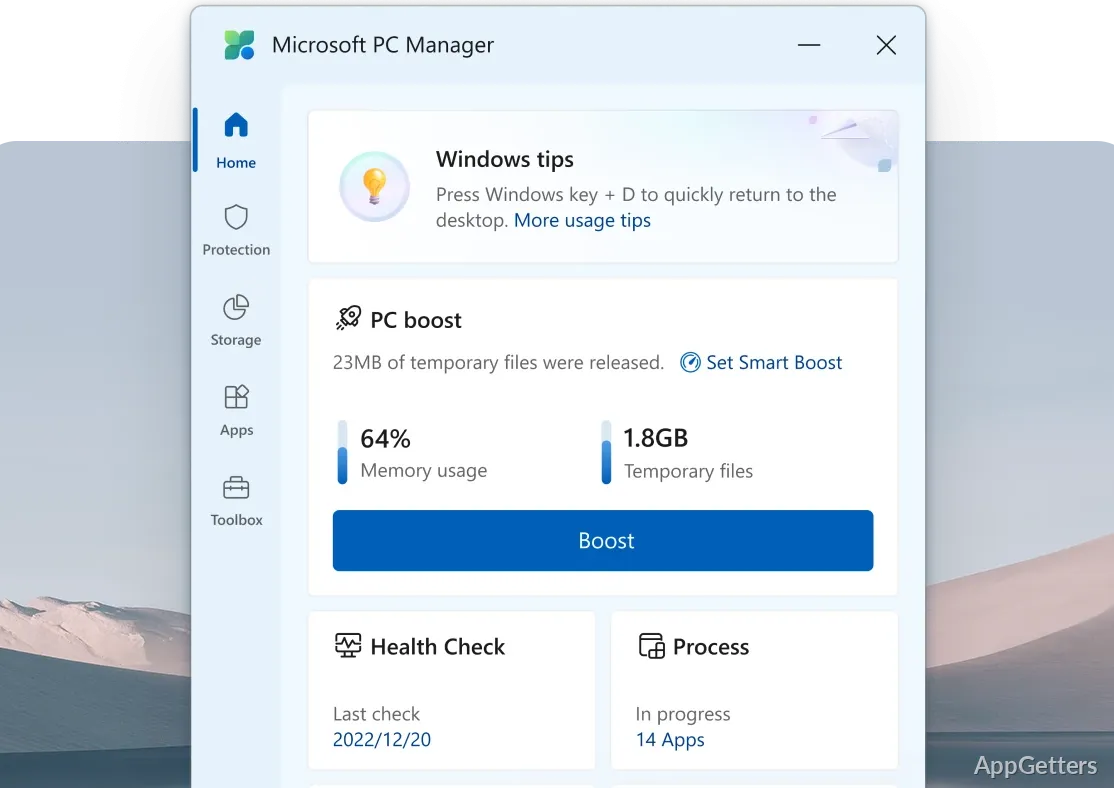
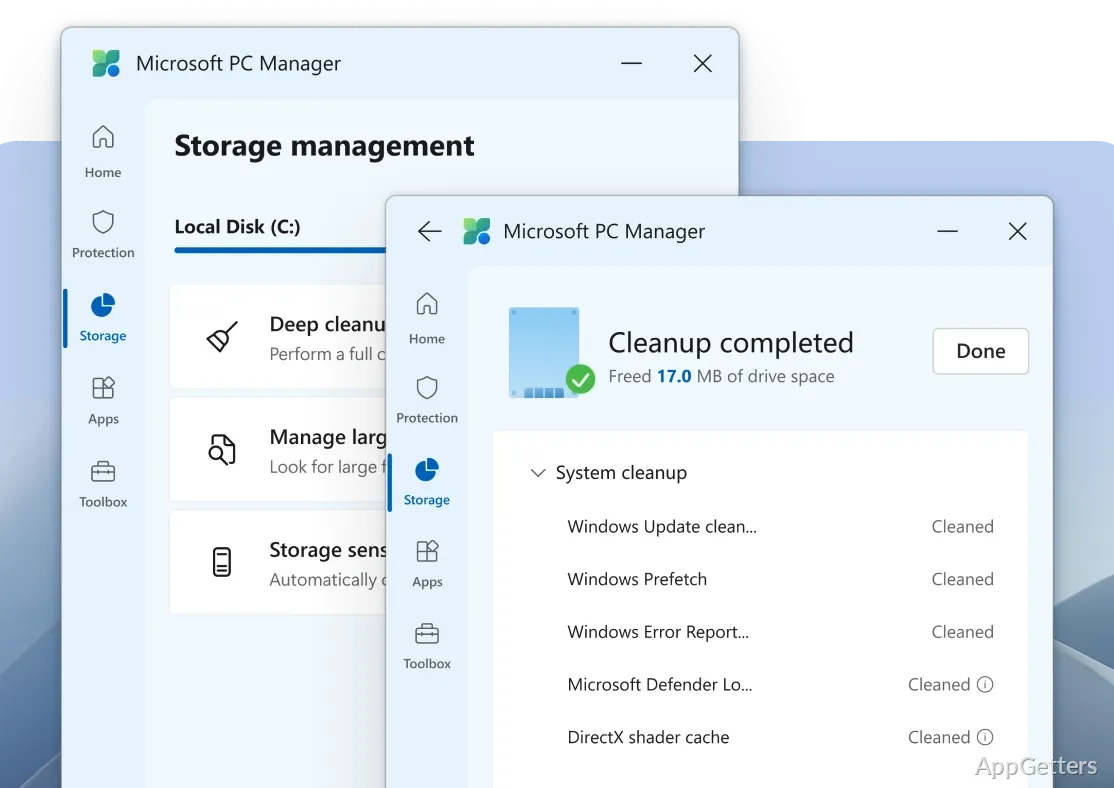
In actuality, PC Manager is more like an assortment of consolidated Windows utilities that users are familiar with, rather than an entirely new product. Management of storage, memory, and startup are some of the functions incorporated into the dashboard of PC Manager. For example, the feature “Boost” not only deletes temporary files but also releases RAM, all by just one click. This can be very handy if the system gets slow. The centralization of functions through this product makes it easier for maintenance tasks to be done more regularly. This applies even for users who do not wish to go through multiple menus to change settings. But this does not work as a replacement for advanced tools such as Disk Cleanup or Task Manager. It only makes easier access to their most used functions.
Minimalistic approach yet quite effective
One of the major strengths that Microsoft PC Manager has is that it is very lightweight. The installation is done in a matter of seconds, and the app sits in the system tray without ever making your system hiccup. For mid-range and older devices, this really counts. System optimizers themselves can be a cause of system slowdowns. PC Manager is able to help keep your system clean and efficient by regularly deleting/cleaning up cache files. It also helps by preventing unwanted programs from launching at system startup, to name just two ways. As mentioned before, the changes are quite small. So, rather than expecting a total makeover of your PC’s performance, you should see this tool as a “daily dose of smoothness and stability.”
Simple and simple, yet quite limited
For the typical users who are students, family members, and office workers, PC Manager is almost as good as natural as far as maintenance of a PC routine is concerned. It is so easy to see how much space you have, and which programs slow down the computer at startup. And do a cleanup before work time to bring out the best in your PC. The user interface is very transparent; nothing is complicated here. On the other hand, simple goes hand in hand with limited.
The very fact that advanced users can, if they wish, work around the limits imposed by PC Manager means that if they want to, they can do the same with any third-party optimization tools. Secondly, there is a shortage of options for customization. Some features of PC Manager are actually overlapping with the Windows features that are native. In other words, the tool fits best to be thought of as a convenient layer instead of a full system tuning solution.
Windows casual maintenance tool
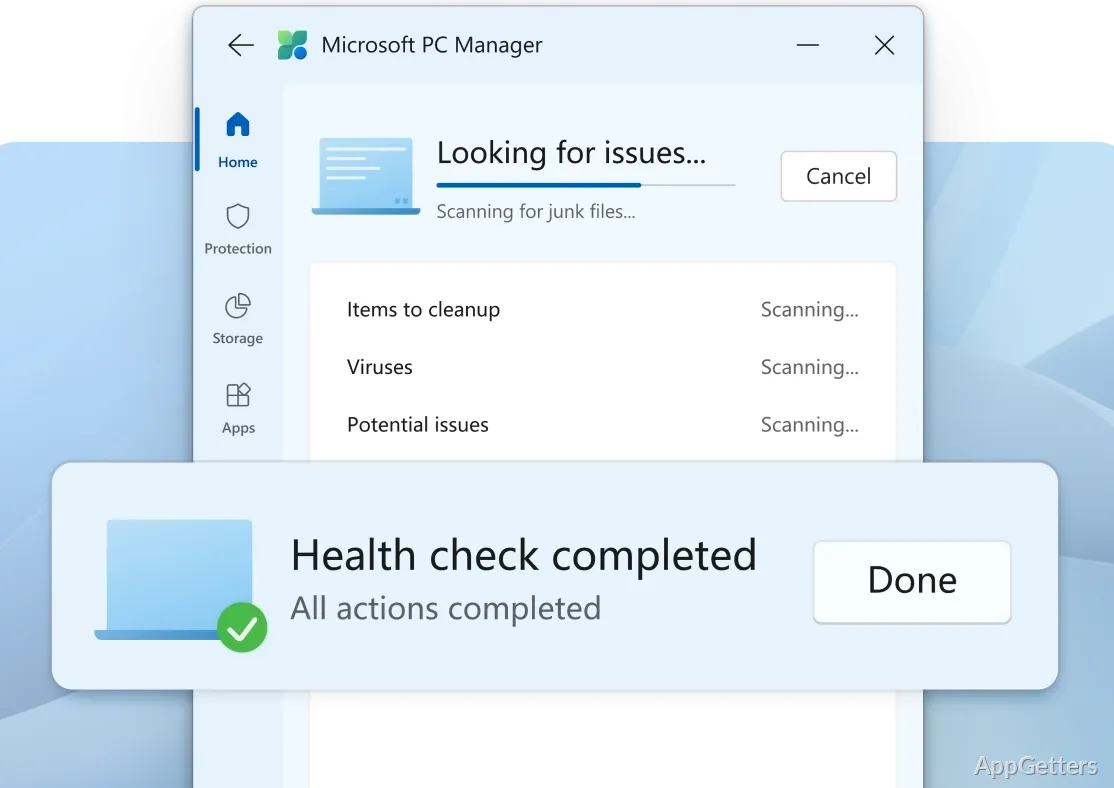
Microsoft PC Manager is primarily a compact package, a neat, clear yet strong tool for PC maintenance. It can quickly and effortlessly carry out diagnostic and cleaning of Windows systems. It suits exactly the users who only want to keep their PCs in a good state of functioning. They can do this without being taken out of their technical comfort zones. Those who do not like system modification and who would rather be working on their systems with guided actions can use this tool. They also do not need to know much about the system. It provides only enough information about the system health to enable users to make well-informed decisions.
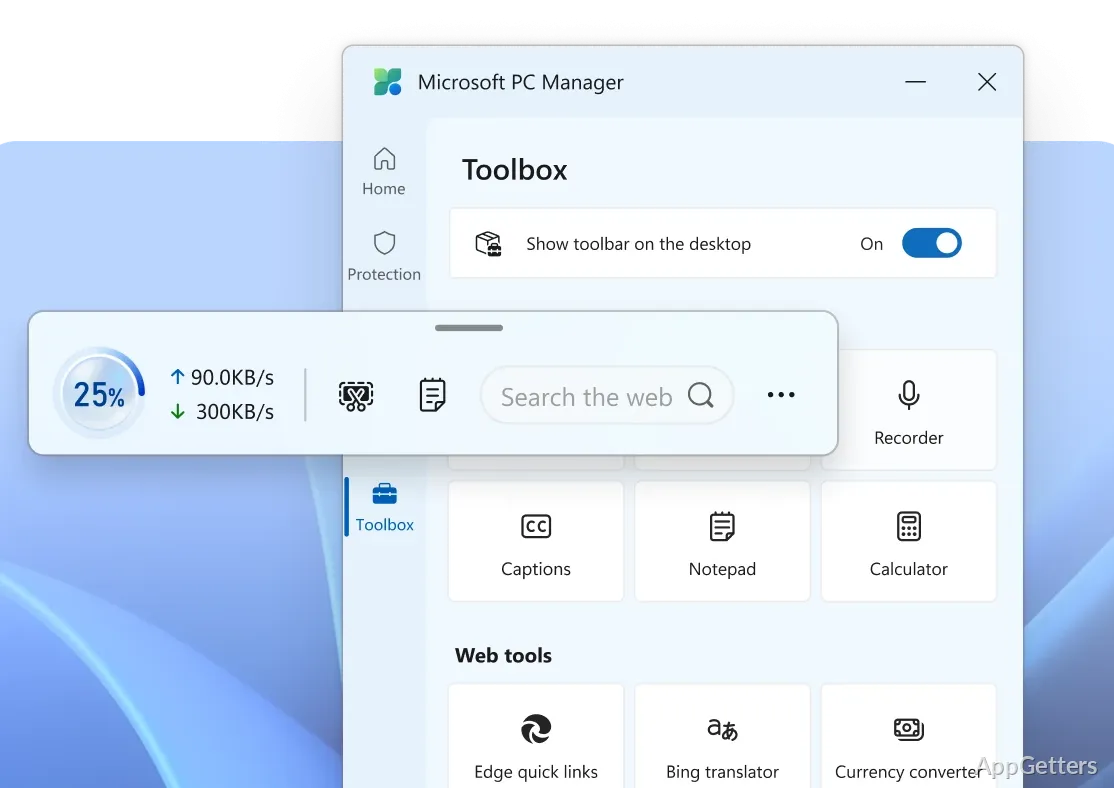
This software is not meant to replace high-end diagnostic or optimization tools, but it can be a very simple and effective first step in system maintenance. Most users will hardly consider it a power tool; instead, they will see it as their built-in assistant that always remains in the background performing its tasks quietly. The goal is to have the PC functioning well with the least user intervention. At the same time, PC Manager gives the advanced user the possibility to control the most basic Windows functions. These can be accessed through built-in Windows utilities. These are located in very different parts of the system. Here, they are all together in a single interface.