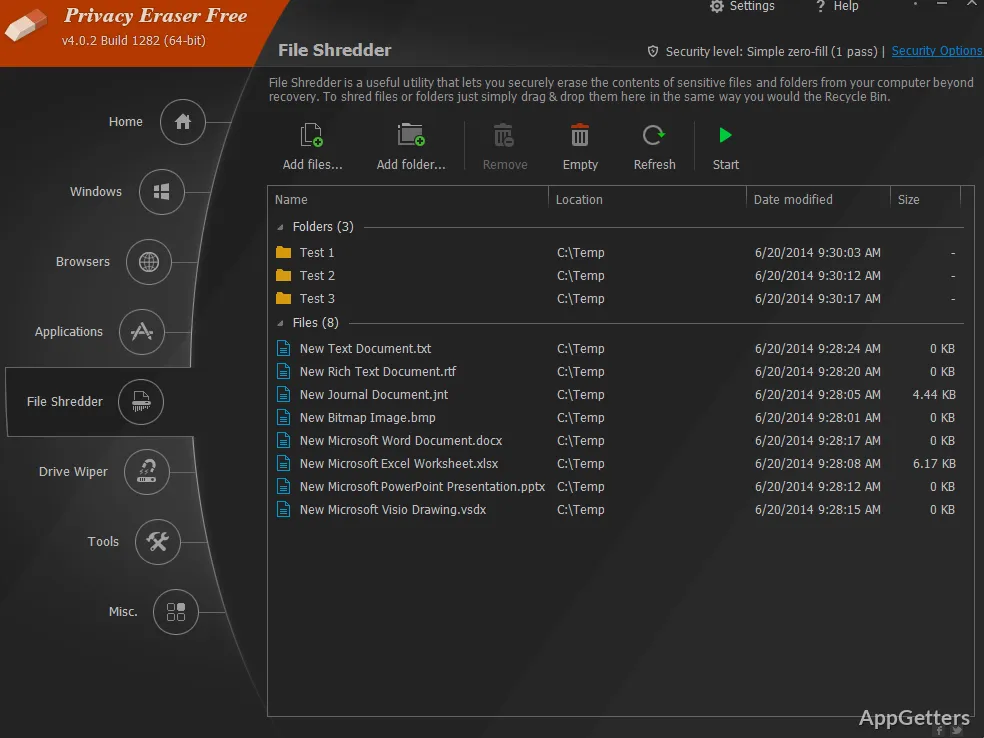
Windows PCs silently gather lots of information about what users do. Browsing records, temporary files, cached data, and logs that are never used can silently build up. Each isolated trace is usually not a big threat. However, when combined, they form a clear picture. That might raise concerns related to privacy, especially if the computer is shared or the user is a frequent one. Many users still stick to the browser’s own options or cleaning manually, which are always partial solutions. Privacy Eraser, however, has a very different take on this. It provides quite extensive ways of finding and erasing remnants. Thus, giving back to the users the sense of control over which items are left on the system.
Moving Beyond Basic Browser Settings
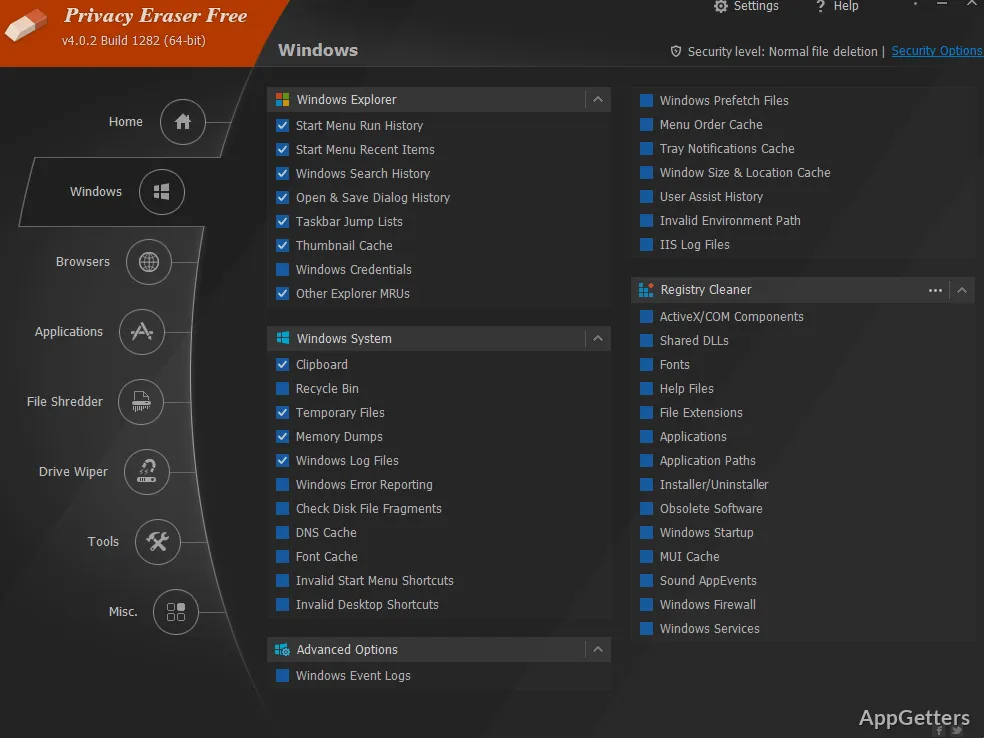
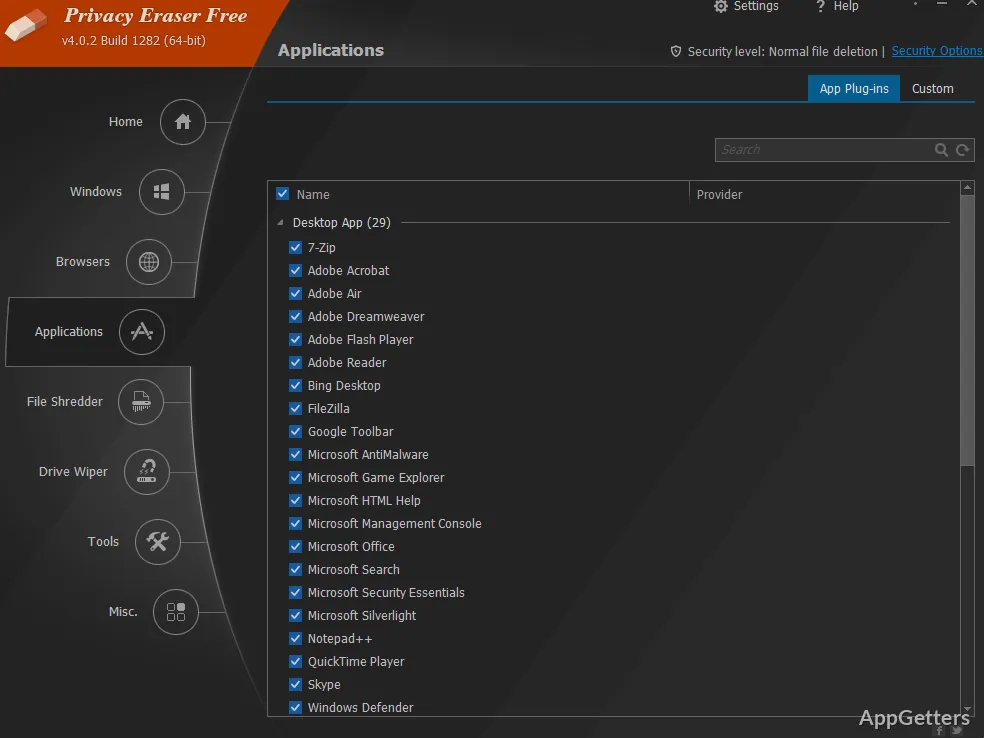
When used day-to-day, Privacy Eraser doesn’t just stop at the browser level. It can even open up areas of the machine that are usually hidden from users. These include temporary folders, hidden folders, traces of applications, and system logs. The effect of a wider scope is seen when using different browsers or continuing to use different kinds of apps.
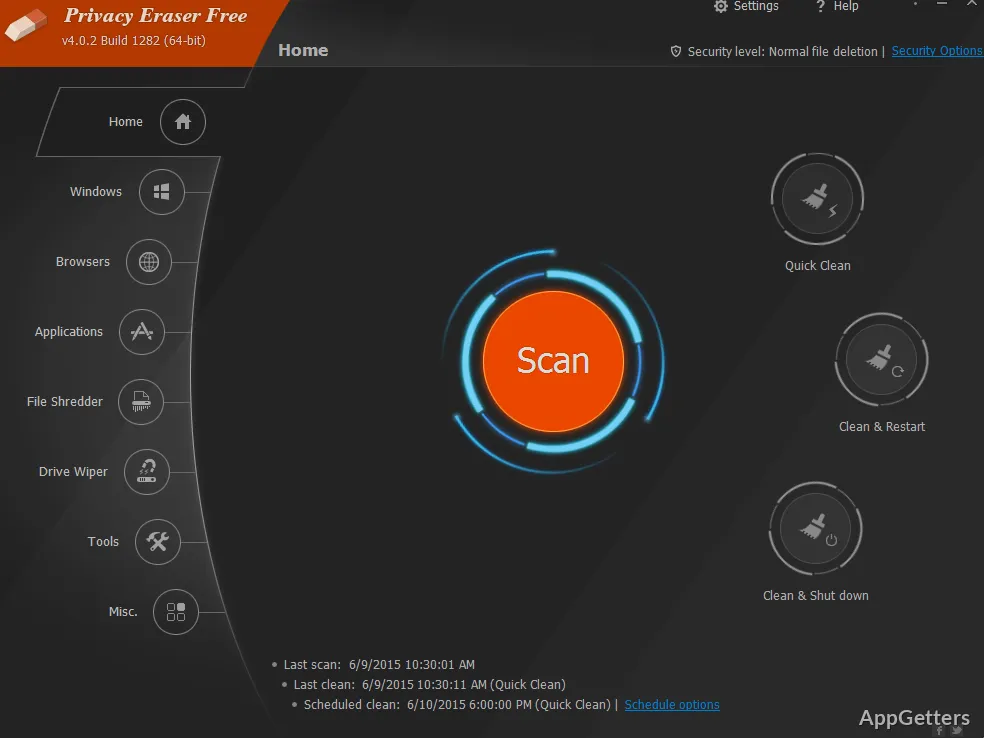
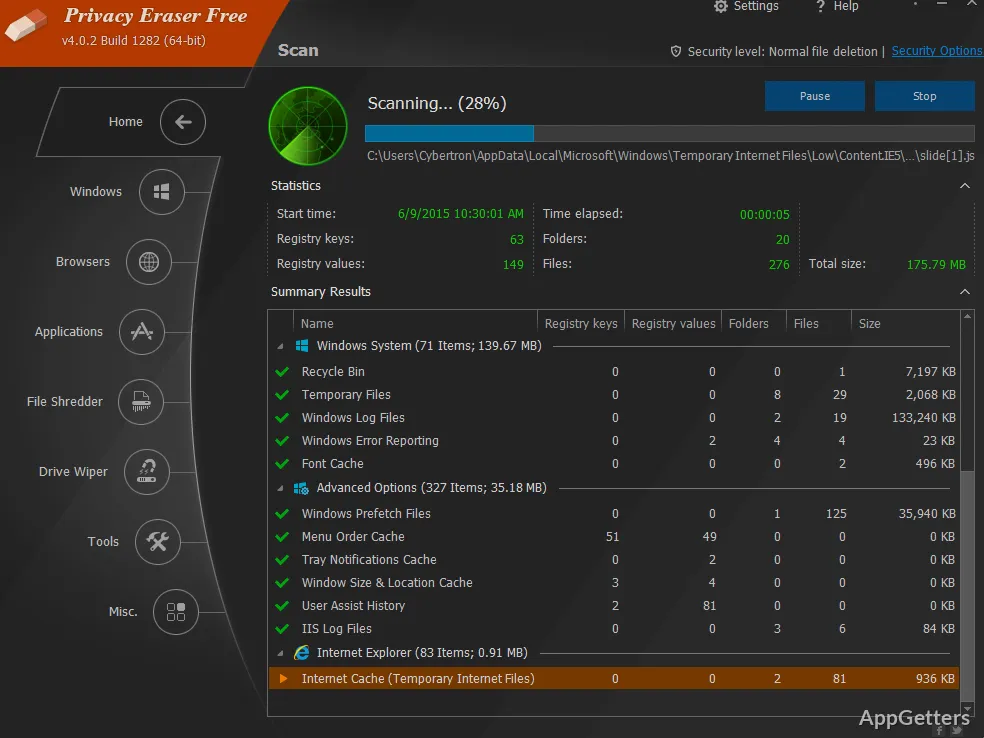
Cleaning itself is a very easy step. A quick scan is a definite feature here. Users can even review the scan results in order to see what is going to be cleaned up. Then they only proceed with the action. Not only this, but it is a great reevaluation option, even for those who are new to this kind of system-wide cleaning. After a while, it will almost look like a habit. You don’t get so much immediate storage space, but you get rid of data pieces that otherwise silently remain after the usage of the product.
Privacy Eraser Works As Both An Automated Program And A Manual One
On a very simple level, one thing that makes Privacy Eraser quite practical is the fact that it is not a program that only takes or forces the supplier’s point of view, choice, or decision. The cleaning can be programmed or arranged to be done automatically at certain times. It can run during system startup or shutdown.
This way, it is not only the removal of old files that is operated manually and has to be done again and again. It is also about the user remembering that the system ought to be cleaned up, even when there is no immediate benefit. It becomes a set-and-forget mode once users decide on the setup.
However, it is not the default that extreme cleaning is the only path available for the user. The user can decide what type of places or areas he or she wishes to work on. This is really helpful in avoiding the removal of data that could still be useful, like saved sessions or login states. Also, this kind of flexibility comes in very handy. It is especially useful in shared environments, where different users may have very different standards or expectations of privacy and convenience.
Changes In Daily Routines
If at all, it is not very likely that users would notice the real changes of using Privacy Eraser in their daily lives. Once it has been configured, it will most probably work quietly in the background. It might give the home user a sense of having done their homework when using a computer that a number of people have access to. This is because the traces of one’s browsing and other temporary files will no longer be accessible to others. The students or casual users would probably be interested in not only the frequency but also the ease of conducting cleanup occasions. This can happen even without understanding a detailed technical background.
Thinking about office or multi-user environments, it gets quite a bit more interesting in this respect. PCs accessed by several people require regular help from someone to perform cleanup. This is needed to uphold a reasonably consistent level of privacy between the different sessions. Nevertheless, when it comes to performance, it is a simple afterthought. Although a bit of storage space can be freed, the main advantage is the reduction of residual information. It is not about faster system access or experience.
Privacy Eraser limit and recognition of its shortcomings
Firstly, it might become a problem that Privacy Eraser cleaning system traces can affect some running software. This can reach the extent that the user is inconvenienced, for example, having to perform a re-login or reconfiguration of the settings. Persistent session users may therefore have to carefully pick what gets deleted.
Secondly, although the program is not too complicated, it might take some time to fully understand it. One should certainly be aware of what Windows does with temporary and cached files. If a cleanup is done often or strongly without supervision, the consequences can be quite serious. Hence, a well-thought-out balance will give better results, especially for less knowledgeable users.
Mainly Suitable For Public Computers And Privacy Protection
For those who want to regularly keep an eye on their electronic footprints, Privacy Eraser mostly functions as a tool for the maintenance of the routine. It will do the trick well, especially if a shared PC is used in settings like a family or office environment. In such cases, separation between users is very desirable. For the single user, it can take on the role of a reminder to do periodic cleanup. This keeps things out of sight and partly out of mind.
As a matter of fact, it is not so much a question of increasing or improving system performance. Rather, it is about limiting privacy risks over time. People who like honesty and want a say over what the system stores will find it quite a handy tool. This is especially true when used in combination with general habits of system maintenance, rather than a one-time cleaning.