It is very unusual for Windows to begin to slow down only within a single night. On the contrary, the alteration happens so gradually that it is hardly noticeable. Startup time keeps increasing little by little. Logging in to the system gets more sluggish, and it is almost impossible to overlook the constantly running background operations. The culprit is usually at the very beginning of the operating sequence, i.e., the tasks that are done automatically. Apps add themselves unknowingly to the autorun list, each one without the user’s knowledge and control. For a lot of users, particularly for those who are always installing and uninstalling software, it is difficult to trace this accumulation. Autorun Organizer directly tackles this problem by giving you a much clearer idea of what actually runs along with Windows startup.
Showing the Inner Workings of a Startup
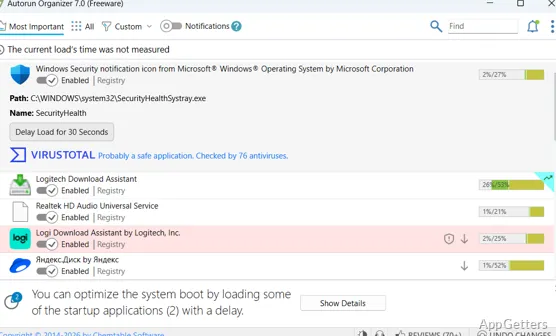
One of the nicest features of Autorun Organizer is that it doesn’t just give you a plain list of startup items. Instead, it wraps each item in its own tiny tale. It identifies newly added ones. It shows the boot time impact and even reveals the delay options. In general, these tweaks come a long way. You don’t simply switch entries off and on; you understand their presence and function.
Less experienced users get a lot of help, since they have less guesswork involved. Those users who are more experienced may be happy because it saves them from the time-consuming process of comparing processes. The interface is more about transparency than features, which is just right here. It doesn’t combine or flood, but it certainly doesn’t hide important system operations either.
Slow and Steady Optimization at No Cost
One of the reasons why people are reluctant to use startup managers is the possibility of disabling a program or a service that is essential to the system. Autorun Organizer’s approach to this is more thoughtful than that of many other programs. Mainly, it implements a feature to gradually change the way users work through the delayed start. That is, you don’t really delete the programs from the startup list. You simply launch them one after another. This relieves your system during boot time.
By doing this, users feel that it is safer, and the systems do not lose stability while increasing their responsiveness. After some restarts, users can notice the enhancements, which are hardly drastic. This method is really helpful in the case of a mid-range or a dated machine that generally experiences quite a few startup-related issues.
Common Usage Among Different User Groups
It is quite a simple exercise for students and other casual users to understand the notion. With the help of the tool, the system layer’s hidden aspects are normally revealed. It explains a few fundamental things on the lines of “why doesn’t my computer work as fast as before?” without the users being very knowledgeable. Locating the newly entered startup items is one real plus after users have installed freeware or bundle applications.
In case users are very serious and dedicated to the system, it is very likely that they will not be satisfied with its features only in contrast with the system utilities, but that is absolutely not the intention. Such a tool can easily find its function as a simple and quite focused tool rather than a heavy system manager. It is also very beneficial for PCs that are shared or for family PCs, where there is no need for intervention every so often. It still keeps a very tidy startup environment.
Its Place in a Windows Environment
It is best to think of Autorun Organizer as a supporting friend that joins you in your maintenance routine. It is not simply a solution that you use once and then forget. And it cannot be considered a tool that you use just once or very seldom, either. On the contrary, it keeps you informed at any time of changes in Windows systems. This makes it quite handy for regular new software installation users or users who are always trying different tools.
What makes it so good is that it does not get in the way of a user, and at the same time, it knows how to offer good information just when a user needs it. It does not get into enhancing everything, only one specific part of the system, and it does that really well. For users who want to be able to keep their startup performance at a decent level without having to use more complex system tools, it is a clear and quite practical solution.