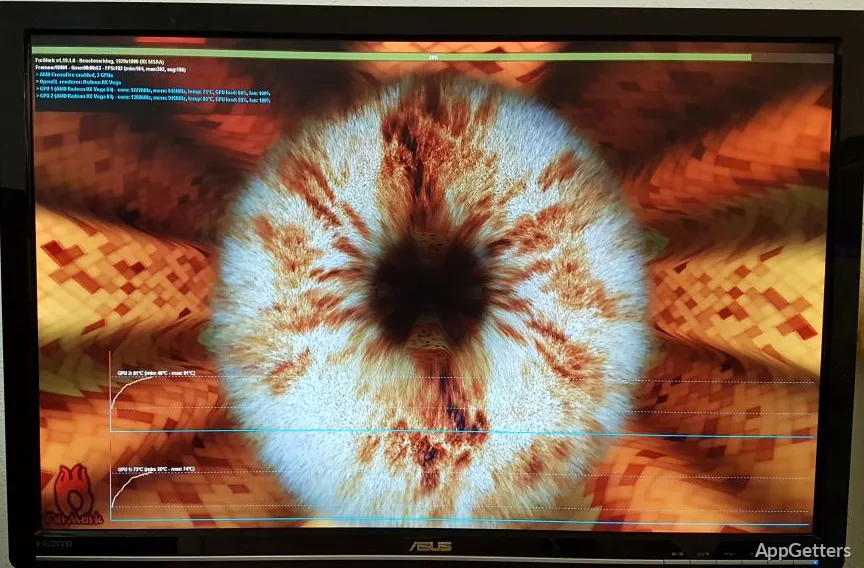
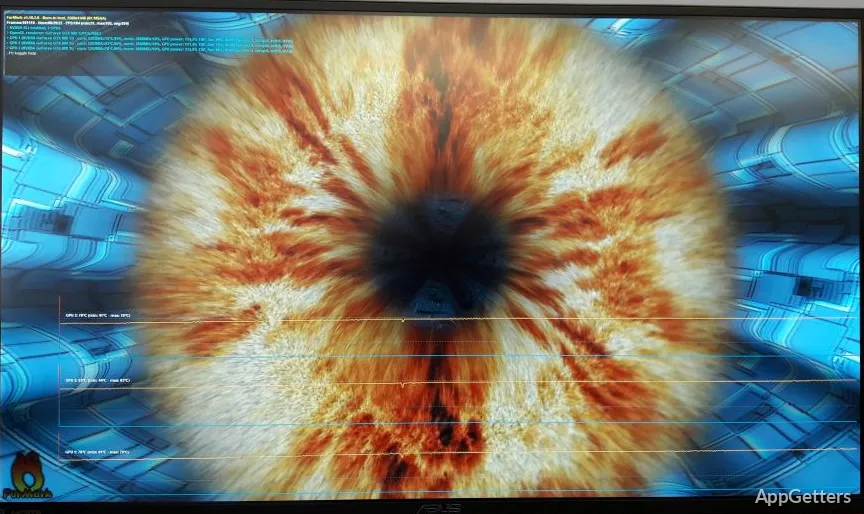
Just fitted a new graphics card or changed its cooling, and want to know it stays stable under full load? FurMark 2 puts the GPU under heavy sustained load, watches its temperature, and gives benchmark scores. It supports OpenGL and Vulkan tests, and its controls are available through a graphical interface and command-line options.
How do you run a GPU test?
Choose a FurMark demo and configure its test settings in the graphical interface, or launch it with command-line options. OpenGL and Vulkan demos are available. The command line can set the display resolution, fullscreen mode, anti-aliasing, and maximum test time.
Benchmark presets cover 1080p, 1440p, and 2160p. A benchmark can return a score when it finishes; stress-test runs can instead be set to stop after a chosen time or number of frames.
What can GPU monitoring show?
GPU monitoring can display temperature information while the graphics test runs. For logging, FurMark 2 can write GPU data to a CSV file, and command-line options control monitoring and its polling interval.
- Use GPU information options to print hardware details in the terminal.
- Run OpenGL or Vulkan information commands for basic or detailed graphics reports.
- The artifact scanner can check for visual artifacts during a test.
Can FurMark 2 run tests from a script?
Yes. Command-line options can select a demo, set resolution and duration, start a benchmark, and control monitoring or log output. The GUI provides a way to open a terminal in the FurMark 2 folder, while the command line supports repeatable runs and automated testing.
Pros
- Runs both OpenGL and Vulkan graphics tests
- Includes 1080p, 1440p, and 2160p benchmark presets
- Can log GPU monitoring data to CSV
System requirements: 32-bit and 64-bit
Does FurMark 2 support Vulkan?
Yes. It includes Vulkan demos and can print Vulkan information.
Can FurMark 2 save GPU monitoring data?
Yes. It can log GPU data to a CSV file.
What are the benchmark resolution presets?
The presets are 1080p, 1440p, and 2160p.