EXE
Home » Software » Windows » Web Browsers » Vivaldi for Windows
Vivaldi for Windows

Vivaldi for Windows

10 Downloads

Vivaldi for Windows Starts With the Layout Problem

Some browsers feel finished before the user changes anything. Vivaldi for Windows takes the opposite route. It gives the browser window more moving parts: tab stacks, panels, workspaces, notes, themes, mouse gestures, keyboard shortcuts, privacy controls, and built-in tools that can replace several small extensions. That freedom is why many people install it, but the first setup deserves patience.

Vivaldi comes from Vivaldi Technologies and belongs in the desktop browser category. The browser is free to download and use, but it is not a minimal browser that hides most controls. It suits users who want to shape the address bar, tab position, sidebar panels, start page, shortcuts, and browsing habits instead of accepting one fixed layout.

The better first question is not whether the browser has many features. It does. The useful question is which features should be turned on right away. A user moving from Chrome, Edge, Firefox, Brave, or Opera may only need bookmarks, saved passwords, and a familiar tab layout at first. Everything else can wait until the browser feels steady.

Bring Data Over Before Changing the Interface

Vivaldi can import browser data from other browsers and files, including bookmarks and other supported items. Start there before spending time on themes or tab placement. A familiar bookmark folder and a working sign-in flow make the browser usable faster than a perfect color scheme. After the import, open the sites that matter most to your normal day.

Imported data still needs checking

Bookmarks may arrive correctly, but saved sessions, passwords, and open tabs can behave differently depending on the source browser. Check your mail, work dashboard, banking page, cloud storage, and streaming account one by one. Some websites may ask for a fresh login because they see Vivaldi as a new browser, not as the old browser with a new skin.

Users coming from a more standard Chromium-style browser may want a familiar fallback during the first week. If you still need a plain comparison point, Google Chrome can remain installed while Vivaldi is being tested. Keep only one browser as the default until you know which one should open work links, mail links, and downloaded files.

Sync is useful after the local setup feels right

Vivaldi Sync can synchronize selected browser data between devices when the user signs in and enables it. Set up the local browser first, then decide what should travel to other devices. Syncing a messy first layout can spread the mess. A better approach is to choose the tab style, bookmarks, passwords, and settings you actually want before turning sync into a habit.

Tabs, Workspaces, and Panels Can Solve Different Problems

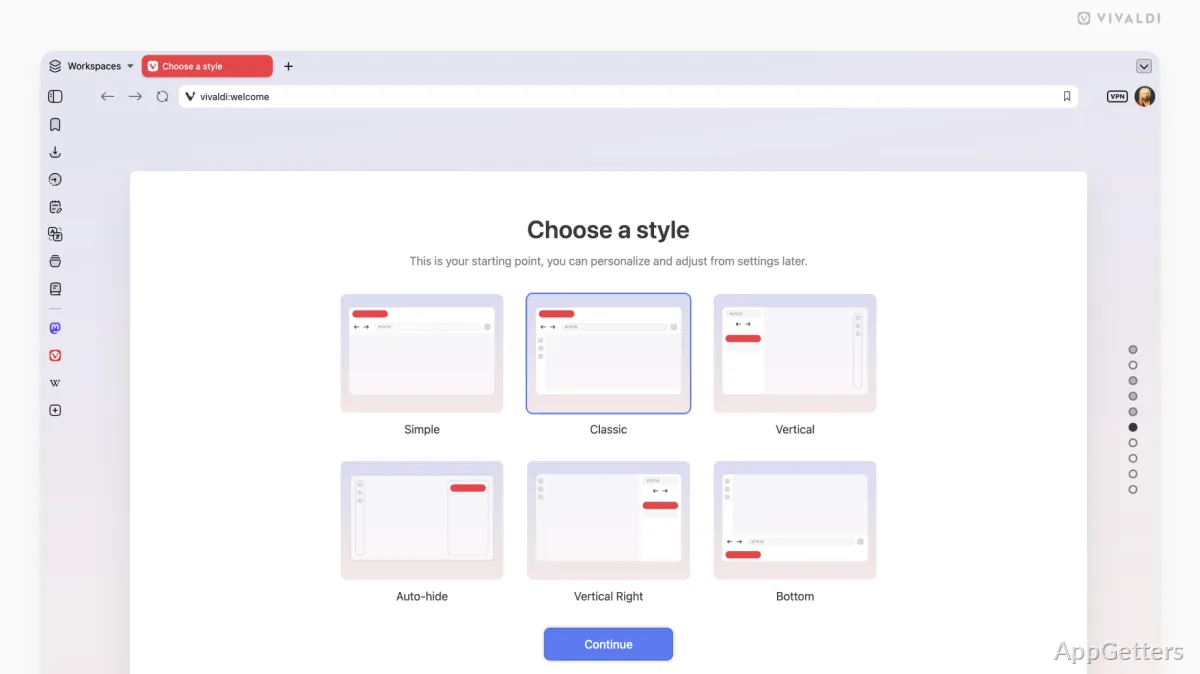
Vivaldi for Windows is often chosen because tab control goes far beyond a simple row of open pages. Tab stacks can group related pages, tab tiling can show pages side by side, and workspaces can separate different browsing contexts. These tools help only when they match the user’s real task. Turning on every organizing feature at once can make the window harder to read.

Tab stacks are for related pages, not every page

A tab stack makes sense for research pages, shopping comparisons, project references, or multiple documents from one service. It becomes less useful when unrelated pages are stacked just to reduce clutter. Name or arrange stacks carefully if you keep many pages open. Otherwise, the browser looks tidy while the user still has to hunt for the right tab.

Tab tiling is different. It helps when two pages need to stay visible at the same time, such as a document beside a reference page or a dashboard beside a report. On a small laptop screen, tiling may feel cramped. A larger monitor gives the feature more room to prove itself.

Panels work best for repeat tools

The side panel can keep web panels, notes, bookmarks, downloads, history, and other tools close to the page. That saves time for users who check the same resources often. It can also crowd the window if every available panel is enabled. Start with one or two panels, then add more only when they shorten a repeated task.

Vivaldi’s heavier customization may not suit someone who wants a calmer browser with fewer choices on screen. Users looking for a quieter browser idea can compare it with Opera Air, which focuses more on guided pauses and a softer browsing mood than deep interface control.

Download and Install Checks for Vivaldi

Use the official Vivaldi source or the supplied download card for Vivaldi for Windows. Continue only when the file came from the official developer source or another trusted source you intentionally chose. Avoid modified installers, cracked editions, serial key pages, and unknown mirror downloads, especially for a browser that will handle passwords, cookies, downloads, and account sessions.

Windows may show a security warning during setup. Check that the installer came from the official developer source before continuing. If Windows security or another protection tool shows a warning for the installer or one of its components, read the warning text and verify the file source. Do not turn off protection just to complete a browser install.

After installation, check the installed browser’s version screen when you need the exact build. Browser listings on older pages can lag behind. If you use snapshots, beta builds, or stable builds on different machines, keep a note of which channel belongs to which PC. Mixing channels can make troubleshooting harder when one feature behaves differently.

Privacy Controls Need Site-by-Site Judgment

Vivaldi includes built-in tracker and ad blocking, and the browser presents privacy as one of its main desktop features. That does not mean every website should use the same blocking level. Some pages load better with stricter blocking. Others break when a login frame, payment script, video player, or embedded form is filtered.

Blocking can break a page without showing the cause

When a page fails, the error may look unrelated to privacy settings. A checkout button may not respond, a video may stay blank, or a sign-in box may disappear. Check the site controls for that domain before reinstalling the browser. Change one setting at a time so the cause remains visible.

Privacy-focused users may also compare Vivaldi with Brave Browser. The two browsers approach control differently. Vivaldi leans hard into interface choice and built-in workflow tools, while Brave is often chosen by users who want stronger privacy defaults with less interface tuning.

Extensions still deserve restraint

Vivaldi supports many Chromium-based extensions, but built-in features may already cover the job. Before adding a note extension, screenshot extension, tab extension, or ad blocker, check whether Vivaldi already has a similar tool. Too many extensions can slow startup, change page behavior, or create privacy questions that the browser’s built-in tools were meant to reduce.

Built-In Mail, Calendar, Feeds, and Notes Are Optional

Vivaldi for Windows includes more than browsing features. Vivaldi Mail, Calendar, Feeds, Notes, and translation tools can turn the browser into a heavier daily workspace. That can be useful for people who want fewer separate apps open. It can also be too much if the browser is only supposed to open web pages and manage tabs.

Mail and Calendar need a careful first test

Adding mail accounts to a browser is a bigger decision than adding a bookmark. Test one account first and check folder behavior, sending, search, calendar display, and notifications. If you use workplace mail, confirm that your organization permits third-party mail clients before adding the account. Browser convenience should not create a policy problem.

Notifications are another early setting to review. A browser with mail, calendar, messages, and web alerts can become noisy very quickly. Leave only the alerts that matter. A quiet tab setup loses value if the side tools create the same interruption problem in another place.

Notes and feeds are strongest when tied to browsing

Vivaldi Notes works well when notes belong to pages being researched. Feeds make sense when you want updates without opening several sites manually. Both tools should stay tied to a real workflow. If every article, task, and reminder gets pushed into the browser, the panel can become another cluttered inbox.

When Vivaldi Is Worth the Extra Setup

Vivaldi fits users who feel limited by ordinary browser layouts. It is a strong match for people who manage many tabs, compare pages side by side, keep research notes, use keyboard shortcuts, or want the browser to behave more like a personal workspace. It may feel heavy for users who only need a few tabs, simple bookmarks, and default settings.

The first week should be a controlled trial. Import the data you need, choose one tab style, set privacy blocking to a level that does not break key websites, and test mail or calendar only if those tools belong in your browser. If another browser is needed for compatibility, keep it installed rather than forcing every site into Vivaldi immediately.

Vivaldi earns its place when the custom layout actually reduces friction. Try Vivaldi for Windows with a real browsing routine: research tabs, work pages, media sites, mail, notes, and the shortcuts you use every day. If the window feels more organized after those choices, the extra setup has paid off. If not, reset a few options before deciding the browser is too complex.

Software Details of Vivaldi 8.1.4087.48

License
Free
Version
8.1.4087.48
File Size
139.81 MB
Downloads
10
Languages
English English, Arabic, Chinese, Czech, Danish, Dutch, French, German, Greek, Italian, Japanese, Korean, Norwegian, Polish, Portuguese, Russian, Spanish, Swedish, Turkish, Ukrainian
Category
Op. System
Windows
Last Updated
July 10, 2026
SHA256
739376485a31813093e4379dd0983dba07911481eb058156503d141c7c82a787

Version History

23 versions
8.0.4033.54
138.42 MB
June 25, 2026
Download
8.0.4033.46
138.39 MB
June 11, 2026
Download
8.0.4033.44
138.34 MB
June 5, 2026
Download
8.0.4033.42
138.37 MB
June 4, 2026
Download
8.0.4033.35
138.52 MB
May 29, 2026
Download

Leave a Comment

Your email address will not be published. Required fields are marked *

Software Icon
Security Report

Loading scan data...

Scroll to Top