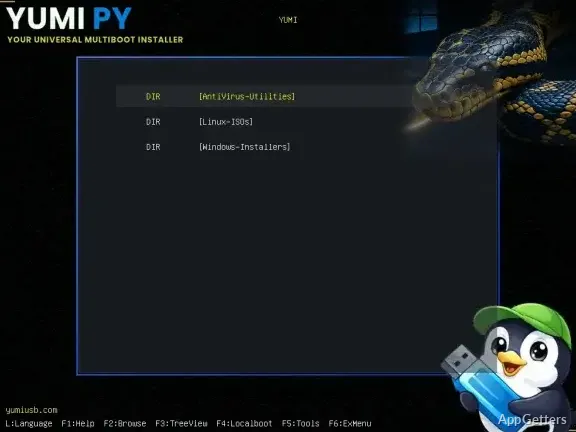
Want Windows installers, Linux live systems and rescue tools all on one USB stick? YUMI exFAT builds that multiboot drive using the exFAT file system, so the device can serve as a collection of operating systems and utility tools.
A menu of systems and tools
YUMI exFAT is designed for a USB drive that needs to hold more than one boot option. It can bring together operating-system images, Linux distributions, and bootable utilities such as recovery or diagnostic tools. When the computer starts from the drive, a menu lets the user choose which entry to launch.
That arrangement suits a portable toolkit that changes over time. New images can be added to the drive and entries that are no longer needed can be removed, without rebuilding the entire collection for each change.
- Keep several bootable images together on one device.
- Choose an operating system or tool from the startup menu.
- Update the collection by adding or removing images.
Why use exFAT?
The exFAT format supports individual files larger than 4 GB, a limit that applies to FAT32. That matters when an ISO image exceeds that size: the image can stay intact on the drive instead of needing to be split to fit the file system.
Building the boot menu
The workflow centers on selecting a bootable option and locating its ISO image. YUMI exFAT prepares the USB drive so the image appears as an entry in its boot menu.
Images need to be bootable and compatible with the computer that will start from the USB drive. BIOS or UEFI settings and the way an image is built can affect whether a particular entry starts successfully.
Pros
- Keeps multiple bootable ISO images on one USB drive
- Uses exFAT, which supports files larger than FAT32’s 4 GB limit
- Lets users add or remove images as the toolkit changes
System requirements: Windows 8, Windows 10, Windows 11 · 4GB+ flash drive
Can YUMI exFAT put several ISO images on one USB drive?
Yes. It creates a multiboot drive with multiple images available as startup-menu choices.
Can an ISO larger than 4 GB fit on an exFAT drive?
exFAT supports files larger than FAT32’s 4 GB limit, so an oversized ISO does not need to be split for that reason.
Can the collection be changed after the drive is created?
Yes. Images can be added to or removed from the drive as the boot menu changes.