Most Windows PCs slowly get a bit of a problem with numerous background programs starting automatically with the system. Eventually, that leads to a fairly clear decrease in performance. Sometimes, a system takes a considerably longer time to boot up. The user notices that the computer’s responsiveness right after login is basically almost non-existent. Although Microsoft Windows has startup app management tools built in, these tools are either quite limited or simply hidden very far within the system settings. For most normal, everyday users, especially those who aren’t technically skilled, deciding and controlling what is running at startup might actually be a bit confusing. It might also be difficult to do.
Quick StartUp introduces itself as a very simple-to-use utility that mainly aims at making this whole process a lot easier. So, instead of going through several different system menus, startup management is all brought to one main, focused interface. The idea of the authors is not to come up with a completely new system control. It is just to make an existing task easier to access and manageable.
An Easier and More Efficient Way to Handle Startup Programs
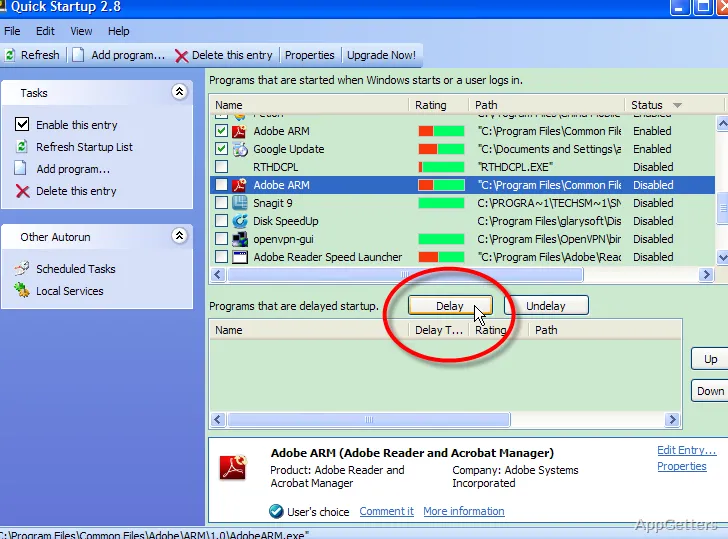
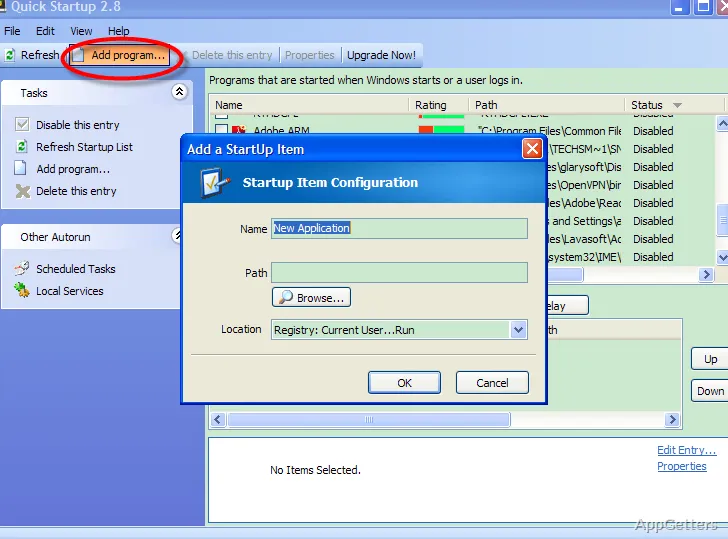
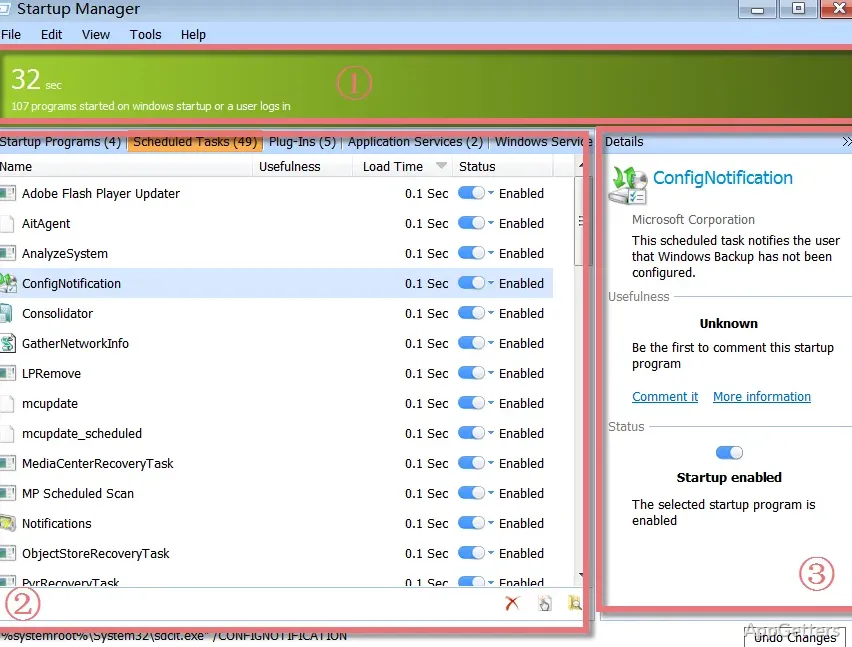
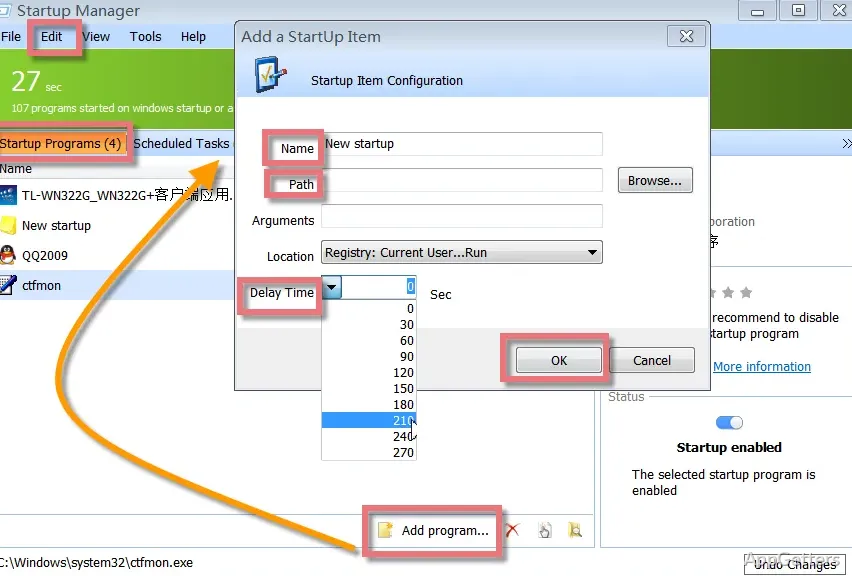
Quick StartUp shows a very simple list of programs that have been set up to run right after system boot. The design is quite intuitive, so new users should not have any trouble. Generally, details given for each entry are the program name, the publisher, and the status at the moment. This is supposed to make the users aware of what is running, thanks to these key pieces of information.
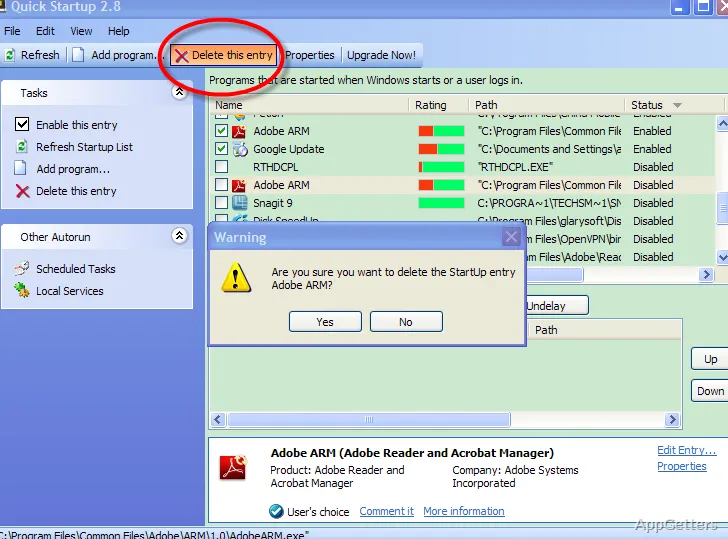
Turning certain items on or off is quite simply done using toggles or checkboxes. This considerably lowers the frustration level that comes with using Task Manager or other similar configuration tools. And, in fact, the changes take effect without great delay. This definitely makes the whole concept very convenient. It is especially useful for users who desire instant power over their system operation.
Those who monitor how well their system is running can be very happy with this way of getting things done. It both saves precious time and reduces unnecessary speculation.
Some Real-World Examples of Performance
Basically, the real effectiveness of Quick StartUp becomes clear when a user restarts his/her system once or twice. Computers loaded with lots of programs that start automatically will run noticeably better when the unnecessary entries are disabled. The time needed for the system boot can be shortened quite a lot. The user can feel the system’s responsiveness at the moment the desktop shows up after login.
Of course, this is all very good for a “resurrected” computer or one that has rather modest specifications. People who are either studying, using a PC at home, or working in the office often install vast amounts of different kinds of software. Most of these programs, without you even knowing it, throw themselves into the startup. Quick StartUp will help identify these “sneaky” ones, giving a user the chance to remove them easily.
On the other hand, the app doesn’t scan and detect which programs a user doesn’t actually need. So, a user should still be able to exercise a good level of judgment. He/she shouldn’t mistakenly disable absolutely necessary services. In that sense, it only makes the work easier, but people still have to be aware of which things go where.
Compact Program Structure with Clearly Defined Purpose
The first thing any PC user would notice about Quick StartUp is probably that it is a really tiny app. Its operations do not cause any heavy system load. It does not even try to add extra features related to system optimization that are out of context. Doing so enables the user to continue being fully focused. In such a way, the only thing they have to deal with is working.
Definitely, this very operating mode, this elegance, is also accompanied by a few shortcomings. Those users who want to get to the bottom of the system’s diagnostics will want to know dependencies. They may also want to get automated proposals. They can very well think that this is too basic a product. Actually, it is not a system-wide optimizer but a startup manager. It is something focused exclusively on one thing instead of trying to be an all-in-one tool.
Nevertheless, within its scope and thanks to its minimalism, it wins after all. The good thing is that it is clear and predictable and won’t dump a user with rivers of options.
Quick StartUp: A Role in a Typical Windows Environment
Quick StartUp is most suitable as a maintenance tool. It is for all those users who, for whatever reasons, want to have control over their system’s startup behavior without employing technical tools. The control is consistent. Also, it is a good fit for the kind of situations where performance issues get stacked up gradually rather than happening suddenly.
First of all, simple users get a transparent and fairly easily controlled system. And the more skilled ones get a nicer, not terribly deep but still much faster, alternative to the tools that come with the system. It does a thorough job if it’s only a question of changing background apps, even if its capabilities are limited. Quick StartUp is more about aiding better habits. It does not perform some magic that results in fantastically improved performance.
Generally speaking, we can say that it is more of an auxiliary tool to be used once in a while than one that is to be used constantly. The beginning and end of a clutter chain within Windows startup can be controlled with a quick check every few weeks.