File transfers from an iPhone or iPad to a Windows PC are often quite a challenge compared to what most users expect. Although cloud storage and built-in syncing tools can satisfy the basic needs of most users, they tend to get somewhat frustrating. This usually happens when users really want to have direct control over music libraries, videos, photos, or backups. They may not want to be tied completely to online services. Here, Leawo iTransfer comes into play to make things easier for you. Made only for Windows, the program operates as a tool for moving and managing media and other data between iOS devices, PCs, and their iTunes libraries. It markets itself as a handy tool for users who favor manual file management rather than automatic syncing.
A Classic Way for iOS File Transfers
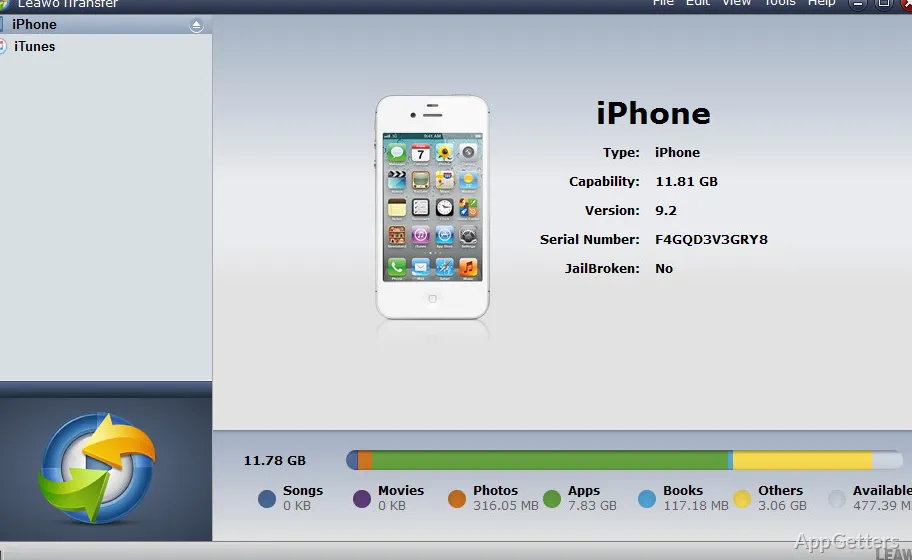
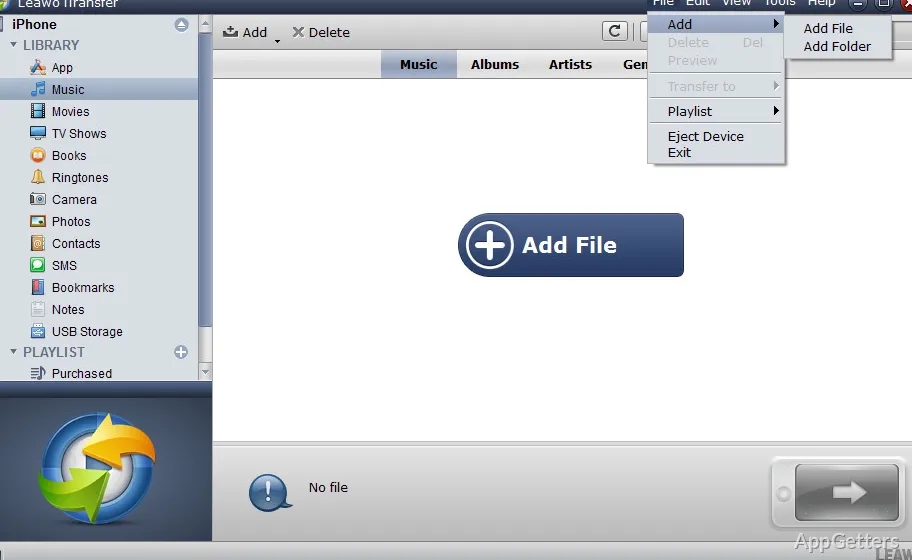
Leawo iTransfer catches one’s attention from the very beginning through its classic desktop-like user interface. The visual arrangement is similar to many file management programs. As a result, most users who are also new to it won’t have much trouble finding their way around. Devices currently connected are shown in a sidebar. The major types of media, such as music, photos, movies, and books, are still segregated in their respective compartments.
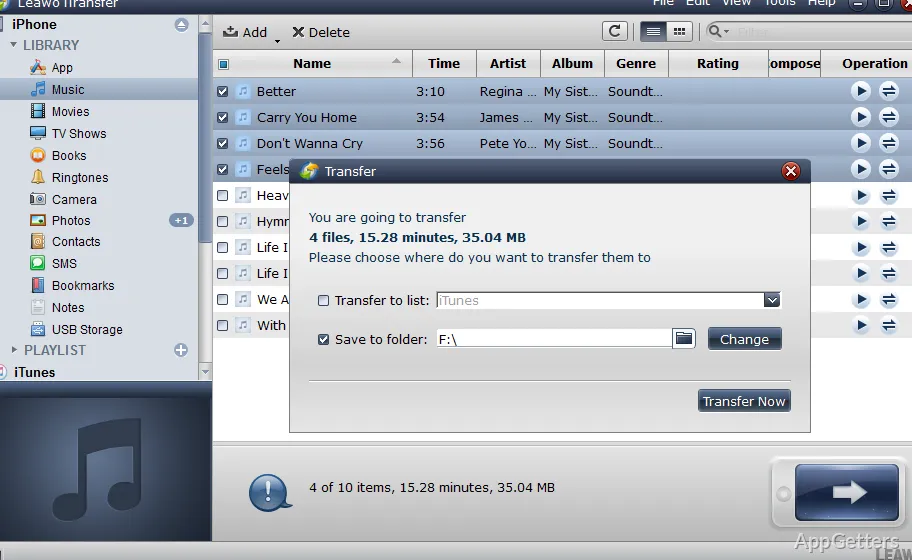
In fact, the app is practically your best companion with respect to the basic transfer use cases. Once you get the hang of it, transferring songs from your Windows PC to your iPhone or copying pictures for your local backups won’t require you to rely on a tutorial too much. You should also be able to easily move videos from one device to another. Your prior understanding of how the software works will help you work out what to do next. If you are someone who often changes PCs or who always has big local media collections, you probably will appreciate the straightforwardness of this method. This is preferable to relying only on cloud synchronization for your media needs.
Besides that, the program is capable of carrying out file transfers between iOS devices and iTunes libraries that users already have. This is convenient for those who are rebuilding or migrating their media.
Everyday Stability and How It Influences Your Work
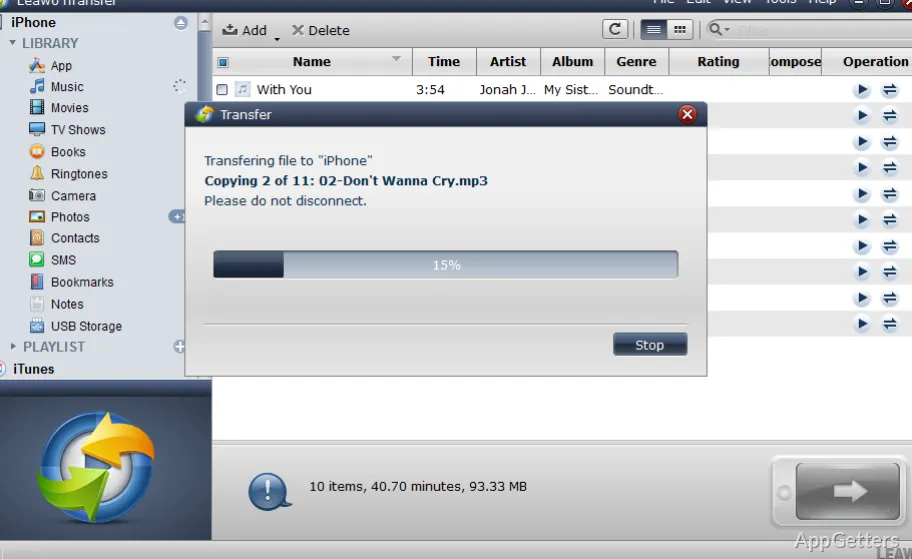
Often, for the bulk of home users, it is the reliability of their computer software that really counts. It matters more than how many functions are built in. In the course of routine file transfers, Leawo iTransfer as a rule delivers a steady experience. This is especially true when the amounts of media being handled are moderate. Transferring in batches lessens the baggage of repetitive work. This makes archives of photo albums, or of music libraries, ever more neat and well-kept.
Students and other casual users who use the software to back up their lecture recordings, photos, or personal media will find it extremely intuitive. Replacing the need to access multiple applications or cloud accounts, one single interface is often all that is required for transferring files. Nevertheless, the performance does depend on the specific device model and the compatibility of the iOS version. The quantity of files being handled also has a role. Major transfers could lead to a considerable wait. Sporadic issues with having to reconnect, as well as the device not being recognized, are also very possible. This is especially true right after iOS has been updated on a large scale. Along with most third-party iOS management tools, compatibility patches are necessary for the software’s long-term use.
Workable Strengths & Practical Shortcomings
Giving owners more freedom over their individual media is basically Leawo iTransfer’s main advantage. Maybe you are someone who likes to be up to date as far as manually organizing music playlists. You may also like storing offline video collections or creating photo archives locally. In that case, your appreciation for this kind of software will be very high. It helps users get over a certain reliance on automatic synchronization systems. These systems may sometimes end up overwriting or reorganizing content without the users even knowing it.
On the other hand, it is far from being a total substitute for Apple’s ecosystem. Those who have gone quite deep into cloud-based services, e.g., automatic photo sync or cross-device backup, would, no doubt, still rely on the existing tools. The majority of their tasks would still be done through those tools. What the app does is focus primarily on transfer and management work, excluding more general device maintenance or system repair. Another thought is that if you are not experienced in iOS file structure, it might take a bit of time to identify where the various types of content are held and managed.
Most Compatible with Users Who Prefer Direct Control Over Their Media
It makes a lot of sense to think of Leawo iTransfer as a tool dedicated to a particular task rather than as a complete package for the management of a device. For Windows users, it fulfills the needs of those who desire a direct transfer and organization of files between their iOS devices and PC without resorting to the use of cloud services.
Personal media library owners and students who frequently back up their coursework and recordings will be the most likely to get good results. The same applies to users with a need to transfer content between devices. Simple file transfer fans will find this product to be useful as part of their daily routine. However, the device maintenance features that are very all-inclusive will unfortunately have to be sought after in other products.