Zoom Player MAX for Windows Starts With the Playback Engine
A movie that refuses to open in one player may not need a new download at all; it may need a different playback engine, decoder path, or media profile. Zoom Player MAX for Windows is Inmatrix’s premium media player and home theater player for Windows, built around selectable playback engines, Smart Play profiles, streaming features, media libraries, and deep interface control.
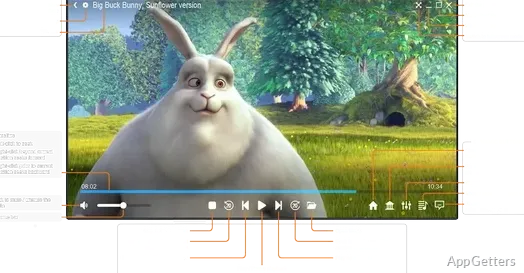
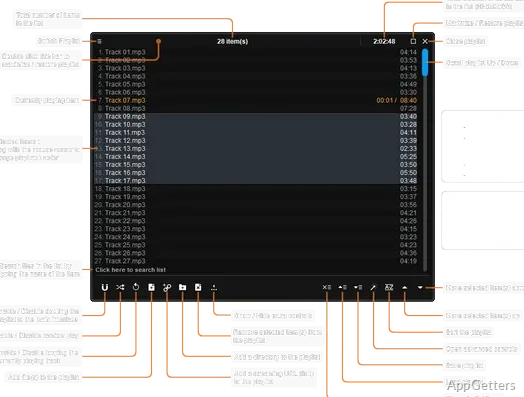
The MAX edition makes sense for users who want more than a plain player window. It can handle local video and audio playback, full-screen home theater use, media library browsing, playlists, streaming sources, remote-control style navigation, keyboard shortcuts, and detailed interface customization. That flexibility is useful, but it also means a first setup can feel heavier than a basic MP4 player.
Use the official Inmatrix page or the supplied download card when choosing the Windows package. Continue only when the file came from the official developer source or another trusted source you intentionally chose. Avoid modified installers, cracked editions, serial key pages, and unknown mirror downloads, especially with a media player that can load extra playback components.
Install Center Choices Affect What Plays
Zoom Player uses an Install Center to help manage optional playback components and language packs. It can check the computer for missing or outdated items, then let the user choose what to install. That matters because a missing splitter or decoder can look like a broken player.
Zoom Player MAX for Windows may behave differently depending on which components are present. Smart Play profiles, supported playback engines, filters, renderers, and other optional components can affect formats, streaming behavior, subtitles, and high-resolution playback. Check Zoom Player’s own component and Smart Play options before adding unrelated codec packs for one problem file.
Windows may show a security warning during setup or while a browser downloads the package. Check that the installer came from the official developer source before continuing. If the browser warning names a file you did not choose, or the download came from a repackaged mirror, use the official source or supplied download card instead.
When the Install Center Shows Missing Items
Missing items in the Install Center do not always mean something is wrong. They may simply be optional components not yet installed on the PC. Select only the components that match the media you actually play, then test a known file. Adding everything at once can make troubleshooting harder later.
If you already use a heavily customized codec setup, treat component changes carefully. A different splitter or renderer can change subtitle timing, HDR behavior, audio passthrough, and file loading. Keep a note of the currently used version details and component choices before changing a working media setup.
Smart Play Is the First Place to Check
Smart Play controls how Zoom Player reads and decodes media files. On first run, it can scan installed components and build playback profiles to reduce decoder conflicts. If a file fails, stutters, or opens with only audio, Smart Play settings are often more useful than reinstalling the whole program.
When Smart Play is enabled, Zoom Player can choose from configured components rather than letting Windows pick the DirectShow path on its own. That can reduce playback conflicts on systems with several media filters installed. When Smart Play is disabled, Windows decides more of the graph, which may expose old or conflicting components.
Zoom Player for Windows also includes Smart Play error options that can show or save graph creation messages. Those messages can be useful when one format fails repeatedly. A user who only sees “file will not play” may miss the real cause: an unsupported stream, a missing splitter, a decoder conflict, or a damaged file.
Only Audio Plays From a Video File
If a video opens with sound but no picture, test a smaller local video first. Then check Smart Play profiles, the selected video renderer, and whether the file uses a codec your current components can decode. Streaming URLs may also need different handling than a local MKV or MP4 file.
For a quick outside test, VLC Media Player can help confirm whether the file itself is playable. If another player also fails, the file may be incomplete, corrupted, encrypted, or encoded in a way that needs conversion rather than a Zoom Player setting change.
Home Theater Mode Needs a Different Setup Mindset
Zoom Player MAX is not only meant for mouse-and-keyboard playback. It includes a full-screen home theater interface, media library features, and remote-style control options. That makes it useful for a couch setup, but the PC, display, audio device, folder layout, and control method need to match the room.
Start by testing windowed playback, then move to full-screen navigation. If the video looks fine in a window but wrong on the TV, check Windows display scaling, refresh rate, HDR mode, and audio output before changing advanced player options. HDMI audio and Bluetooth speakers can create separate delay or output problems.
Media library scraping can show posters, backdrops, and metadata for movies and TV content, but folder naming matters. A messy folder full of mixed downloads may still play, yet it may not scrape correctly. Keep movies and episodes in clear folders before depending on the library view from the couch.
Remote Control and Keyboard Mapping
Zoom Player can be controlled in several ways, including keyboard, mouse, remote-control style input, command line, and automation-related options. That flexibility helps home theater users, but only after the basic commands are mapped. Test play, pause, back, volume, fullscreen, and chapter movement before inviting the whole room to use it.
If you want a broader media-center interface rather than a highly configurable Windows player, Kodi is a natural comparison. Kodi leans more toward a full living-room library environment, while Zoom Player MAX suits users who want deeper playback control inside a Windows media player.
Streaming Features Depend on the Source
Zoom Player can work with streaming sources, online video, playlists, YouTube-related library entries, and supported media-server workflows depending on the feature and source involved. A failed stream is not always a player failure. The provider, URL format, server response, account limits, region rules, and selected playback engine can all change the result.
If a stream fails, test a local file before changing streaming settings. Then test another public stream or another source from the same provider. If only one stream fails, the URL may be offline, protected, redirected, expired, or using a format your current engine is not handling.
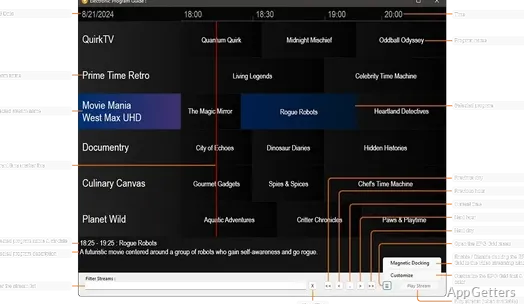
Zoom Player STREAM is a separate streaming-focused edition, while MAX is the broader edition. Users who mainly want streaming and episode guide workflows should compare the editions on the current Inmatrix page before purchasing. Access to live streams or guide data can also require an independent provider subscription.
Media Servers and Library Sources
Zoom Player’s streaming material mentions connecting with media-server sources such as Plex, Emby, or Jellyfin in supported workflows. Those connections depend on the server being reachable, the account or server address being correct, and the library being shared properly. A wrong server login can look like a blank media library.
Users who already host their own media may also compare Jellyfin as the server side of the workflow. Zoom Player can be the playback and interface choice on the Windows PC, while the media server manages libraries, users, and access from other devices.
High-Resolution Playback and Renderer Problems
Zoom Player can support hardware-accelerated high-resolution playback on compatible GPU and CPU combinations, but hardware support still decides what happens on the PC. A high-bitrate HEVC file, HDR display path, or unusual subtitle format can expose limits that ordinary 1080p files never show.
If Zoom Player MAX for Windows stutters on demanding media, test from a local internal drive, check a smaller file with the same codec, and review the active renderer before changing several options. If the small file works and the larger one fails, the bottleneck may be storage speed, decoding load, renderer behavior, or the file itself.
Renderer changes can affect color, HDR handling, subtitles, frame pacing, and full-screen behavior. Change one video setting at a time, then test the same scene again. If several settings are changed together, it becomes difficult to know which one fixed the issue or made it worse.
Subtitles Appear Late or Look Wrong
Subtitle problems can come from the subtitle file, embedded track, renderer, font choice, or timing offset. Test another file before changing global options. For external subtitles, keep the file beside the video with a matching name, then check whether Zoom Player selects the intended track.
Users who prefer a lighter player with a different settings style may compare PotPlayer. It serves a similar local playback audience, but Zoom Player MAX stands out for its Smart Play model, Install Center, home theater controls, and very deep interface customization.
Before Making Zoom Player MAX Your Main Player
Test the program with the exact media that matters to you: one ordinary MP4, one HEVC file, one HDR sample, one subtitle-heavy file, one streaming URL, one media library folder, and one full-screen TV session. This reveals more than opening a single sample clip after setup.
If you upgrade from an older build, keep a copy of the installer or version details currently being used. For personal videos, keep the original media untouched before conversion, renderer experiments, or external tool changes. A playback test should not replace a family recording, edited project, or archived movie file by mistake.
Zoom Player MAX for Windows works best when Smart Play, Install Center components, media library folders, renderer choices, subtitles, and control mappings are checked together. Build the setup around the files and screens you actually use, then adjust one playback path at a time instead of treating every failed stream or video as the same problem.