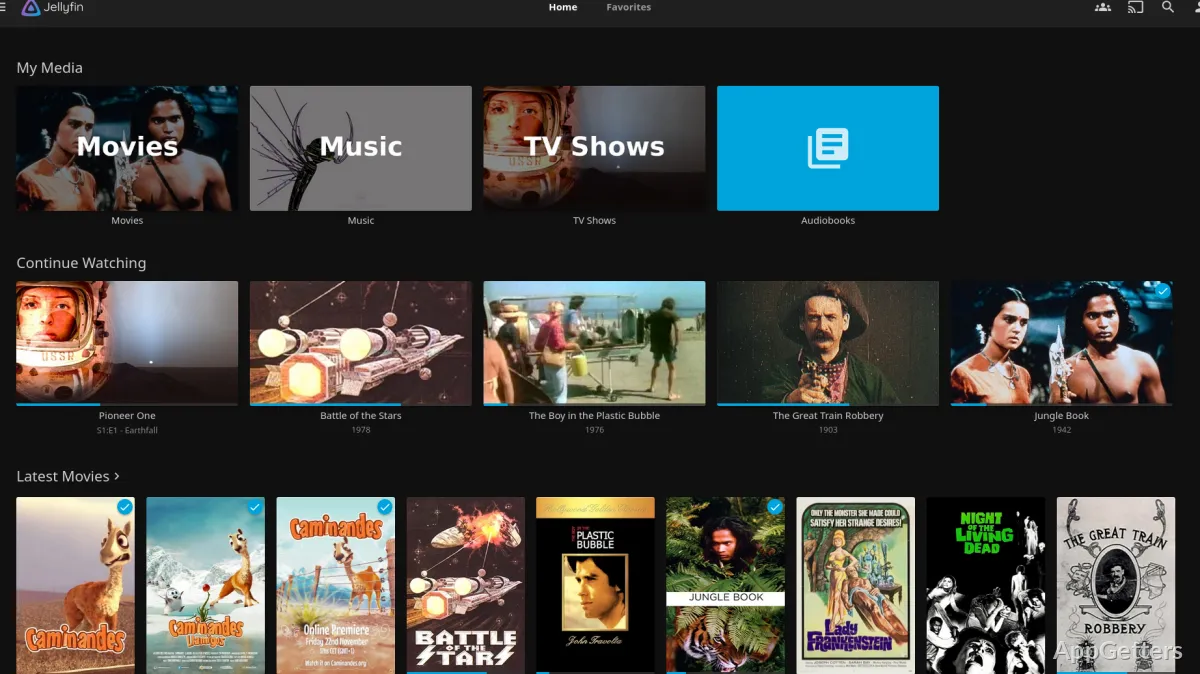
Jellyfin for Windows Setup Starts With the Server
A media library can look ready on the hard drive but still fail to stream cleanly until the server is installed, allowed through the firewall, and pointed at the right folders. Jellyfin for Windows is the desktop server package for building a private media system from movies, shows, music, photos, and other personal files without tying the library to a paid streaming account.
Jellyfin is a free and open-source media server. On Windows, the official download page offers installer packages and manual ZIP archives, so users should choose the package that matches how they want to run the server. Most home users will usually prefer the installer because it follows the normal Windows setup path and tray-based use is easier to manage.
Jellyfin is not just another video player. It runs a server on the Windows machine, then other devices connect to that server through a browser, TV app, phone app, or compatible client. A laptop can host it for testing, but a desktop or always-on system usually gives the library fewer interruptions.
Choosing the Right Jellyfin Download
For a normal Windows installation, use the current Jellyfin installer from the official developer source or the supplied download card. Do not judge the package only by file name, because server builds, tray app packaging, and manual archives can change over time. Check the version shown on the download card before replacing an older install.
Jellyfin for Windows can be installed like a regular desktop server, and advanced users may also run it as a Windows service. Service mode suits a dedicated home server because Jellyfin can start without a user signing in. Desktop tray mode feels simpler when the host PC is also used for ordinary work.
Before upgrading, stop Jellyfin from the tray app or stop the service if it is running that way. Use Jellyfin’s supported backup guidance or keep a separate backup of important server data before changing builds. Users, library paths, watched status, metadata settings, plugins, and network choices matter more than the program files themselves.
Installer Package or Manual Archive
The installer is the practical choice for most Windows users because it follows a guided setup flow. A manual ZIP archive is better for people who already understand where they want the program files, server data, logs, and startup behavior. Mixing both methods casually can leave two server locations with different settings.
If you are comparing self-hosted media tools, Plex and Emby Server are common alternatives, but Jellyfin’s appeal is strongest for users who want a free software media server controlled from their own machine. Keep the comparison practical: library scanning, remote access, client support, and account expectations matter more than the name.
First Run, Local Address, and Firewall Checks
After installation, Jellyfin usually becomes available through a local browser address using the server computer and the configured port. The first-run failure many users see is not always a broken install. Windows Firewall, a wrong IP address, or a network profile change can stop another device from reaching a server that is already running.
Start by opening the server on the Windows PC that hosts Jellyfin. If the web interface loads there, the server process is active. If another device cannot connect, check whether both devices are on the same network, whether the Windows network profile is private, and whether Jellyfin has permission to accept inbound connections.
Jellyfin for Windows is often used from TVs, phones, tablets, and browser clients, so network testing should stay simple. Confirm local access first, then test from another device on the same router, and only then think about remote access from outside the home. Skipping those steps makes firewall and router problems harder to separate.
When the Setup Page Does Not Open
If the setup page does not appear, check whether the tray app or service is actually running. Restart the server, then try the local address again before changing router settings. Windows security or another protection tool may also show a warning for the installer or one of its components.
Do not open many ports just because a forum post mentions them. For basic local web access, focus on the configured Jellyfin web port and the Windows firewall rule for the server application. Remote access needs a more careful plan because exposing a home media server directly to the internet can create avoidable risk.
Library Folders and Metadata Problems
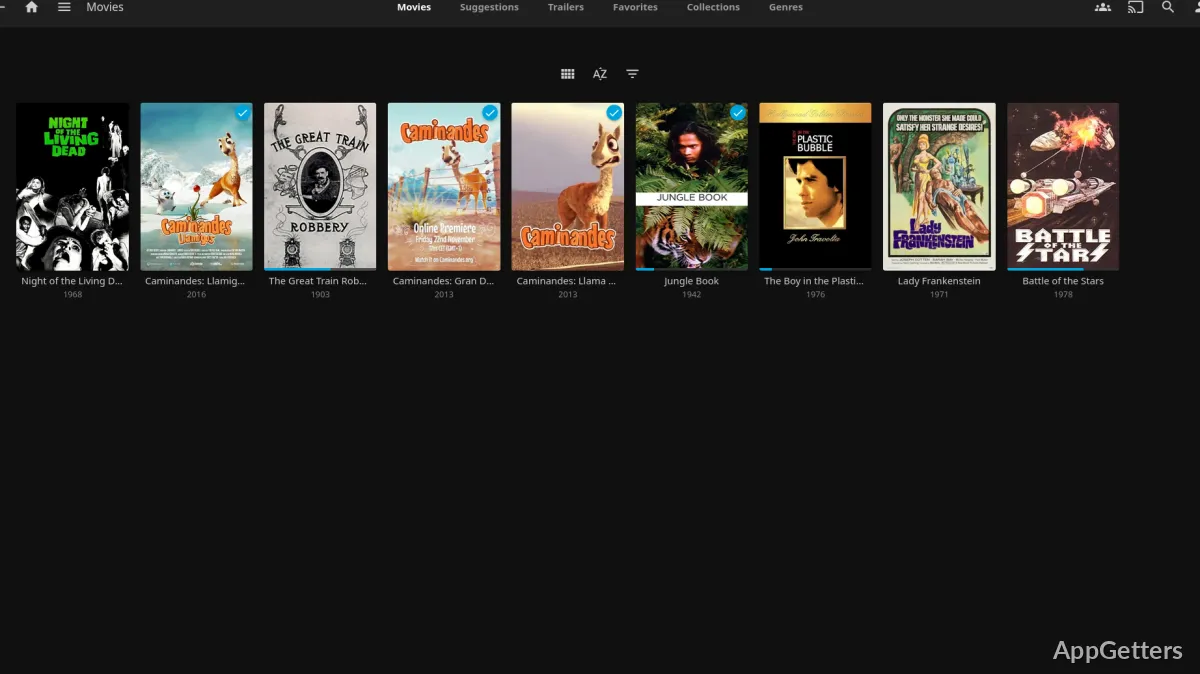
The first scan depends heavily on folder choices. Separate movie, show, and music folders usually produce better results than a single mixed folder with everything inside it. Jellyfin can organize several content types, but dedicated library types help the server apply the right scanner, metadata provider, and episode or album logic.
Movie folders should use clear names, preferably with the release year when titles are ambiguous. TV folders should keep seasons and episodes organized instead of dropping every file into one loose directory. Better names reduce wrong posters, mixed seasons, duplicate entries, and missing episode details during the first library scan.
Music libraries behave differently because embedded tags often matter more than the file name. If album names, artists, or track numbers look wrong, check the audio tags before blaming the server. For large music collections, fixing tags outside Jellyfin can save more time than repeatedly refreshing metadata inside the dashboard.
Wrong Posters or Mismatched Titles
Wrong artwork usually means the scanner matched the media to the wrong title. Add the year to the folder name, separate remakes from originals, and avoid compressed naming styles that remove spaces or punctuation. For stubborn cases, provider identifiers can help the server choose the correct movie or show.
A folder full of mixed downloads may play, but it will not always look neat in a media library. Keep extras, subtitles, commentary tracks, and alternate cuts named consistently. If you use another player for local playback, VLC Media Player remains useful for checking whether the file itself plays before troubleshooting Jellyfin metadata.
Playback, Transcoding, and Hardware Limits
Smooth playback depends on the client device, media format, network speed, subtitles, and whether the server must transcode the file. Direct play is usually easier on the Windows computer because the client can handle the file without conversion. Transcoding uses more CPU or GPU power and can expose driver problems.
Jellyfin uses FFmpeg-related processing for media conversion, and official Windows installers usually handle the expected server package better than random third-party binaries. If hardware acceleration is enabled, use the Jellyfin dashboard and logs to confirm whether the server is actually using the selected method. A setting that looks correct can still fail because of driver support.
Jellyfin for Windows can use supported hardware acceleration paths on many Windows systems, but it will not rescue every weak processor, slow drive, or unstable graphics driver. Intel, NVIDIA, and AMD support varies by generation, codec, and driver version. If a file shows green video, blue video, audio-only playback, or transcoding errors, test with hardware acceleration disabled before changing the library.
Buffering on a Good Internet Connection
Buffering inside the home is often a Wi-Fi, drive speed, subtitle, or transcoding problem rather than an internet problem. Try wired Ethernet for the server, test a smaller file, and check whether the dashboard shows transcoding. A heavy 4K file with image-based subtitles can stress a server that handles ordinary 1080p files easily.
For users who maintain media workflows, FFmpeg can help inspect or convert files outside the server, but replacing Jellyfin’s expected media tools without a clear reason can break acceleration or tone mapping. Keep troubleshooting separate: first prove whether the file, network, client, or server conversion path is failing.
Remote Access Needs a More Careful Plan
Remote access is where many new users make the riskiest mistake. Jellyfin can be made available beyond the local network, but opening a port straight to the internet should not be the automatic first move. A reverse proxy, VPN-style access, or carefully restricted network setup gives better control than a quick router rule copied from a comment.
If you use a reverse proxy, the server must understand the proxy address and forwarded headers correctly. Otherwise, user limits and remote connection rules may not behave as expected. Keep logs protected as well, because media server URLs can contain sensitive request details when authentication or client requests pass through the proxy.
Users who only need private access for themselves may prefer a tunnel or VPN-style approach instead of public exposure. Families who need TV access inside the house usually do not need internet-facing access at all. Decide who must connect, from where, and on which devices before changing router rules.
Library Habits Before You Depend on the Server
Do a small test library before importing every drive. Add one movie folder, one show folder, and one music folder, then confirm matching, playback, subtitles, user permissions, and remote client behavior. That test run shows whether your naming, hardware, and network are ready before the server spends hours scanning a large collection.
Jellyfin for Windows works better when the server computer has stable storage paths. Avoid adding media from removable drives that change letters after reboot. If a drive letter moves, the library may show missing files even though the media still exists. Assign fixed drive letters or use a consistent folder strategy from the beginning.
Kodi users can also connect to a Jellyfin library through supported add-on workflows, which can suit living-room setups that already depend on Kodi. For that path, Kodi becomes a front-end choice, while Jellyfin still manages the server library and user access behind it.
Before relying on the server for guests or family members, create separate users and test their permissions. Limit remote access where it is not needed, keep a supported backup plan for Jellyfin server data, and upgrade only after checking the version details. A careful media library setup, tested subtitles, stable storage paths, and clear user access rules prevent most Jellyfin problems later.