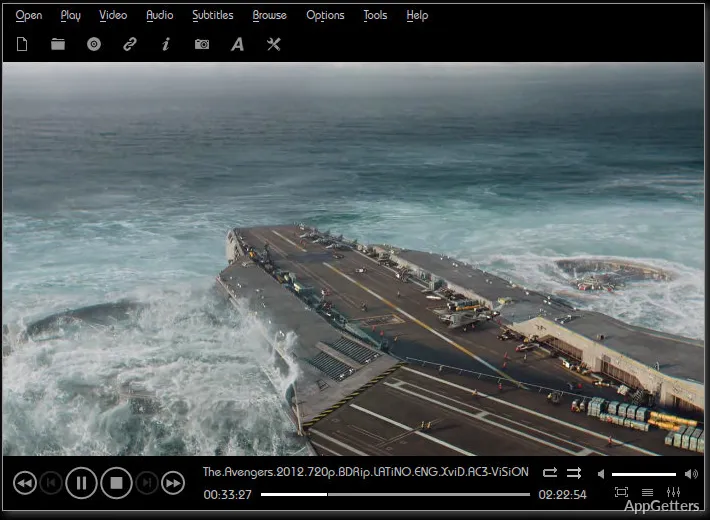
UMPlayer for Windows is a media player for mixed local files
A video that works in one player and fails in another is often a codec or container problem, not a bad download. UMPlayer for Windows is a cross-platform multimedia player based on MPlayer. Public project pages describe it as a player for audio files, video files, DVDs, VCDs, and network streams.
This is media player software, not a video editor, converter, recorder, or library manager. UMPlayer makes the most sense when the job is local playback, subtitle control, or older media files. It should not be treated as a modern streaming app unless the installed controls confirm that use.
The project has a long history, and some public pages around it are old. Check the version shown on the download card and compare it with the version screen inside the app. If another page shows a specific build, file size, or upload date, use the current download card as the closer reference before installing.
Start with file playback before changing defaults
UMPlayer for Windows should come from the official project source, a maintained download page, or the supplied download card. Continue only when the file came from the official developer source or another trusted source you intentionally chose. Avoid modified installers, cracked editions, serial key pages, and unknown mirror downloads.
Do not make it your default player immediately. Open one normal MP4, one MP3, and one subtitle file if subtitles matter to you. That small test shows whether UMPlayer fits your actual media folder before Windows starts sending every audio and video file to it.
Windows may show a security warning during setup. Slow down and compare the file name with the download card before continuing. A media player may open downloaded videos, subtitle files, discs, and network streams, so the installer source deserves a careful look.
When the installer name looks old
UMPlayer is not a new player, and older mirrors may keep old package names visible. That alone does not prove the file is wrong. Compare the download card, the installed About screen, and the project page before assuming a mirror title reflects the current package.
When Windows still opens another player
Installing UMPlayer does not always change file associations. If double-clicking a video still opens another app, set one extension first, such as MP4 or MKV, then test it. Changing every audio and video default at once can make later troubleshooting messy.
Format support is the main reason to test it
UMPlayer is often chosen because MPlayer-based players can open many media types. Project descriptions mention audio and video codecs, common file formats, DVDs, VCDs, and streaming protocols. Your own files still matter more than a feature line.
Start with a boring local file. A short MP4 from the Videos folder gives a better baseline than a half-downloaded movie, a file on an external drive, or a network stream. If the local file plays, the original source location or file condition may be part of the problem.
For a wider comparison, VLC Media Player is a practical second test because many users already rely on it for difficult formats. If VLC plays a file and UMPlayer does not, the issue may be codec handling, subtitle loading, or the way UMPlayer reads that container.
DVDs and VCDs need the right source media
Project pages mention DVD and VCD playback, but the disc, drive, region, and Windows access still matter. A damaged disc or external drive problem can look like a player failure. Test a known working local file before spending time on disc playback.
Network streams can fail for reasons outside the player
Streaming protocols appear in UMPlayer project descriptions, but a stream can fail because of the URL, firewall, network, server, or outdated service format. Try a normal local file first. Then test the stream only after basic playback is working.
Subtitles, online search, and YouTube need a cautious check
UMPlayer is known for subtitle-related features, including built-in subtitle search in older project descriptions. That can be useful for films and shows when the local subtitle file is missing or mistimed. Search features depend on the service behind them, so they may not behave the same forever.
YouTube playback is also mentioned in UMPlayer-related pages, including older notes from the SMPlayer project about YouTube support. Treat that as something to test, not a permanent guarantee. YouTube changes often, and older media players can lose online playback even when local files still work.
If YouTube support is the main reason you want UMPlayer, compare it with a current browser or another maintained player before building a routine around it. For a newer MPlayer-family option, SMPlayer may be a better comparison because it remains more closely tied to an active player project.
Subtitle timing is often fixable
If subtitles appear too early or too late, look for subtitle delay controls before replacing the file. MPlayer-based players often include timing adjustment. A small delay change can fix a mistimed subtitle track without hunting for another download.
Subtitle search may return mismatched files
A subtitle found online may match a different cut, release, language, or frame rate. If the words drift more as the movie plays, the file probably belongs to another version of the video. A local subtitle file that matches the exact release is usually easier to manage.
Playback problems to separate from Windows problems
No sound usually needs a system check before a reinstall. Windows may route audio to HDMI, Bluetooth headphones, a USB headset, or another output device. Open the volume mixer, confirm the selected speaker, then play the same file in another player.
If the picture appears but the audio is missing, the file may use an audio track the player cannot decode correctly. Try a common MP4 or MP3 next. If that plays normally, the issue is probably tied to that specific file, track, or container.
If video stutters, reduce the variables. Move the file to a local drive, close extra apps, and test a smaller video. Network shares, slow external drives, damaged files, and very high-resolution clips can make any older player look worse than it is.
A black window is not always a failed install
A black video window can come from the file, output renderer, display driver, or unsupported video track. Try another file before reinstalling. If only one video fails, the problem is probably not the whole UMPlayer setup.
Aspect ratio and picture controls may need manual adjustment
Some older videos open with the wrong shape. Look for aspect ratio, zoom, or video filter controls before assuming the file is broken. This matters with DVDs, old TV recordings, phone clips, and files converted from older sources.
When another player may suit the job better
UMPlayer for Windows makes sense when you want a lightweight MPlayer-style desktop player with subtitle tools and broad local playback. It may not suit users who want a modern media library, constant online service support, casting, store integration, or a player with frequent interface updates.
Users who prefer a highly configurable Windows desktop player can compare PotPlayer. Users who want a familiar lightweight desktop window can compare Media Player Classic Home Cinema. Use the same video file in each player, or the comparison will not mean much.
Avoid judging a media player only by the longest feature list. A player that opens your local videos, keeps subtitles aligned, sends sound to the right device, and remembers basic playback settings may be enough. A bigger player is only better if it solves a problem you actually have.
Old project history matters
UMPlayer’s age is part of the decision. Some pages around it are older, and online playback features can age faster than local playback. If your files are local and common, the player may still be useful; if online video support is the goal, test that feature first.
Built-in codecs do not solve every damaged file
Built-in codec support helps with many formats, but it cannot repair every incomplete, corrupted, or badly converted file. If a video stops at the same point every time, test another copy. The file itself may be the weak part of the setup.
A practical UMPlayer test before keeping it
Use a small test set before changing defaults: one MP4, one MP3, one MKV if you use that format, and one subtitle file. Add a DVD or stream only if those matter to you. This shows how UMPlayer behaves with your real media instead of a random sample.
UMPlayer for Windows earns its place when it opens the files you keep, handles subtitles without too much work, and does not fight Windows audio routing. Keep another player installed during the test so you can separate file problems from UMPlayer-specific behavior quickly.
The final decision should come from your own media folder: local file playback, subtitle timing, audio output, disc handling, and any online playback you actually need. If those checks are solid, UMPlayer can work as a focused desktop player. If not, keep it as a backup rather than forcing it into the default role.