EXE
Home » Software » Windows » Media Player » LEAWO Blu-ray Player for Windows
LEAWO Blu-ray Player for Windows

LEAWO Blu-ray Player for Windows

0 Downloads

A Blu-ray player on Windows has more to prove than a normal video app. The disc has to load, the drive has to respond, the menu has to open, and the audio track has to reach the right speaker. LEAWO Blu-ray Player for Windows is used for Blu-ray, DVD, ISO, folder, and media-file playback on a PC, so the first problem is often the disc, drive, region, or display path.

LEAWO Blu-ray Player for Windows Disc Playback Setup

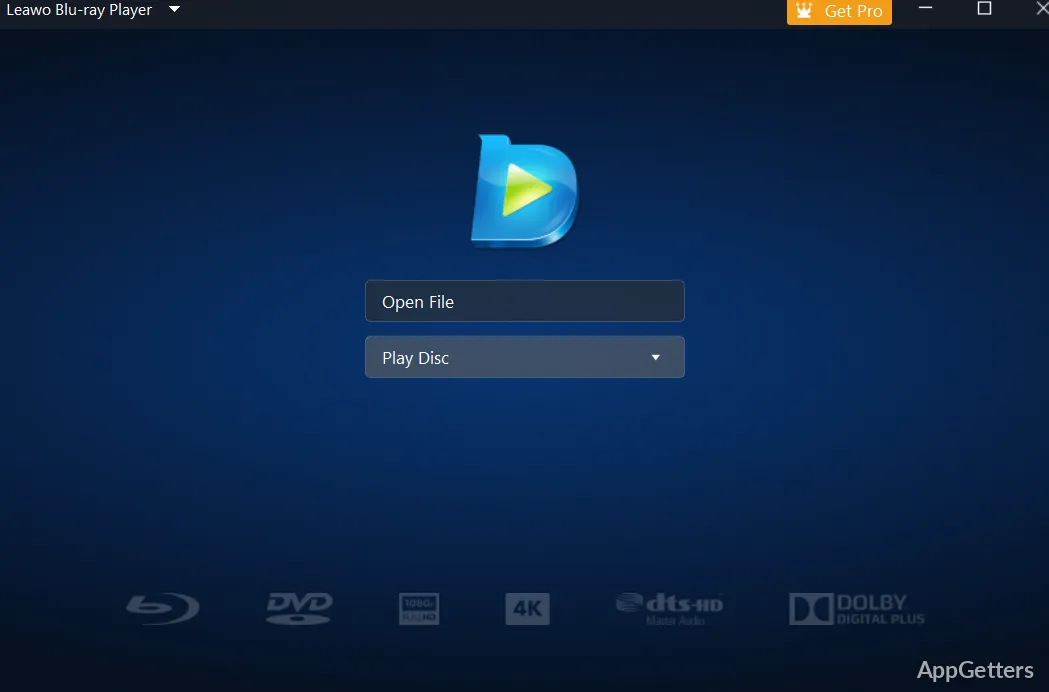
LEAWO Blu-ray Player is a media player from Leawo Software. It is commonly used for Blu-ray discs, DVD discs, Blu-ray folders, DVD folders, ISO files, and ordinary video playback. It belongs closer to home media playback than to editing, converting, or streaming-account use.

A Blu-ray disc needs more than the player window. The Windows PC also needs an optical drive that can read the disc type being inserted. A DVD drive can read DVDs, but it will not become a Blu-ray drive just because a Blu-ray player is installed.

Start with the physical disc before changing settings. Fingerprints, scratches, weak external-drive power, and a loose USB cable can all stop a movie before software features matter. If the drive does not see the disc in Windows at all, LEAWO Blu-ray Player may never get a proper chance to open it.

Blu-ray Drive, DVD Drive, and External USB Problems

Many playback complaints begin with the wrong drive. A laptop may include only a DVD reader, and some slim external drives need stronger USB power. If the tray spins, stops, and disappears, test the drive with another disc before blaming the player.

External drives can behave differently on front USB ports, hubs, and low-power laptop ports. Plug the drive directly into the computer when a Blu-ray disc loads slowly or keeps ejecting. That is a better first check than changing subtitle, audio, or video settings.

DVDs are usually easier to test. If a DVD plays but a Blu-ray does not, the drive type or disc condition needs closer attention. If neither disc type appears, Windows may not be reading the optical drive correctly.

When the Disc Spins but Nothing Opens

A spinning disc is not the same as a readable disc. Wait for Windows to finish detecting it, then open the disc from inside LEAWO Blu-ray Player. If the player opens but shows no title, the drive may not be returning the disc structure properly.

Try one known good DVD and one known good Blu-ray if available. That separates a single damaged movie from a drive or playback setup problem. Do not clean or modify system folders just because one disc refuses to start.

Installing LEAWO Blu-ray Player Without Extra Guesswork

For LEAWO Blu-ray Player for Windows, compare the app name, publisher, and visible download details with the source being used. Continue only when the file came from the official developer source or another trusted source you intentionally chose. A Blu-ray player should not require cracked editions, serial key pages, or unrelated download helpers.

Windows may show a security warning during setup. Read the file name and publisher before continuing. If a download page promises unlocked paid discs, removed protections, or bundled tools not shown by the real app, use a more careful starting point.

Keep the current version details if the player becomes part of a regular movie setup. That helps when a later install behaves differently with the same drive or disc. Leave another working media player installed until LEAWO Blu-ray Player has played the disc and file types you actually use.

ISO Files, Movie Folders, and Saved Disc Structures

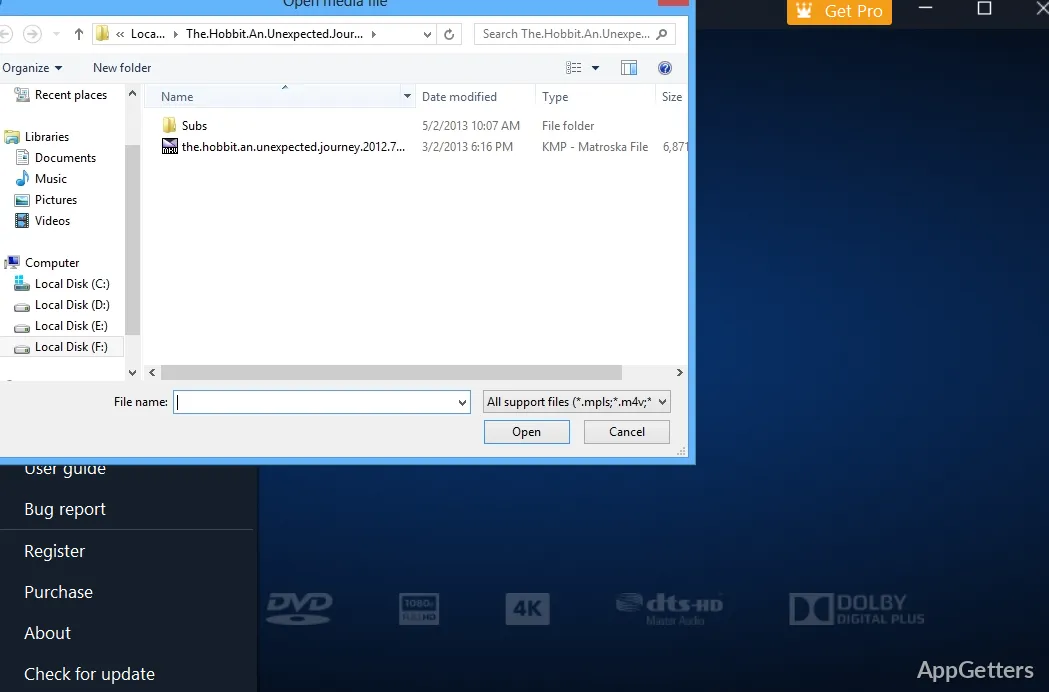
LEAWO Blu-ray Player can open disc-style sources such as ISO files and Blu-ray or DVD folders. Those sources need the right structure, not just any folder full of video clips. If the folder was copied badly, the menu or title list may not appear.

An ISO file is easier to test when it is complete and stored on an internal drive. Large movie images can pause or fail when opened from a slow USB stick, network folder, or cloud-synced location. Move a test copy to local storage before changing player settings.

A folder copied from a disc may include several subfolders and playlist files. Do not rename pieces inside the folder just to make them look clearer. The player may need the original structure to find titles, menus, audio tracks, and subtitles.

When a Video File Plays but the Disc Folder Does Not

A single video file and a Blu-ray folder are not the same test. One file may open because the codec is readable, while the disc folder fails because the structure is incomplete. That points toward the copied source, not necessarily the player.

For ordinary media files, a general player can help with comparison. VLC Media Player is useful when the question is whether a local video file itself can play. A disc menu problem needs a different check.

Audio Tracks, Subtitles, and Menu Confusion

Blu-ray playback often includes several audio tracks and subtitle choices. The first track may not be the language or speaker layout the user expects. If voices are missing, quiet, or in the wrong language, check the player’s audio track before converting or replacing the file.

Subtitles can also come from more than one place. A disc may include built-in subtitle tracks, while a separate video file may use an external subtitle file. If subtitles do not appear, choose the subtitle track inside the player and confirm that any external file is named and stored correctly.

Menus add another layer. Some users expect the main movie to start immediately, but a Blu-ray source may open to a menu, title list, or navigation screen. If the movie seems missing, look for the main title rather than assuming playback failed.

Video Stutter, Black Screen, or Wrong Display

High-resolution movie playback can stress an older Windows PC. If the picture stutters, close browser videos, game launchers, screen recorders, and other heavy apps before retesting. A Blu-ray player can look unstable when the computer is already busy.

A black screen does not always mean the movie failed. The video may be opening on another display, behind another window, or on a monitor that changed resolution. Check the active screen and Windows display settings before reinstalling.

External monitors and TVs add their own issues. HDMI audio may move to the TV while the picture appears on the laptop. If the movie plays but sound disappears, check both the Windows output device and the audio track in the player.

When a normal local video stutters outside Blu-ray playback, compare it with another media player. PotPlayer can help test broader video playback on the same PC. If both players struggle, the problem may be device load, drivers, or the video file itself.

When the Picture Looks Wrong on a TV

A TV can apply its own picture processing after the player sends the video. Motion smoothing, overscan, sharpness boosts, and unusual display modes can make a movie look strange. Check the TV picture mode before changing every setting inside LEAWO Blu-ray Player.

If the image is cut off, look at the TV aspect or screen-fit setting. The player may be sending the video normally while the TV crops the edges. This is common when a PC is connected to an older television.

Region, Rights, and Playback Expectations

Blu-ray and DVD playback can involve region and disc rules. If one movie plays and another refuses, the difference may be the disc, not the Windows app. Read any message shown by the player before repeating installation.

Do not treat every locked or unreadable disc as a missing codec. Commercial discs, regional releases, damaged media, and copied folders can all fail differently. The exact message matters more than the fact that the player window opened.

For ordinary downloaded video files, codec packs are sometimes used to test Windows playback. K-Lite Codec Pack Standard belongs to that kind of troubleshooting. It is not a magic fix for every Blu-ray disc, menu, or drive problem.

Using LEAWO Blu-ray Player Beside Other Media Tools

LEAWO Blu-ray Player for Windows makes the most sense when disc-style playback is part of the routine. A user with Blu-ray discs, DVD collections, ISO files, or copied movie folders has different needs from someone who only opens short MP4 clips.

A general video player may still stay installed. Quick clips, camera files, downloaded videos, and test files are often easier to compare in another player. LEAWO Blu-ray Player earns its place when the source behaves like a disc, not just a single file.

If subtitles, audio tracks, and container details become the main question, inspect the file before changing the player repeatedly. MediaInfo can help identify video, audio, and subtitle details in a local media file. That is useful when two files look similar but play differently.

After the LEAWO Blu-ray Player Download

After installing LEAWO Blu-ray Player for Windows, test it with the source you actually plan to use. Open one DVD, one Blu-ray disc if the drive supports it, one ISO file, or one saved movie folder. A single short MP4 test does not prove the disc side is ready.

If playback fails, separate the problem before repeating setup. Check the optical drive, the disc condition, the Windows output device, the display, and the exact message shown by the player. A drive problem, region issue, missing audio selection, and damaged folder structure need different fixes.

Keep LEAWO Blu-ray Player for disc-style movie playback, ISO testing, folder playback, menus, subtitles, and audio-track selection. Use a general media player for quick local files and a file-information tool when the video details are unclear. The setup works better when the disc, drive, display, and audio path are checked before the player is blamed.

Software Details of LEAWO Blu-ray Player 3.0.0.7

License
Free
Version
3.0.0.7
File Size
121.88 MB
Downloads
0
Language
English
Category
Op. System
Windows
Developer
Last Updated
January 28, 2026
SHA256
3049686a5267a9e118a2a212d5793439a6b7c76b3181a5f5eb201b38182809a1

Version History

3 versions
3.0.0.5
99.85 MB
November 11, 2023
Download
3.0.0.3
99.43 MB
March 29, 2023
Download
3.0.0.1
1.57 MB
January 9, 2023
Download

Leave a Comment

Your email address will not be published. Required fields are marked *

Software Icon
Security Report

Loading scan data...

Scroll to Top