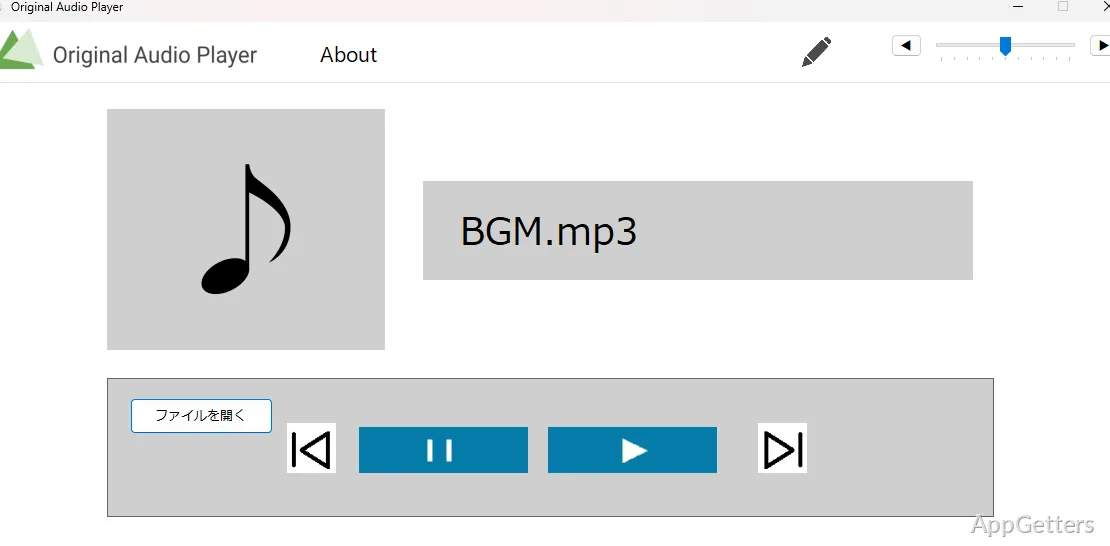
Tracking down a basic audio player on Windows has, to most surprise, become quite a challenge. Typically, today’s media applications come packed with streaming services, social features, cloud sync, and background tasks. They continue using memory even if you merely want to play a local MP3 file. If you use a rather old laptop or a shared academic system, you will certainly feel that overhead. Starting delays, pop-up notifications, and update prompts keep coming. They are a real pain for a task that should have been quite simple.
Original Audio Player fills this void by being totally dedicated to local playback. The app doesn’t want to be a streaming platform replacement or a media hub. What it does is put the focus on fast launching, low system footprint, and stable behavior. So if, basically, you make your music choices from downloaded, recorded, or archived sources, then this player can give you the great relief of simplicity.
Uncluttered Appearance and Minimal Usage of Resources
Already at the first start, the look appears almost deliberately simple. The core parts, play, pause, skip, volume, and playlist management, are given so much weight that you can easily find them. You do not need to go through the depths of menus. Therefore, the interface is very friendly to newcomers. At the same time, it is very efficient for those users who care more about speed than personalization.
When actually used, the player keeps its responsiveness even on poor Windows devices. There is barely any fluctuation in CPU and memory usage throughout playback. This is very good news if you run several applications at the same time. Students who have their browser and office applications alongside audio lectures open will see that the player is not eagerly fighting for system resources.
On the other hand, the very basic interface is also associated with a short supply of sophisticated features. Those who are after built-in streaming, desiring an equalizer with presets that can be pushed really far, or simply wanting visual effects, might feel that they are missing out on too many features. With the layout, the developers chose reliability over an abundance of features.
Play Stability and Handling of Various Formats
First things first, a handy audio player has to be dependable at all times. No matter how long the listening is, Original Audio Player keeps a steady stream of music. There is no flaky behavior similar to sudden stopping or loading failure. Such regularity is very precious when you interact with long-form audio podcasts or seminars, or music playlists.
By default, the player handles Windows-compatible audio files, including MP3 and WAV. It is quick to open a file. With drag-and-drop, you make playlist creation easier. Users who have a music directory on their hard disk will immediately appreciate the way they can smoothly and reliably work with it.
Still, users with large and neatly tagged music libraries as their passion may consider the program’s limited library management capabilities to be a drawback. The sorting and metadata modification features do exist and are well implemented, but at a basic level only. Technically speaking, the application is a player. It is well-suited for playback rather than a feature-rich catalog organizer.
Windows Daily Usage Compositions
Original Audio Player’s natural integration with Windows daily activities is undoubtedly one of its biggest advantages. It is fast at launching and keeps out of your way when running in the background. It does not add unnecessary services at startup. So, for those who only want some music while working or surfing the net, this kind of perfect silence really counts.
Besides, keyboard shortcuts are solid. The simple playlist stay mechanism between sessions also operates fine as usual. Automatically, without the presence of forced integrations or account requirements, the procedure becomes very straightforward. Installing it is not a problem. Then the program does not throw tons of setup questions at the user.
On the other hand, if you have expectations of deep ecosystem integrations, such as cross-device sync or online account features, then you will not get your wish here. The program deliberately lives only on the local system.
Best Uses for Original Audio Player
The target for Original Audio Player is those users who give top priority to simplicity, reliability, and low system usage over the number of features. They prefer a more feature-dense application. Especially students of recorded classes, office people who are background-music lovers, and home users with their personal MP3 libraries will be the most suitable group for the restrained style of the player.
The point is not even to contend with the traditional media suites on the level of the great ones. In fact, it has opted for a much less broad, yet undoubtedly significant area. That is, it is a distraction-free, local, and reliable Windows audio player. For those users who value a simple tool that launches fast and hardly ever obstructs their workflow, Original Audio Player is the perfect choice.
What file formats does Original Audio Player play?
MP3 and WAV files.
Does it play music stored on the computer?
Yes. It is a simple player for local audio files, with basic play, pause and skip controls.
Can I change how it looks?
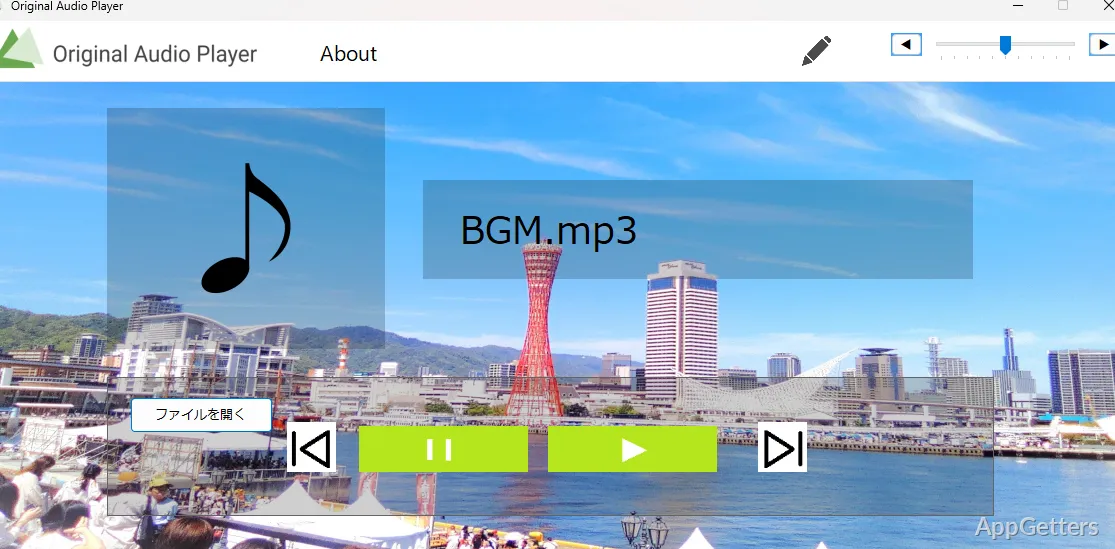
Yes. The window background can be changed, for example to a photo.