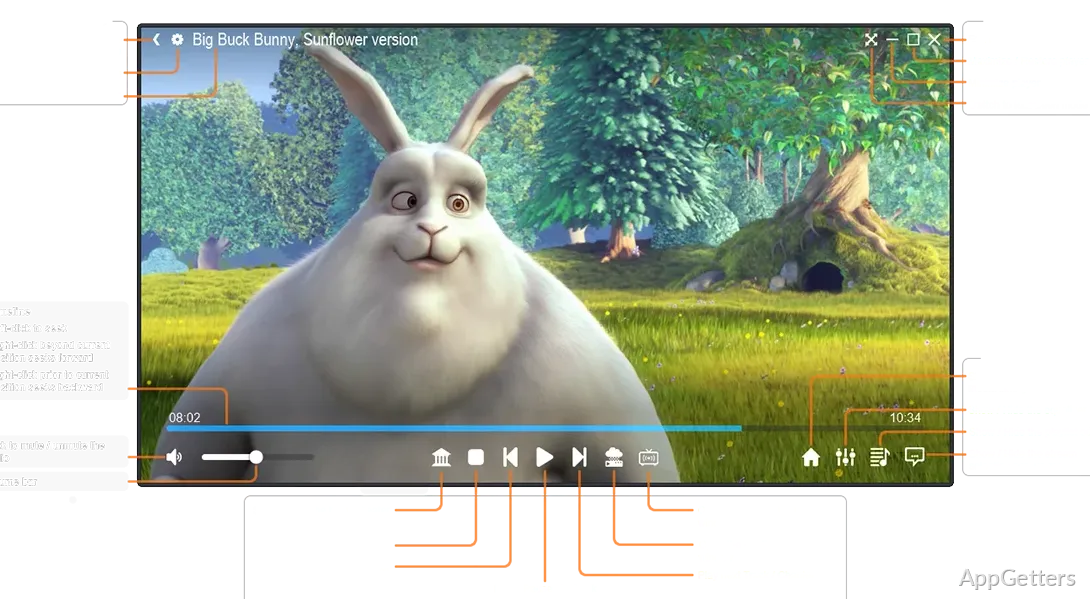
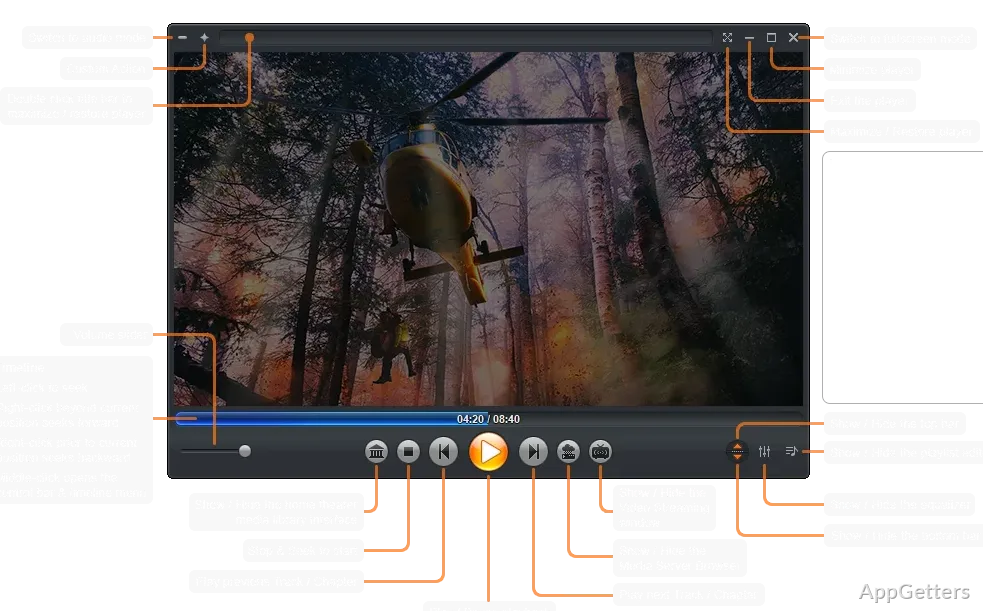
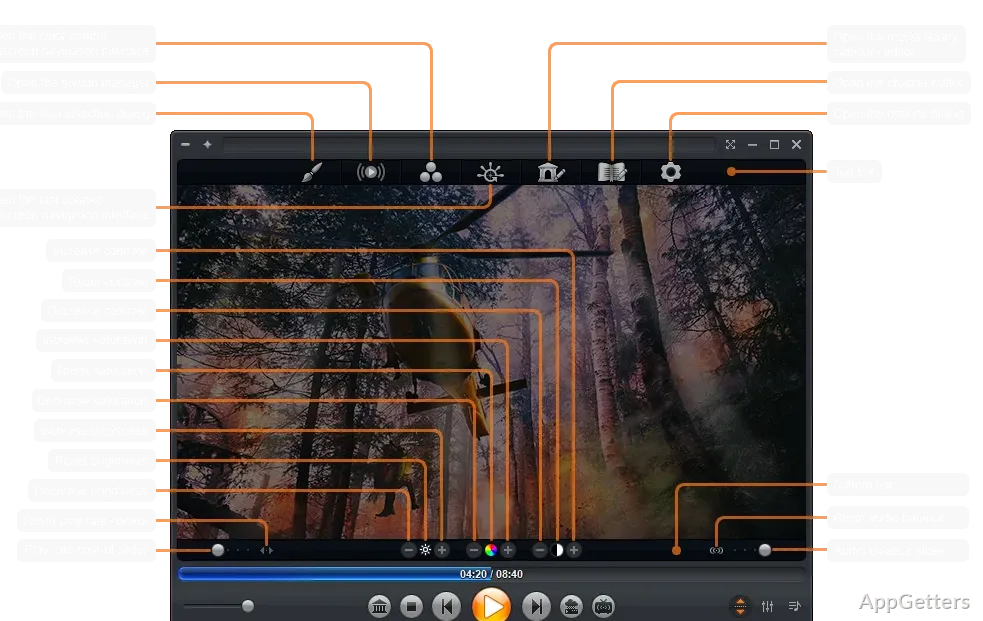
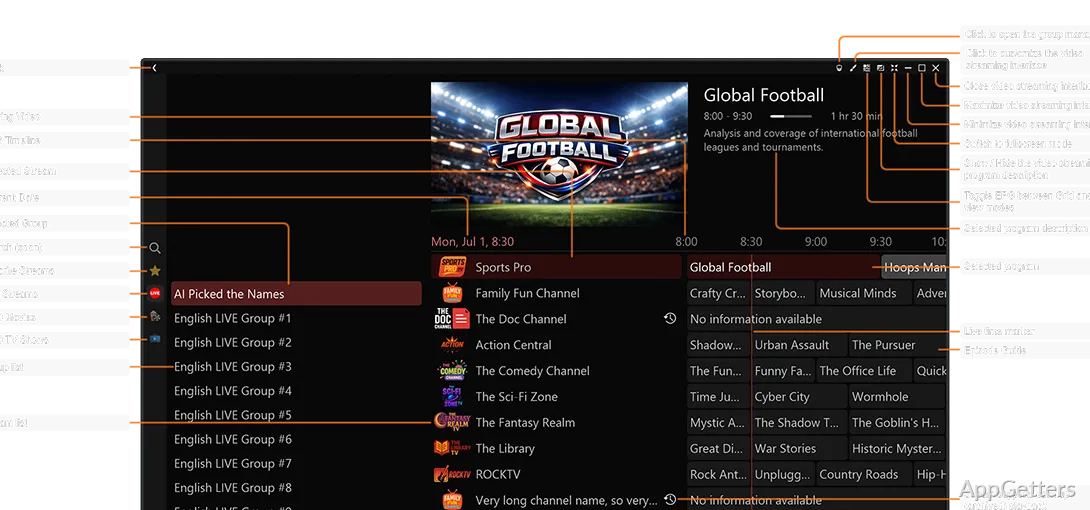
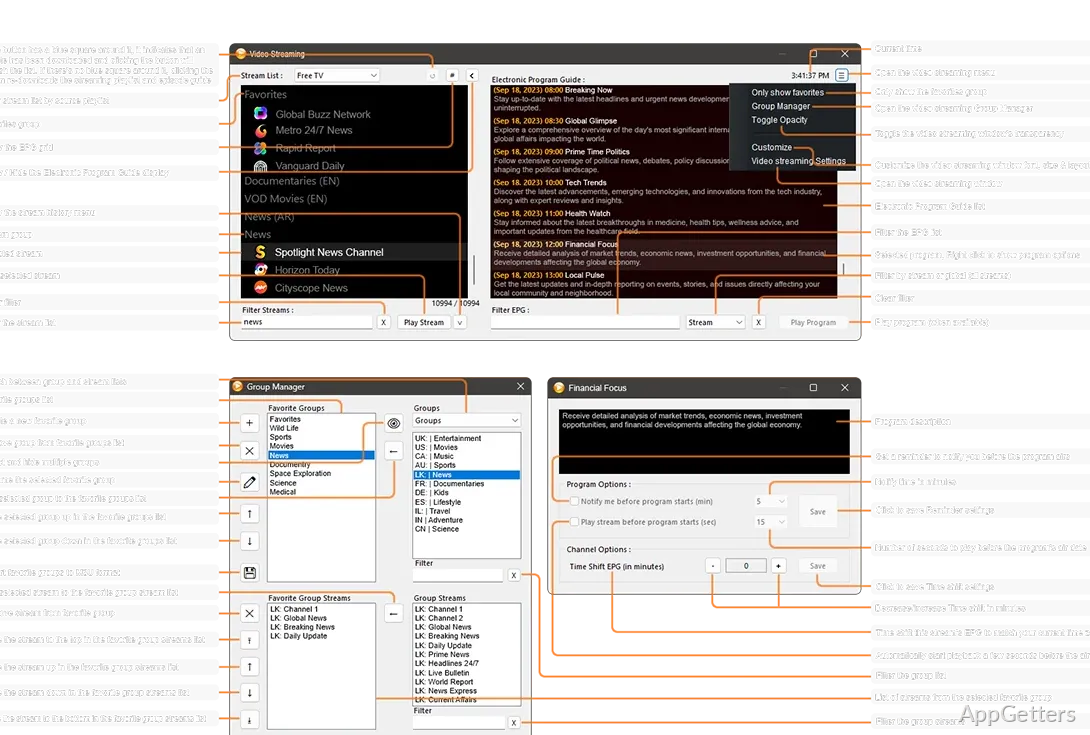
Zoom Player Stream for Windows is not the player someone installs just to open one MP4 file. It makes more sense when local playback, streaming sources, playlists, media library browsing, subtitles, audio output, and couch-friendly controls all matter. The first setup can feel crowded if you expected a basic video player.
Inmatrix develops Zoom Player, and Zoom Player Stream belongs to its Windows media player family. The official download page presents it as a customizable media player and streamer for Windows. Exact build numbers and file sizes can change, so compare the version shown on the download card with the version screen inside the program after installation.
Zoom Player Stream for Windows Needs a Playback Test First
The main reason to install Zoom Player Stream is control. It is made for users who want a player that can be tuned around local media, streaming sources, playlists, media library views, and home-theater use. If you only want to play one downloaded clip, it may feel like more player than you need.
Start with a few simple tests. Open a normal video, a subtitle file, an audio track switch, a streaming entry, and one media library folder. That tells you more than the welcome screen.
Local Files and Streams Fail Differently
A local file can fail for one reason, while a stream can fail for another. Local playback may depend on file format, decoder choice, subtitle handling, and audio output. Streaming may depend on the source address, connection, playlist format, account access, or the server behind the stream.
Test them separately. Open a known local file first, then try a stream that already works elsewhere. If both fail, look at the player setup. If only the stream fails, the source may be the problem.
Install Zoom Player Stream Without Guessing About the Package
For a Zoom Player Stream for Windows download, use the official Inmatrix source or the supplied download card. Look at the app name and package details before continuing. Windows may show a security warning during setup; continue only when the file came from the official developer source or another trusted source you intentionally chose.
Avoid modified installers, cracked editions, serial key pages, and unknown mirror downloads. Media players can receive file association access, network access, playlist handling, and sometimes component prompts. A random repacked installer is not worth the trouble.
Close other players before changing default media associations. There is no need to make Zoom Player Stream the default player immediately. Open a few files first, test subtitles and sound output, then decide whether Windows should send video or audio files to it by default.
Edition Labels Can Explain Missing Features
Zoom Player has different product names in its family, including MAX and Stream. Do not assume that every feature from one edition appears the same way in another. Check the label shown on the download card and inside the program before building your media setup around a specific feature.
If a feature appears locked, missing, or named differently, first confirm which edition is installed. A feature question may be an edition question, not an installation problem.
Streaming Problems Often Start Outside the Player
When a stream will not play, look at the stream source before changing every player setting. A dead URL, expired token, blocked region, private server, wrong playlist entry, or unstable connection can look like a Zoom Player Stream failure even when the player is doing its part.
Open another stream you already trust. If the second stream plays, the first source needs attention. If every stream fails, look at network access, firewall prompts, playlist format, and whether another app on the PC can reach the same source.
Server Browsing Needs the Server Running
Zoom Player’s streaming features can work with media servers such as Plex, Emby, and Jellyfin when the setup supports it. The player cannot browse a server that is offline, blocked, or not sharing the library correctly. Start at the server. Is it running? Is the library visible?
If your media library already depends on a server app, keep that server setup separate from the player test. Plex and Jellyfin handle the library-hosting side, while Zoom Player Stream handles playback and browsing from the Windows side.
Filters and Formats Can Change the Result
Zoom Player gives users a lot of playback control, including how formats and filters are handled. That flexibility is useful, but it can also make troubleshooting messier. A file with no sound, bad subtitles, stutter, or the wrong aspect ratio may need a different playback path rather than a reinstall.
Use one easy file first. A standard MP4 or MKV that plays elsewhere is a good starting point. Then test the difficult file. If only the difficult file fails, look at the format, audio track, subtitle type, and decoder prompts before changing global playback settings.
Do Not Start With Several Codec Packs
Some users install codec packs as soon as a media file fails. That may help in some Windows playback setups, but it can also add more variables. If Zoom Player offers playback or filter guidance, read that first. Add external codecs only when there is a clear reason.
If you need a separate codec route for other players or legacy files, K-Lite Codec Pack Standard may be useful. Do not install several codec packs together just to see what happens. The next playback problem will be harder to trace.
Subtitles and Audio Need Their Own Pass
A video can play and still feel wrong. Subtitles may appear late, the wrong audio language may load, or the picture may stretch on a TV. Zoom Player Stream gives more control over playback behavior, so these settings deserve a separate test.
Try the same video with subtitles on and off. Switch audio tracks if the file has more than one. Change aspect ratio only for the current test before making it a habit. One badly encoded file should not decide every future playback setting.
TV Viewing Changes the Priorities
On a desk, a small playback annoyance may not matter. On a TV, it does. Font size, remote control behavior, full-screen mode, audio output, and library navigation become more important when the PC is acting like a media center.
Test from the sofa if that is where the player will be used. Open the library, start a file, pause it, switch subtitles, adjust volume, and exit full screen. Fix the interface and control settings before adding more media folders.
Stutter Is Not Always a Player Problem
Stutter can come from the file, decoder path, display, network, or PC load. A high-bitrate file on a slow drive is different from a stream that buffers every few seconds. A laptop on battery power can also behave differently from the same laptop plugged in.
Test one local file from the internal drive and one stream from a known working source. If the local file plays well but the stream stutters, look at the connection or server. If both stutter, close heavy background apps and check the display and audio output choices.
Audio Delay Usually Needs Testing, Not Reinstalling
Audio that drifts away from video can come from the file, decoder behavior, output device, Bluetooth delay, or system load. Try another audio device first if you are using Bluetooth speakers or headphones. Then test a different file.
Do not reinstall the player after one out-of-sync video. Keep the original media file untouched and test a copy if you plan to convert or repair it. For local files, VLC Media Player can also help confirm whether the file itself is the issue.
Keep the Media Library Small at First
Adding every folder on the PC can make the library noisy. Start with one folder that contains organized video or music files. Check how artwork, titles, folders, and playback history appear. If that looks right, add the next folder.
Large mixed folders can turn browsing into a mess. Old downloads, duplicate files, samples, trailers, subtitles, and unfinished videos may all appear together. Zoom Player Stream is easier to live with when the library matches how you actually watch media.
Do Not Move Media Just to Fix the Library View
There is no need to reorganize a whole drive on the first day. Test with a smaller folder first. Keep original media untouched before renaming, converting, or moving files. If the library view improves with a small organized folder, then decide what is worth changing.
For users with a bigger server library, the server should remain the source of truth. Let Plex, Emby, Jellyfin, or another media server handle the library structure if that is already your setup. The player should not become the place where years of folder clutter get fixed.
Use Zoom Player Stream Where the Extra Control Helps
Zoom Player Stream for Windows makes sense when streaming, local playback, playlists, media library browsing, subtitles, audio output, and home-theater controls all matter. It may be more player than needed for someone who only opens the occasional short clip.
Start with one local file, one subtitle test, one stream, and one media folder. Then change file associations only if those tests feel right. If the player is going into a TV setup, test it from the chair where you will actually use it.