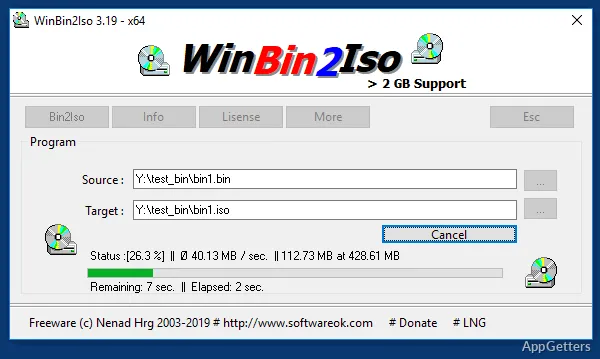
Need to turn a BIN disc image into an ISO file for a tool that expects that format? WinBin2Iso converts CD and DVD images, with a short workflow that uses a source path, a destination path, and a Convert button.
How do you convert a BIN image?
Choose the BIN file as the source and set a destination path and filename for the ISO. Click Convert to start the process. The interface centers on those paths and the conversion command, with no additional conversion settings needed for this workflow.
WinBin2Iso can process BIN images larger than 2 GB, so large disc-image files do not need to be split before conversion. It also supports converting MDF images to ISO.
Can you run WinBin2Iso without installing it?
Yes. The program is portable, so it can be started without a conventional installation and carried on removable storage for use on another computer. This keeps the workflow focused on selecting the image and destination instead of configuring a disc-management suite.
What kind of disc images does it handle?
WinBin2Iso is intended for converting BIN CD or DVD images to ISO, and it also supports MDF-to-ISO conversion. The resulting ISO can be used with software that accepts that image format. The program’s stated large-file support covers images over 2 GB.
Pros
- Converts BIN CD and DVD images to ISO
- Handles image files larger than 2 GB
- Also converts MDF images to ISO
- Portable operation requires no installation
Cons
- Conversion formats are limited to BIN-to-ISO and MDF-to-ISO
System requirements: Windows 7, Windows 8, Windows 8.1, Windows 10, Windows 11 · 32-bit and 64-bit
Can WinBin2Iso convert an image larger than 2 GB?
Yes. It supports BIN and ISO image files larger than 2 GB.
What do I select to start a conversion?
Choose the source image, set the destination path for the ISO, then click Convert.
Does WinBin2Iso support MDF images?
Yes. It supports converting MDF images to ISO.