File transfers finish with a record of their progress, skipped files, and any verification results. TeraCopy integrates with Windows Explorer’s copy and move commands, then gives you controls for managing the transfer and handling problems along the way.
TeraCopy queues transfers and records each file
Explorer integration lets TeraCopy take over copy and move operations from the usual file-management workflow. When several operations are waiting, they can be placed in a queue and handled one at a time. This is particularly relevant for transfers involving network locations or removable drives, where running several jobs at once can compete for access.
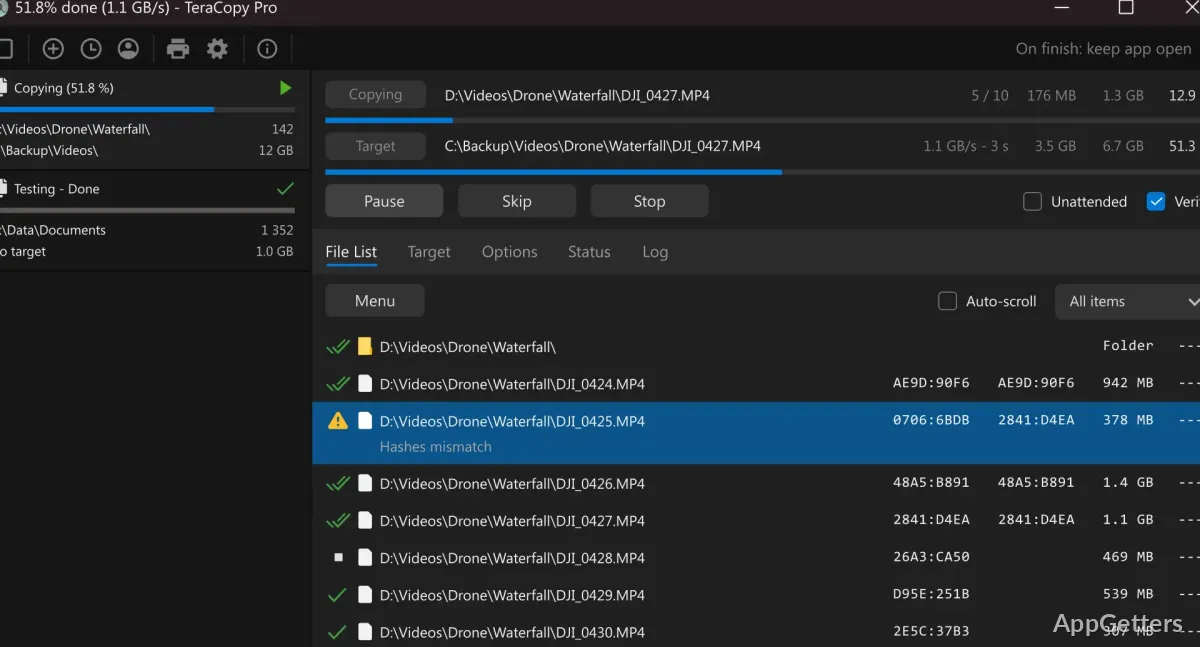
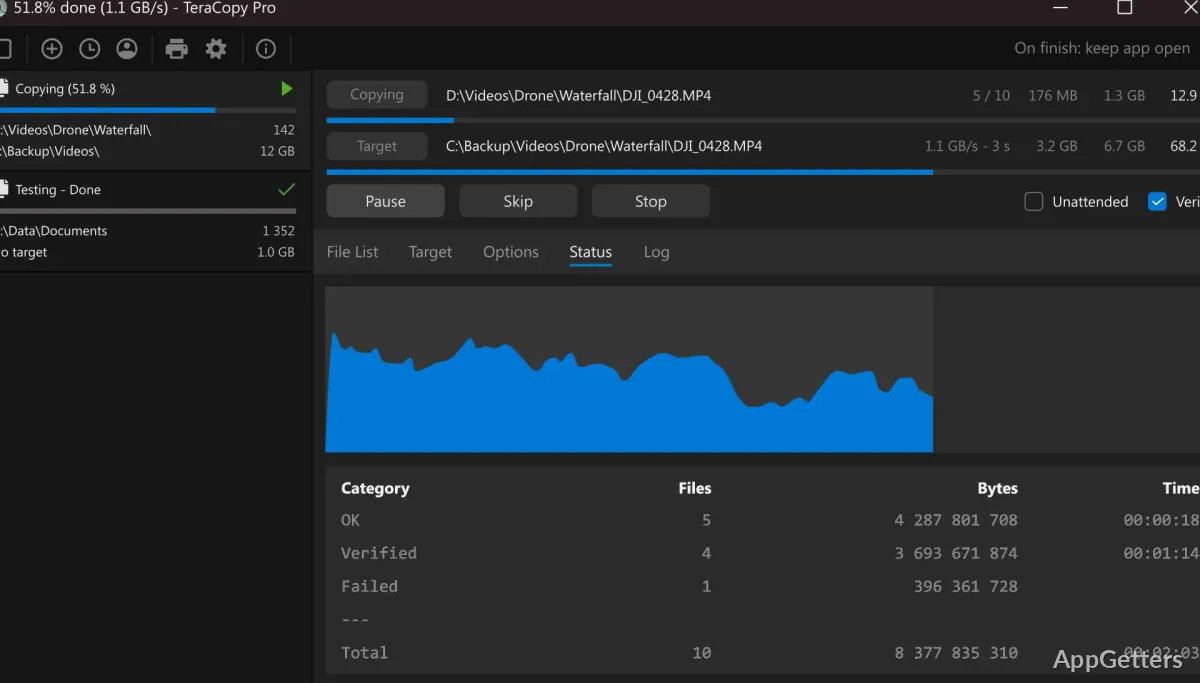
The file list also serves as a transfer log. It can show file names and sizes, source and destination checksums, and issues encountered during the operation. A progress view includes a speed graph, average speed, remaining time, and counts of skipped or failed files.
- Skip individual files that are not needed in the current transfer.
- Handle name conflicts and use a skip-all option for unattended jobs.
- Keep recent tasks and their file lists available for later reference.
Errors do not have to stop the whole transfer
When a file causes an error, TeraCopy can skip it and continue with the remaining items. If a network connection or device becomes unavailable, the program can wait for it to reconnect. Afterward, failed or skipped files can be retried without starting the entire transfer again.
These controls suit jobs where a large collection should keep moving even if a few files need attention. The log identifies which items had problems, so the retry can focus on those files.
Checksum verification checks copied data
TeraCopy can compare source and destination files to verify that the copied data matches. It supports checksum algorithms including CRC32, MD5, SHA1, BLAKE3, and xxHash3, and can generate or validate checksum files. The same checksums can appear in the file list alongside transfer details.
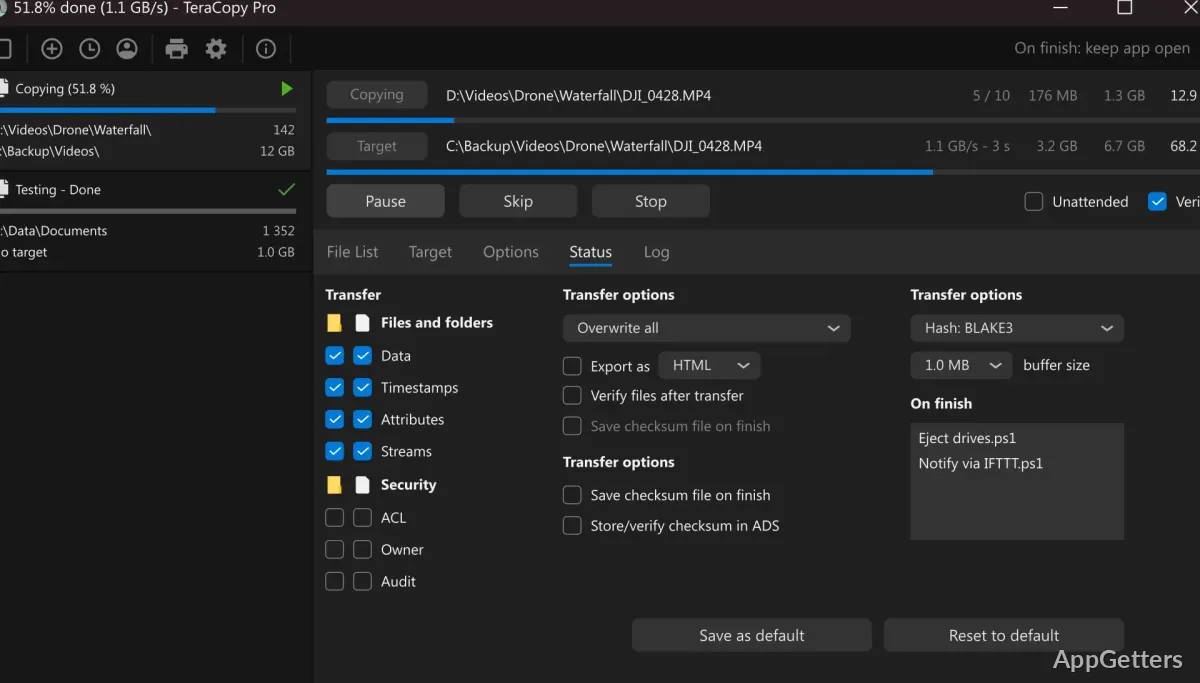
Verification can be part of the copy workflow, or checksum files can be used to check files separately. TeraCopy can also create reports and run a PowerShell script when a transfer completes.
Copy settings include metadata and locked files
Transfer options can control which metadata is copied, including timestamps, streams, and permissions. TeraCopy also supports copying locked files through a Windows service and Volume Shadow Copy. For drag-and-drop operations, a confirmation dialog can help prevent an accidental folder move.
Pros
- Queues transfers to run one after another
- Retries failed or skipped files without repeating the whole job
- Verifies files and creates or checks checksum files
- Shows transfer progress, speed, and file-level issues
Cons
- The free edition supports up to two copy threads; three or more require Pro
System requirements: Windows 10, Windows 11
Can TeraCopy continue after a file-copy error?
Yes. It can skip the problematic file and continue, then retry failed or skipped files after the transfer.
How does TeraCopy verify copied files?
It compares source and destination data with checksums. It can also generate and validate checksum files.
Can TeraCopy queue multiple copy operations?
Yes. Multiple transfer tasks can be queued to run one after another.