EXE
Home » Software » Windows » Media Player » SPlayer for Windows
SPlayer for Windows

SPlayer for Windows

  • By Tomasen
  • Free
  • Version: 4.9.4
  • 62.79 MB
  • Security Report:
0 Downloads

SPlayer for Windows Makes Subtitles Part of the First Test

A video can open perfectly and still feel unusable when the subtitle track is missing, late, unreadable, or translated badly. SPlayer for Windows is a desktop media player for local video, audio, online media links, and subtitle-focused viewing, with a lighter interface than a full media-center program.

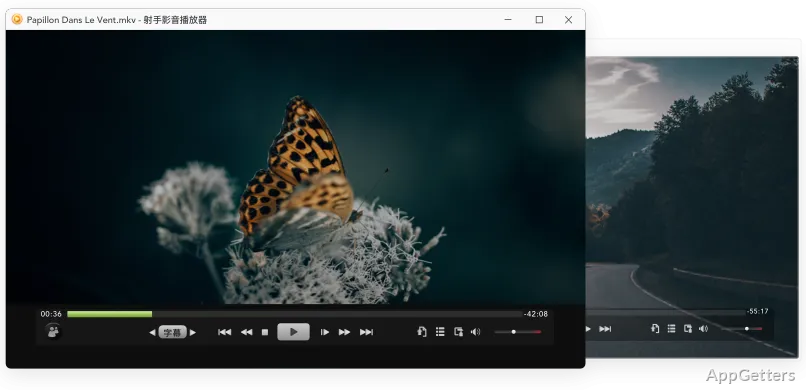
The player suits people who want a quick viewing window rather than a large library wall. Many controls stay tucked away until they are needed, so the screen stays focused on the video. That style works well for movie watching, but it also means the first few minutes should include basic control checks.

Use the official SPlayer source, Microsoft Store listing when available, or the supplied download card when choosing the Windows package. Continue only when the file came from the official developer source or another trusted source you intentionally chose. Avoid modified installers, cracked editions, serial key pages, and unknown mirror downloads that repackage old media-player builds.

First Launch Should Use a Plain Local File

SPlayer for Windows can be tested quickly with one ordinary local MP4 before any streaming link, subtitle search, or translation feature enters the picture. A short local file confirms the player window, timeline, audio output, full-screen mode, and basic controls without adding network or website variables.

Windows may show a security warning during setup. Check that the installer came from the official developer source before continuing. If the file name, folder path, or installation prompt looks different from the package you intentionally chose, return to the official source or supplied download card before running another installer.

If the player starts slowly, give the window a moment before clicking through settings. A media player may be initializing its interface, checking recent files, or preparing playback components. Test from a simple folder such as Videos or Downloads, not from a half-copied external drive file.

When the Player Opens but the File Does Not

A blank screen can come from the video file, the decoder path, a broken download, the display driver, or the audio-video container. Try a smaller file, then test the same video in another player. If only one clip fails, reinstalling SPlayer is usually too early.

For a quick file check, VLC Media Player is useful because it can confirm whether the same file opens elsewhere. If VLC also refuses the file, the media may be incomplete, encrypted, corrupted, or encoded in a format that needs conversion.

Subtitle Features Need the Right Source

SPlayer is often chosen for subtitle viewing, search, translation, and subtitle handling around known videos. Those features depend on the file title, subtitle availability, language choice, and the service behind the request. A missing subtitle can come from the source data, not from a failed Windows installation.

Start with embedded subtitles first. Open the subtitle menu and check whether the video already includes tracks. If no embedded track appears, place an external subtitle file beside the video and use a matching file name. A mismatched subtitle can load but show the wrong language, wrong timing, or the wrong episode.

Automatic translation should be treated as a viewing aid, not a finished subtitle script. Machine translation can miss jokes, names, tone, and scene context. If the subtitle matters for study, publishing, language learning, or shared work, review the lines manually instead of trusting the first translated result.

Late Subtitles and Wrong Episodes

Late or early subtitles usually come from a file made for a different release of the same video. A shorter intro, changed frame rate, extra recap, or different cut can shift every line. Test another subtitle file before changing global timing settings inside SPlayer.

If you spend more time correcting subtitles than watching the video, Subtitle Edit is a useful companion. SPlayer can handle playback and quick subtitle viewing, while a dedicated editor is better for retiming, format conversion, line cleanup, and manual translation review.

High-Resolution Playback Depends on the PC

Format support does not remove hardware limits. SPlayer for Windows may handle common video formats, but playback still depends on the codec, container, bitrate, graphics driver, storage speed, display mode, and audio output device. One unusual MKV file can behave differently from dozens of ordinary MP4 clips.

When a high-resolution file stutters, move it to a local internal drive and close heavy background apps. Then test a smaller clip with the same extension. If the smaller file plays but the large file stutters, the problem may be bitrate, disk speed, graphics acceleration, or the way that particular file was encoded.

A video with picture but no sound deserves an audio check before any reinstall. Look at the Windows volume mixer, the selected playback device, and the audio track inside SPlayer. Some videos include commentary tracks, muted tracks, surround audio, or language tracks that do not match the speakers currently selected.

Full Screen, Scaling, and Monitor Issues

Full-screen trouble often comes from Windows display scaling, multiple monitors, HDMI output, or TV refresh behavior. Move the player to the main display, enter full screen again, and check whether Windows is duplicating or extending the desktop. HDMI can also move audio to the TV.

Users who want heavier playback controls may compare PotPlayer. It has deeper adjustment options, while SPlayer makes more sense when the goal is a lighter viewing window, quick subtitle access, and fewer visible controls during playback.

Streaming Links Should Be Tested Separately

Online and streaming video links fail for different reasons than local files. A stream may depend on the source server, account access, regional rules, website changes, redirected URLs, or a network route. If local files play correctly but a stream fails, the Windows player is not automatically the problem.

Use a public test link before trying a private or account-bound stream. Open the same link in a browser to confirm that the source still responds. Paid, protected, age-restricted, or login-only videos may not behave like ordinary public streams and should not be used as the first test.

If a stream buffers, check Wi-Fi strength, VPN state, active downloads, and router congestion. Local playback can be perfect while online playback struggles. That difference points toward the network path, source server, or stream format instead of the player’s basic file handling.

Progress Preview Is Not the Same for Every Source

SPlayer’s progress preview behavior can feel different depending on the source. A local file gives the player direct access to the timeline, while a remote stream may not expose every part of the video at once. Large files on slow drives can also delay previews.

If timeline previews matter to your viewing style, test them with the files you actually skip through. A local MP4, a large MKV, and a streaming link can all feel different inside the same player window because the player is reading them through different paths.

Interface Controls Can Hide Until Needed

SPlayer’s quieter interface keeps the video area clear, but it can make the player feel confusing at first. Move the mouse over the window before assuming the controls are missing. Then test play, pause, seek, volume, subtitle selection, audio track selection, full screen, and file opening.

Keyboard shortcuts depend on focus. If a shortcut does not respond, click the player window once and try again. Another app, browser window, overlay, remote-control utility, or notification panel can steal focus and make a working shortcut look broken.

File associations should be changed slowly. Set SPlayer for one file type first, then open a few files from File Explorer. If Windows still opens another player, check Default Apps and file-type associations rather than reinstalling SPlayer or changing unrelated playback settings.

When SPlayer Is the Wrong Tool

SPlayer is useful when the job is direct playback with subtitle convenience. It is less suitable when you need a full living-room library, server-style media sharing, remote-friendly menus, or detailed codec-chain control. A lightweight player can be the right choice for one PC and the wrong choice for a TV-centered setup.

For a full media-center layout, Kodi fits better because it focuses on libraries, TV-style navigation, and add-on workflows. SPlayer stays closer to a desktop viewing tool, which is better for quick local files and subtitle-centered watching.

Keep a fallback player until SPlayer has handled your real media set. Test one subtitle-heavy movie, one older AVI or WMV file, one local music file, one high-resolution clip, and one streaming link. That group reveals more than opening a single sample file after installation.

Before Making SPlayer Your Default Player

Changing the default player affects double-click behavior across Windows. Do it after testing real files, not after one successful clip. Open several formats from File Explorer, check subtitles, confirm sound output, and try full screen on the display you normally use.

If you upgrade from an older build, keep a copy of the installer or version details currently being used. For personal videos, keep the original media untouched before converting a copy or testing another playback tool. A quick player experiment should not overwrite a family clip, lecture recording, or edited project file.

SPlayer for Windows works well when subtitle behavior, local playback, streaming links, audio output, timeline preview, and file associations are tested together. Install from the official developer source or supplied download card, keep another player ready for unusual files, and make it the default only after your regular media opens correctly.

Software Details of SPlayer 4.9.4

License
Free
Version
4.9.4
File Size
62.79 MB
Downloads
0
Language
English
Category
Op. System
Windows
Developer
Last Updated
June 25, 2023
SHA256
cd76ab2d5e1570d200db1f71bfbc9fc50c79cb68167fc5b89316d0ca93e2d267

Leave a Comment

Your email address will not be published. Required fields are marked *

Software Icon
Security Report

Loading scan data...

Scroll to Top