EXE
Home » Software » Windows » Media Player » SMPlayer for Windows
SMPlayer for Windows

SMPlayer for Windows

0 Downloads

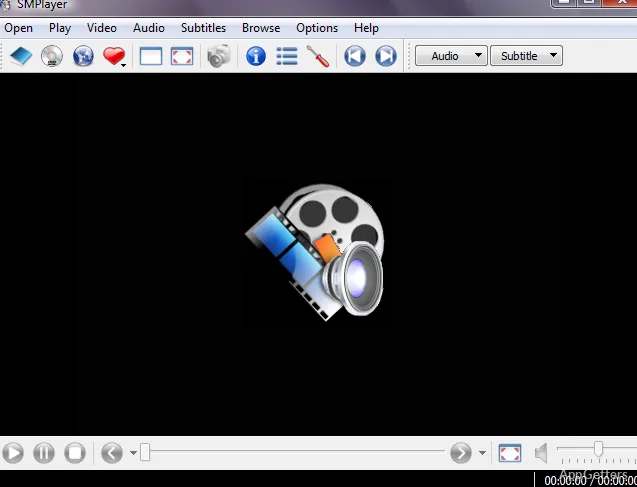
A movie file that opens with the wrong audio track, loses its place, or needs subtitles can push users beyond the default Windows player. SMPlayer for Windows is a free media player built around MPlayer and mpv engines. It brings built-in codec handling, subtitle search, YouTube playback support, remembered file settings, skins, filters, and playlist tools without requiring a separate codec pack first.

SMPlayer for Windows Works Around Playback Memory

SMPlayer is known for remembering how each file was played. Stop a movie halfway, reopen it later, and the player can return to the same position with the same audio track, subtitle choice, volume, and playback settings. That matters when films, lectures, or downloaded videos are opened across several sessions.

That same memory can also make a file reopen with a setting you forgot changing. A stretched aspect ratio, muted audio track, or delayed subtitle can follow that file next time. Check the current file settings before blaming the video itself. Resetting playback options inside the player is usually a better starting point than reinstalling the app.

SMPlayer for Windows is not a video editor, streaming subscription app, or repair tool for damaged downloads. It is a desktop media player for playback control, subtitles, audio tracks, filters, and engine choice. If the source file is incomplete, encrypted, or cut incorrectly, the player may reveal the problem rather than hide it.

Download Package, License, and Windows Fit

The official Windows download area provides a package for newer systems and alternative packages for older or 32-bit setups. Check the download card and the installed About screen when you need the exact version. The package should match the Windows installation on the PC, not a filename copied from an old software page.

SMPlayer is free and open-source software distributed under the GPL license. Its source code is publicly available, which matters if you prefer media players that can be inspected by the community. That does not make every download mirror equally careful. Use the official developer source or the supplied download card when installing.

If Windows shows a security warning during setup, read the prompt before continuing. Continue only when the file came from the official developer source or another trusted source you intentionally chose. SMPlayer for Windows does not need serial keys, patched launchers, codec cracks, or browser bundles for normal playback. Avoid pages that turn a free media player into a suspicious installer collection.

Portable Use Has a Different Purpose

A portable package is useful when SMPlayer should run from its own folder without a normal Windows installation. That can help on a test PC or external drive. Users who specifically want that setup can compare SMPlayer Portable. Keep the portable copy separate from the installed copy so playlists and remembered settings do not become confusing.

Do Not Add Codec Packs Too Early

SMPlayer is promoted with built-in codec support, so a failed file should not send you straight to random codec downloads. Test the file with SMPlayer first. If only one video fails, the file may be damaged or encoded strangely. Extra codec packs can add more Windows media confusion before the player settings have even been checked.

Subtitles Are a Main Reason to Use It

SMPlayer can search and download subtitles, which is one of its practical strengths. A foreign-language film, lecture recording, or badly named subtitle file does not always need a manual folder hunt. The match still depends on the video title, release name, and subtitle source. A wrong subtitle may load perfectly but stay out of sync.

When subtitles appear late or early, do not assume the player chose the wrong engine. The subtitle file may belong to a different video cut. Start with delay controls, then try another subtitle file if the timing drifts across the whole video. If the timing starts right and becomes wrong later, the source video and subtitle probably do not match.

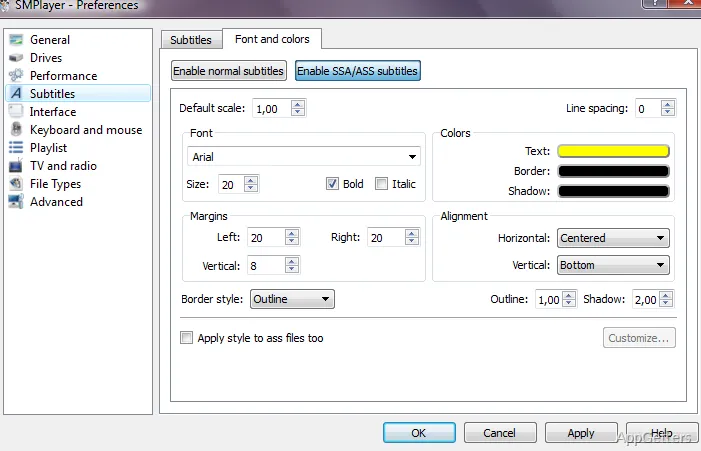
SMPlayer also has subtitle settings for display and language behavior. Change one setting at a time. A full reset is rarely the first answer when the issue is subtitle delay, text size, encoding, or a mismatched file name. For subtitle-heavy work, Subtitle Edit is stronger when the subtitle file itself needs repair.

When Subtitles Do Not Show

Put the subtitle file in the same folder as the video for the first test. Give it a matching name when possible, then open the video from SMPlayer. If the subtitle still does not appear, load it manually from the subtitle menu. That separates a naming issue from a playback issue.

When You Need Two Subtitle Tracks

The mpv engine can add subtitle-related behavior that some users need, including setups where two subtitle tracks matter. Check the multimedia engine setting before assuming the interface lacks the option. A language-learning setup can be sensitive to engine choice, subtitle format, and file naming, so a short test clip is easier than troubleshooting a full film.

MPlayer or mpv Changes the Behavior

SMPlayer can work with MPlayer and mpv, and that engine choice changes how some files behave. mpv can bring newer playback behavior, precise seeking, improved screenshot handling, and video site playback features. MPlayer still has value for users who prefer the older engine path. The right choice depends on the file, not the logo on the player window.

If a video opens with sound but no picture, or picture but no sound, switch engines before uninstalling. Then reopen the same file and compare behavior. A graphics driver issue, unusual file container, or engine-specific bug can appear as a playback problem. Testing another engine gives a clearer answer than changing every video setting at once.

Users who prefer a player built directly around mpv can compare mpv. It is a different style: less traditional interface, more keyboard-driven behavior, and fewer familiar menus. SMPlayer gives a graphical front end around engines like MPlayer and mpv, which suits users who want control without command-line playback.

Engine Switching Should Be Deliberate

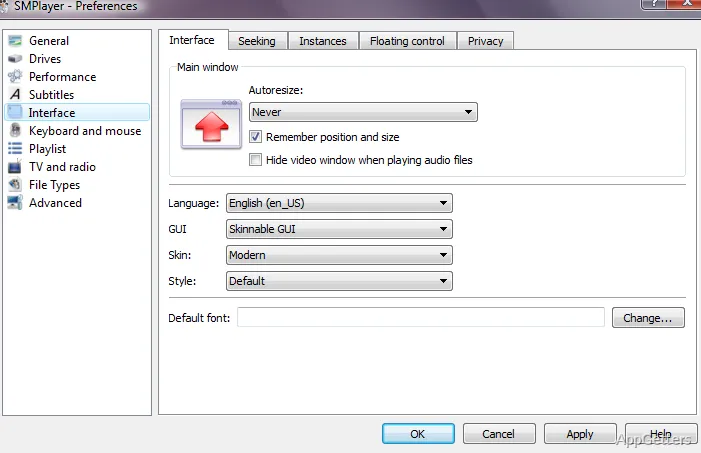
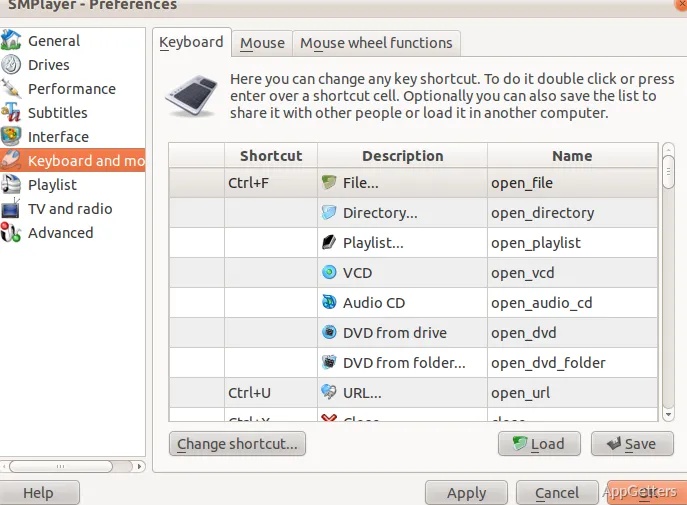
Change the multimedia engine from the preferences area, then test the same file again. Do not judge the result from a different video. A short sample file with known audio, subtitles, and seeking points makes the comparison clearer. If mpv fixes one issue but changes another behavior, keep notes before changing more settings.

Hardware Acceleration May Need Care

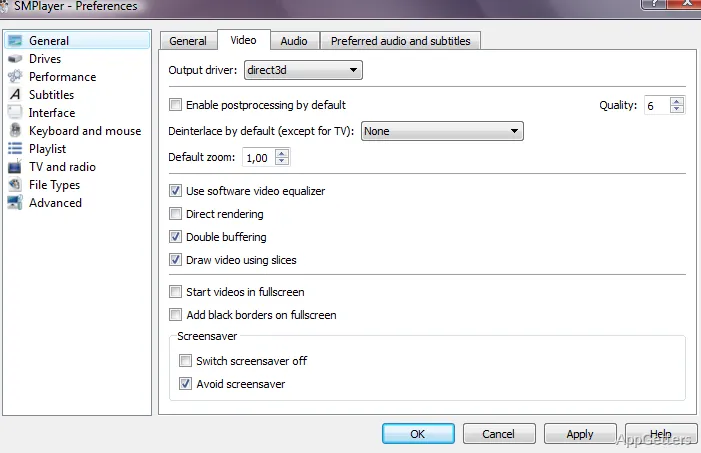
Playback acceleration can improve performance on some PCs, but it can also cause blank video, odd colors, or driver-related glitches. If a file plays badly after changing video output settings, return to a simpler setting and test again. The fix depends on the graphics driver, file type, and engine choice, not only on SMPlayer itself.

YouTube, Streams, and Online Playback Limits

SMPlayer can play YouTube videos and other online media in supported builds, but online playback is more fragile than opening a local file. Websites change their playback systems, links expire, and some videos require account checks. If an online video fails, test a normal local file before treating the entire player as broken.

For online playback, the link format matters. Copy a direct supported link instead of a page full of tracking parameters when possible. If playback worked last month and fails now, check whether the SMPlayer build, engine, or helper component needs an update. Web video sites change faster than local media formats.

Users who mainly want a browser-like video experience may prefer a dedicated browser or a downloader workflow instead of routing everything through a media player. SMPlayer for Windows makes more sense when online playback is a useful extra, not the only reason to install it. Local files, subtitles, remembered settings, and engine switching remain the stronger parts of the app.

Playlists, Audio Tracks, and Everyday File Problems

SMPlayer can manage playlists, but playlist behavior depends on where the files live. If a playlist opens with missing items, check whether those media files were moved, renamed, or stored on a disconnected drive. A playlist is not a copy of the video. It points the player toward files that still need to be available.

Audio track selection is another reason many users keep SMPlayer installed. Many movie files include more than one audio track, and the player can remember the choice for that file. If the wrong language starts again later, check whether the remembered setting belongs to that exact video. Similar file names can make this look like a player mistake.

For classic playlist-heavy playback with a long history on Windows, VLC Media Player remains a useful comparison. SMPlayer feels different because it strongly remembers per-file settings and exposes MPlayer or mpv behavior through its own interface. Try both with the same subtitle, audio, and seek test before choosing a main player.

When a File Opens Cropped or Stretched

Aspect ratio and zoom settings can be remembered per file. If one video opens cropped, stretched, or too small, check the video size and aspect settings in SMPlayer. The problem may not affect every file. A previous manual change can return only when that same video is opened again.

When Sound Is Too Low or Out of Sync

Volume, audio delay, and track choice should be checked before reinstalling the player. If every file sounds low, look at Windows output and speaker settings too. If only one file is out of sync, test the delay control on that file. A badly encoded video can need a different fix from a normal volume problem.

Where SMPlayer Fits on a Windows PC

SMPlayer for Windows fits users who care about remembered playback positions, subtitle search, audio track control, engine switching, and local video behavior more than a modern Store-style interface. It is a practical player for varied media files where settings need to follow each file. It is less useful as a full media center or editing program.

Install it as a playback tool, then test the parts that matter: one local movie, one music file, one subtitle case, one playlist, and one online video link if you use that feature. After that, decide whether SMPlayer should become the default player or stay beside another player for files that need its subtitle, engine, and memory behavior.

Software Details of SMPlayer 25.6.0

License
Open Source
Version
25.6.0
File Size
62.09 MB
Downloads
0
Languages
English English, Catalan, Chinese, German, Indonesian, Japanese, Korean, Portuguese, Russian, Spanish, Turkish
Category
Op. System
Windows
Developer
Last Updated
June 7, 2025
SHA256
8cc882fe6473a979f6d5775a9e8e558eb29ed41876e433e6e3755ea2110b9f4c

Version History

2 versions
24.5.0
62.06 MB
May 11, 2024
Download
23.6.0
54.33 MB
July 1, 2023
Download

Leave a Comment

Your email address will not be published. Required fields are marked *

Software Icon
Security Report

Loading scan data...

Scroll to Top