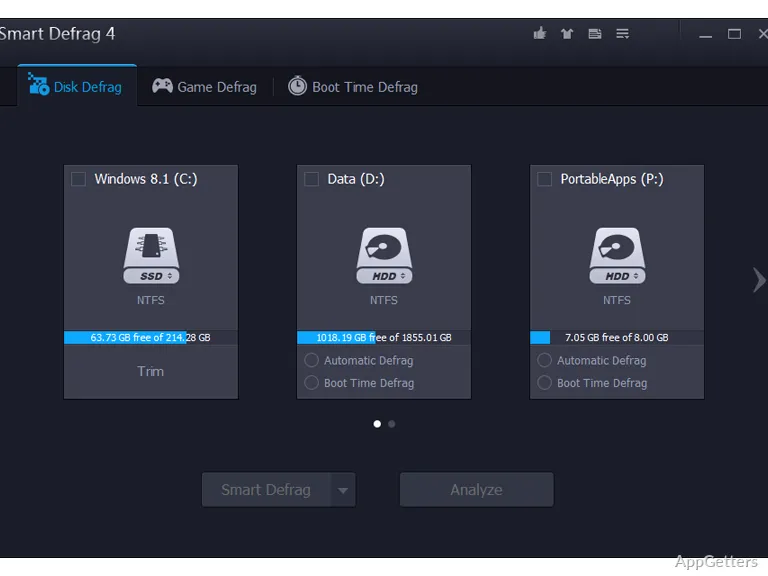
Need to defragment hard drives on several PCs without installing anything? Smart Defrag Portable defragments and optimizes a drive, moving frequently used files and folders to its faster areas. The portable edition runs without installation and can be carried between computers.
Defragment and optimize a drive
When files are repeatedly written, deleted, and rewritten on a hard disk, parts of them can become scattered across the drive. Smart Defrag reorganizes those fragmented files and streamlines the file system, with the goal of keeping file access orderly.
The optimization also gives frequently used files and directories priority for faster areas of the disk. This combines defragmentation with file placement, so the tool does more than simply join scattered file pieces.
Use the portable edition across computers
Smart Defrag Portable runs without a conventional installation. It can be kept on removable storage or used from a local or cloud location, which suits people who need the same defragmentation tool on more than one computer.
- Administrator privileges are required for the defragmentation operation.
- Boot-time defragmentation is not available in the portable edition.
Choose it for hard-drive file organization
As with any defragmenter, the benefit is on traditional hard drives; SSDs do not need defragmenting.
Pros
- Defragments drives and streamlines the file system
- Prioritizes frequently used files and folders
- Runs without installation from portable storage
Cons
- The portable edition cannot defragment at boot time
System requirements: Windows 7, Windows 8, Windows 10, Windows 11 · Administrator privileges required to run
What does Smart Defrag Portable do?
It defragments drives, streamlines the file system, and places frequently used files and folders in faster areas of the disk.
Does Smart Defrag Portable need to be installed?
No. The portable edition runs without installation and can be kept on removable storage.
Can it defragment a drive during startup?
No. Boot-time defragmentation is not supported in the portable edition.