EXE
Home » Software » Windows » text-documents » Scrivener for Windows
Scrivener for Windows

Scrivener for Windows

Running long-form Windows writing projects usually ends up as disjointed efforts. You create the first draft in one app, and your notes are somewhere else. Your research gets scattered in different folders or browser tabs. This disconnection not only slows down your work but also makes it very difficult to handle complicated documents later on. This is the reason why Scrivener, in a way, redefines the situation. It doesn’t just provide simple document editing, but treats writing as a complex, layered production process. The change in the way the application functions could be instantly detected by those users who had to manage manuscripts, produce research-rich materials, or write lengthy drafts.

A Workzone Designed for an Extensive Piece of Writing

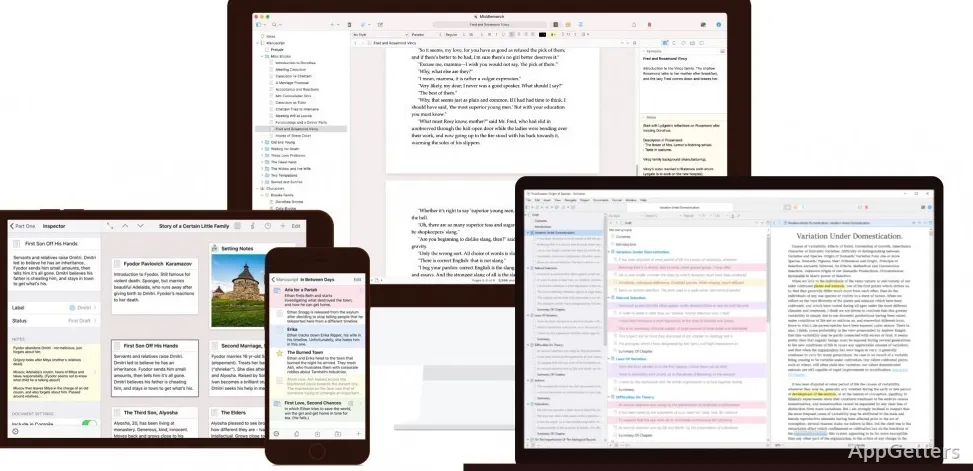
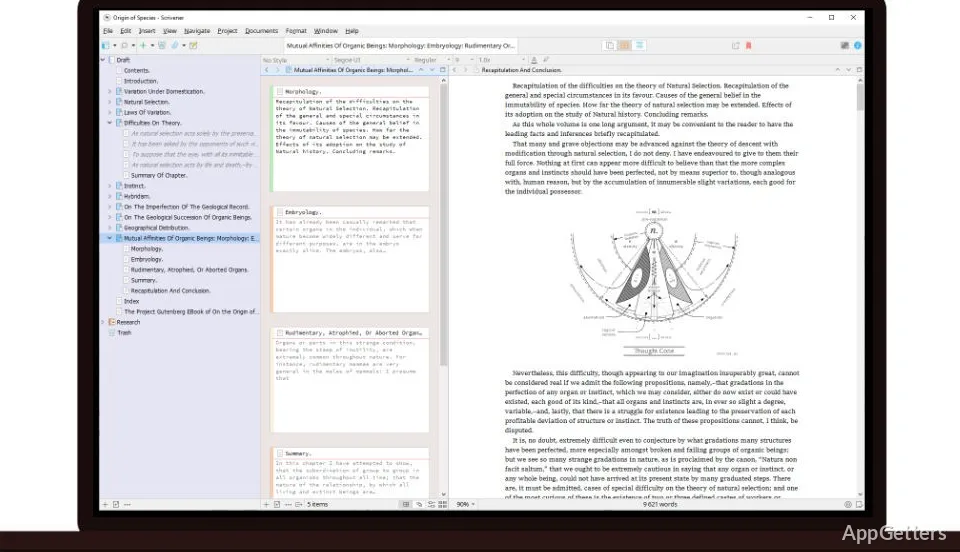
Scrivener for Windows should be viewed as a project-oriented writing platform rather than your typical word processor. Instead of getting started on one entire document, the users split their output into small portions such as chapters, scenes, or notes. These are all arranged in the sidebar named the Binder. This type of arrangement is so aligned with the ways many writers think and do their work.

In effect, such division of labor results in easy access to sizable projects. To change the placement of the document parts doesn’t particularly take effort, and the act of writing wouldn’t seem restricted by a linear style of formatting. The modular method of operation ought to lessen the experience of content rearrangement for dissertation students or novice authors. Still, new users may get confused by the appearance of the software at first. This is especially true if they come from the side of, say, Microsoft Word.

Keeping Research One App Away

The combination of research with writing is one major pillar of Scrivener. PDFs, websites, graphics, and notes can be added by the user within the project. Hence, one doesn’t constantly have to switch between applications or ransack folders.

Practically, this aspect is extremely beneficial for writing, which requires a lot of reference material. To give you an example, professors could have the citing sources handy when writing. Writers of the content could have at hand an outline or source paper. With a split screen, you can write on one side and check the reference material on the other. This is quite functional when correctly arranged. Still, the performance of the largest projects can be a problem to some extent. The Windows version is quite often not as refined as the macOS one.

Creating Content Flexibility and Exporting Documents

Scrivener supports different writers by giving them a drafting system they can customize to their preferences. Focusing on one segment of writing is one option, or seeing the whole manuscript as a single flow draft is another. The corkboard and outline provide their own alternative to the visualization of the structure. This is helpful during the stages of planning and editing.

Its major advantage is the compile option, which is to prepare a piece of writing in several forms, such as DOCX, PDF, or eBook. However, it allows adjusting the formatting independently of the writing. In reality, such a division keeps a writer first and foremost on the content, and then only to the formatting. However, the compile feature can be quite intimidating at first. To figure it out, you might probably have to keep it on a trial-and-error basis for the time being.

Learning Curve and Usability on a Daily Basis

Despite the robust nature of Scrivener, it would be hard for a person to figure it out by himself/herself. Usually, a novice will take a good amount of time to get used to the way it operates. The new users have to grasp some of the notions, such as the Binder, collections, and compile settings. It doesn’t set the bar for immediate familiarity as simpler editors do.

Nevertheless, the break-in period proves to be worth it. After a user has become familiar with it, this working environment looks like a well-integrated, dedicated one for uninterrupted writing. It features autosave and project-based storage as a layer of dependability, diminishing the risk of losing work. But users looking for quick editing or light tasks may end up finding themselves overwhelmed by the complexity of this tool for their needs.

Perfect Scenario in Use for Organized Writing Projects

The ideal user of Scrivener on Windows is one who is dealing with large and organized writing projects and not simple, quick documents. Its approach will be most beneficial for novelists, researchers, and students who are writing a thesis, as well as long-form content creators. Scrivener gives a great deal back to those who take the time to arrange their work thoroughly. It also benefits those who think in terms of sections instead of pages.

It may be a bit overkill for infrequent users and those who require only the simplest editing tools. However, Scrivener offers a workflow that closely corresponds to the natural development of layered writing projects. This applies to anyone managing planning, drafting, and research.

Software Details of Scrivener 3.1.6.0

License
Trial
Version
3.1.6.0
File Size
176.3 MB
Downloads
3
Language
English
Category
Op. System
Windows
Last Updated
September 5, 2025

Version History

3 versions
3.1.6.0
Latest
176.3 MB
September 5, 2025
3.1.5.1
175.76 MB
July 7, 2023
3.1.4
135.43 MB
February 15, 2023

Leave a Comment

Your email address will not be published. Required fields are marked *

Software Icon
Security Report

Loading scan data...

Scroll to Top