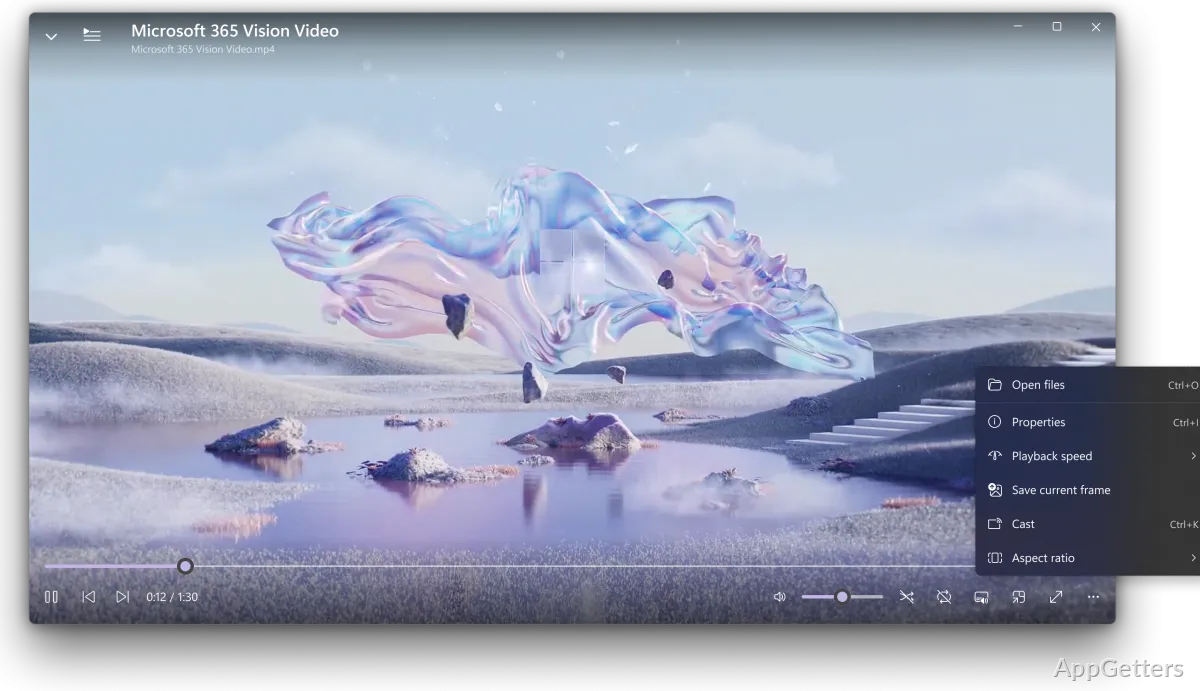
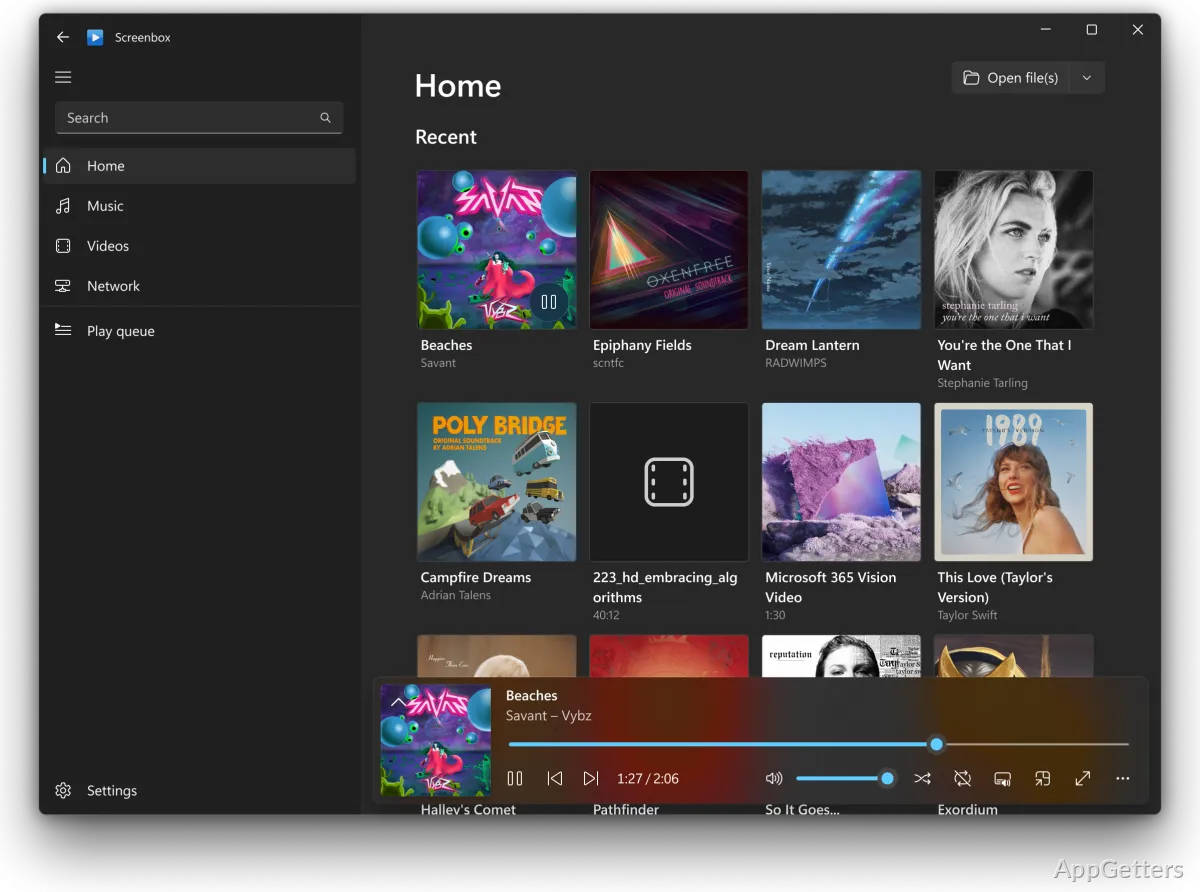
A video that refuses to open in the built-in Windows player can turn a simple file check into a codec hunt. Screenbox for Windows is a modern media player for Windows, built around LibVLCSharp and a Universal Windows Platform interface. It focuses on local video, music, playlists, network media, picture-in-picture viewing, Chromecast playback, gestures, screenshots, and a layout that feels closer to newer Windows apps than older desktop players.
Screenbox for Windows as a VLC-Based Player
Screenbox makes the most sense when the default Windows media app feels limited, but a traditional player feels heavier than needed. Its playback engine comes from the VLC family through LibVLCSharp instead of a small custom decoder layer. That gives it broad format handling for ordinary media files, although protected streams, damaged downloads, and odd subtitle files can still behave differently.
The app is available through the Microsoft Store, and the project also keeps source code and release notes on GitHub. The Store route suits users who want Windows to manage app updates. GitHub helps when you want to read what changed, check reported issues, or compare the download card with the version shown inside the app.
Screenbox for Windows is open-source software under the GPL-3.0 license. That matters if you prefer media tools with public source code rather than closed download bundles. For installation, use the Microsoft Store, the project’s own release page, or the supplied download card. Avoid modified installers, cracked builds, and mirror pages that repackage browser or media tools.
Install Source, Windows Support, and First Launch
Screenbox targets Windows 10 version 1903 and newer, Windows 11, and Xbox consoles. On a PC with an older Windows build, the install problem may come from the platform version rather than the player itself. Check Windows first, especially if Store apps have failed on that machine before.
A Microsoft Store install behaves like other Store media apps, with Start menu access and update handling controlled by Windows. If Windows shows a security or account prompt, read the message before continuing. Continue only when the file or listing came from the official developer source, the Microsoft Store, or another trusted source you intentionally chose. Screenbox for Windows does not need serial keys or patch files for normal playback.
Use one local video and one local audio file for the first test before changing file associations. This makes setup problems easier to spot. If the video opens but sound stays silent, check the Windows output device and the player volume before reinstalling. If one file never opens, try a second ordinary file because the first one may be incomplete.
Store Install or Release Package
The Store install suits users who want a normal app entry, Start menu launch, and automatic update handling. A release package is more useful when you deliberately follow project builds or need a file from the project page. Avoid mixing both paths on one PC unless you know which copy owns the file associations.
File Association Should Wait
Set Screenbox as the default player only after several real files behave properly. Test a short video, a long movie file, an audio track, and a subtitle case if subtitles matter to you. Windows file association changes can be reversed, but a short test round prevents every media extension from being moved too early.
Playback Controls That Feel Different
Screenbox uses a newer Windows-style interface instead of the old menu-heavy layout found in many classic players. The player includes gestures for seeking and volume changes, a YouTube-inspired hotkey layout, and number-row shortcuts for resizing the window. Those controls feel familiar when you move between browser video and local video often.
Picture-in-picture mode is one reason to try it. A small player window can stay visible while notes, a browser tab, or a chat window remains open. That suits lectures, downloaded tutorials, and long reference videos. It is still a viewing mode, not a replacement for a video editor or frame-accurate review tool.
Screenbox can save the current video frame as an image. That helps when you need a still frame from a clip, lecture slide, or recorded meeting. The result depends on the source frame. A blurry or low-resolution video will produce a blurry screenshot too.
Hotkeys and Gestures Need Testing
Keyboard shortcuts are useful, but they can feel wrong when another media player has trained your hands differently. Test pause, seek, volume, fullscreen, and window sizing with a file that does not matter. If a shortcut behaves strangely, check the app settings and release notes before assuming playback itself is broken.
Picture-in-Picture Is for Watching, Not Repairing
Picture-in-picture keeps playback visible, but it does not repair audio drift, damaged files, or subtitle timing. Use it as a small viewing window. When sound slips out of sync or subtitles appear late, return to the main player window and check the file, stream source, or subtitle file.
Library, Play Queue, and Playlist Handling
Screenbox becomes more useful when its library and queue behavior matches the way your media folders are arranged. The project has worked on playlist management, drag-and-drop ordering, queue controls, and folder-based playback. It is more than a single-file opener, but it still depends on file names, folder paths, and how the media was added.
If a folder does not appear as expected, open one file directly first. Then add the folder or queue again. This separates a library scanning problem from a playback problem. Network folders need the same check: confirm that Windows can reach the location before expecting the player to browse it.
For users who mainly want a traditional playlist-heavy player, VLC Media Player remains a useful comparison. Screenbox feels more native to modern Windows, while VLC gives advanced users a large set of long-established playback controls. The choice depends on whether interface fit or deeper legacy playback control matters more.
When the Queue Looks Wrong
A play queue can look wrong when files were added from several folders, when a folder contains mixed media, or when a previous session is still remembered. Clear only the queue from inside the player when that option is available. Avoid deleting media folders or app data for a queue display issue. Start by adding one small folder again.
Playlist Files Need a Quick Check
Playlist support is useful, but playlists can point to files that moved. If a playlist opens with missing items, check whether the media files still live in the same folder path. Exported playlist files also depend on how the paths were written. Test the playlist on the target PC before using it for a presentation or travel setup.
Subtitles, Network Media, and Casting Questions
Subtitles are often where a media player either earns trust or causes frustration. If subtitles do not appear, check whether the subtitle file name matches the video name and whether both files sit in the same folder. If subtitles load but timing feels wrong, the subtitle file may belong to a different cut of the video.
Screenbox can browse and play media over the network, which helps when files sit on another computer or storage device. The network path must work in Windows first. If the file opens locally but not over the network, check the shared folder, account access, and connection stability. A player can request the file, but it cannot repair a bad share.
Chromecast support gives Screenbox another role: sending video to a compatible display. Casting still depends on the network, receiving device, and media type. If a cast target does not appear, check that both devices are on the expected network. For a living-room media setup with a broader library approach, Kodi may be a better fit than a lightweight player.
When a Video Plays but Subtitles Do Not
Start with a simple subtitle file and a short video. Keep both in the same folder, then open the video from Screenbox. If the subtitle still does not show, check subtitle settings and try another subtitle file. Avoid renaming a large subtitle folder until one small test proves which naming pattern works.
When Casting Feels Unstable
Casting problems often come from the network rather than the player window. Restarting the video may help, but device visibility is the better clue. Confirm that the target display can be seen from the PC and that other casting apps behave normally. If every app struggles, Screenbox is probably not the first place to troubleshoot.
When Another Player Belongs Beside It
Screenbox for Windows fits users who want a modern interface, playback gestures, picture-in-picture, screenshots, network playback, and Store-style app handling. It is less suited to users who need dense settings panels, unusual filter chains, or old-school codec tuning. Keeping another player installed can save time when one stubborn file behaves differently.
Users who want a compact classic player can compare Media Player Classic Home Cinema. Users who want a polished player with many playback tweaks may prefer PotPlayer. These are not the same workflow as Screenbox; they are useful fallbacks when a file, subtitle, or display setup needs a different playback style.
Use Screenbox when a Windows-native player with LibVLC-based playback fits the job. Test local files, subtitles, playlists, network folders, and casting before assigning every media extension to it. That small test round shows whether Screenbox belongs as the main player, a Store-friendly second player, or the quick option for picture-in-picture viewing.