PC freezing up whenever a heavy task runs in the background? Process Lasso keeps foreground apps responsive: it manages process priorities and automates CPU and power settings so those choices can persist as programs start and stop.
ProBalance adjusts priorities during heavy CPU use
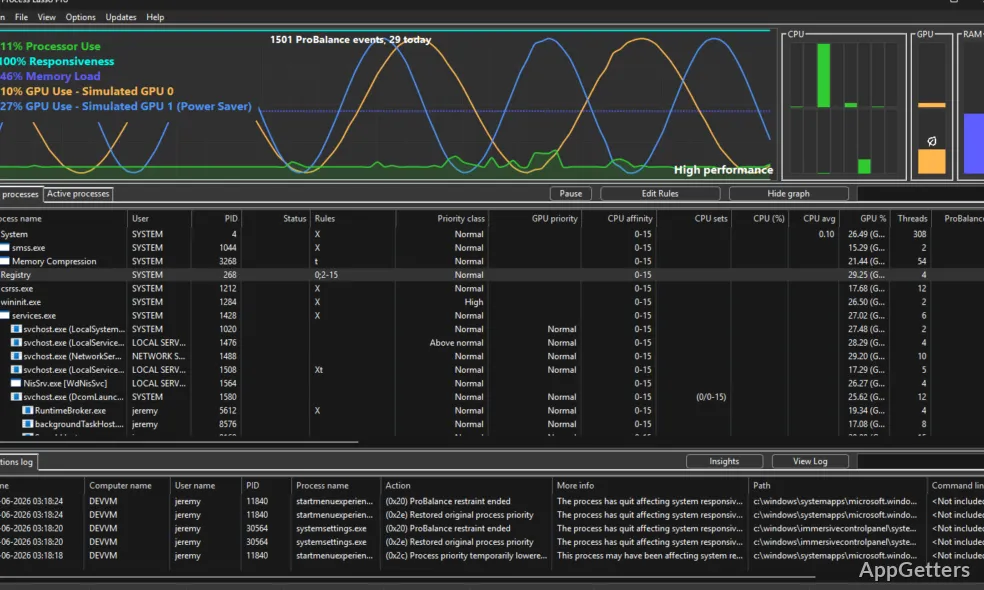
ProBalance monitors CPU pressure and adjusts the priorities of processes that are interfering with system responsiveness. The goal is to keep the computer responsive to interaction while demanding tasks continue running. Process Lasso applies this automatically in the background through the Process Governor service; the main interface does not need to stay open for its rules to be enforced.
Persistent rules shape how each process runs
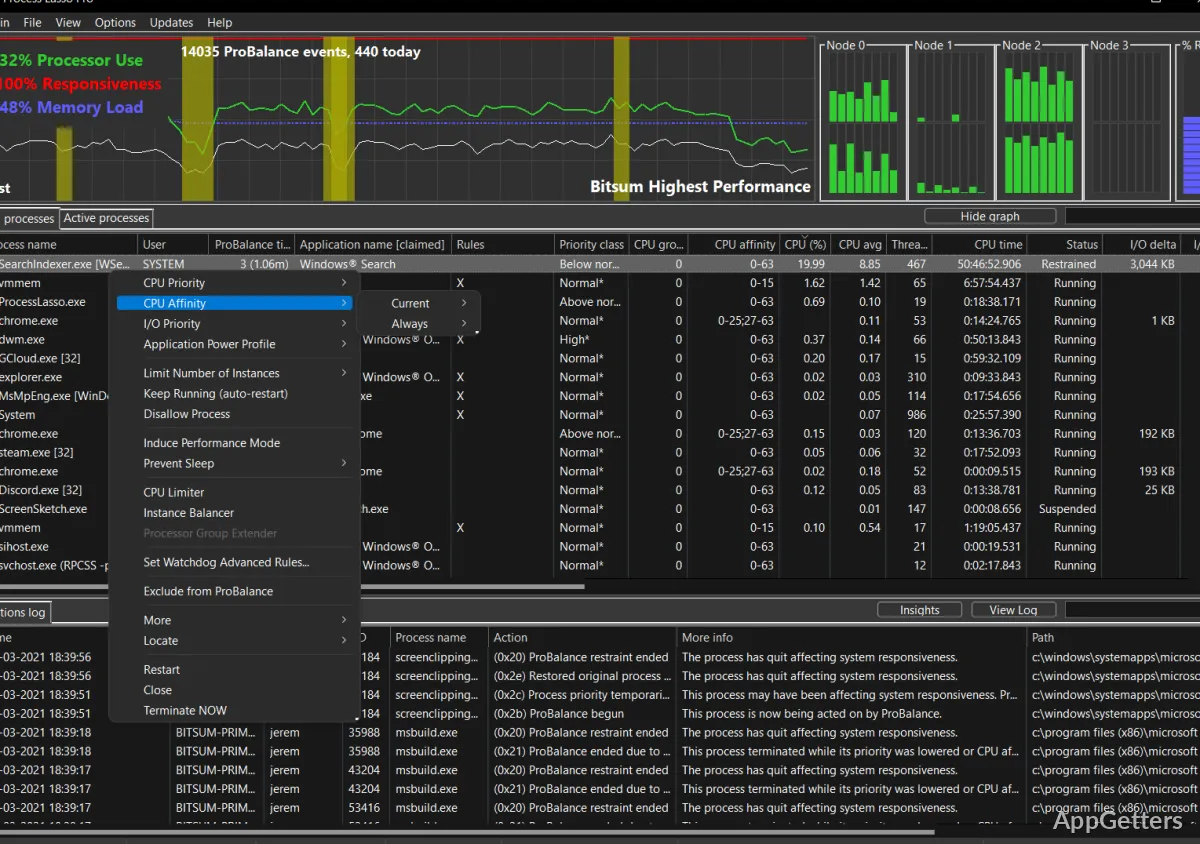
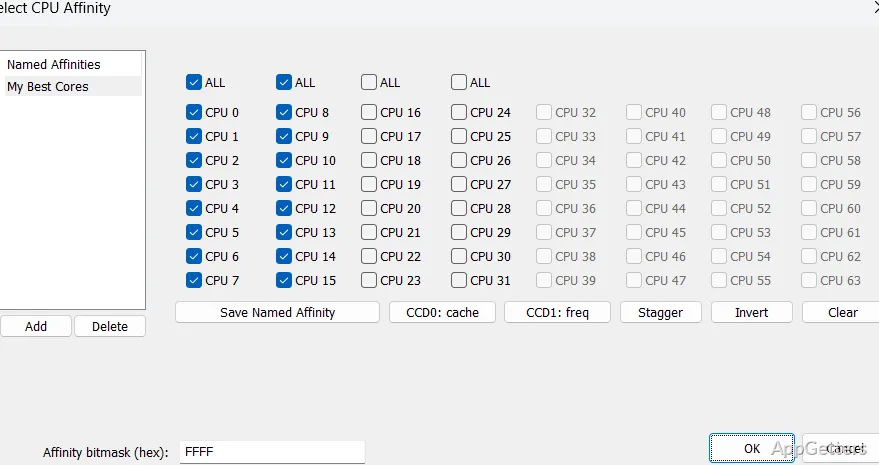
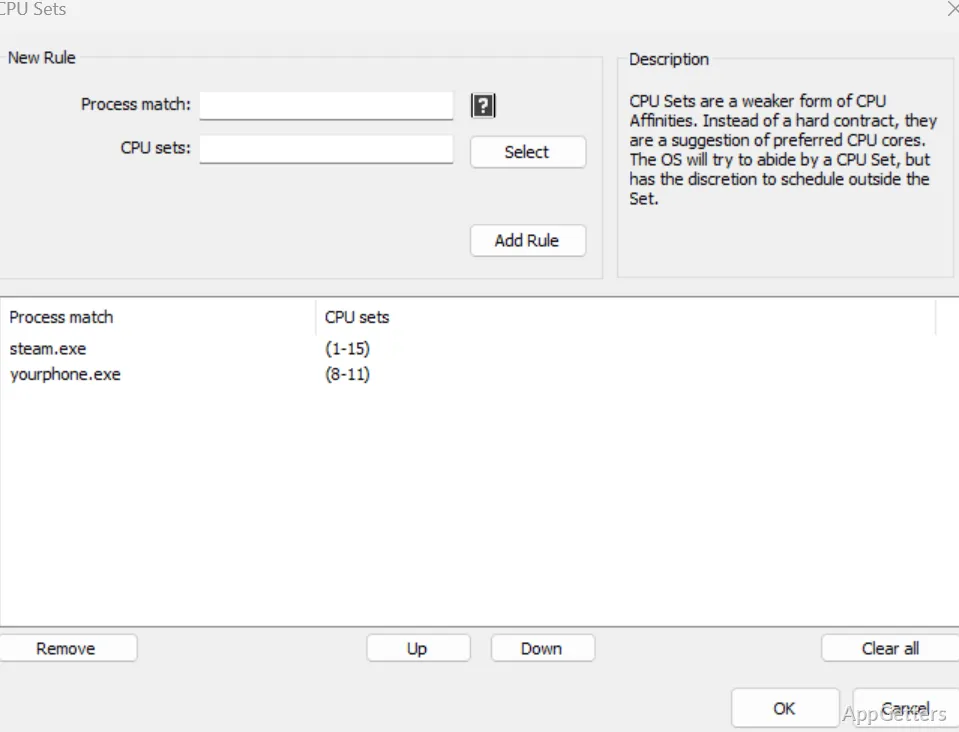
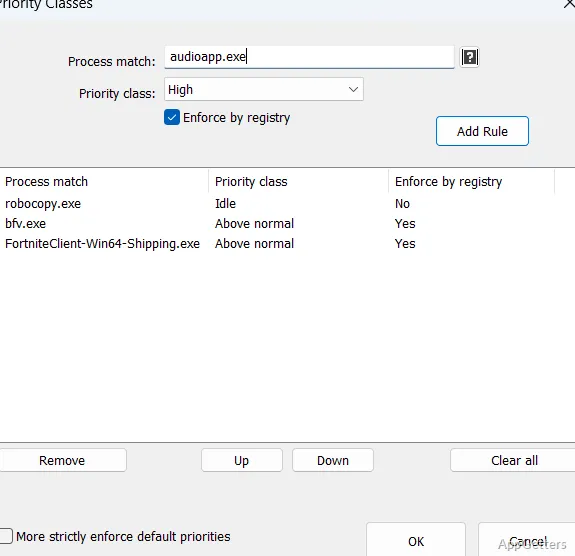
Set a process-specific rule once and Process Lasso can apply it again when that program launches. Priority classes and CPU affinities determine how Windows schedules a process and which CPU cores it may use. CPU Sets provide a softer core preference, while CPU Limiter can temporarily restrict a process after it reaches a usage threshold.
- Use Instance Balancer to distribute CPU cores among multiple running instances.
- Set instance limits or disallow matching processes from running.
- Create Watchdog rules to take action when a process reaches a resource threshold.
Power automation responds to running apps and idle time
Process Lasso can switch power plans when specified applications are running, or use IdleSaver to change plans while the PC is idle. Keep Awake can prevent sleep for a set period or while selected processes are active.
Logs and profiles organize process settings
An activity log keeps track of which programs started and other chosen events. Configuration profiles let you keep separate collections of process rules. In the interface, the process list provides a place to inspect running programs and manage settings; CPU affinity, priority, and other rules can be configured for individual processes.
Pros
- ProBalance adjusts process priorities during high CPU load
- Persistent rules set CPU affinities and priorities for future launches
- Watchdog rules can trigger actions at resource thresholds
System requirements: Windows 7, Windows 8, Windows 8.1, Windows 10, Windows 11
What does ProBalance do?
It adjusts process priorities during high CPU load to help maintain system responsiveness.
Can Process Lasso apply CPU settings whenever an app launches?
Yes. Persistent priority and CPU affinity rules can be applied each time a matching process starts.
Can Process Lasso change power plans automatically?
Yes. It can switch plans when specified processes are running or when the PC is idle.