EXE
Home » Software » Windows » Media Player » Plex for Windows
Plex for Windows

Plex for Windows

  • By Plex Team
  • GNU
  • Version: 1.112.0.359
  • 179.84 MB
  • Security Report:
5 Downloads

A media server can fail before the first movie ever plays: folders scan with the wrong titles, remote access reports an indirect connection, subtitles do not appear, or a 4K file starts converting on a PC that cannot keep up. Plex for Windows is built around that media-server workflow, with Plex Media Server handling personal libraries and Plex apps handling playback across supported devices. The setup works better when the Windows PC, folder names, network access, account choice, and streaming quality all match the way the library will be used.

Plex for Windows Starts With the Server Choice

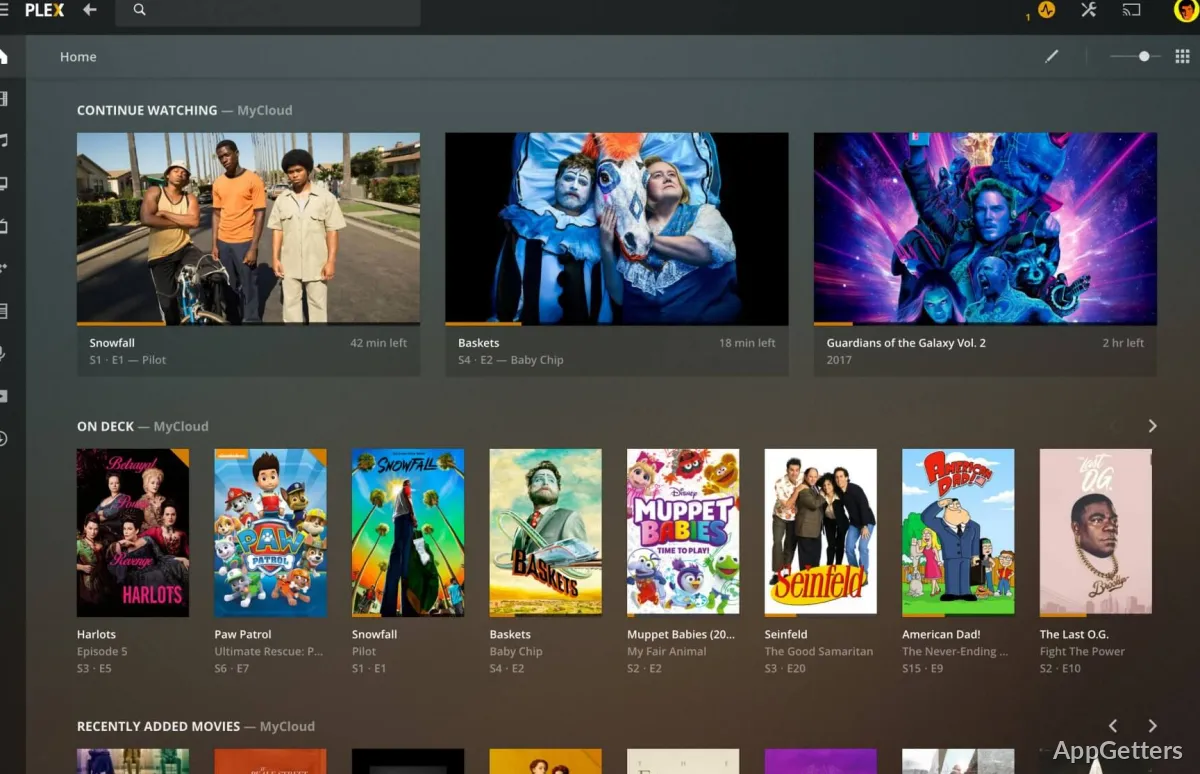
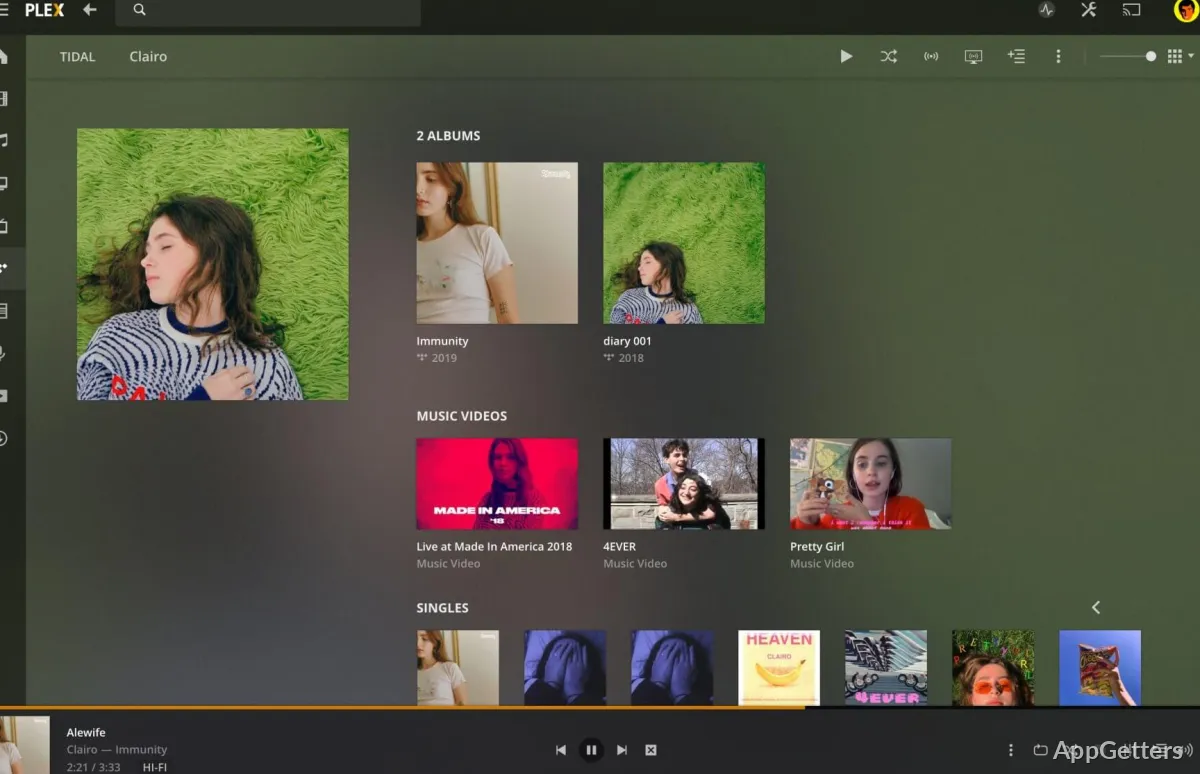
Plex is not just a video player that opens one file at a time. On Windows, many users install Plex Media Server so one PC can organize movies, TV shows, music, photos, and other personal media for playback on phones, TVs, browsers, tablets, and desktop apps. That difference matters because the server PC usually needs to stay awake while other devices stream from it.

Before installing, decide whether the Windows computer will act as the main server or only as a playback device. A desktop with attached storage can work well as the library host. A laptop can work too, but sleep settings, Wi-Fi changes, and external drive disconnects can make the library disappear when another device tries to play something.

Users who only want to open a local video file may prefer a direct player such as VLC Media Player. Plex makes more sense when the goal is a browsable media library with posters, seasons, watch progress, remote access, and multiple playback devices.

Server App and Playback App Are Not the Same Job

Plex Media Server manages the library, scans folders, matches metadata, handles streaming, and serves the content. The Plex playback app connects to that server and plays the media. Installing the wrong piece can leave users confused, because a playback app alone will not build a server library from local folders.

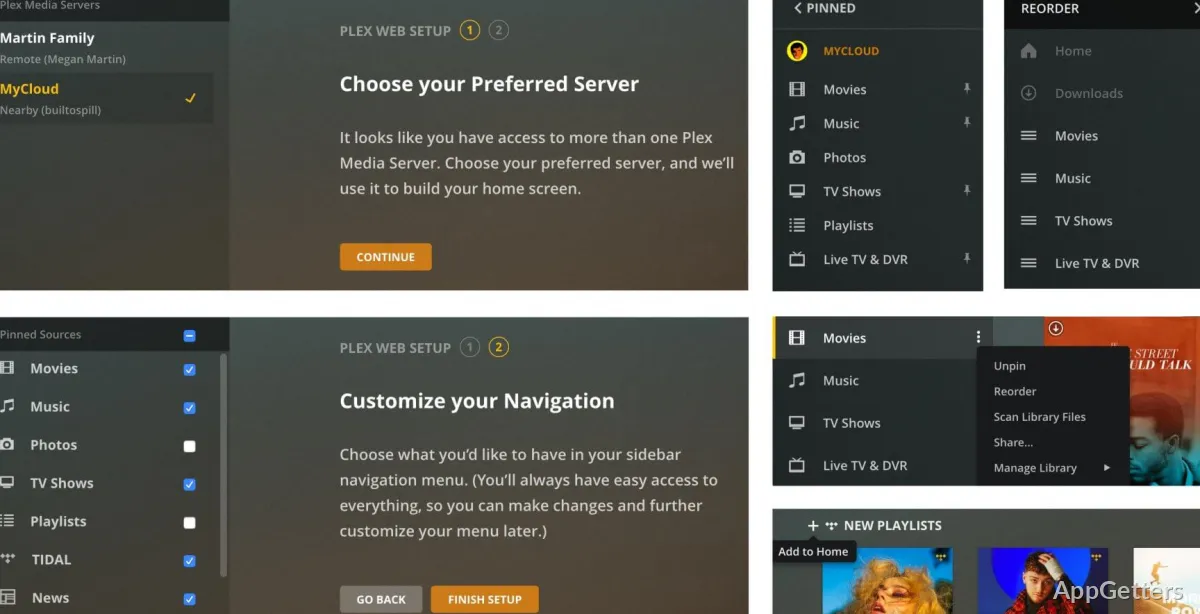
After installing Plex for Windows, open the server dashboard from the local browser and claim the server with the account you plan to use. If the server belongs to a shared household or small office, use an account setup that will not disappear when one temporary Windows user leaves.

Build the Library Before Chasing Playback Problems

Many Plex problems begin with folder structure, not codecs. Movies should sit in a predictable movie folder pattern, while TV shows need series folders, season folders, and episode-style names. When the names are vague, mixed, or missing release years, Plex may match the wrong movie, split one show into several entries, or ignore episodes that look unrelated.

Plex for Windows can scan quickly when the library follows a steady layout. Put movies in movie folders, keep TV shows under series and season folders, and avoid mixing downloaded extras, samples, trailers, and duplicate edits in the same place without clear naming. A little sorting before the first scan saves more time than repairing mismatched posters one by one later.

Movie Matching Depends on Names

If a film appears with the wrong poster or title, check the folder and file name before changing server settings. Add the release year where it helps separate remakes, director cuts, and movies with similar names. Then refresh metadata for that item instead of rebuilding the entire library.

Multiple editions need deliberate labeling inside Plex or in the library organization. If a theatrical cut and an extended cut use nearly identical names, Plex may treat them as one item or choose metadata for only one version. Keep editions easy to identify before family members start watching the wrong cut.

TV Shows Need Season Order

TV libraries break easily when episodes use casual names only. A folder named after the show, a Season 01 style folder, and episode numbers in the file name give Plex a much better chance of matching the right season. Specials and extras may need their own supported structure instead of being dropped beside normal episodes.

If an episode is missing after a scan, do not assume Plex failed to install. Check whether the file is inside the expected show folder, whether the season folder uses a recognizable name, and whether the episode number matches the database order you expect.

Remote Access, Relay, and Network Setup

Remote streaming is one of the biggest reasons people install Plex, but it can also create the first real setup headache. A server may play perfectly inside the home and then switch to indirect access outside the network. That usually points to router, firewall, account, or remote access settings rather than a damaged Windows installation.

For Plex for Windows, check Remote Access from the server settings after the local library works. The server PC should use a stable local network connection where possible, and the router must send the required Plex traffic to the right computer. If the PC’s local address changes later, remote access can stop even though nothing changed inside the Plex library.

Some users compare Plex with Jellyfin when they want a self-hosted media server with a different account and licensing model. That comparison is useful before building a large library, because changing media-server platforms later can mean rechecking clients, metadata behavior, remote access, and user permissions.

Indirect Connections Usually Need Network Attention

An indirect connection often means the client cannot reach the server through the intended route. Start with the server’s Remote Access page, then check the Windows firewall prompt, the router’s port forwarding page, and the local IP address of the server computer. Continue only when you understand which device is receiving the connection.

Do not change random router settings just to make the warning disappear. Keep notes on the port, local server IP, and router rule you changed. If remote access breaks again after a router restart, those notes make the next repair much faster.

The Server PC Has to Stay Reachable

A Windows power plan can make Plex look unreliable. If the computer sleeps, external drives disconnect, or the network adapter powers down, remote devices cannot reach the media server. Adjust sleep and drive behavior only for the server role you actually need, because a desktop server and a battery-powered laptop have different limits.

Wi-Fi can work for a small library, but wired networking gives a media server a more stable starting point. Large files, multiple streams, and remote playback expose weak Wi-Fi faster than normal browsing does.

Transcoding, 4K Files, and Hardware Limits

A file can exist in the library and still fail during playback. Plex may direct play a compatible file without much server work, but it may transcode when the client cannot handle the video, audio, subtitles, bitrate, or container. Transcoding uses processor power, and high-resolution files can expose a weak server quickly.

When Plex says the server is not powerful enough to convert video, first check whether the client can direct play the file. Change the playback quality only after checking the file type, subtitle choice, audio track, and network speed. Burning subtitles into video, converting audio, or reducing bitrate can all increase server work.

Direct Play Is Usually Easier on the Server

Direct play sends the file in a form the client can already handle. That reduces CPU load on the Windows server. If a TV app, phone, or browser forces transcoding, try another client setting or a more compatible media version before blaming Plex Media Server.

A single local test can reveal the real issue. Play the same file on the server PC, then on the target device, and compare whether Plex reports direct play, direct stream, or transcode. The label explains more than the buffering message alone.

Plex Pass Features Need Account-Level Checking

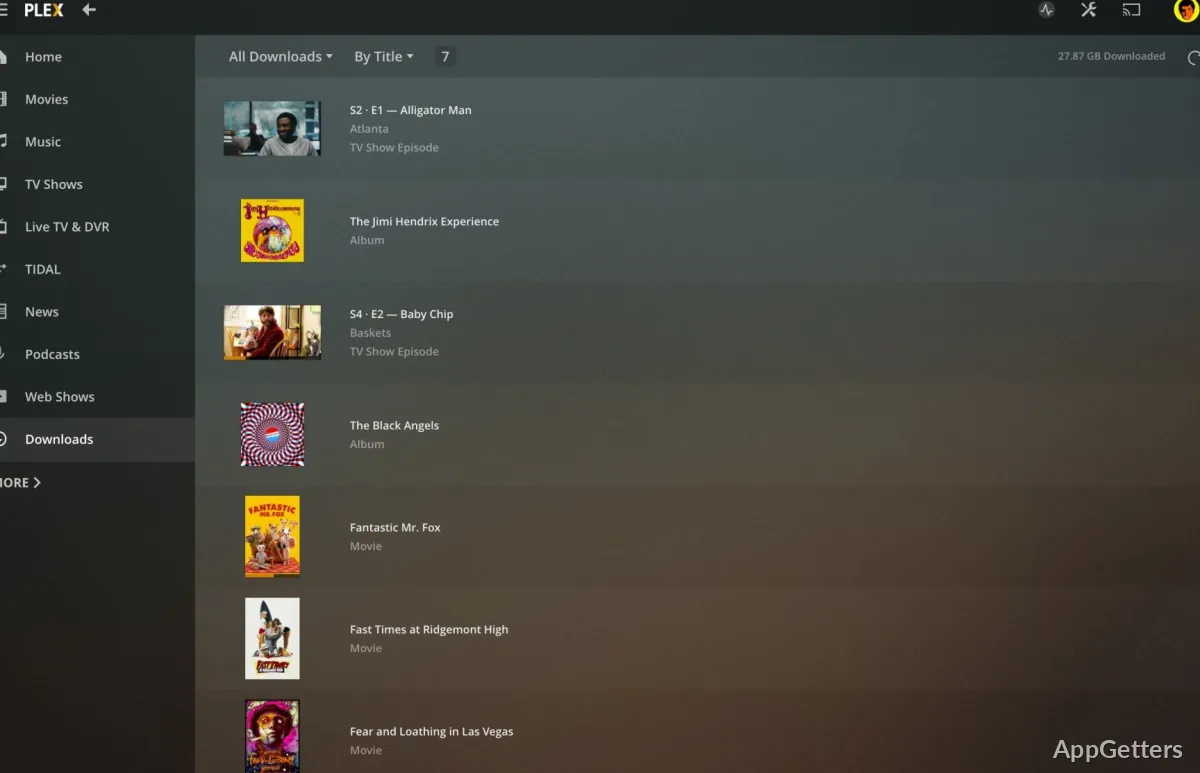
Some Plex features depend on Plex Pass or other current plan labels, so check the account screen before expecting every option to work. Hardware-accelerated streaming and Downloads are examples where subscription status can matter. Plan terms can change, so use the current Plex account page as the reference before building a workflow around a premium feature.

If hardware acceleration appears available, still test it with your real media. A compatible processor can reduce conversion load, but it does not turn every 4K file, subtitle format, or remote connection into a perfect stream.

Subtitles, Audio Tracks, and Metadata Surprises

Subtitles can make a working stream start transcoding. Image-based subtitles, forced subtitle handling, or subtitle burn-in can push more work onto the server. If a file plays smoothly without subtitles but buffers with them, test another subtitle format or client device before changing the whole server setup.

Audio tracks can create similar confusion. A video track may be compatible while the audio track is not, causing Plex to convert only part of the stream. That partial conversion still uses server resources and can explain why one version of a movie plays smoothly while another version stutters.

Posters and Details Come From Matching

Wrong posters, merged films, missing seasons, and odd descriptions usually point back to matching. Fix the item name, use the match or fix match option, and refresh metadata for the affected item. Rebuilding the entire server library is rarely needed for one wrong poster.

Local artwork and extras require supported folder behavior. When users drop artwork, trailers, and short clips into random places, Plex may ignore them or treat them as separate media. Keep special media assets organized before scanning a large collection.

Installer, Updates, and Alternatives Worth Checking

Use the official developer source or the supplied download card when installing Plex for Windows. Windows may show a security warning during setup, especially when the file is new to that PC. Continue only when the file came from the official developer source or another trusted source you intentionally chose.

Check the version shown inside the installed app or server dashboard when you need to confirm an update. Avoid depending on old version numbers copied from third-party pages, because Plex components and platform support can change over time. For managed or shared PCs, update timing may also depend on the Windows account and permissions used during setup.

If you want another media-server path before committing to Plex libraries, Emby Server is another Windows media-server option. If the PC is meant to act more like a local media center connected to a TV, Kodi may fit that room-based setup better than a server-first layout.

A careful Plex setup depends on library naming, server reachability, account choices, and the playback devices more than the installer alone. Build the folders carefully, confirm local playback, test remote access, and watch the direct play or transcode label before changing major settings. That gives Plex a stable media-server role on Windows without turning every poster mismatch or buffering message into a reinstall.

Software Details of Plex 1.112.0.359

License
GNU
Version
1.112.0.359
File Size
179.84 MB
Downloads
5
Languages
English English, Korean
Category
Op. System
Windows
Developer
Last Updated
December 1, 2025
SHA256
7060c7a03f0a7e08cda5e492c9140869f50575e739f17e38666ca0a7ef597d8e

Version History

3 versions
1.110.0.351
179.84 MB
September 7, 2025
Download
1.109.0.329
179.72 MB
May 14, 2025
Download
1.107.2.300
178.34 MB
January 27, 2025
Download

Leave a Comment

Your email address will not be published. Required fields are marked *

Software Icon
Security Report

Loading scan data...

Scroll to Top