EXE
Home » Software » Windows » Media Player » PhotoStage Photo Slideshow for Windows
PhotoStage Photo Slideshow for Windows

PhotoStage Photo Slideshow for Windows

  • By NCH Software
  • Free
  • Version: 10.70
  • 3.53 MB
  • Security Report:
2 Downloads

PhotoStage Photo Slideshow for Windows Setup Choices

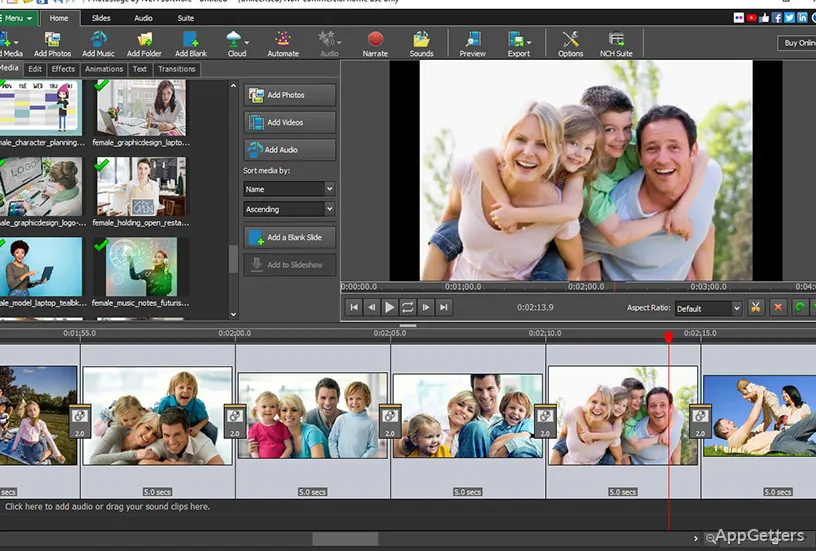
A slideshow project can go wrong before the first transition is added if the photos, videos, music, and export goal are not planned together. PhotoStage Photo Slideshow for Windows gives users a desktop way to build photo-based video slideshows with images, video clips, captions, music, narration, effects, and export options. It suits home videos, event memories, simple product presentations, and small business photo reels.

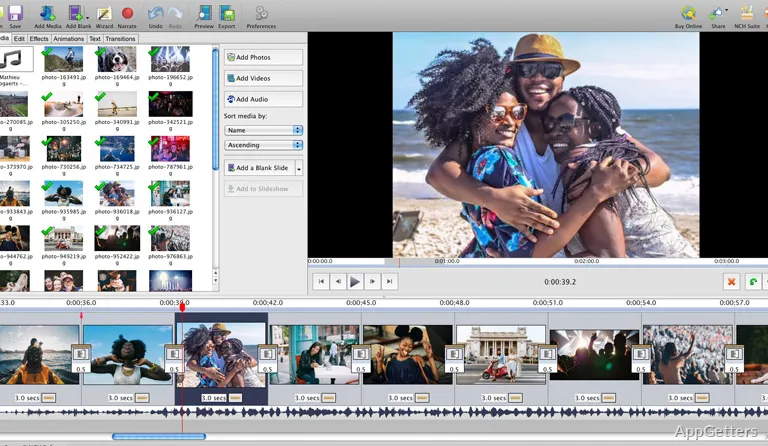
PhotoStage comes from NCH Software and belongs in the media creation category, not the normal video player category. The program focuses on turning media files into a finished slideshow movie. Users can drag media into the project, arrange the order, preview changes while editing, then save the result for computer playback, online sharing, discs, or portable devices.

Before installing, check the edition and license message shown on the download card or inside the program. NCH describes a free version for non-commercial home use, while commercial use and some advanced expectations may require checking the purchase terms. That matters when the slideshow is for a business, client, school event, church project, or paid presentation.

Import Photos, Videos, Music, and Narration Carefully

A tidy folder makes slideshow work easier to control. Put the photos, short video clips, music track, and any recorded narration in one project folder before opening PhotoStage. This reduces missing-file problems later, especially if the project is moved to another drive or reopened after Windows updates, cloud sync changes, or file cleanup.

Photos look soft after zoom or pan effects

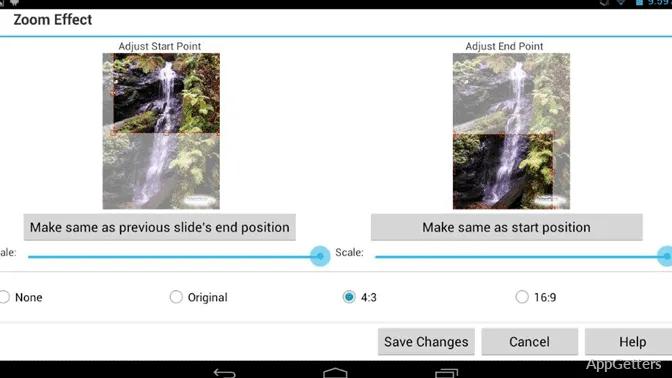
Zoom, pan, crop, and Ken Burns-style movement can make a photo feel more alive, but they also expose weak source images. Use the highest quality original photos you have, especially for wedding, memorial, travel, and real estate slideshows. Low-resolution images may look acceptable in the editor and still appear soft after export.

Keep heavy cropping under control. A portrait photo can fill a widescreen frame, but cutting too far into the image may remove faces, text, or important background details. Preview each important slide after adding motion, then adjust the start and end positions instead of applying one movement style to every image.

Video clips and audio need a separate check

PhotoStage supports common video and audio formats, but mixed media still deserves a quick preview. If a clip plays with no sound, shows the wrong section, or looks stretched, fix that before building the full timeline. A short test project can save time when the final slideshow includes many small phone videos.

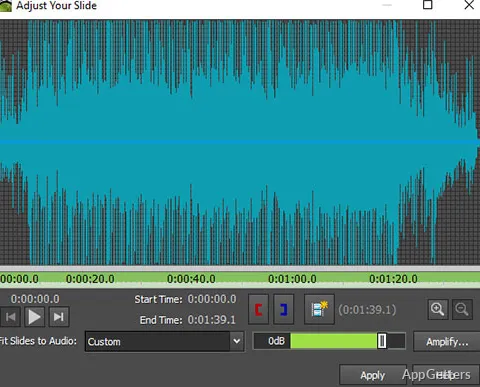
Music and narration also need balance. A background track can overpower a voice recording if both sit at the same level. Lower the music, trim silence, and listen from the start of the slideshow instead of checking only one slide. For voice-heavy work, Express Scribe Transcription Software can help when speech notes need review before recording.

PhotoStage Download and Install Notes

Install PhotoStage Photo Slideshow for Windows from the official developer source or the supplied download card, then compare the visible version information with the version shown inside the app after setup. Avoid modified installers, cracked editions, serial key pages, and unknown mirror downloads, because slideshow software may need access to media folders, microphone input, export modules, and online sharing features.

Windows support has been listed by NCH across modern versions, including Windows 7 through Windows 11 on the main download page, while the help page also references older Windows versions. Use the current download card for the exact build you are installing. On older PCs, pay attention to graphics support because some effects may depend on a DirectX-compatible 3D accelerated video card.

The setup should be treated like a media editor install rather than a small viewer install. Close other video tools, save open work, and let the installer finish before launching the program. After installation, open a small sample folder first. Add a few images, one audio file, one title, and one transition before starting a large family or business slideshow.

Fix Export Problems Before the Final Render

Many users search for PhotoStage Photo Slideshow for Windows only after an export fails, takes too long, or produces a video that will not play on another device. The cause is not always the program itself. It may be the chosen output format, a missing source file, an overloaded timeline, an unsupported effect, or a destination folder without enough space.

The video exports but will not play everywhere

Choose the output target based on where the slideshow will be watched. A file for a Windows PC, a portable device, a web upload, and a disc project may need different settings. When sharing with family, a widely supported video format is usually more practical than a setting chosen only because it has the highest quality label.

After export, test the file outside PhotoStage. Open it in a separate player and watch the first minute, a middle section, and the ending. If you need a playback check, VLC Media Player is a useful separate player because it can reveal whether the exported file itself plays correctly.

DVD or Blu-ray output needs the right workflow

PhotoStage can create slideshow videos and includes disc-oriented export choices, but disc burning can still depend on the selected output path and available burning tools. For Blu-ray work, NCH help points users toward exporting to MP4 first and then using a disc burning program. Check the exact output choice before assuming every disc type is made directly from one button.

Disc projects should be tested with a short version first. A five-minute export can reveal menu, quality, and playback issues before you spend time rendering a long wedding or memorial slideshow. Also confirm the destination disc, drive, and player support the format you plan to use.

Rendering slows down or fails near the end

Large projects can strain an older laptop, especially when many transitions, high-resolution photos, video clips, and audio tracks are used together. Restart Windows before the final export, close browsers and games, and export to a local drive instead of a cloud-synced folder. A simple folder path also reduces file access errors during rendering.

If the export keeps failing at the same point, check the slide or clip around that timestamp. Replace one suspicious video, remove a heavy effect, or export a smaller section. This method is faster than rebuilding the entire project and usually finds the media file or transition causing trouble.

Editing Slideshow Timing Without Making It Feel Robotic

PhotoStage Photo Slideshow for Windows is useful when users want more control than a basic photo viewer slideshow can provide. Slide timing, transitions, captions, title pages, music, and narration all change the viewer’s pace. The problem is that too much automation can make a personal slideshow feel flat, while too many effects can make it look busy.

Start with the story order, not the effects list. Put the most important images in a natural sequence, then adjust slide duration based on what the viewer needs to see. Group similar photos together, slow down moments with faces or text, and move quickly through repeated scenery. This gives the slideshow a human rhythm before transitions are added.

Use transitions as separators, not decoration on every slide. A soft fade may suit family memories, while a sharper movement may suit product shots or travel clips. If every photo spins, zooms, or flips, the motion becomes tiring. When you need a lighter slideshow-focused alternative, Icecream Slideshow Maker may fit users who want a shorter workflow.

Image Touch-Ups, Captions, and Project Files

PhotoStage includes basic photo enhancement, crop, rotate, flip, brightness, color, saturation, captions, title animations, and preview tools. These are practical for slideshow preparation, but they should not replace careful photo editing when the source pictures need major repair. Fix badly exposed or damaged images first, then bring the revised files into the slideshow.

For deeper edits before slideshow assembly, a separate image editor can help. Users who need to crop batches, improve individual photos, or prepare graphics may prefer editing those assets first with PhotoPad Image Editor or another photo tool, then importing the final images into PhotoStage. That keeps the timeline easier to manage.

Project files also need attention. Saving a project is not the same as exporting a finished video. The project keeps the edit structure, but the final video is what viewers can play without PhotoStage. Keep the original media folder until the project is finished, exported, checked, and backed up.

Use PhotoStage When the Output Matters

PhotoStage Photo Slideshow for Windows works best when the goal is a finished video slideshow rather than a folder of loose pictures. It can combine photos, video clips, music, narration, captions, effects, and export choices in one workflow. The setup becomes easier when users prepare source files, test playback, and understand the license before starting a larger project.

Use the current installer, check the visible version information, and avoid assuming every feature or output format behaves the same on every PC. For family memories, simple marketing reels, school presentations, and photo stories, a small test export is a practical first step. Once that test plays correctly, the full slideshow is much easier to finish with confidence.

Software Details of PhotoStage Photo Slideshow 10.70

License
Free
Version
10.70
File Size
3.53 MB
Downloads
2
Language
English
Category
Op. System
Windows
Developer
Last Updated
August 26, 2023
SHA256
e2bc26bb51b87944cb0e6972cb4ba9b94c1243fe417d8e2108eb3841a9ee6f9e

Version History

1 version
10.25
3.5 MB
February 11, 2023
Download

Leave a Comment

Your email address will not be published. Required fields are marked *

Software Icon
Security Report

Loading scan data...

Scroll to Top