EXE
Home » Software » Windows » Media Player » PhotoStage Free Photo Slideshow for Windows
PhotoStage Free Photo Slideshow for Windows

PhotoStage Free Photo Slideshow for Windows

  • By NCH Software
  • Free
  • Version: 10.25
  • 3.5 MB
  • Security Report:
0 Downloads

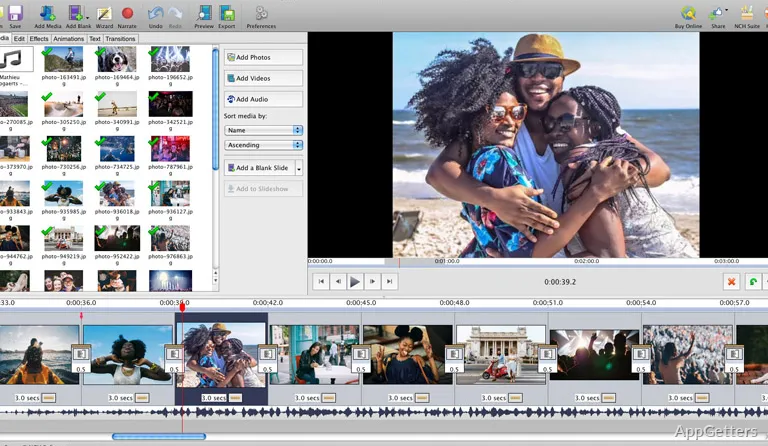
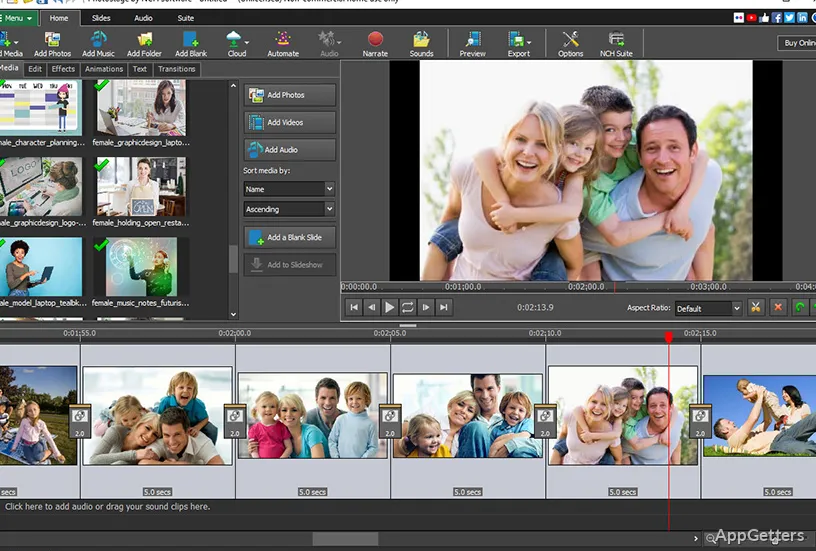
A slideshow project often starts as a photo folder, then slows down when the music, captions, transitions, and export size pull in different directions. PhotoStage Free Photo Slideshow for Windows is made for building photo and video slideshows on a PC, not for managing a full video channel. It fits projects that need a finished slideshow movie from pictures, short clips, audio, narration, and visual effects.

PhotoStage Free Photo Slideshow for Windows Project Setup

PhotoStage comes from NCH Software and belongs in the slideshow-maker category. The free edition is offered for non-commercial home use, so business, client, school-office, or paid work should be checked against the license shown by NCH. That check belongs near the start, before a long project fills up with music, captions, and export choices.

The program can combine photos, video clips, music, and narration into a slideshow movie. It goes beyond a photo viewer because the timeline needs timing decisions. A wedding folder, birthday album, classroom memory project, product photo set, or travel collection will not all need the same pace.

Start with a smaller project before loading hundreds of photos. A short draft shows whether the image order works, whether the music fits, and whether the export plays on the device where the slideshow will be watched. Large projects are easier once those early choices stop changing.

Photos, Clips, and Audio Before the Timeline Gets Crowded

PhotoStage Free Photo Slideshow for Windows can use images, video clips, and audio, but the project behaves better when the source folder is sorted first. Keep pictures, music, and short videos in separate folders if the collection came from several phones or cameras. Random filenames make the first timeline order harder to judge.

Image size can affect the editing feel. Very large phone photos may look fine, but a long slideshow full of them can feel heavy during editing. Keep the original photos untouched and work from a separate project set when major cropping, resizing, or replacement decisions are likely.

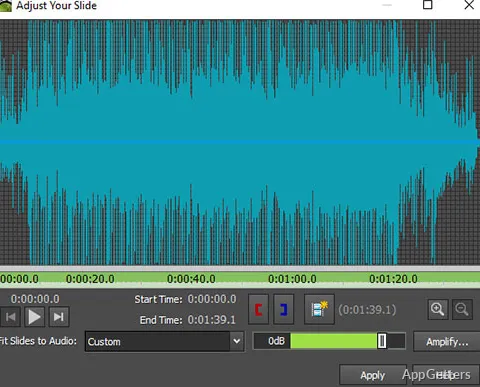
Music needs an early check. A track that sounds good by itself may not match the length of the slideshow, especially when each photo stays on screen too long. Add the audio before the project grows too far. For online sharing, use music that you have the right to use.

Narration and Voice Timing

PhotoStage can use narration for family stories, lessons, real estate photo tours, and product walkthroughs. Record a short section first instead of narrating the whole project in one pass. That gives time to check microphone volume, background noise, and how the voice lands against the slide timing.

If the narration starts late or feels rushed, adjust the slide timing before recording everything again. Many slideshow problems come from timing, not the microphone. A short voice section over a few photos is easier to repair than one long narration track stretched across the whole timeline.

Installing PhotoStage Without Turning It Into a Guessing Job

For PhotoStage Free Photo Slideshow for Windows, compare the app name and publisher with the download card or official NCH page before running the installer. Check the version and file details shown on the page you are using. Continue only when the file came from the official developer source or another trusted source you intentionally chose.

Windows may show a security warning during setup. Read the publisher and file name before continuing. A slideshow maker should not need unrelated browser extensions, serial key pages, cracked editions, or unknown download helpers to install. If the installer path looks different from the expected PhotoStage package, stop and recheck the download.

Keep a note of the version details currently being used, especially if an older project must be reopened later. Do not discard older project exports just because a new install opens successfully. A finished MP4 or disc-ready export is often easier to reuse than rebuilding the slideshow from memory.

Transitions, Captions, and Motion Choices That Need Restraint

PhotoStage includes transitions and effects, but too many styles can make a slideshow feel busy. Pick a small set and repeat them on purpose. Family slideshows, class memories, and travel albums usually look better when the movement supports the photos instead of pulling attention away from them.

Captions need the same restraint. A short caption can explain a date, place, person, or scene, but long text turns the viewer into a reader. If one slide needs a full explanation, narration may work better than a paragraph placed over the photo.

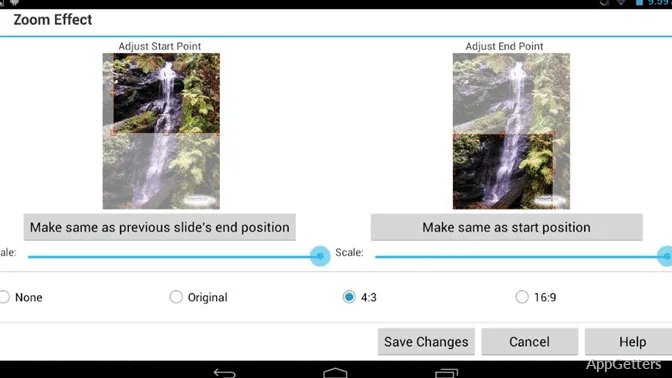
Pan and zoom effects can add movement to still photos. They can also crop faces, signs, or details if the frame is not checked. Preview the first few slides at normal playback speed, because motion problems often appear only when the slideshow is actually running.

When Another Editor Fits the Job Better

PhotoStage is built around slideshow creation. If the project turns into heavy video editing with multiple video layers, complex cuts, or social-media effects, a video editor such as CapCut may fit that job better. For slideshow-first work, PhotoStage keeps the project closer to photos, timing, captions, and export.

For photo correction before building the slideshow, a separate image editor can help. PhotoPad Image Editor is a closer match when source pictures need cropping, color adjustment, or cleanup before they reach the PhotoStage timeline. Fixing a photo before import is often easier than hiding the problem later with effects.

Export Problems to Check Before Sharing the Slideshow

PhotoStage Free Photo Slideshow for Windows can save finished slideshows as video files and may offer sharing or disc-related output choices depending on the selected package and installed features. Before promising a format to someone else, check the export choices visible inside your installed copy. Let the available output guide the project.

A slideshow may look fine in preview and still produce a file that is too large, too soft, or awkward to send. Export a short sample first. Watch it outside PhotoStage in a normal player, then check whether the picture, audio, captions, and timing still hold together.

If the slideshow will play on a TV, projector, or another computer, test the exported file there before the event. A laptop preview does not always reveal low volume, small text, or photos that look darker on a bigger screen. Memorial slideshows, classroom events, and business presentations need that check before the room is full.

File Format and Playback Checks

When an exported video does not open on the target device, try a widely supported format from the export list instead of changing the whole project. The playback device may be the problem, not the slideshow. A media player such as VLC Media Player can help test whether the exported file plays correctly.

If the exported video plays but looks compressed, review the photo size, project length, and export settings. A slideshow with many sharp images, fast movement, and music can need different settings from a short photo greeting. Save another export under a different filename so the earlier result stays available for comparison.

License and Feature Labels in the Free Edition

The free edition of PhotoStage is for non-commercial use. Read that license detail before creating slideshows for clients, paid events, advertising, or business pages. If a feature label or upgrade prompt appears inside the app, treat the app’s own wording as the final reference for that installed copy.

Do not assume every tutorial, screenshot, or older download page matches the version currently installed. NCH may offer different editions or related products, and feature availability can vary by package. Use the installed program’s menus and export screen when deciding whether a project can be completed in the free edition.

The free version still fits home slideshows when the project stays within the allowed use. Birthday photos, vacation albums, memory videos, school-at-home projects, and personal collections are natural starting points. Commercial use should be checked before building the slideshow, not after the export is finished.

When PhotoStage Is Worth Keeping Installed

PhotoStage Free Photo Slideshow for Windows makes sense when the main job is turning a photo folder into a watchable slideshow with music, captions, narration, transitions, and an export file. It is not the right tool for every video task. It is strongest when the photos still lead the project.

A careful workflow saves time: organize the source folder, test a short draft, add music early, preview motion at normal speed, and export a small sample before the final render. For users who only need a quick alternative slideshow maker, Icecream Slideshow Maker is another option to compare.

Keep the original photos untouched, save separate project copies before major edits, and test the exported slideshow on the screen where it will actually be shown. PhotoStage works best when those basics are settled early, because the last problem before sharing is often not the software itself but a mistimed song, unreadable caption, or export choice that was never tested outside the editor.

Software Details of PhotoStage Free Photo Slideshow 10.25

License
Free
Version
10.25
File Size
3.5 MB
Downloads
0
Language
English
Category
Op. System
Windows
Developer
Last Updated
February 11, 2023
SHA256
764d21301f834df194bcd83b25f8e57a9588234944edc1a4c50ebb891302c168

Leave a Comment

Your email address will not be published. Required fields are marked *

Software Icon
Security Report

Loading scan data...

Scroll to Top