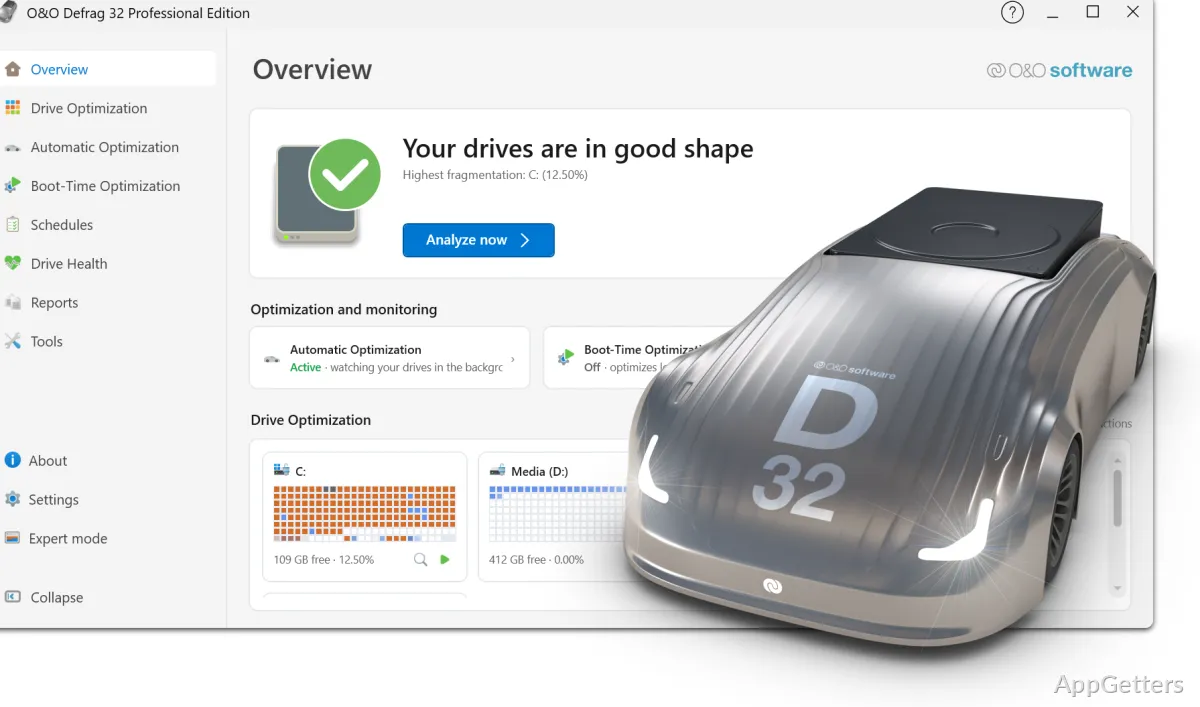
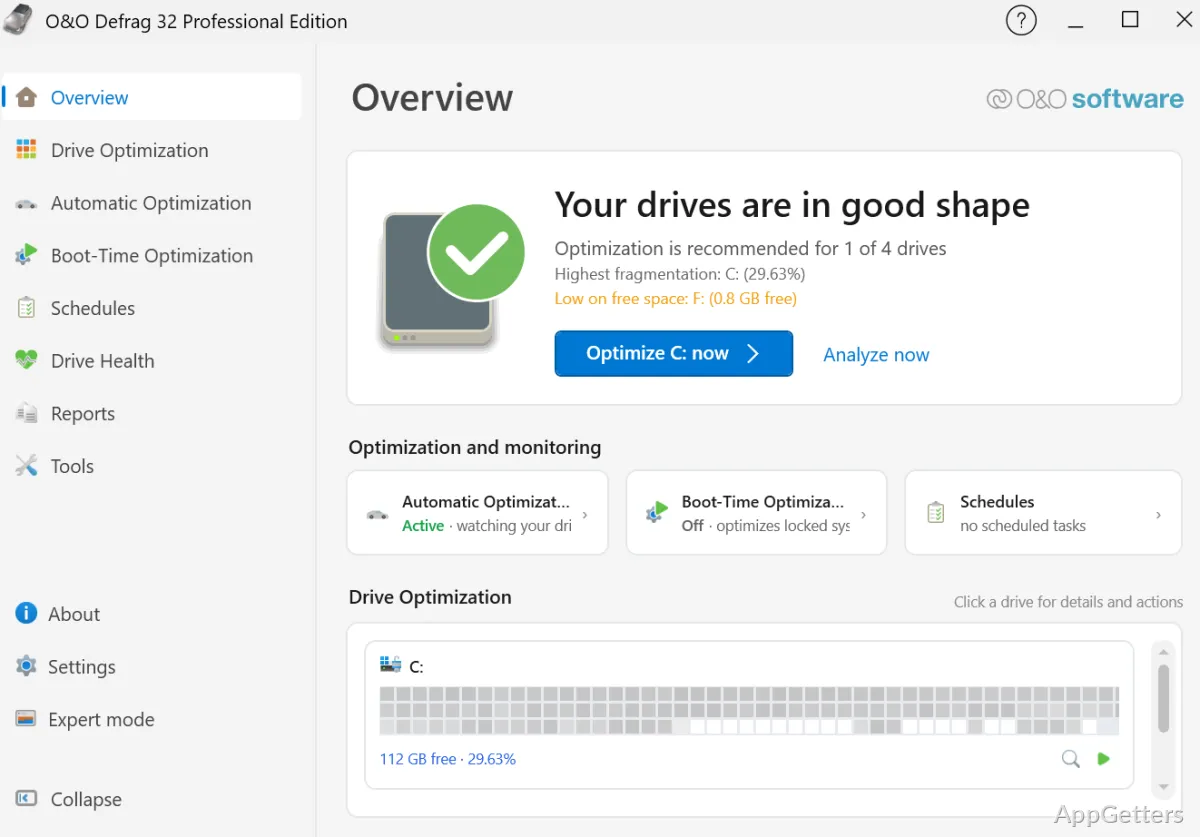
Reorganized drive data can reduce the time Windows spends locating files on a traditional hard disk. O&O Defrag analyzes storage and applies optimization methods suited to HDDs, SSDs, and NVMe drives.
O&O Defrag matches optimization to the drive
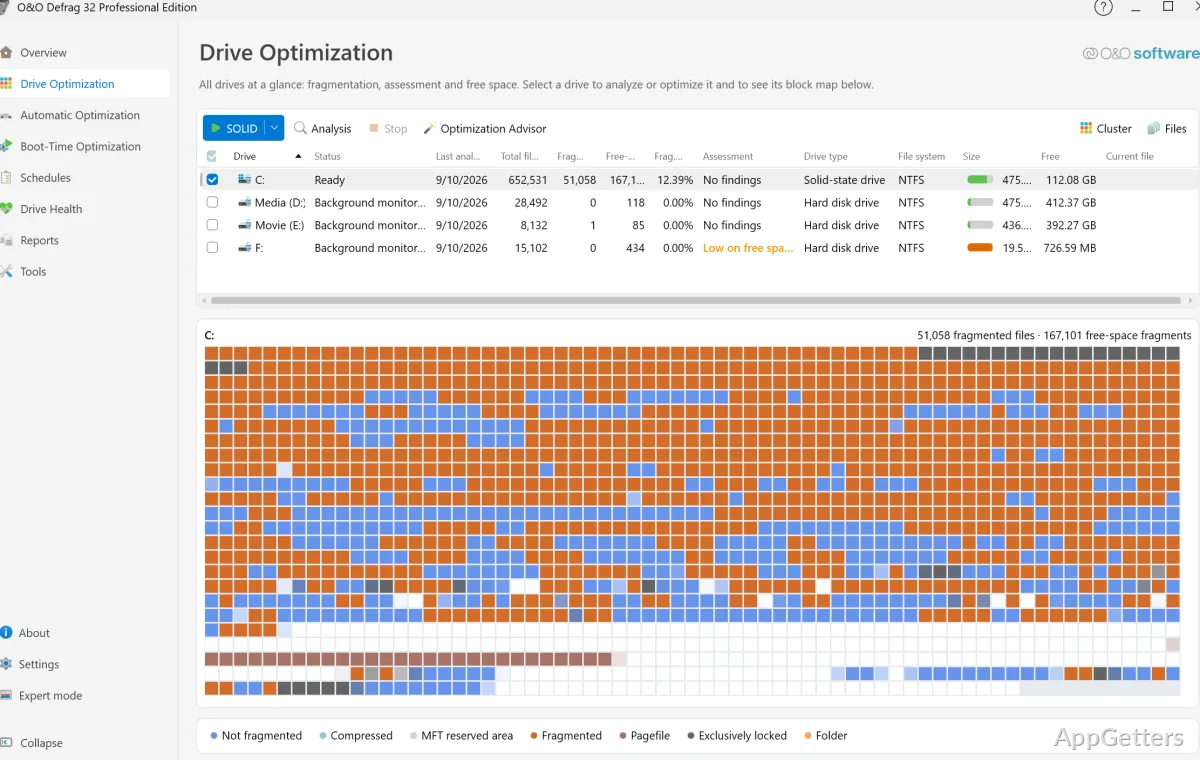
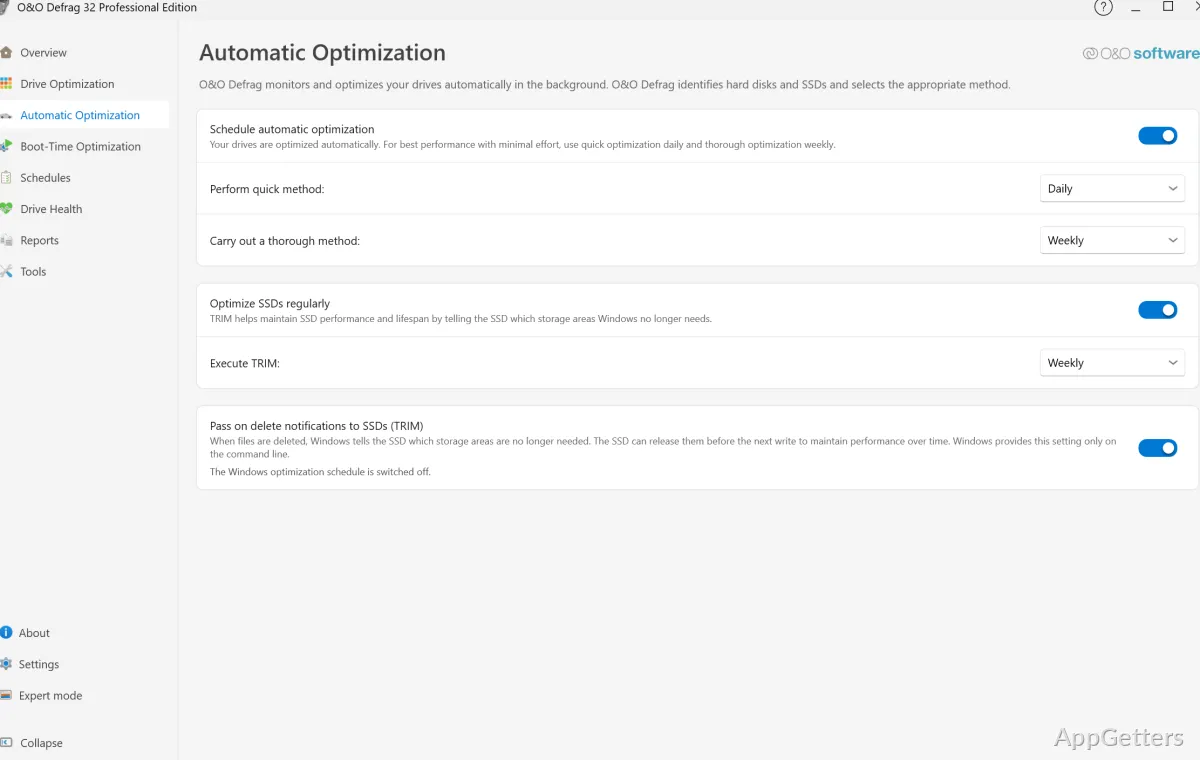
The program analyzes connected drives and chooses an appropriate approach. On traditional hard disks, defragmentation brings file fragments together and can shorten access paths. SSD and NVMe drives have separate optimization methods, including SOLID/Quick and SOLID/Complete, as well as TRIM support.
O&O SpeedCheck measures how quickly files open before and after optimization and shows the difference. This provides a drive-specific view of the potential effect of reorganizing data.
Scheduled tasks adapt to system activity
Optimization jobs can be scheduled and assigned to multiple drives. O&O ActivityMonitor watches how busy the PC is and slows Defrag down whenever other programs need the processor or disk. Reports show completed actions and optimization progress.
- Run drive analysis and optimization on a schedule.
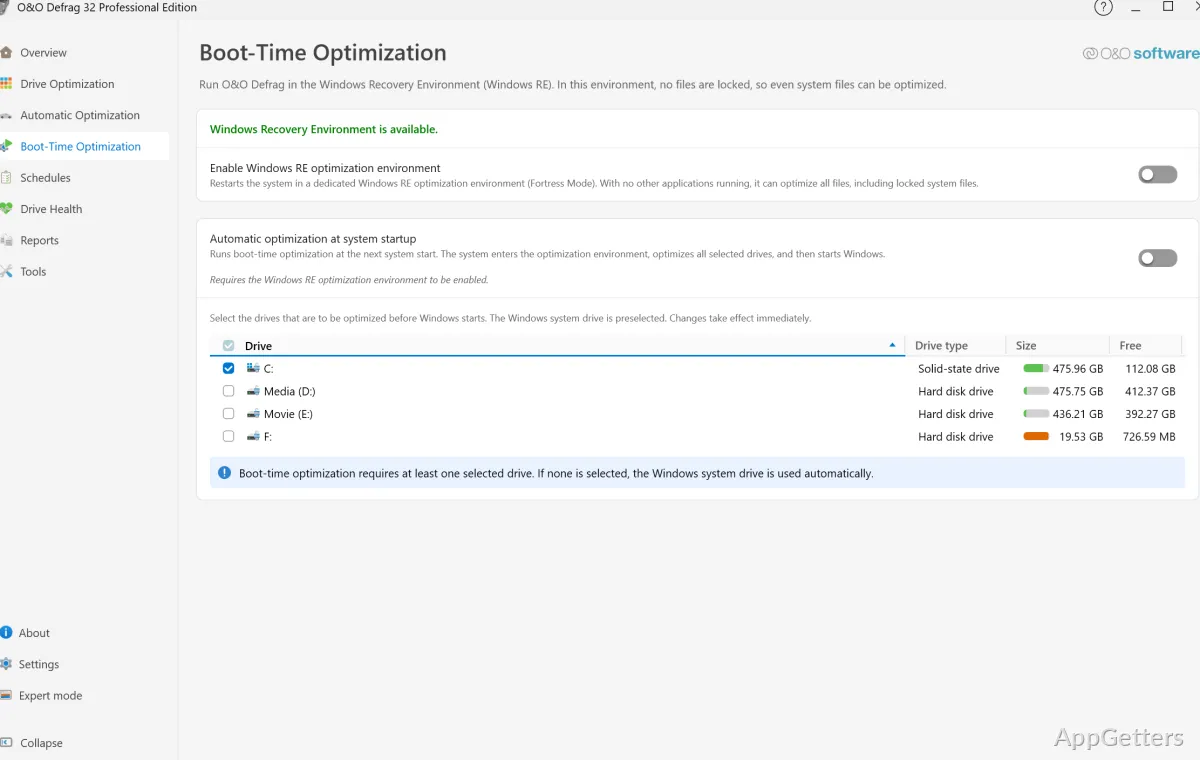
- Locked system files, which Windows keeps open while it runs, are handled by boot-time optimization before Windows starts.
- O&O IntensiveOptimize can work in a separate Windows environment, including on BitLocker-encrypted drives.
Drive tools cover health, writes, and startup
Drive Health displays condition ratings for HDDs, SSDs, and NVMe storage. O&O VisualDisk visualizes write access on flash-based drives, giving a view of write activity during optimization.
O&O StartupManager lists programs, tasks, and services that launch with Windows, along with information about their startup impact. You can switch entries off or delete broken ones.
Choose the modern view or classic Expert Mode
The interface offers a streamlined view as well as a classic mode with more configuration choices. Expert Mode lets advanced users choose their own mix of defragmentation and optimization methods. O&O DiskCleaner is also integrated for removing temporary files, internet caches, and other unneeded data.
Pros
- Selects drive optimization methods based on storage type
- Compares fragmented and optimized access in O&O SpeedCheck
- Schedules background work and adjusts activity to system load
- Offers classic Expert Mode alongside a streamlined interface
System requirements: Windows 11
Does O&O Defrag use the same method for HDDs and SSDs?
No. It defragments traditional hard disks and provides separate optimization methods for SSDs and NVMe drives, including TRIM support for SSDs.
What does O&O SpeedCheck measure?
It compares simulated access times for fragmented and optimized file layouts on a drive.
Can O&O Defrag optimize system files while Windows is running?
Files that Windows keeps locked during normal use are processed at boot time instead.