People who switch between a desk setup and a laptop screen, or rearrange displays during the day, can use MultiMonitorTool to manage those changes. It brings monitor controls, saved layouts, and window movement into one utility, with both a graphical interface and command-line options.
How do saved monitor layouts work?
MultiMonitorTool can save the current monitor configuration to a file and load it later. A saved layout includes display arrangement details such as position, resolution, and orientation, so a familiar setup can be restored after switching to another arrangement.
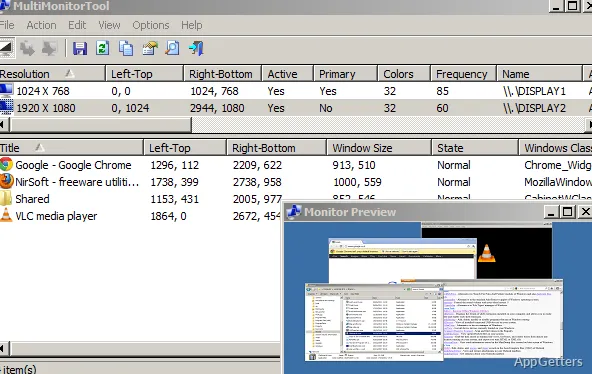
The main window presents detected displays in a list, with identifying and configuration details in columns. A preview window shows the image on each monitor, giving a visual reference while choosing a display or checking the current arrangement.
Which display controls are available?
Select one or more monitors in the list to manage their state and role. Common controls include:
- Enable or disable a monitor.
- Set a selected display as the primary monitor.
- Change display orientation or scaling.
- View monitor details, including identification information when available.
Can it move windows or run commands?
The window list lets you move an application window to another monitor or bring windows from other displays onto the primary screen. MultiMonitorTool also provides command-line controls for tasks such as enabling or disabling a display, setting the primary monitor, loading a saved configuration, and moving windows. These commands can run without opening the main interface, which suits repeatable display changes or scripts.
For a system with several displays, disabling and later re-enabling a monitor can sometimes alter its position. Saving the arrangement first and loading that configuration afterward can restore the intended layout.
Pros
- Saves and restores monitor configurations
- Enables, disables, or selects the primary display
- Moves windows between monitors or onto the primary display
- Offers monitor previews and command-line controls
Cons
- Re-enabling a display on systems with three or more monitors may change its position
System requirements: Windows 7, Windows 8, Windows 8.1, Windows 10, Windows 11 · 32-bit and 64-bit
Can MultiMonitorTool move an open window to another display?
Yes. Use the window controls in the interface or the command-line options to move windows between monitors.
Can I restore a monitor arrangement later?
Yes. Save the current monitor configuration to a file, then load that file when you want to restore the layout.
Can monitor controls run without the main window?
Yes. MultiMonitorTool supports command-line operations, including display changes and configuration loading, without showing its interface.