EXE
Home » Software » Windows » general » SSD Fresh for Windows
SSD Fresh for Windows

SSD Fresh for Windows

  • By Abelssoft
  • Free
  • Version: 2026.15.03
  • 6.29 MB
  • Security Report:

Solid-state drives inherently work at high speeds; however, the majority of Windows PCs still treat them just like traditional hard disks. Running background operations, resorting to logging activities, and performing scheduled maintenance tasks may silently add up. They pile too many writes that are a waste of time. Although this will not show any performance decline at first, it is bound to impact drive health and operating efficiency in the long run. Most users won’t find it evident to pinpoint and modify these kinds of settings manually. Hence, that is exactly the role of an application such as SSD Fresh. It revolves around tuning Windows operations specifically for SSDs without exposing its users to complex technical terminology or requirements.

Making SSD Optimization More Accessible

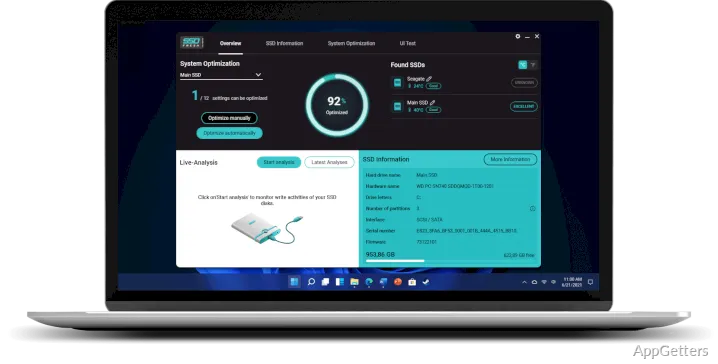
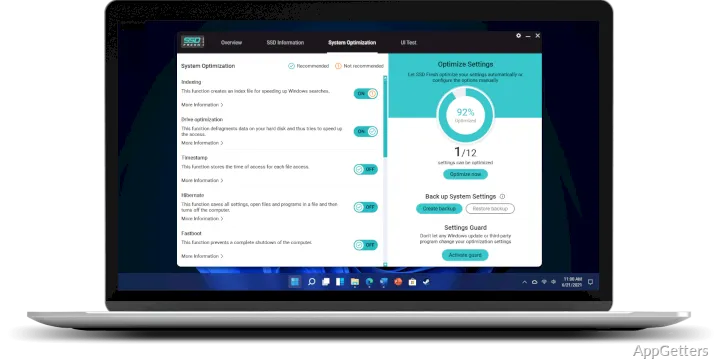
During normal operation, SSD Fresh acts as a step-by-step tweak instructor instead of a system tester. Right after the installation is complete, the software assesses the machine. It points out settings that may not be best for SSDs. Examples are features like defragmentation time slots, recording of timestamps, and a few indexing activities. For each setting, the user is provided a simple explanation so that they have a clear idea of what changes are being made.

This method is a great solution for beginners or non-expert users. They simply don’t want to explore the inner side of Windows services and registry entries. The commendable part is that one just has to hit a button. It implements the changes. Also, most of the modifications won’t bring about a reboot. The end result is very much a natural system fit with the SSD way of doing things.

Practical Effect on System Operation

In fact, working with SSD Fresh, one can hardly detect instant improvements in the performance of the system. To be fair, look at the current generation of SSDs. They are so insanely fast. Even removing those pesky background features won’t make a huge difference in how fast the system boots up. It also won’t change how quickly the collation of apps is done. Having said that, the concept becomes more evident throughout extended usage.

Since the tool literally puts the brake on futile write operations, this results in healthier SSDs in the long term. Machines used predominantly for web surfing, simple paperwork, or multi-tasking to a mild extent feel much quieter over a stretch of time. The fewer interruptions to the core functions of the system are done in the background, the better. Therefore, it can indirectly help the drive last longer, but it will not help in improving speed.

However, be aware that not all the proposed changes will benefit everyone. For example, indexing might make it easier and faster for users who heavily depend on search. It is one of the main reasons for their workflow. SSD Fresh does provide fine-grained control; however, users still need to determine their work style. Based on that, they must decide small things.

Ease of Use vs. Depth of Control

SSD Fresh primarily focuses on making the software simple to operate. It has an intuitively built and uncluttered layout. It is accompanied by well-marked on/off buttons and a main dashboard that keeps users updated about how their PCs are performing. This tool is very user-friendly, especially for those who have little knowledge of how to change Windows configurations by themselves. So they will find it very handy.

On the other hand, simplicity constitutes a trade-off for other things. I have seen that hardcore users usually dislike that lack of control. This is really the main reason why the application is not a good one for them. You won’t find many possibilities for setting things exactly the way you want. This is above and beyond what is given by default. In a nutshell, it cannot replace Windows utilities or manual tweaking if you are determined to have ultimate control over SSD tuning.

Nevertheless, for its targeted group, this compromise is good enough. It manages to not scare away people while still hitting the most important points with the optimizations.

Where SSD Fresh Fits in Everyday Use

SSD Fresh finds its niche among users who install Windows on new SSDs. These include home users, university students, and anyone who prefers a hassle-free approach to not causing unnecessary wear. The tool can easily come in handy on fresh OS installations. It is also useful on PCs that are not specifically configured for solid-state drives.

The software does not magically improve extreme system performance changes instantly. Nor is it a necessary piece of software for each and every setup. But when used as a simple utility guiding Windows into practice with SSDs, it quietly but deliberately supports and complements system operations. Those who like straightforward, very direct guidance instead of the manual tweaking method will get a lot of value out of it.

Software Details of SSD Fresh 2026.15.03

License
Free
Version
2026.15.03
File Size
6.29 MB
Downloads
0
Languages
English English, Afrikaans, Amharic, Arabic, Armenian, Belarusian, Bulgarian, Catalan, Chinese, Croatian, Czech, Danish, Dutch, Estonian, Farsi, Finnish, French, German, Greek, Hebrew, Hindi, Hungarian, Icelandic, Indonesian, Italian, Japanese, Kazakh, Korean, Latvian, Lithuanian, Malay, Norwegian, Polish, Portuguese, Romanian, Russian, Serbian, Slovak, Slovenian, Spanish, Swahili, Swedish, Tagalog, Thai, Turkish, Ukrainian, Vietnamese, Zulu
Category
Op. System
Windows
Developer
Last Updated
June 17, 2025

Version History

6 versions
2026.15.03
Latest
6.29 MB
June 17, 2025
2026.15.02
6.28 MB
May 27, 2025
2026.15.0
6.37 MB
May 13, 2025
2024.13.03
6.31 MB
August 22, 2024
2024.13.02
6.31 MB
August 18, 2024
2024.13.01
6.38 MB
April 16, 2024

Leave a Comment

Your email address will not be published. Required fields are marked *

Software Icon
Security Report

Loading scan data...

Scroll to Top