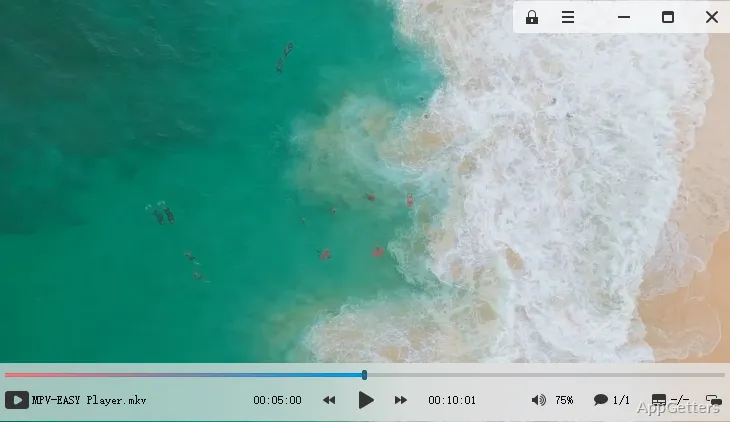
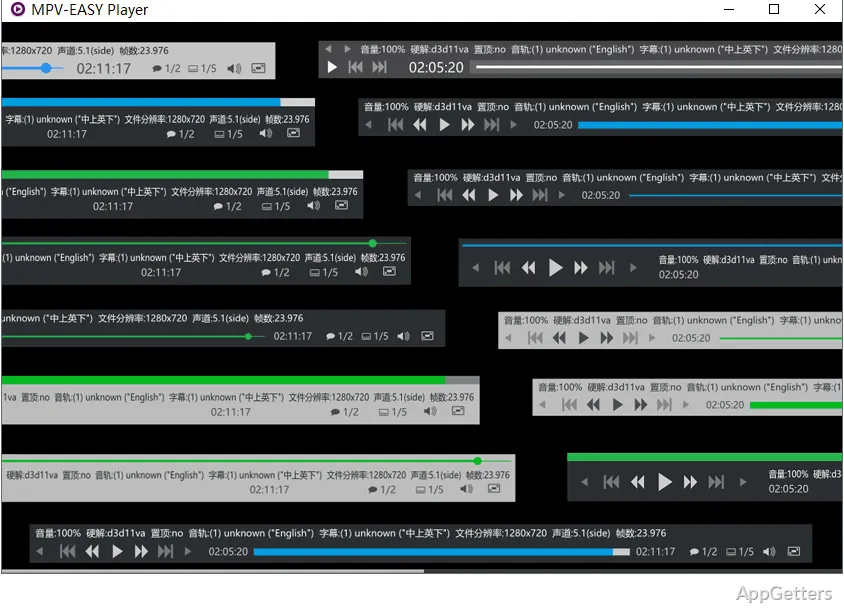
MPV-EASY for Windows is for users who like mpv playback but do not want to begin with a bare player window and hand-written settings. It wraps mpv-style media playback in a more approachable Windows package, with interface controls and configuration choices closer to a desktop player. That makes it useful for local videos, subtitles, audio tracks, and users who want more control than a basic media app offers.
MPV-EASY for Windows Is Not Just Another Skin
MPV-EASY sits on top of the mpv playback world. That detail matters. The player is not trying to become a video editor, media server, or streaming subscription app. Its real value is in giving Windows users a friendlier way to use mpv behavior without starting from the most minimal setup.
A normal mpv setup can feel sparse if the user expects visible menus, remembered choices, and familiar playback controls. MPV-EASY tries to reduce that first barrier. The playback engine still matters underneath, especially when subtitles, audio tracks, scaling, scripts, and configuration files start affecting the result.
Users who want a familiar general-purpose player may prefer VLC Media Player. MPV-EASY fits better when the user specifically wants an mpv-based player with Windows-facing controls and room for deeper playback adjustment.
Download Checks Before You Place the Player Folder
Before using MPV-EASY for Windows, compare the product name, Windows platform, and version shown on the download card with the official project page or supplied download card. Avoid relying on version details copied from old software directories. When version accuracy matters, use the player’s own version information after launch.
Continue only when the file came from the official developer source, the supplied download card, or another trusted source you intentionally chose. If Windows security or another protection tool shows a warning for the file or one of its components, check the source again before continuing. Avoid modified packages, cracked editions, serial key pages, and unknown mirror downloads.
MPV-EASY can behave differently from a conventional installed app because player folders, settings, scripts, shortcuts, and mpv configuration may live close to the package itself. Put the folder somewhere you intend to keep it. Moving it later can confuse shortcuts, remembered paths, or file association choices.
Start with a small test before changing settings. Open one common video, one audio file, and one subtitle file. If those work, the player is ready for more specific checks. If the first test uses a damaged or unusual file, the result may say more about the file than the player.
Controls, Modes, and the First Confusing Launch
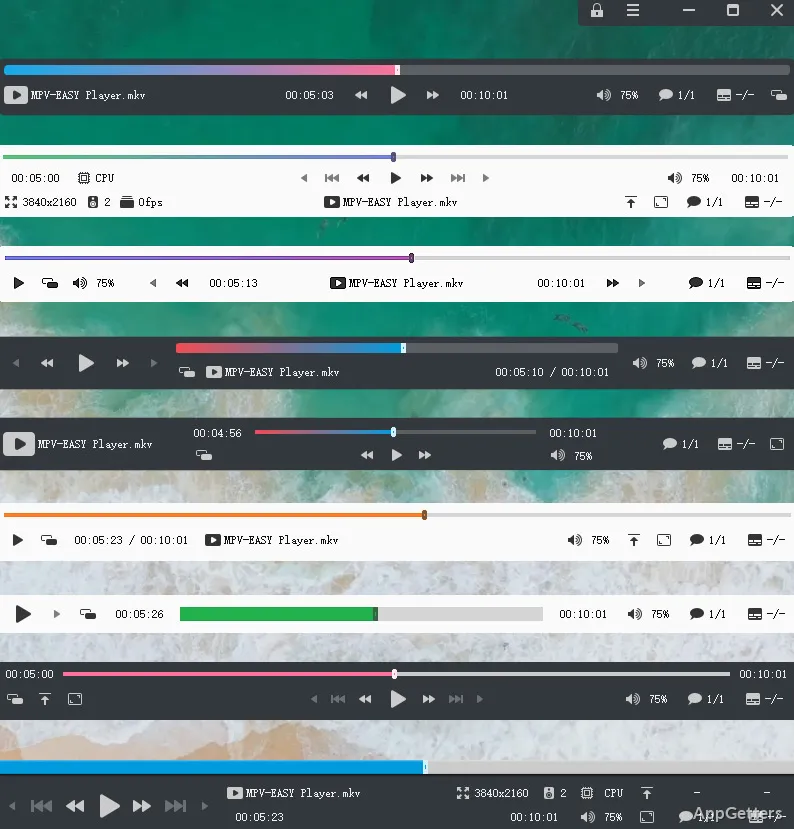
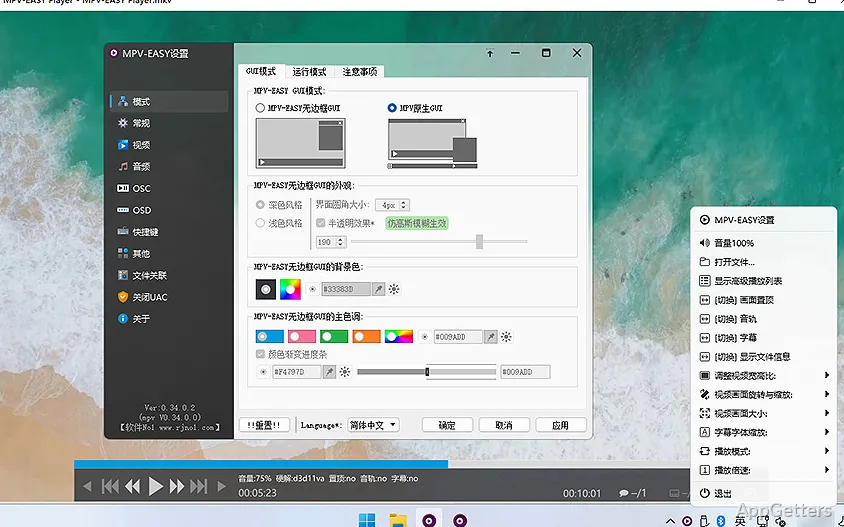
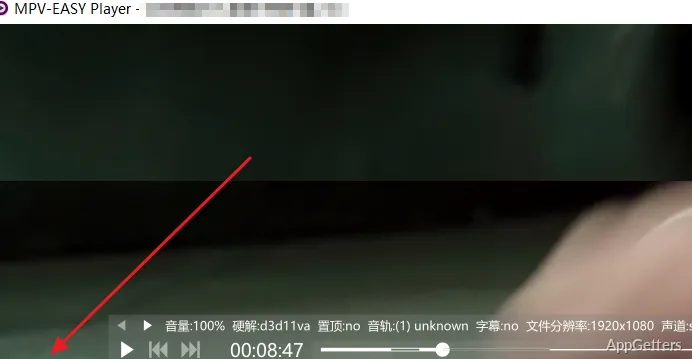
MPV-EASY may not look the same for every user because interface mode and controller settings can change what appears on screen. A missing bar, different button layout, or unfamiliar window style does not automatically mean the player failed. Check the selected interface behavior before reinstalling.
Some control problems show up only in full screen. Move the mouse, leave full screen, then try the same file again. If the controls return, the issue is probably tied to on-screen controller behavior or a display setting. That is easier to fix than a broken media file.
Keyboard shortcuts can feel different too. MPV-EASY has its own shortcut layer, and mpv-style input settings may still influence playback. A key can stop doing what the user expects because another shortcut, script, or configuration file has taken over the same action.
When the playback bar will not appear
Check the interface mode before changing video settings. A hidden or inconsistent playback bar can come from full-screen behavior, mouse movement timing, controller settings, or a custom mpv configuration. Test the same file with default interface behavior if you recently changed scripts or shortcut files.
When shortcuts conflict
Shortcut trouble often starts after copying someone else’s input settings. A key may belong to native mpv, the MPV-EASY interface, or a script. Remove the newest shortcut change from the test first, then try the same file again. That keeps the problem tied to one layer.
Scripts and Configuration Can Help or Break Playback
MPV-EASY attracts users who want more than a fixed media player. Scripts, mpv options, and configuration files can change subtitle behavior, keyboard input, window handling, playback speed, and video output. That flexibility is useful, but one bad setting can make every file look like the player is broken.
Add changes slowly. If a subtitle script, shader setting, or input file changes the result, test without that one change before adding another. A folder full of copied scripts can make diagnosis messy, especially when the same media played correctly before the changes.
Configuration paths deserve attention. MPV-EASY folders and normal mpv configuration habits may not always match the path a user expects. If a setting does nothing, confirm which configuration file the player is reading. A valid option in the wrong place has no effect.
Avoid deleting folders just to reset the player. Use the player’s own settings where possible, keep a note of the version details currently being used, and compare against a separate fresh copy if needed. That protects working scripts and shortcut choices from being lost by guesswork.
Subtitles, Audio Tracks, and Odd Media Files
MPV-EASY can handle many local playback tasks, but a file extension is only a label. An MKV, MP4, or audio file may contain unusual streams, damaged data, mismatched subtitles, or an audio track the current output path cannot use. Check the contents of the file before changing every player option.
Missing subtitles usually need a track check first. The subtitle may be embedded in the file, stored beside the movie, named differently, or made for another cut. If captions start correctly and drift later, the subtitle file may not match the video release.
Silent playback often starts with the selected audio track. Some files include several languages, commentary tracks, or audio formats. After that, check Windows output. HDMI audio, Bluetooth headphones, monitor speakers, and USB devices can each take sound through a different route.
When one file behaves strangely, MediaInfo can help identify the streams inside it. That is useful before changing scripts, shaders, codecs, or player settings. If most files play correctly, the odd file deserves closer inspection.
Use Another Player as a Comparison Tool
A second player can save time. Open the same problem file somewhere else before rebuilding the MPV-EASY setup. If the same subtitle, audio, or video problem appears in another player, the file is probably the better suspect. If only MPV-EASY reacts badly, look at its interface mode, scripts, output route, or configuration.
Users who prefer detailed menus and many visible options may compare playback with PotPlayer. A classic desktop-style comparison can also come from Media Player Classic Home Cinema. These tests help separate player behavior from a damaged source file.
Codec packs should not be the first reaction. mpv-based players already cover a broad playback range, and extra codec layers can make Windows media behavior harder to understand. Compare the file, inspect the streams, then change only the part that has evidence behind it.
Where MPV-EASY Fits and Where It Does Not
MPV-EASY is a playback tool. It will not trim a clip, compress a video, burn subtitles into a new file, rebuild a damaged download, or manage a television-style media library. Use it to check how a file plays, then move to an editor or converter only when the task needs output changes.
Users who enjoy native mpv may still prefer the leaner original setup. Users who want a familiar Windows player may stay with VLC or another menu-heavy app. MPV-EASY sits between those habits: more visible control than plain mpv, but still tied to mpv-style configuration and playback logic.
The first impression can depend on Windows itself. Display scaling, graphics drivers, sound devices, folder permissions, and file associations can all change how a player feels on a new PC. Keep another working player available while testing MPV-EASY against the files you actually watch.
A Better First Test for MPV-EASY
Use a deliberate first test: one normal video, one audio file, one external subtitle, and one file that failed elsewhere. Check full screen, subtitle selection, audio output, keyboard shortcuts, and the visible controller. That small set gives a clearer result than opening a random folder of mixed downloads.
If something fails, sort the symptom before changing settings. Missing controls point toward interface mode or controller behavior. Silent playback points toward track choice or Windows output. Bad subtitles point toward timing, naming, or the selected subtitle stream. A file that fails in several players points back to the media source.
MPV-EASY for Windows makes sense when mpv playback is the goal but a friendlier Windows front end is needed. Keep the folder location stable, test known files first, add scripts slowly, and use comparison players or stream inspection before changing codecs, shortcuts, or configuration files.