MPlayer for Windows is not a normal click-and-play app
MPlayer for Windows makes more sense when you expect a direct media engine rather than a polished library screen. It is a free, open source media player from the MPlayer project, known for playing many audio and video formats through command-line control, keyboard shortcuts, subtitle options, video output choices, and advanced playback flags.
That style is the reason some users love it and others remove it after a few minutes. MPlayer does not behave like a streaming app, media-store player, or modern library manager. It is closer to a playback tool that accepts files, discs, URLs, subtitles, and options, then plays them with less focus on menus and more focus on control.
The Windows download needs extra attention because MPlayer’s official download area points users toward source builds and platform packages rather than one single consumer-style installer. Use the official developer source, the supplied download card, or a package route you intentionally chose. Avoid modified installers, cracked editions, serial key pages, and unknown mirror downloads.
Choose the Windows build with realistic expectations
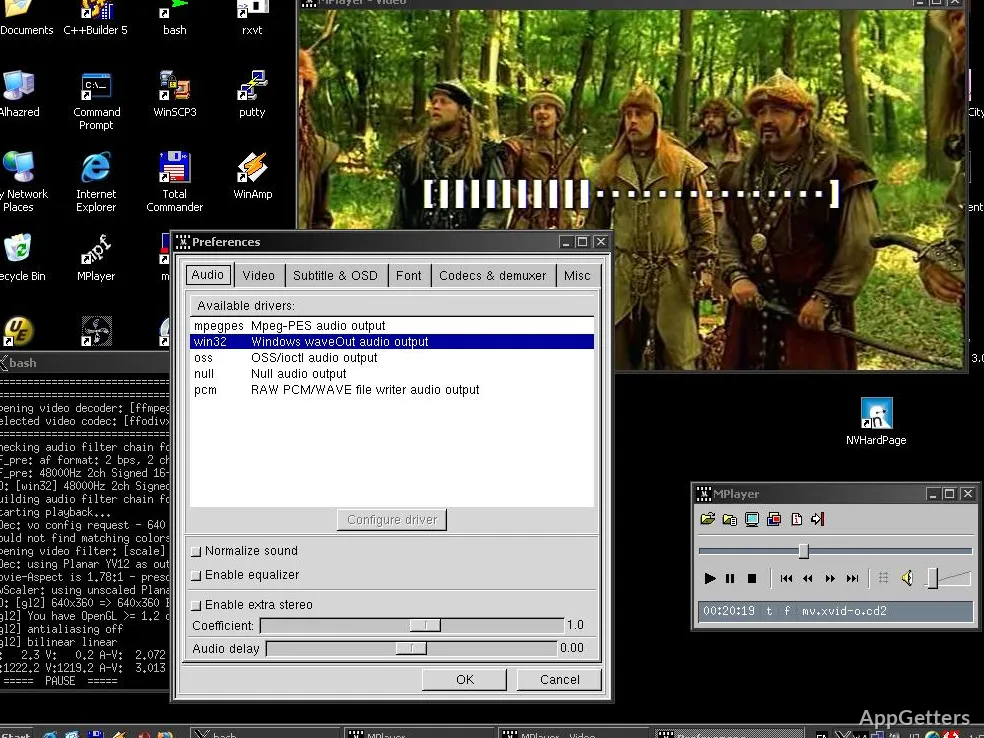
A Windows user should first decide whether they want MPlayer itself or a friendlier front end built around it. MPlayer can run from commands and shortcuts, while graphical front ends may add menus, playlists, preferences, and file associations. Installing the wrong one creates confusion because the playback engine and the visual interface are not always the same package.
Before installing MPlayer for Windows, compare the file name and download card with the source you meant to use. Not every file carrying the MPlayer name has the same maintainer, interface, codec handling, or update state. The official MPlayer project also notes that some front ends and packages are maintained separately.
If Windows shows a security warning during setup, check that the installer came from the official developer source or another trusted source you intentionally chose. Continue only when the file source matches the route you selected. A media player should not ask for unrelated browser extensions, download managers, or utilities that have nothing to do with local playback.
Command line or graphical front end
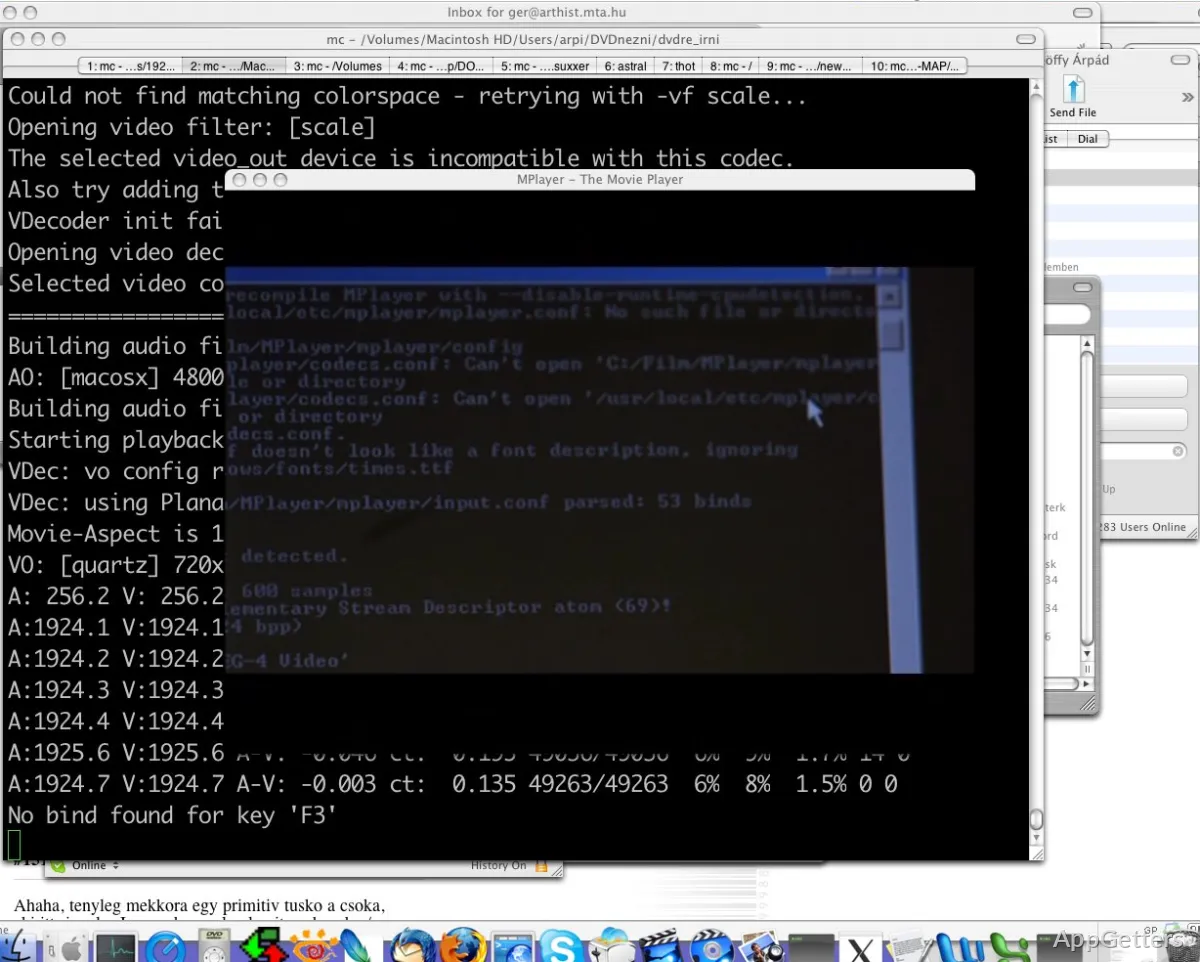
MPlayer is comfortable from the command line, especially for users who play test clips, scripts, URLs, damaged files, or folders with repeatable options. A command can set audio output, subtitle timing, video output, cache behavior, or playback speed without digging through menus. That is useful for technical users but awkward for someone expecting a modern media hub.
If you want a friendlier desktop interface around the same general playback idea, SMPlayer may be easier to start with. It gives many users a more familiar control panel while still staying close to MPlayer-style playback behavior. Use MPlayer directly when command control matters more than a polished window.
File playback problems need format, path, and output checks
When a video will not open, start with the file path. MPlayer users often launch files from a terminal or shortcut, so spaces, unusual characters, network paths, and missing quotation marks can stop playback before the codec even matters. Put the file in a plain local folder for one test if the command keeps failing.
If the same file opens in another player, MPlayer may need a different option, output driver, or codec path. If the file fails everywhere, the media file itself may be damaged or incomplete. A quick comparison with VLC Media Player can separate a broken file from a MPlayer-specific option problem.
Some older clips, disc formats, or unusual containers may behave better with explicit options. MPlayer can handle many formats, but Windows builds and external codec availability may vary by package. One failed sample does not prove that every file type is unsupported. Test a normal MP4, a local audio file, and the problem file separately.
CD, DVD, and VCD expectations
MPlayer is known for disc playback support, including CDs, VCDs, and DVDs, but Windows disc playback can still depend on drive access, region behavior, file system access, and the command used. A movie disc is not the same as opening one video file from the desktop. The command, device path, and title selection may matter.
A DVD menu may not behave like it does in a living-room player. MPlayer is stronger at direct playback and control than at imitating every menu workflow. Users who want a full couch-style disc interface may prefer a different player for DVDs and keep MPlayer for direct file playback.
Subtitles are powerful, but they expose small mistakes
Subtitle trouble is common because MPlayer gives users several ways to load text tracks. A subtitle file may need the right name, path, character encoding, timing, or explicit command option. When subtitles do not appear, test with a local video and a matching subtitle file in the same folder before changing advanced settings.
Timing problems usually need delay adjustment rather than reinstalling the player. MPlayer has controls and options for subtitle delay, audio delay, and track selection. If subtitles drift slowly over time, the file may not match the video release. If they are consistently early or late, a delay setting is the more practical check.
Subtitle text that appears as broken characters often points to encoding, not video playback. Older subtitle files may use different character sets, and Windows line endings can also matter for some workflows. Convert a copy of the subtitle file with a supported text editor or subtitle tool instead of editing the original media file.
Embedded tracks versus separate files
Embedded subtitles inside MKV or MP4 files behave differently from separate SRT or ASS files. MPlayer may need track selection if the file contains several subtitle streams. A separate subtitle file may need an explicit path or a matching file name. Check which subtitle type you are actually using before changing player-wide options.
For heavy subtitle editing, a dedicated subtitle tool such as Subtitle Edit fits better than using MPlayer as the repair tool. MPlayer is better used for playback testing after the subtitle timing, text, and encoding have been corrected elsewhere.
Audio and video output settings matter on Windows
No sound does not always mean the file has bad audio. MPlayer can use different audio output paths, and the wrong output choice may send sound nowhere useful. Check Windows volume, the selected playback device, and MPlayer’s audio output option before changing codecs. Headphones, HDMI audio, Bluetooth speakers, and virtual audio devices can complicate the result.
Video output has similar traps. A black screen may point to the selected video output driver, graphics acceleration behavior, overlay settings, or a file that needs different handling. Try a smaller test file first. If that plays correctly, the problem probably belongs to the difficult file, subtitle rendering, output choice, or hardware path.
Keyboard controls matter because MPlayer relies heavily on them. Users may think the player froze when the window is waiting for input, muted, paused, or running without the expected on-screen controls. Learn the basic keys for pause, seek, volume, fullscreen, audio track selection, subtitle selection, and quit before judging the setup.
Playback speed and sync issues
MPlayer can adjust playback speed and handle audio-video sync controls, which is useful for testing files and presentations. It can also make a bad setting look like a broken video. If the audio slowly drifts, return speed and delay options to normal, then test the same clip again without filters or extra flags.
For a user who wants a modern player with more visible controls, mpv is another option in the same command-friendly family. It is not the same project, but it attracts users who like keyboard-driven playback with a cleaner modern interface.
Codec packs and extra components should not be random
MPlayer’s Windows documentation mentions codec packages for some Windows use cases, but extra codecs should be handled carefully. Do not install random codec bundles just because one file failed. A broad codec pack can change playback behavior across the system, and some bundled installers add more than the user expected.
Start with the MPlayer build you intentionally downloaded and test common files first. If only one old or unusual format fails, read the notes for that exact build before adding anything. A more careful habit is to understand what the package expects instead of stacking several codec collections on top of each other.
If you already use a Windows codec pack for other players, keep the distinction clear. MPlayer may use its own build choices and options, while other players may depend more on system codecs. A codec change that helps one program may not change MPlayer behavior at all.
Configuration files, shortcuts, and file associations
MPlayer can be shaped through options, configuration files, and shortcuts, but changes should stay deliberate. A shortcut with a long command may play exactly one workflow well and break another. Keep one plain shortcut for testing, then create separate shortcuts only for special output, subtitles, fullscreen, or playlist behavior.
File associations are another source of confusion. Setting MPlayer as the default for every media type may be annoying if you still need a graphical player for casual viewing. Start with a few formats you actually want MPlayer to handle. Leave other formats with the player your household already understands.
Avoid deleting configuration folders or editing hidden files just to undo a setting. Use MPlayer’s documented options, create a fresh test shortcut, or review the configuration line that caused the problem. When a command-line player misbehaves, one wrong flag can matter more than the whole installation.
A practical MPlayer setup for a Windows PC
MPlayer for Windows is useful when you want a compact playback engine, keyboard control, command-line options, subtitle testing, disc playback experiments, or scriptable media checks. It is less comfortable when the goal is a glossy library, streaming-service interface, or family-friendly player with every control visible on screen.
Start with a known local video, a separate subtitle file, and one plain command or shortcut. After that works, test audio output, fullscreen, subtitle delay, and the file types you actually use. Keep comparisons with another player nearby, but judge MPlayer by the job it was built for: direct playback control with fewer assumptions about the interface.