EXE
Home » Software » Windows » Media Player » IPTVnator for Windows
IPTVnator for Windows

IPTVnator for Windows

  • By 4gray
  • Free
  • Version: 0.22.0
  • 177.2 MB
  • Security Report:
2 Downloads

IPTVnator for Windows Starts With the Playlist, Not the Player

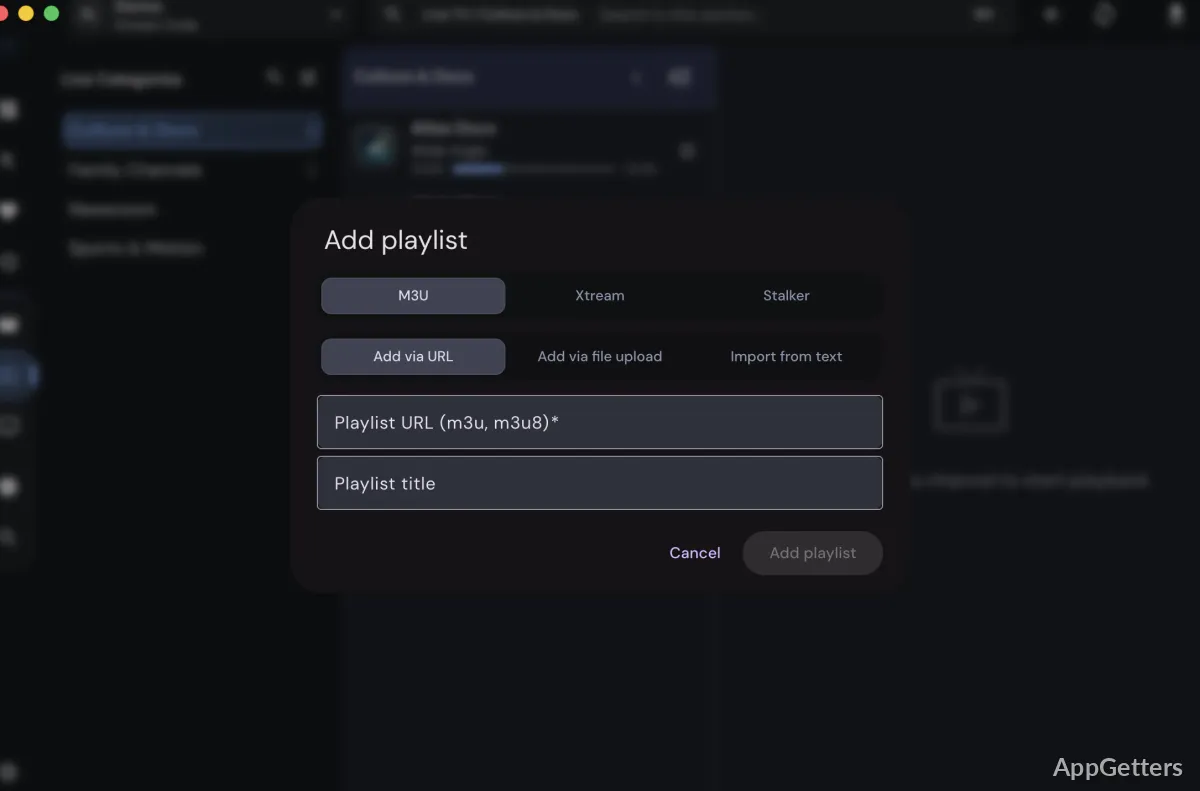
An IPTV app can install correctly and still show nothing if the playlist URL is expired, private, geo-restricted, typed incorrectly, or missing live entries. IPTVnator for Windows is built around user-supplied IPTV sources, so the first setup check is not the player window. It is whether the M3U, M3U8, Xtream, or Stalker source is valid.

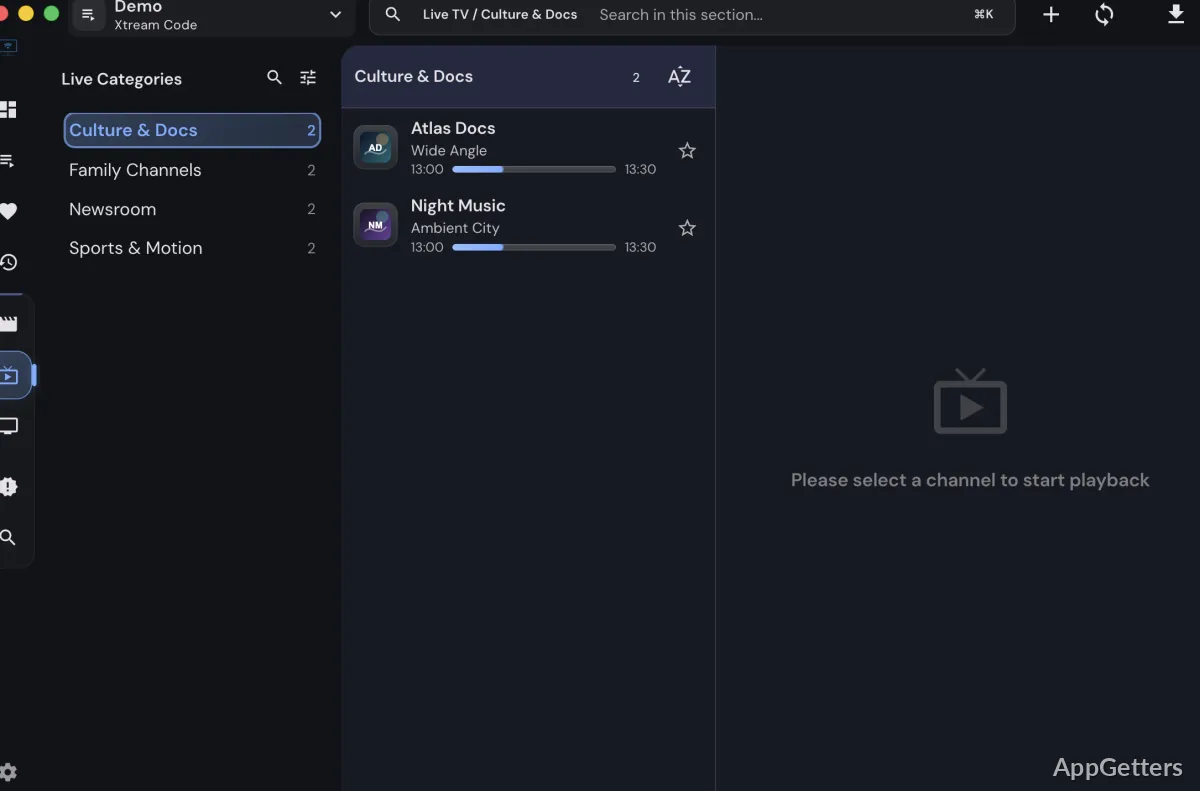
IPTVnator is an open-source IPTV player project from 4gray. The project describes support for M3U and M3U8 playlists, Xtream Codes API, Stalker portals, XMLTV-based EPG data, favorites, catchup features, and desktop use across major platforms. Its Electron and Angular base also explains the desktop-app style on Windows.

The app does not remove the need for a working IPTV subscription, legal channel source, or correct playlist details. Treat it as a player and playlist manager. It can organize and play sources you add, but it does not supply premium channels by itself.

Playlist Import Problems Usually Come First

Most first-run problems happen before playback begins. A user pastes a playlist URL, imports a local file, or enters provider details, then sees empty groups, missing channel logos, or no playable stream. That does not always mean IPTVnator is broken. The source may require the right format, login details, or a fresh URL from the provider.

Test the playlist details before changing player settings. A single missing character in a long URL can stop the import. If the provider gives both a playlist URL and an EPG URL, add them in the right fields rather than mixing channel and guide sources together.

M3U and M3U8 URLs That Do Not Load

A remote playlist can fail when the provider URL has expired, the server rejects the connection, or the copied link lost part of its token. Paste the URL into the playlist field exactly as provided. Remove extra spaces at the start or end, especially after copying from email, chat, or a customer portal.

If IPTVnator for Windows imports a local M3U file but not the remote URL, the issue may involve the remote server, network, or account status. Save the playlist file only when your provider supports that method, then compare whether the same channels appear from the file and from the URL.

Xtream Codes Login Details

Xtream setup normally depends on three parts: server URL, username, and password. Putting the full M3U link into the wrong field can make the login fail. Keep the provider’s details in the same structure they supplied, and check whether the server address needs a port number or protocol prefix.

If live TV appears but movies or series do not, the account may expose categories differently, or the provider may limit the source type. Check the provider’s account panel before assuming the Windows app missed those sections.

Stalker Portal Setup Confusion

Stalker portal use can be more sensitive to provider rules than a normal M3U playlist. Some services require exact portal details and may reject incorrect identifiers or unsupported access methods. Add only the details your provider supports, and avoid guessing values from unrelated setup guides.

If the portal opens on one device but not on the PC, compare the account rules with your provider. Some services restrict devices, sessions, or connection types. IPTVnator can only use the access details that the service accepts.

Install IPTVnator for Windows With Source Details Ready

IPTVnator for Windows works better when you already know which source you plan to use. Continue only when the file came from the official developer source or another trusted source you intentionally chose. If Windows shows a security warning during setup, review the file source and package details before continuing.

Because IPTVnator is an actively developed open-source project, download cards and release pages may show different package names over time. Check the version shown on the download card and compare it with the app’s own About or settings screen after installation. Avoid depending on old screenshots from older releases.

Choose the Windows Package Carefully

Windows users may see different package options depending on the release page or mirror used. Do not assume that every package type behaves the same way with updates, shortcuts, or uninstall entries. Use the package clearly intended for Windows and avoid modified installers, cracked editions, serial key pages, and unknown mirror downloads.

If a portable-style archive appears on a third-party page, treat it carefully unless the source explains the package. A normal Windows package from the project source is easier to compare, update, and remove than a repacked file with unclear changes.

When the App Opens Blank

A blank app window can come from a damaged install, graphics rendering trouble, an interrupted update, or a blocked local app component. Restart the app first, then restart Windows if the window still opens without content. Avoid deleting program folders or configuration data manually as a first reaction.

If the problem began after an update, keep a copy of the installer or version details currently being used. That makes it easier to compare the working release with the problem release without guessing which package was installed earlier.

EPG and Channel Guide Fixes

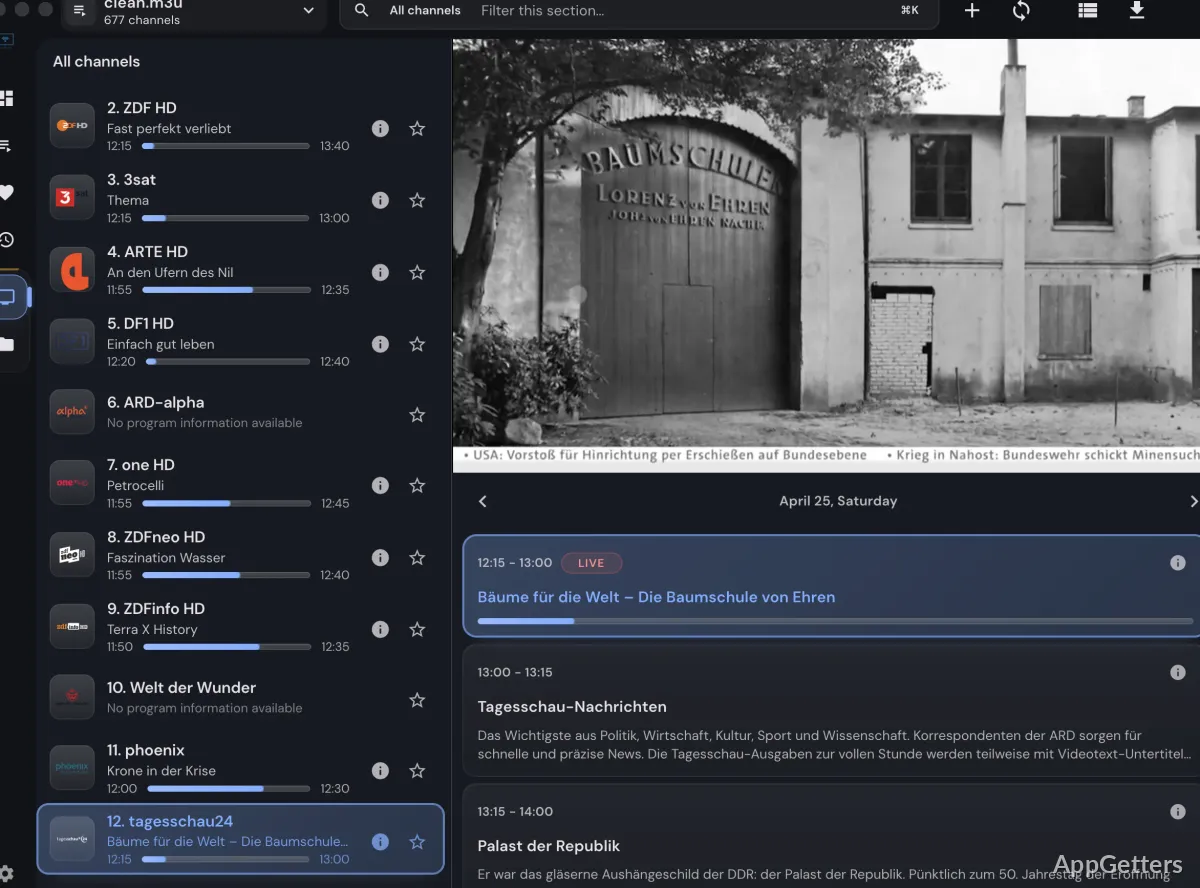
The TV guide is one of IPTVnator’s useful features, but it depends on XMLTV data and matching channel identifiers. A playlist can work while the guide stays empty. That usually means the EPG URL, timing offset, or channel matching needs attention rather than the video player itself.

EPG URL Imports but Shows No Programs

If the EPG source imports without showing programs, check whether the guide belongs to the same IPTV provider or playlist. Some guide files use different channel IDs from the playlist. When the IDs do not match, the app may show channels correctly but leave the schedule blank.

Also check whether the guide URL requires account tokens. A browser may show a login error or empty file when the URL has expired. In that case, ask the provider for a fresh XMLTV guide link rather than editing random playlist lines.

Wrong Time in the TV Guide

Program times can look wrong when the EPG source uses a different time zone or offset than your Windows region. First check the system clock and time zone. Then review any guide offset option available in the app or provider source before assuming the schedule is broken.

If only one channel has wrong timing, the provider’s guide data may be wrong for that channel. If every channel is shifted by the same amount, a time zone or offset mismatch is more likely.

Channel Logos and Groups Missing

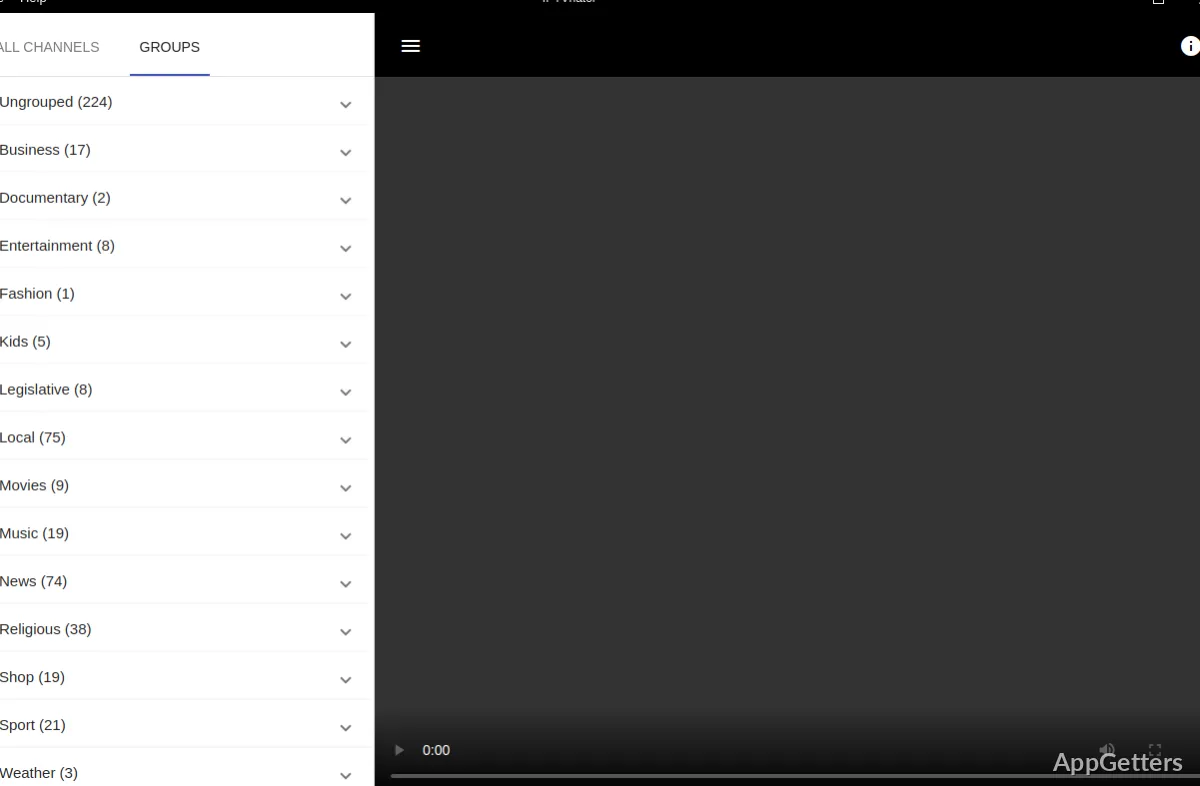
Logos and groups often come from tags inside the playlist. If the playlist does not include logo URLs or group titles, IPTVnator may show a plain list. That points to playlist data rather than a failed app setup.

For large playlists, groups make navigation much easier. If the provider offers a refreshed playlist with better categories, use that source instead of manually rebuilding hundreds of entries inside the player.

Playback Issues Inside IPTVnator

IPTV playback can fail for reasons that normal local video playback does not have. Streams may expire, change servers, require account authorization, or break during peak traffic. IPTVnator can manage the source, but the live stream still depends on the provider, network route, and selected player mode.

If you want a separate IPTV-style comparison, IPTV Smarters Pro may be useful when your provider gives Xtream-style details and you want to check whether the same account behaves differently in another app.

Live Stream Spins but Never Starts

A spinning player can point to a dead stream, server trouble, unsupported format, or account session issue. Try another channel from the same playlist. If every channel fails, check the playlist account. If only one channel fails, the provider may have a broken stream for that entry.

Switching player mode can help in some cases when the stream format behaves poorly in the embedded player. If the app offers an external player option and you already use one, test the same channel there before changing the whole playlist.

Buffering During Popular Channels

Buffering can come from the provider server, the internet route, Wi-Fi instability, or the stream bitrate. Test a lower-demand channel before blaming the app. If all channels buffer at the same time of day, the provider or network path may be the larger issue.

Use a wired connection or stronger Wi-Fi signal when testing. IPTV streams react badly to short dropouts, even when normal web browsing looks fine. Close heavy downloads before judging the player’s performance.

External Player Use

IPTVnator documentation and release material mention external player support, including players such as MPV and VLC in supported workflows. That option matters when a stream does not behave well in the embedded player. It can also help users who prefer a known playback engine for difficult streams.

For users who already test streams outside IPTV apps, VLC Media Player can serve as a practical second path. If the same stream fails there too, the provider source deserves more attention than IPTVnator settings.

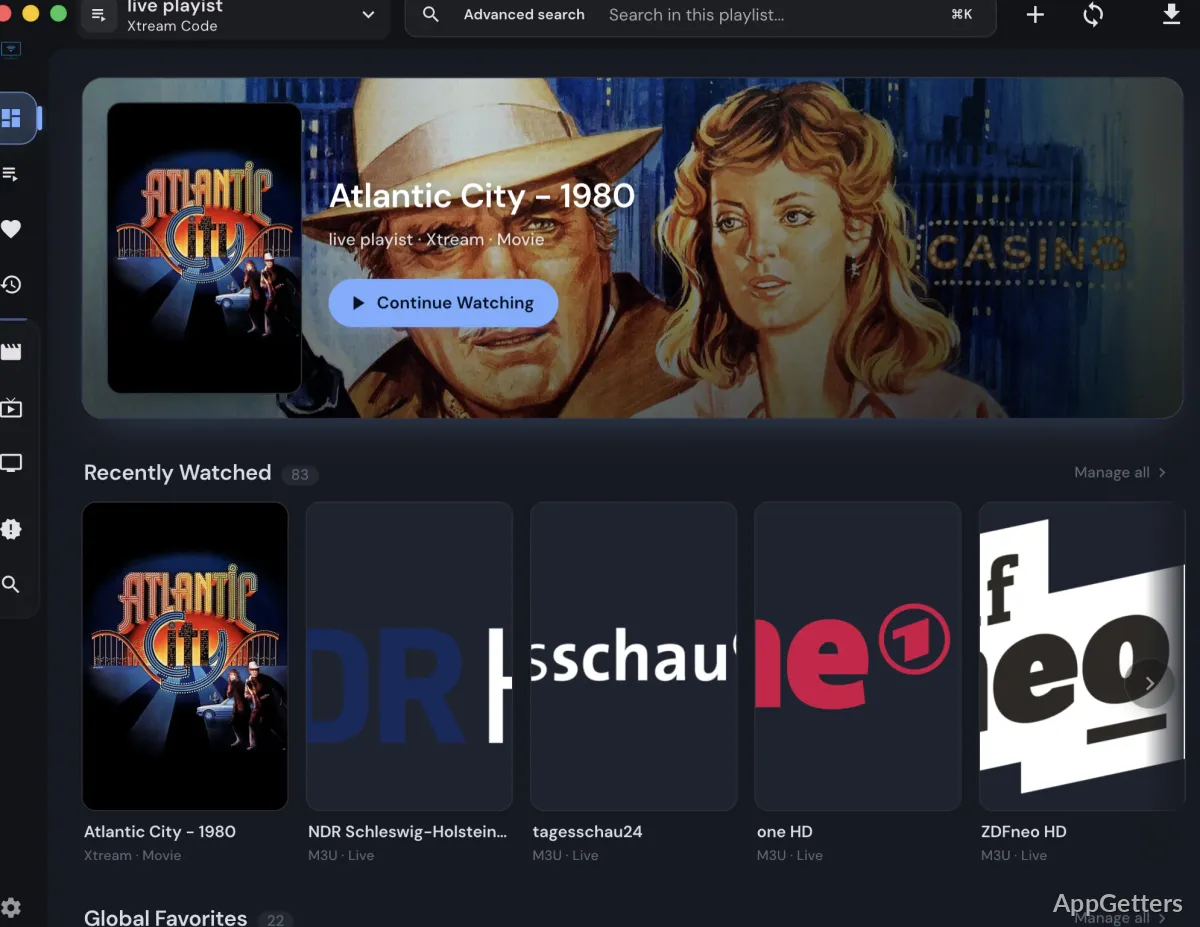
Favorites, Catchup, and Large Playlist Management

IPTVnator includes features for organizing channels, but a huge playlist can still feel messy. Thousands of entries, duplicate channels, regional variants, dead streams, and missing guide data can make a good app look disorganized. Start by checking whether the provider offers a smaller or better-grouped playlist.

Favorites Disappear or Feel Inconsistent

Favorites depend on the app’s stored data and the playlist entries staying recognizable. If a provider rebuilds the playlist and changes channel identifiers, old favorites may not line up as expected. Refresh the playlist, then add a few favorites again before rebuilding a large list.

Avoid making major changes while testing several provider URLs at once. Add one playlist, confirm channel groups and guide behavior, then organize favorites after the source looks stable.

Catchup Does Not Work on Every Channel

Catchup or TV archive support depends on the provider and the channel entry, not only the player. Some channels may show archive options while others do not. If a channel never had catchup data in the source, the app cannot create a replay archive by itself.

If catchup works in one app but not another, compare the playlist type and provider settings. The source may expose archive data differently through M3U, Xtream, or Stalker access.

Large Lists Take Too Long to Navigate

Very large IPTV lists can slow searching and channel switching. Use groups, favorites, and search instead of scrolling through every channel. If the provider offers separate playlists for regions or categories, a smaller source can make the Windows app easier to use.

Users who prefer a different IPTV interface can compare the same source with IPTV Stream Player. Keep the app that handles your provider’s playlist, guide, and channel groups with fewer manual steps.

Use IPTVnator for the Right Kind of IPTV Setup

IPTVnator works best when the user already has a legitimate playlist, EPG link, or provider access method and wants a desktop app to manage it. It is not a shortcut around paid services, expired accounts, geo-restricted channels, or broken provider streams.

After installing IPTVnator for Windows, test one playlist source, one EPG URL, a few live channels, one catchup channel if your provider supports it, and your preferred player mode. If those pieces behave well, build favorites and groups slowly. If the same source fails across players, fix the provider details before changing the Windows app again.

Software Details of IPTVnator 0.22.0

License
Free
Version
0.22.0
File Size
177.2 MB
Downloads
2
Language
English
Category
Op. System
Windows
Developer
4gray
Last Updated
July 5, 2026
SHA256
faf88943cf51e0775c9088fcfc65c8bad68a8bba1bae2c0ea4733761ef14e67d

Version History

5 versions
0.21.0
115.7 MB
May 7, 2026
Download
0.19.0
114.44 MB
February 19, 2026
Download
0.18.0
115.79 MB
January 20, 2026
Download
0.16.0
192.66 MB
October 22, 2025
Download
0.13.0
163.49 MB
July 5, 2023
Download

Leave a Comment

Your email address will not be published. Required fields are marked *

Software Icon
Security Report

Loading scan data...

Scroll to Top