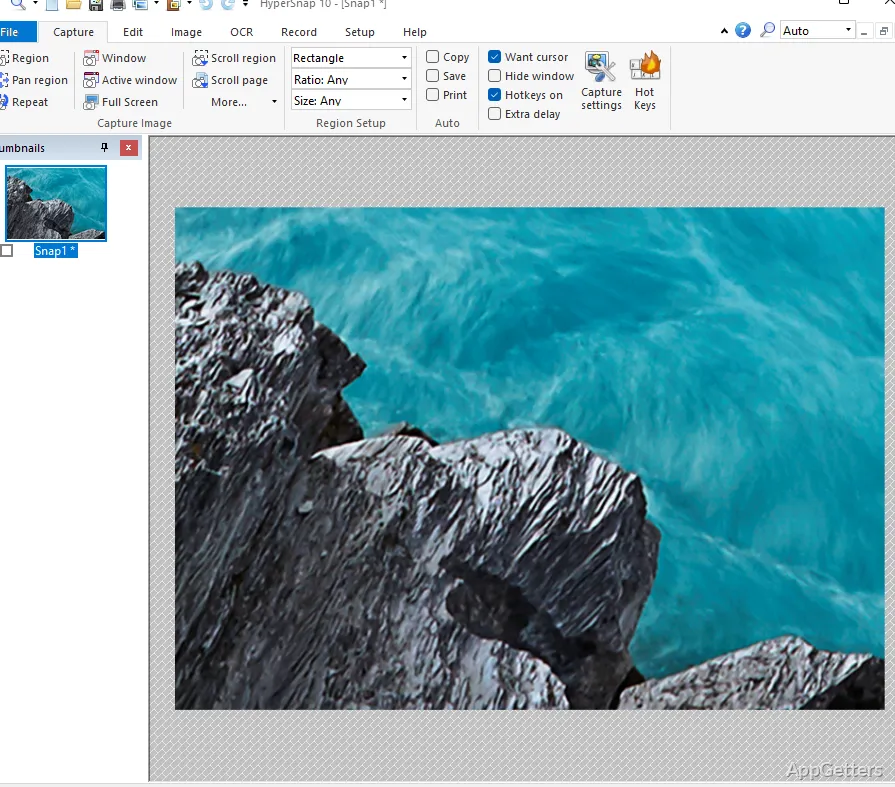
If you are a Windows user, you might realize at some point that the basic screenshot tools can be really limiting, especially when you start documenting, creating tutorials, or doing technical communications on a daily basis. It is very easy to capture a simple image. However, if you need to do a lot of editing, annotating, and organizing repeatedly, then over time, that can really slow down your productivity. This is very much the case not only for support staff, but also for educators, software reviewers, and regular office users. They frequently have to explain visually what they want to say to others. HyperSnap was designed to solve that kind of problem. Rather than just making a program that quickly takes a screenshot, it is capable of taking screen captures, editing images, annotating text, and managing files in a well-rounded work-oriented environment.
While its overall look and operation might remind you of the classic Windows programs, it is a really decent and quite dependable tool for users who want to maximize the outcome and have detailed control over the features. It is not just for users who want the bare minimum they might need.
Capture Options for Technical Needs
One of the things HyperSnap has going for it is the capture system, which gives you a lot of options. You can take a screenshot of the whole screen, the window you are currently using, or any parts that you select. You can even do scrolling screen grabs and capture interface elements that are almost impossible to capture in some simple screenshot tools. That is why it is technically a very good choice when one needs to pinpoint the exact location of a certain thing.
Practically, the scrolling capture feature of this tool works flawlessly with web pages, software menus, and also documents that are really long. For anyone putting together manuals, reporting bugs, or just storing info, this level of trustworthiness really means that quite a lot of manual work can be avoided in terms of editing the output.
Customizable hotkeys and automated capture actions are yet another feature of the software. They can make you more efficient at your work when you need to do similar, repeatable tasks. People who have to take quite a big number of screenshots a day usually get the most out of these small enhancements rather than the aesthetics of the interface.
Also, beginners might be somewhat overwhelmed at first by this interface. There are tons of features exposed right in the menus. These give you great possibilities, but can also intimidate you if you are just starting with this kind of application. This usually has more minimalistic layouts.
Editing Tools Attuned to Documentation
There is an editor inside HyperSnap that is mainly geared towards annotation and close-to-the-basics image modification. One can insert arrows, callouts, highlights, stamps, text labels, and even blur effects right after taking a snapshot. These options come in very handy if one is preparing instruction materials or troubleshooting documentation.
Editing with the software gives you the impression that the developers have sought to provide you with maximum information at a time, with a minimum of colors and distractions.
This is, to some extent, a trade-off for suiting the intended audience better. It shows users working in different environments. It shows that the program has been designed specifically and very reasonably for technical users.
In addition, there are resizing options, color adjustments, changing image formats, etc. These are still very useful when preparing a screenshot for a report, website, or email. Granted, these are just the types of features one can find in very basic image editors. Still, they nicely cover the most common tasks accompanying documentation.
Features Which Improve Productivity Far Beyond the Usual Screenshots
One of the things that makes HyperSnap an outstanding product is how it expands the range of productivity tools. You use these tools on a daily basis. In addition to taking screenshots, you get the expected functionality of the software. Such as handy image organizing, automatic file naming, and text capturing. These, however, go beyond what is usually offered in screenshot tools.
If you often deal with technical guides or software tutorials, such features will definitely help. They will help you set a better and more consistent workflow. The ability to do all steps in one single application. Capture, edit, organize, and export. This minimizes file moving and juggling across several utilities.
Moreover, HyperSnap works great on standard Windows computers that have limited resources. Even if you take a lot of screenshots over a long period of time, the software will not freeze or become unresponsive. HyperSnap is reliable and capable of running efficiently in professional situations where interruptions may result in loss of productivity.
Moreover, HyperSnap is not really targeted at users who just take a screenshot from time to time for fun. Most of its strong features might well be overkill. For those who want the quickest possible capture experience. With the least amount of setting up or customization.
An Ideal Match for Documentation-Heavy Windows Workflows
For people who do not simply capture images occasionally, but also make very detailed graphic documentation as part of their daily work. HyperSnap will be a very handy tool. Mainly, technical writers, teachers, software testers, office workers, and support teams would be the ones who gain the most from this wide range of tools.
Its biggest asset is very good capture features backed by practical editing and organizational tools in the same software. Instead of putting marketing emphasis on cutting-edge looks and cloud-based ‘extras’, the software’s focus is on stability and making the working process efficient.
Working up an image in a minimalist or chic visual style may be all the rage lately. However, for the screenshot snitch, HyperSnap still packs quite a punch. It adds plenty of targeted features and modes. These give the user a neat way to take control. They also help to document in detail. For a broad range of Windows-based work-from-home situations, you might not only be taking screenshots. You may also be visually “explaining aloud” your points. It is still a handy and reliable piece of software.