People who often download large files or collect media from web pages need a way to manage interruptions and keep files organized. Internet Download Manager (IDM) takes over browser downloads, can resume interrupted transfers, and sorts completed and active items into categories.
Recovering interrupted transfers
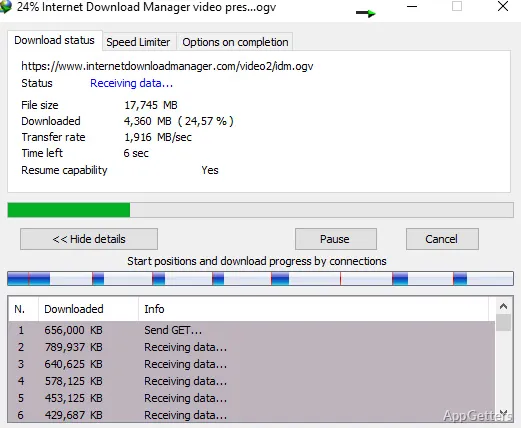
IDM divides files into segments while a transfer is underway and reuses available connections. If a connection drops, a network problem occurs, or the computer shuts down unexpectedly, IDM can resume supported downloads from where they stopped instead of restarting the entire transfer.
After installing its browser extension, IDM can take over downloads initiated in supported browsers, including Chrome, Firefox, Edge, and Opera. When multiple links are selected on a page, a download button can offer to add them to IDM together.
What can IDM capture from a web page?
The browser video panel can offer media files found on pages with web players. This gives users a way to send available media downloads to IDM while browsing. The panel and browser download takeover depend on the IDM integration extension being active.
Queues, categories, and scheduling
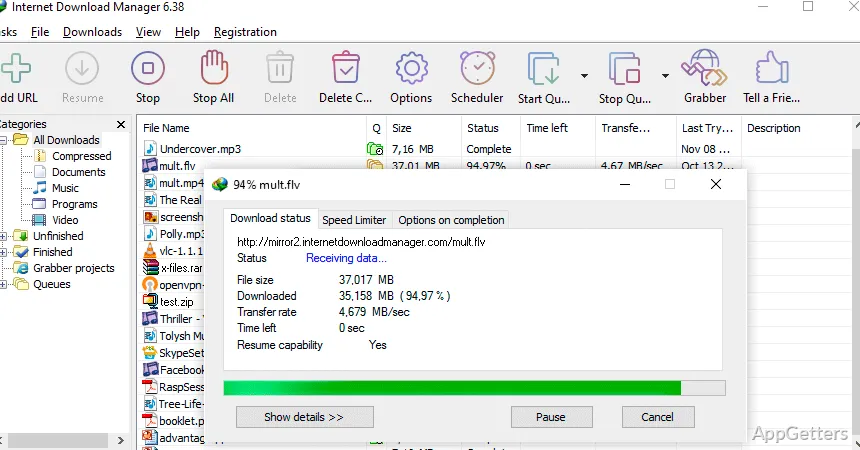
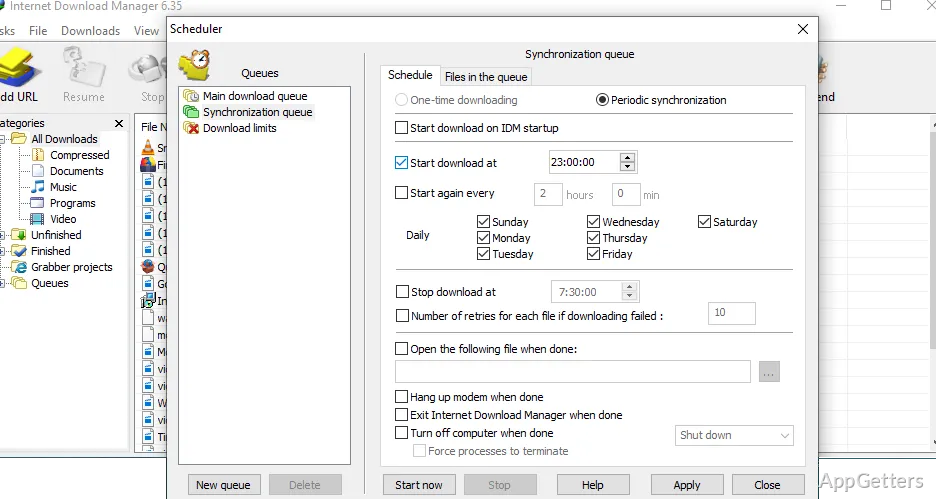
IDM sorts downloads into categories and lets users create custom categories for particular file types or websites. Its scheduler can start a queue at a set time, then disconnect from the internet or shut down the computer when the queue finishes. Multiple queues can be scheduled, and periodic synchronization can check for file changes.
- Use categories to separate downloads such as programs, documents, videos, and compressed files.
- Arrange downloads in queues for timed transfers or synchronization.
Main-window controls
The main window's button order and columns can be customized. IDM also offers toolbar skins and light and dark themes, so the download list and controls can be arranged around the user's preferred workflow.
Pros
- Resumes downloads interrupted by lost connections or computer shutdowns
- Uses dynamic file segmentation and reuses available connections
- Schedules download queues and can shut down when finished
- Offers browser link capture and a video download panel
Cons
- Browser downloads require the IDM integration extension to be installed and enabled
System requirements: Windows 7, Windows 8, Windows 8.1, Windows 10, Windows 11
Can IDM resume a download after the internet connection drops?
Yes. IDM can resume interrupted downloads after connection loss, network problems, or a computer shutdown.
How does IDM capture browser downloads?
Install and enable the IDM integration extension in a supported browser. IDM can then take over browser downloads and offer a button for selected links.
Can IDM download media from web pages?
Its browser video panel can offer media files from pages with web players.