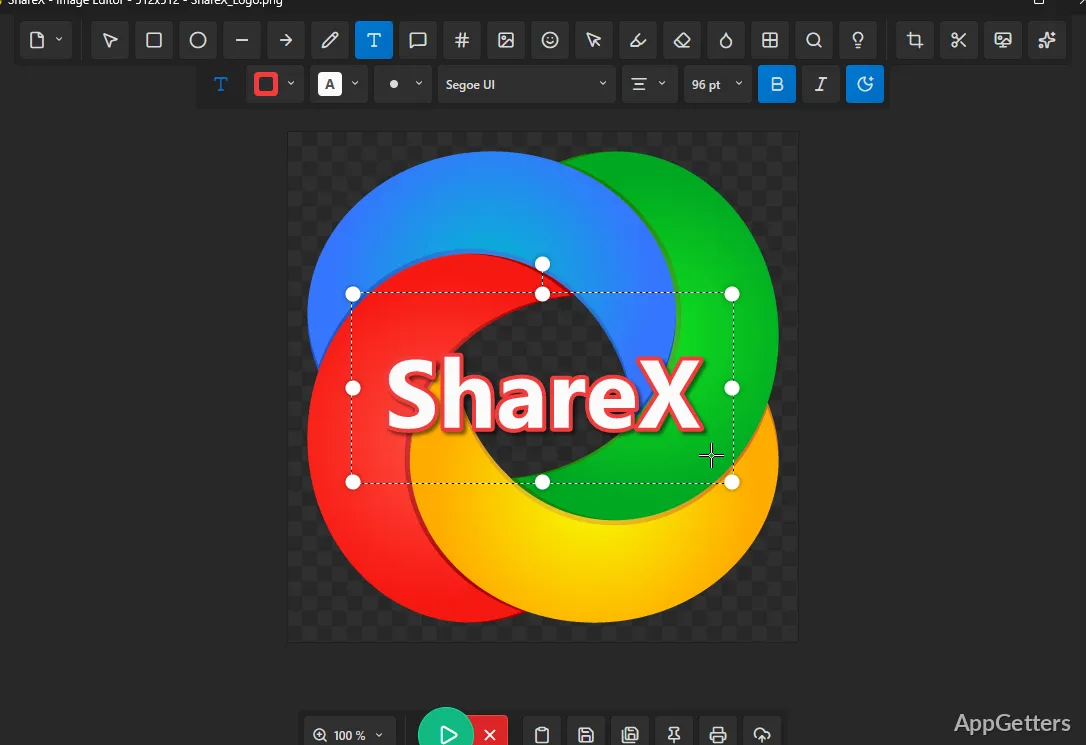
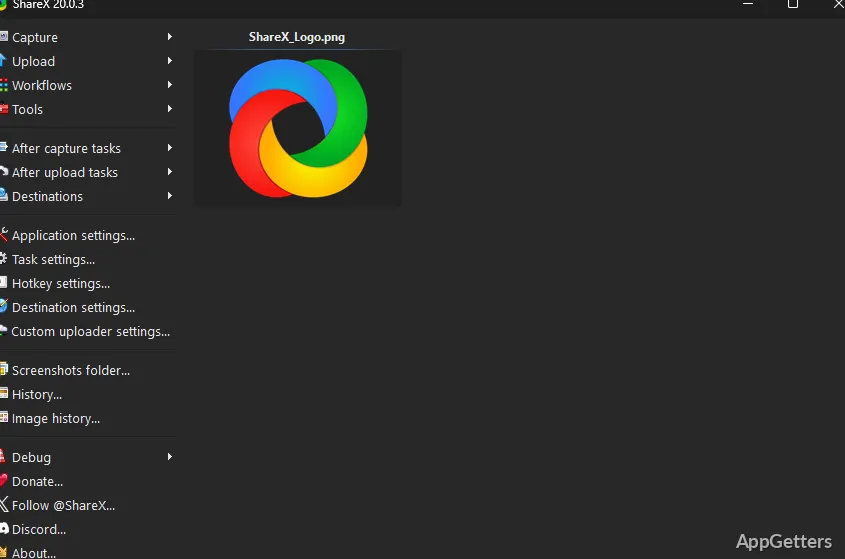
Region capture in ShareX includes tools for drawing arrows, adding text, highlighting details, and obscuring sensitive areas. ShareX can then save, copy, or upload the marked image, with additional actions available through its after-capture workflow.
Which capture modes can you use?
ShareX offers capture choices for the full screen, an active window, a selected monitor, or a region. Region options include freehand selection and other variants, while scrolling capture is available for pages that extend beyond the visible area. Shortcuts can be assigned to capture actions, and Auto capture can take captures on a schedule.
Screen recording is available alongside still-image capture, including a mode that records animated GIFs. After a capture, configured tasks can save the result, copy it to the clipboard, open it in the editor, or begin an upload.
How do you mark up a screenshot?
The region capture tools can add rectangles, ellipses, lines, arrows, freehand marks, text, speech balloons, and numbered steps. Blur and pixelate tools can conceal parts of an image; highlight, spotlight, and magnify tools draw attention to details. Cropping and cut-out tools are available in the annotation workflow.
For further edits, the image editor supports annotations, image effects, and preparation of captures before copying, saving, or uploading. ShareX also provides separate image utilities such as a resizer, combiner, converter, and watermark tool.
What happens after a capture or upload?
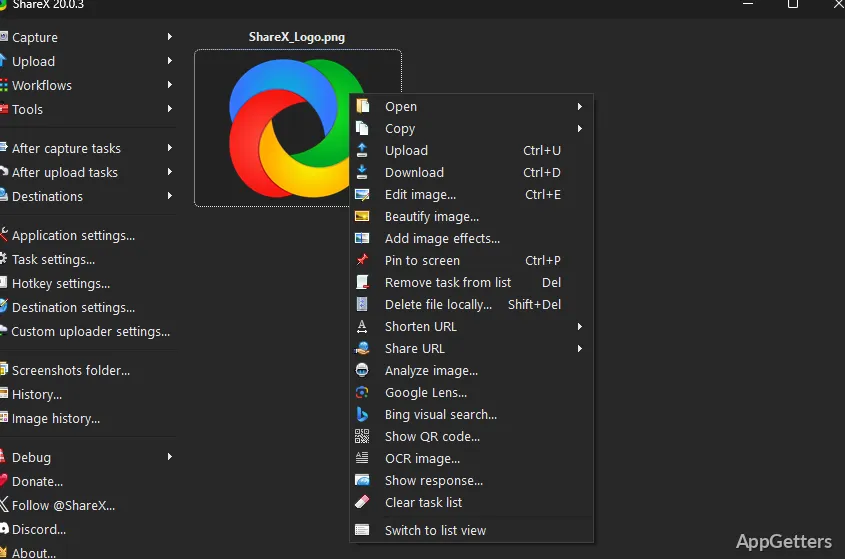
ShareX organizes follow-up actions into after-capture and after-upload tasks. After a capture, it can save an image, copy it or its file path, show it in File Explorer, run OCR, or scan for a QR code. The selected actions can be arranged as a workflow, so repeated capture jobs can follow the same sequence.
Uploads can start from a file, folder, clipboard content, text, or URL; drag-and-drop uploads and folder watching are also available. After an upload, ShareX can copy or open the resulting URL, shorten it, or display a QR code. Custom uploader support lets users configure upload destinations.
Which extra tools are included?
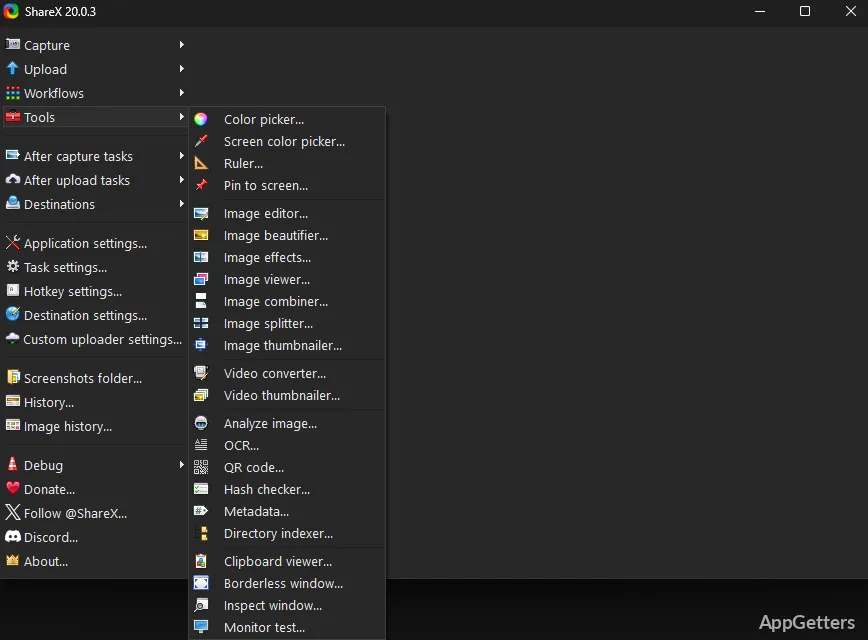
The utility collection covers more than screenshots. It includes a color picker, screen ruler, mouse highlighter, and pin-to-screen tool, as well as video utilities for trimming recordings, converting video, and creating or trimming animated GIFs.
For working with captured content, ShareX also includes OCR, image analysis, QR code scanning, metadata tools, and a clipboard viewer.
Pros
- Captures fullscreen, active windows, monitors, regions, and scrolling pages
- Adds arrows, callouts, blur, pixelation, and other annotations
- Automates actions after capture and after upload
- Includes GIF recording, OCR, and QR code tools
System requirements: Windows 10, Windows 11 · 64-bit only · .NET 9.0 (included; no separate installation required)
Can ShareX record a screen as a GIF?
Yes. It includes GIF screen recording, plus tools for making and trimming animated GIFs.
Can ShareX recognize text in a screenshot?
Yes. OCR is available as an after-capture action and as a separate tool.
Can ShareX upload text or a URL?
Yes. Upload methods include text and URLs, as well as files, folders, and clipboard content.