EXE
Home » capture » ScreenHunter for Windows
ScreenHunter for Windows

ScreenHunter for Windows

It seems quite simple to capture a screenshot on Windows if you want only one shot, but things get complicated when users want to take a few pictures or record with a touchscreen. Those are the students writing instructional guides, the office personnel producing reports, and the customer support departments documenting problems. They will most likely be in need of control of the captured images, the making of annotations, and the file arrangements. The standard Windows utilities are perfect for quick snapshots. However, they may really slow down other processes when users need things like delayed shots, scrolling windows, or features for saving automatically. ScreenHunter comes in handy for those who want more control and reliability from their screen-capturing software.

Being on the market for a long time, it has earned a reputation for being solid rather than flashy. On the Windows platform, it mainly serves as a utility tool for the enhancement of productivity, especially for those who visually document or instruct on the use of computers in their daily activities.

Focused on Improving Repetitive Captures

ScreenHunter is one tool for screen captures that totally gets how tedious it can be to do the same thing over and over. For example, if you’re constantly making tutorials or help guides for software, you generally need to screenshot windows, drop-down menus, or content that scrolls very quickly. ScreenHunter will take some of that hassle away by, for instance, doing the renaming of the files automatically.

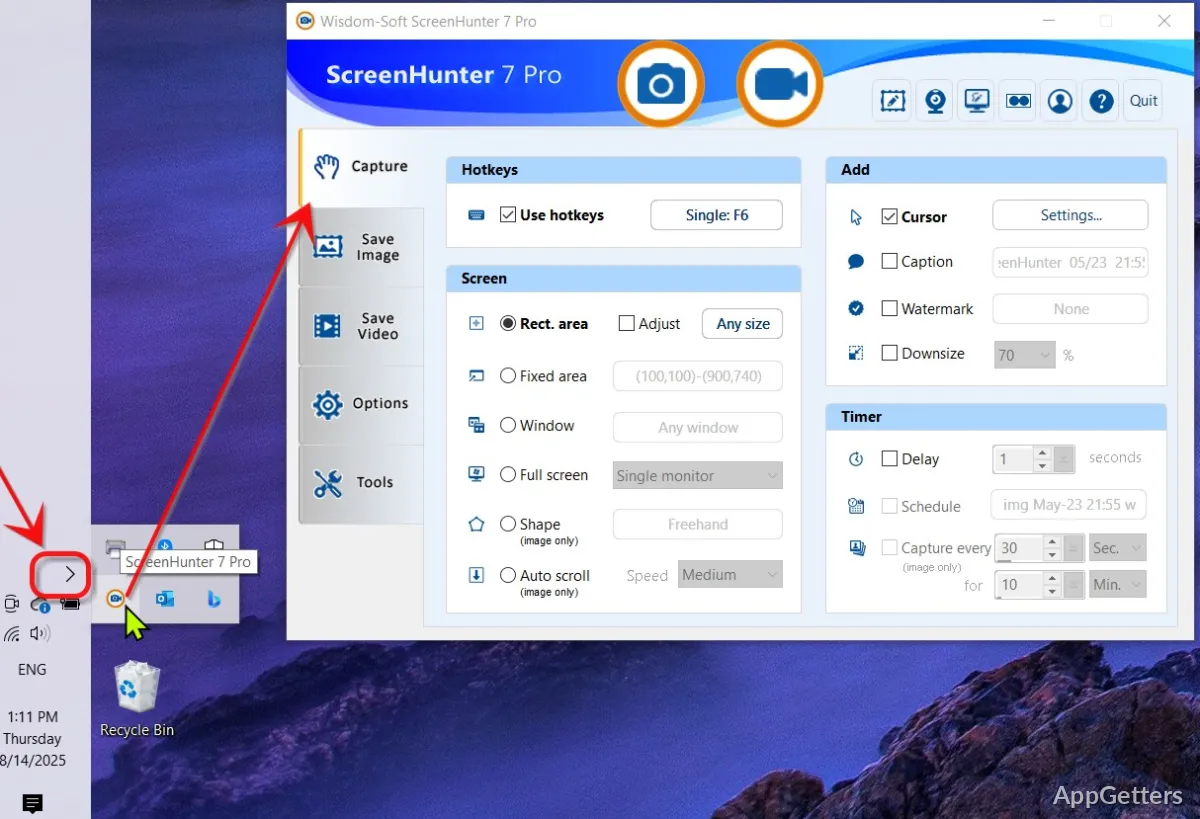
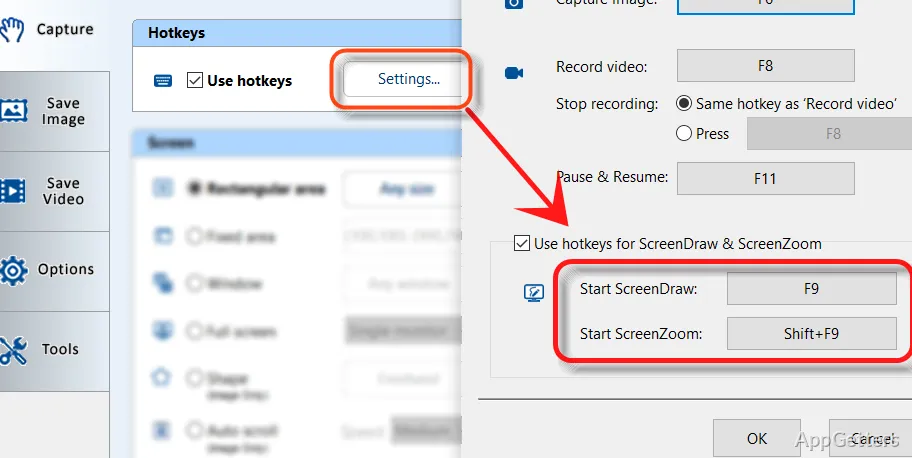
The screen-capturing options are simple and do not get in your way while you are working. Rectangle captures, screenshots with time delays, sequential file naming, and scheduled screenshots are some of the functions in ScreenHunter. They will ensure you do not lose the rhythm of your work, even if you are at it for hours. Teachers, writers, and help desk personnel may, for instance, produce as many as 20 screenshots a day. They will find the above very beneficial.

Besides, it normally stays as responsive and speedy as it was at the beginning of the session. Unless your office computer is ancient, you probably won’t experience any lagging even if you make your first 50 captures.

Use When Recording and Marking Up

Of course, you mainly use ScreenHunter for taking screenshots, but the film tools that it supplies can greatly expand the possibilities. This applies if you sometimes need to provide a short demonstration or explain a step in a workflow. Besides, if the circumstances require, you could even upgrade your skills. You would be able to create better screenshots as well as screencasts briefly within one environment instead of pondering which of two programs to use.

Compared with other programs, the features are less fancy. You have, among other things, blurring and text tagging, highlighting, and simple editing features. They help ready your screenshot for sharing or embedding into a document. This no-frills approach is a good fit for office places where simplicity and clearness are the main points rather than gags and glitter.

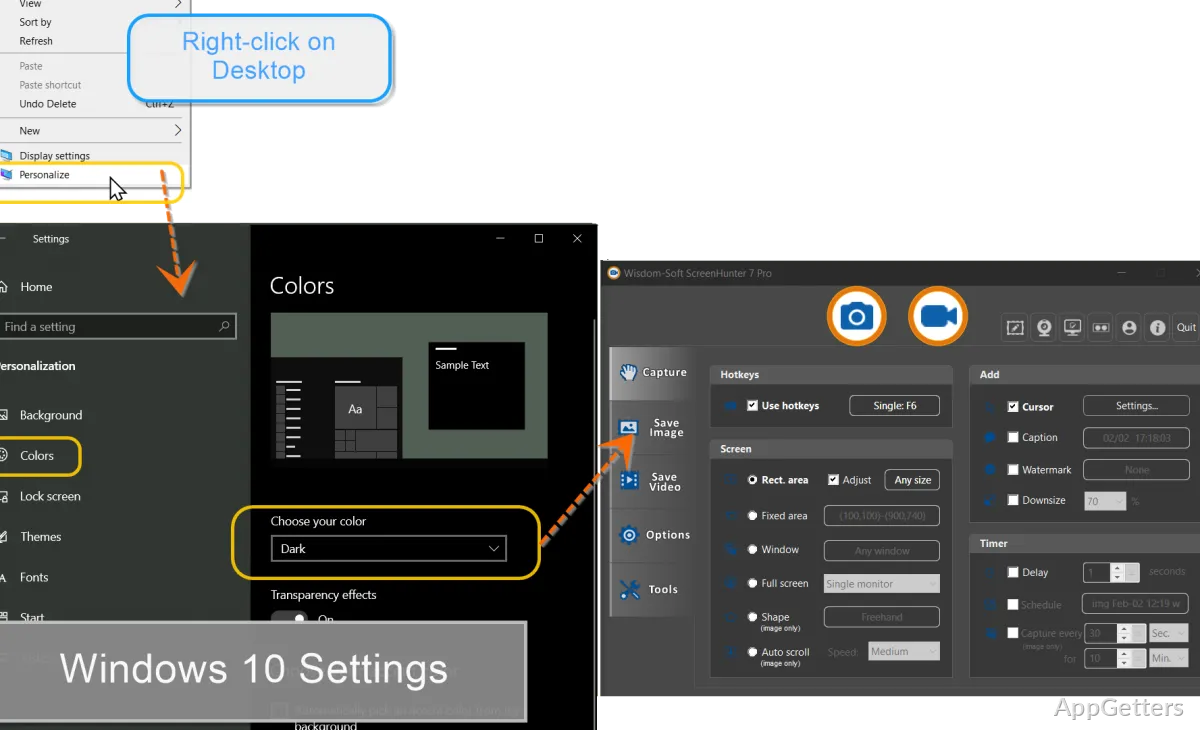
For those left to themselves, ScreenHunter may seem to be a substantially more serious and complex app than the well-known screenshot ones. There are several options for customizations, as well as various menus that look more like those of the old-fashioned desktop utilities than the modern ones. Anyway, people who are willing to master the arrangement usually get more power over how and where captures need to be performed and stored.</p>

ScreenHunter Is Not Very Trendy

ScreenHunter emphasizes working power rather than looks, and over time, this becomes very obvious. The layout is not only well-maintained and properly sorted, but it also looks more classic. This is especially noticeable when compared with recently released screenshot utilities. Those utilities have nowadays been designed mostly to work with simplified operations and cloud integration.

Also, some people who take screenshots only occasionally may find that there are too many settings for them. Those users who only take a few screenshots in a whole week may prefer to use applications that are lighter. They also may prefer applications that do not have so many controls and are simpler to learn. ScreenHunter really shows its capabilities when its automation and management features are used on a regular basis.

Nevertheless, the product’s continuous focus on speedy capturing has given it a very practical advantage. A considerable number of users have decided to use it over time because it acts steadily on different Windows systems. It hardly ever needs to be changed or fixed.

Actually Meant for Documentation and Office Work

If you think that taking screenshots is something you do just randomly, then perhaps you are wrong. ScreenHunter is primarily targeted at professional users who make screenshots their everyday activity. This will particularly apply to technical support teams, office administrators, educators, trainers, and documentation writers.

If you are a fan of very modern design and clean, simple interfaces, you probably won’t like this software. In places where many photos are taken, the software performs very well. It runs smoothly, supports automation, and gives users wide control over the capture process.

Software Details of ScreenHunter 7.0.1461

License
Trial
Version
7.0.1461
File Size
133.74 MB
Downloads
0
Language
English
Category
Op. System
Windows
Developer
Last Updated
April 22, 2024

Version History

2 versions
7.0.1461
Latest
133.74 MB
April 22, 2024
7.0.485
134.07 MB
February 1, 2023

Leave a Comment

Your email address will not be published. Required fields are marked *

Software Icon
Security Report

Loading scan data...

Scroll to Top