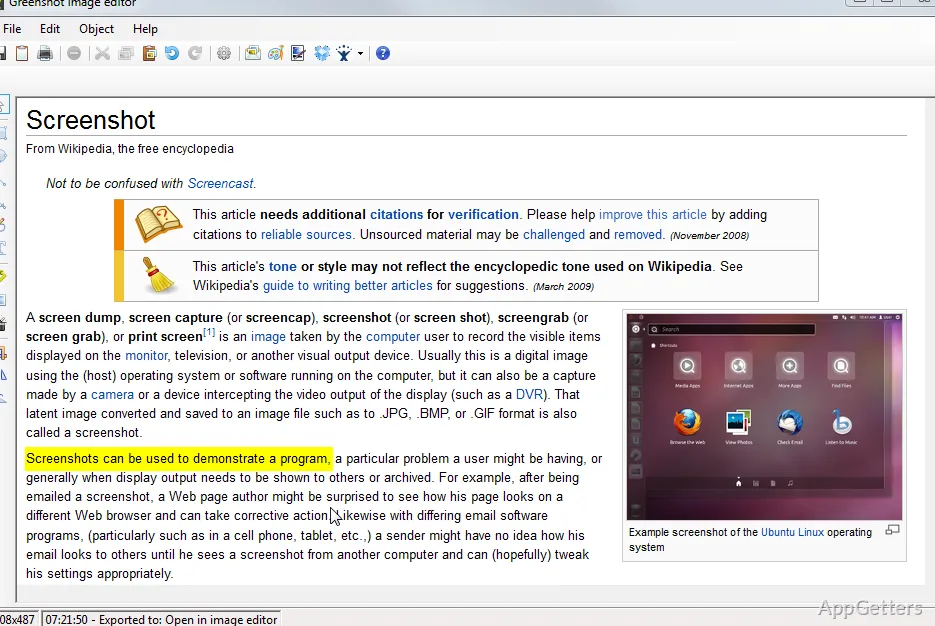
Many Windows folks sooner or later realize just how limited basic screenshot tools can be when used daily for performing multiple tasks. It’s not really difficult to capture a screenshot. But staying organized by saving different shots, marking the images, and sharing the information are separate tasks that slow down the whole process. A student composing an assignment, an office worker creating a manual, or a help desk member explaining the problem all face such working situations. These small interruptions can reduce the work capacity bit by bit. Greenshot is a great little program that has been around for a long time and keeps on being popular mainly because it takes care of those issues that really bother users, and at the same time, it doesn’t add to the complexity.
The software is so small and light. The startup is very fast. The main focus is on grabbing screenshots very quickly, and there is a very limited set of tools for editing the screenshot, just enough to be effective. Instead of trying to transform itself into a full productivity suite, Greenshot is more like a handy small tool that comes in handy to Windows users when doing their regular correspondence and documentation tasks.
Lightweight Workflow With Minimal Distraction
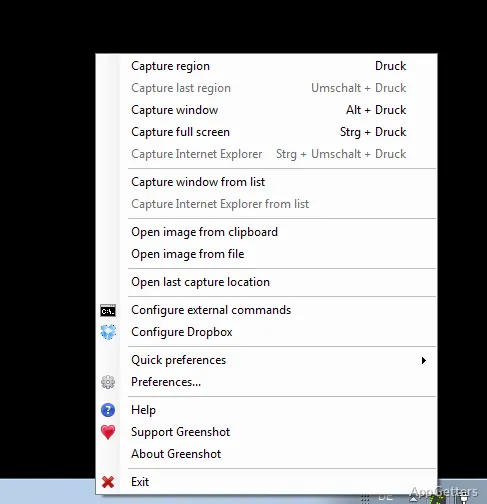
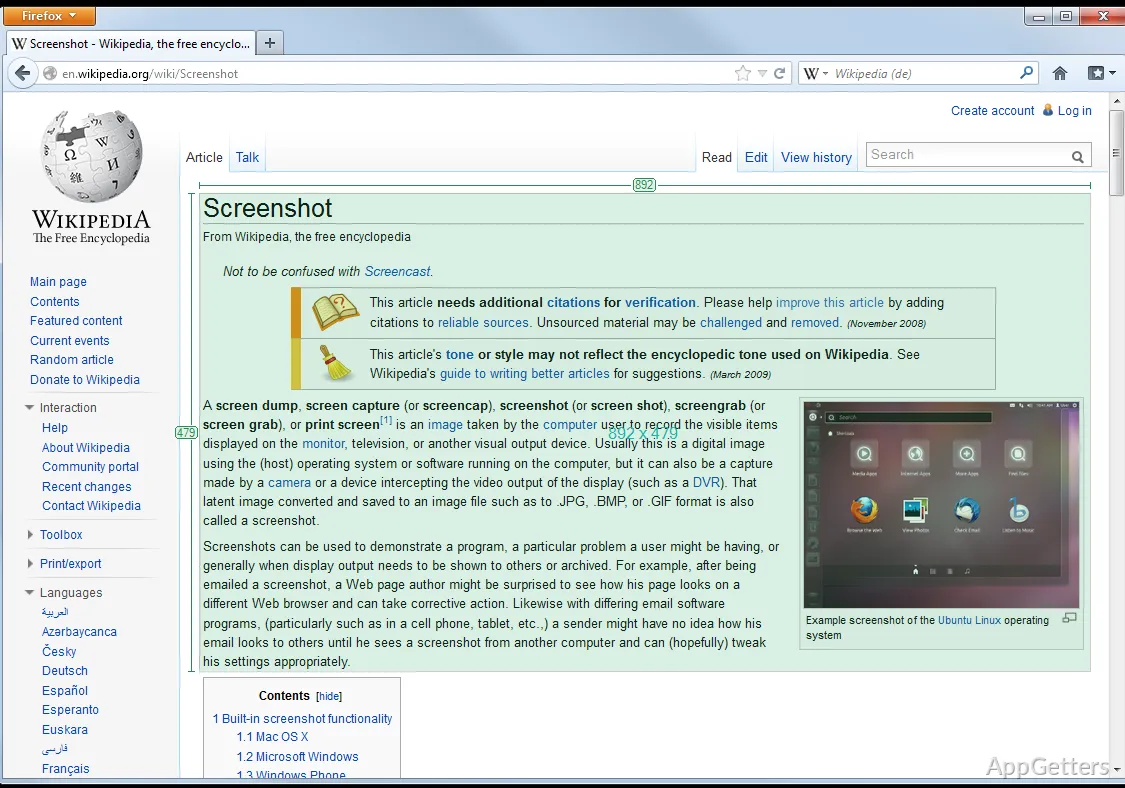
No doubt, one of the main advantages that makes Greenshot so popular is the fact that once you’ve installed the app, it doesn’t even bring it to your awareness unless you need it. The only sign of life is when you see it running in the system tray, and at any time, you can access it simply by using the keyboard shortcuts or even from the tray by clicking on the little icon that will bring up the capture menu. The kind of screenshot you can take, entire screen, current active window only, or just a selected portion of the screen, comes up straight away without any hint of a delay. That is something that really helps you to preserve the flow going at work without a big mental discomfort caused by being taken away from your task.
Such a simple and clean way of working is really great not only for those who rely on screenshot taking as a normal part of their workday. It is also useful for all the other types of users. For example, folks who want to prepare instructions and guides. People who do research and need to collect images to keep their working ideas flowing. And those who work remotely and hand over their visual feedback quite often.
Another merit of Greenshot that shouldn’t be overlooked is the fact that it does not demand a very powerful hardware configuration. Even legacy machines can perform well with Greenshot. It simply consumes a tiny portion of system resources, and you hardly notice it running in the background. That really makes it easier to concentrate on your own work and not on the software that you use to grab images.
Simple Editing That Serves Realistic Needs
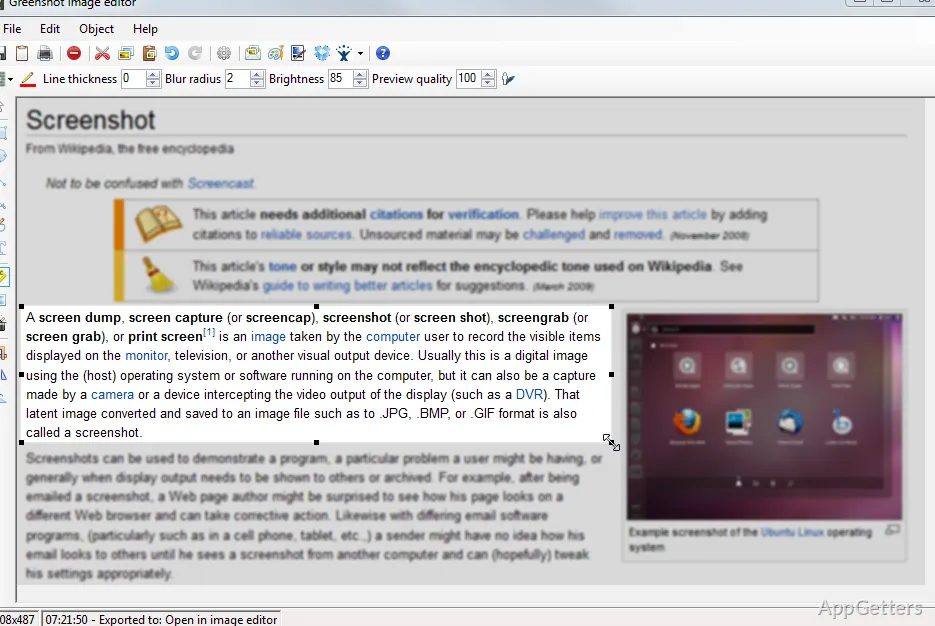
User-friendly is one of the words that come to mind when describing Greenshot’s image editor. Unlike Photoshop, which sometimes frightens first-time users, this editor is a delight to use. Especially when you just want to do some quick screen capture markups. It is just like what one would expect from a tool whose main priority is communicating. After making a screenshot, the user has at his/her disposal a number of marking tools. Such as arrow, text box, highlighting, shapes, and even blurring. So you can make up a file and hand it over as soon as you are finished. Without losing precious time.
Interestingly, these features alone cover a wide range of use cases. They include making tutorials, providing troubleshooting guides, and preparing internal documents. Also, you cannot go wrong with a neat, simple UI that caters well to newcomers. It also works well for users who don’t really want or who can’t afford the luxury of immersing in complex image editing software. Just for the purpose of annotating screenshots.
In fact, the tools for blurring and obscuring are highly effective. They help handle confidential information that must not be exposed. This is useful when sharing screenshots online or in an office environment. Such an efficient focus on real work situations puts Greenshot ahead of many other screenshot programs. It is especially useful for documentation.
Although it would be wrong to forget that the editor has major drawbacks. Those who want layered editing, sophisticated visual effects, or high-end graphic design functionalities probably need to get a licensed product. Actually, Greenshot is best used when one views it as a quick annotation instrument rather than a full-fledged image editor.
Sharing and Export Features in Daily Use
An additional really helpful feature of Greenshot is the adaptable exporting system. You can choose to save the screenshot in a local folder, or copy it to the clipboard. It can then be pasted somewhere else, or sent by e-mail as an attachment. You can also open it in Microsoft Office applications like Word or PowerPoint. These options reduce the need to repeat manual operations. They are useful when screenshots are part of your regular communication.
The main sticking point with the pop-up GUI is that it is not as busy. It is also not as full as many other choices on the market. Those alternatives are loaded with advanced automation features that can actually confuse the most frequent users of the software. Also, it is simpler to learn Greenshot because the user is not bombarded with a large number of confusing menu options. Most of which he or she has no use for.
One can argue that those whose needs are so big would require extensive cloud operations and automatic uploading features. They might also need screen recording as the main function. Such users would be inevitably disappointed. In a nutshell, the feature set simply cannot compete with the big productivity alternatives.
A Practical Fit for Everyday Windows Documentation
Greenshot is a winner in situations where screenshots are regularly used for communication, clarification, or filing, but not for creative purposes. Thanks to the little space it takes up in your system and the very fast way in which you can capture an image in up to four types, it is really equipped enough for the types of users that include students, office pros, CS teams, and private users. These users prefer speed over a large range of options to customize.
However, following its simple logic, the product stays focused on practical workflow enhancements instead of unrelated productivity categories. Hence, most users should feel comfortable using the program without much readjustment or ongoing maintenance.