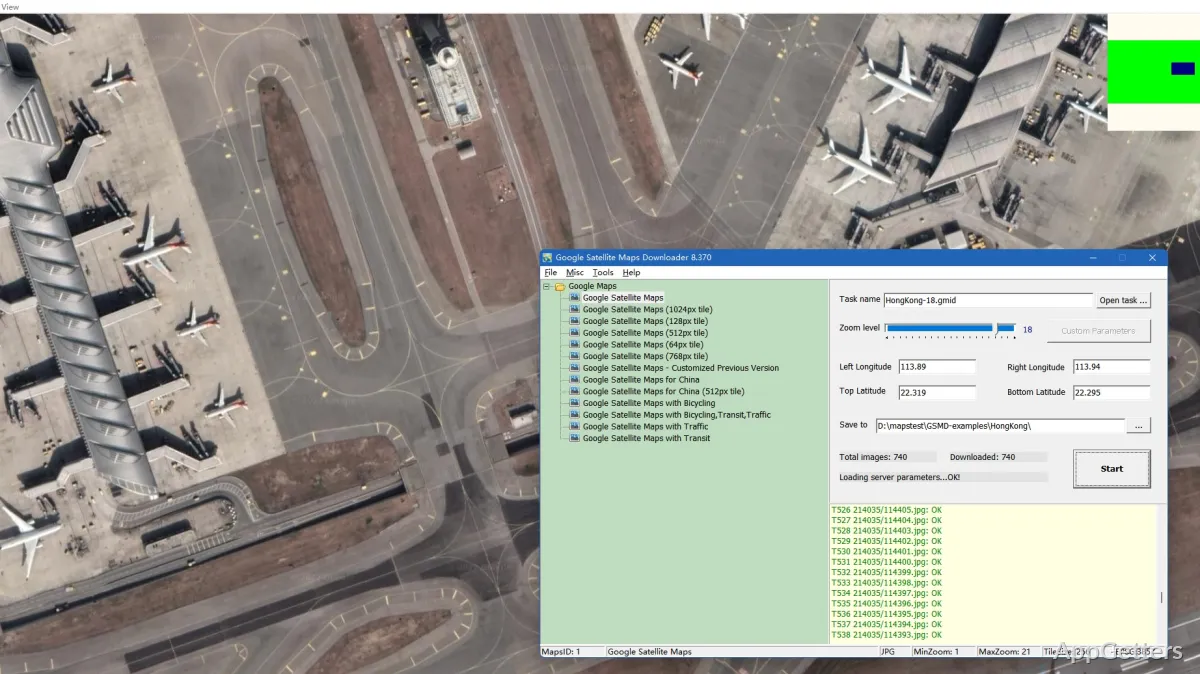
It’s not always that easy to find map data for offline use on Windows. Most users only think about web-based services when they want to download maps for later use, printing, or their travel plans. However, many of these platforms are mainly designed for live access to the network. This is usually not the case in the field with unstable connections, older systems, etc. This small Windows program, Google Maps Downloader, was made for this exact purpose. Instead of being a standalone navigator, it concentrates on fetching small pieces of maps from Google Maps to a local drive. Considering that the program is more like a technical tool than a very user-friendly map one, this little nuance may still work well for the right users.
Conceptualized as an Offline Map Access Tool
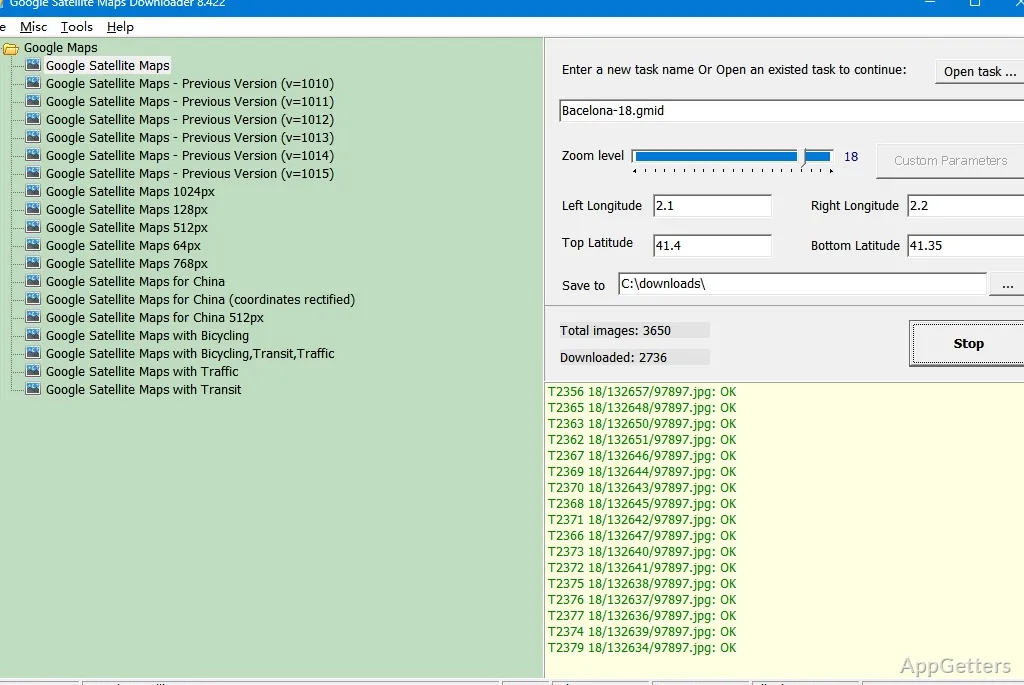
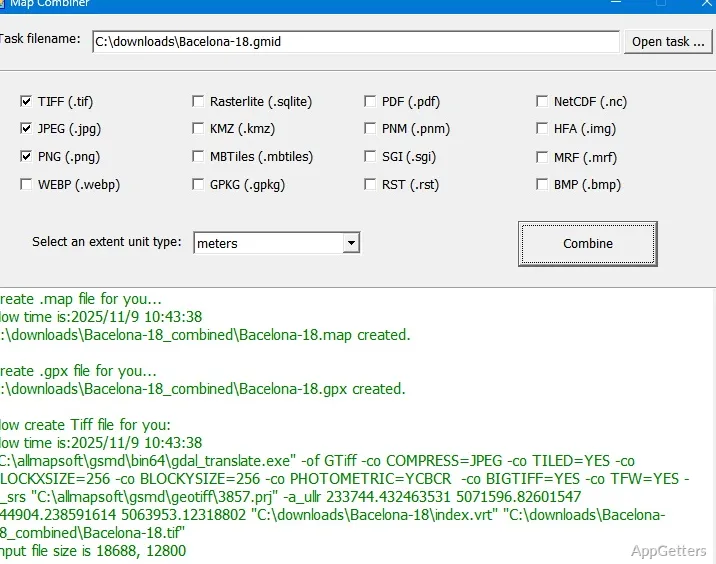
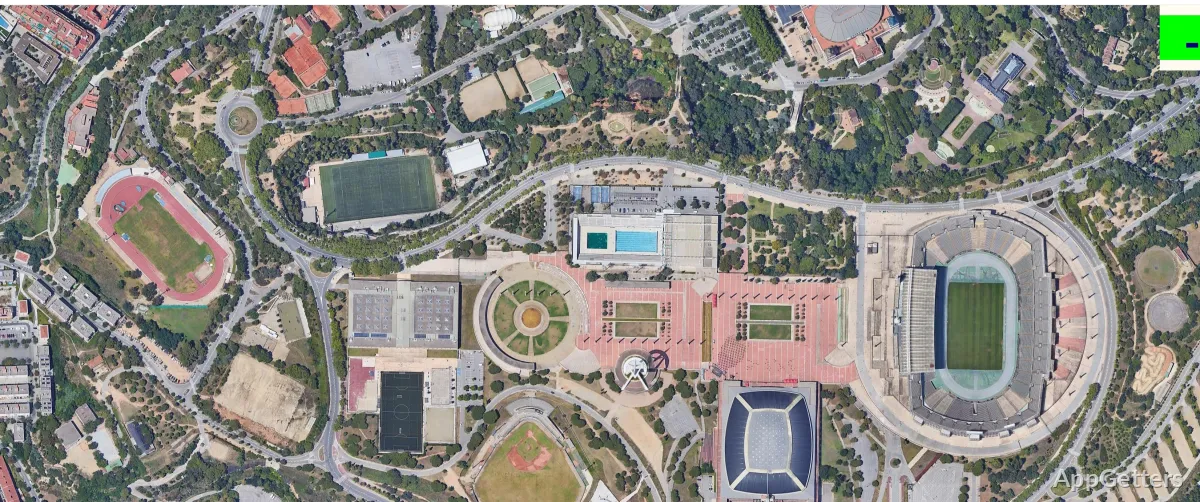
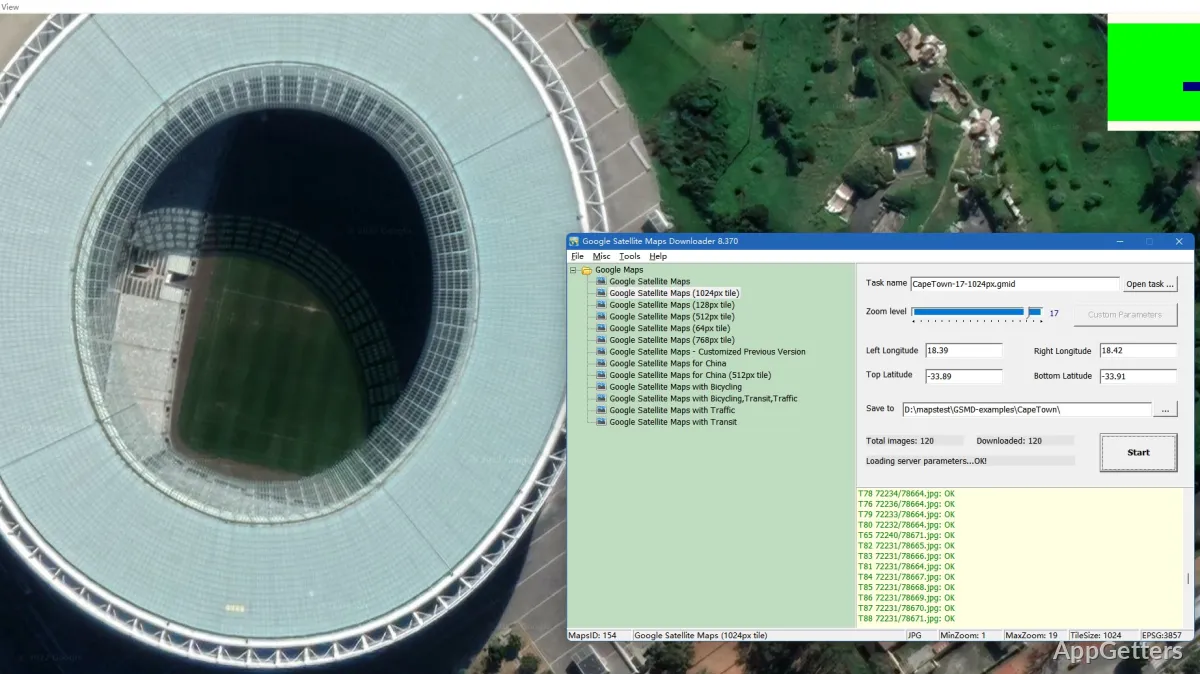
In a nutshell, the main functionality of Google Maps Downloader is that it lets users pick an area and set zoom parameters. Then, they can download the maps to their Windows PCs. The saved files can be checked out offline with the help of the software’s built-in viewer or can be used to create a big image file.
This is the kind of thing a user who is in a place where the internet connection is very unreliable would go for. They would like to have a visual reference.
The software’s utility-driven design is very evident in the GUI. It is more background and data-oriented with regard to the positioning information and has visual content that is plain and quite barebones. It is doable for novices, but this is more an exercise in technical learning than the day-to-day fun that a modern web-based mapping platform offers. If one were looking for feature-rich navigation software or discovering the environment digitally, one would turn to the big running apps for maps.
On Windows: How It Works and How Well It Works Performance-wise
This tool remains handy, for example, for batch download. Instead of manually exporting one’s screen or reloading the online maps and saving them, users can schedule it for large regions and different zoom levels. In Windows, the program hardly needs a high-powered PC, and even the oldest ones can run it quite efficiently.
Users supply the coordinates of the area they are interested in, specify the zoom level, and then the mapper begins to collect the tiles in the background. Again, the bigger the area is, the longer the waiting time.
This is why one should use the program for preparation and not just for random browsing. For the most part, it is for the users who have their needs well defined and the locations they are interested in.
Aside from the technical restrictions of software use in terms of processing power and space, there are also limitations. These relate to the actual map content. Because the program relies on external mapping services, the uniformity over time can vary as these services change. This is quite a normal thing with third-party map downloading tools and something that users should understand.
Reference Maps: Its Strong Suit
Google Maps Downloader is more of a map reference tool than an actual navigation program. At least in terms of effectiveness. So, the software will not be one to take away users from GPS or live route summoning. It addresses a niche segment by focusing on archived visual maps at a glance.
One thing to remember here is that users may expect to get full functionality in offline navigation. Just as in the real world. What one finds with the software is more of a digital map collection tool. The option to keep large chunks of maps locally can still be very useful for associated educational work. It also helps with fieldwork, construction planning, or travel research. There, having a static visual reference is more important than real-time directions.
Those Windows users who really want to have the possibility of printing maps or storing location data will find this program helpful. It helps avoid the very tedious workflows involving manual capturing over and over again.
Top Usages of This Tool
Those who find themselves within environments having very poor connections will find this tool useful. Those who want to have access to maps offline will also find it useful. Downloading maps that cover a large area is one of the tool’s best features. Storing them locally on Windows is another key benefit.
It is in research, school, office, and traveler-oriented user scenarios that the software would find its biggest users as a practical helper. Its interface gets in the way the least. Its reliability and features are the most important. They will also think that this is somewhat more technical. The setup is more elaborate than one would expect. The software is really good only when one thinks of it as a dedicated tool rather than a general-purpose mapping app.