EXE
Home » Software » Windows » Media Player » GOM Player for Windows
GOM Player for Windows

GOM Player for Windows

  • By Gretech Corp.
  • Free
  • Version: 2.3.120.5390
  • 32.78 MB
  • Security Report:
2 Downloads

GOM Player for Windows Starts With the File, Not the Player

A downloaded MKV may open with perfect sound but no picture, while an older AVI plays immediately. That contrast is the right starting point for GOM Player for Windows: it is a desktop media player from GOM & Company, yet playback still depends on the container, encoded streams, subtitles, graphics path, and Windows audio route used by each file.

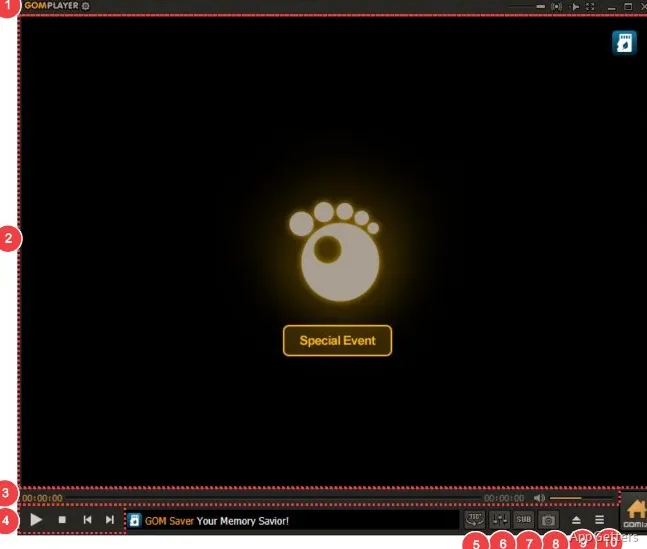
The player handles local video and audio, subtitle loading, playback speed, screen capture, repeated sections, and 360-degree video viewing. It cannot repair damaged media, restore a missing stream, improve a poor recording automatically, or make every external codec work with every filter already installed on the PC.

Free player or GOM Player+

The standard GOM Player is offered as a free media player. GOM Player+ is a separate paid edition with an ad-free interface and additional capabilities. Treat the editions separately during setup because a feature shown for the Plus edition may not be part of the free installation.

The developer provides the Windows player for currently supported Windows releases. It also notes that certain videos rely on Windows media components or graphics capabilities, so two PCs running the player can produce different results with the same clip.

Build Playback Around the Media You Actually Have

Download GOM Player for Windows from the developer’s current product page, then run the supplied setup file. Close the player first, particularly during an update. Windows may show a security warning during setup. Continue only when the file came from the official developer source or another trusted source you intentionally chose.

The official product information lists support for formats including AVI, MP4, MKV, MOV, TS, WMV, FLV, MP3, FLAC, AAC, and WAV. A familiar extension still reveals little about the video and audio streams inside it. One MP4 may contain an easily decoded stream, while another uses a profile that the active playback chain cannot process.

A format name does not identify the decoder

Begin by identifying the container and its internal streams. MediaInfo can display the video codec, audio codec, frame rate, bit depth, and subtitle tracks without altering the source. Those details are more useful than repeatedly reinstalling the player because a filename extension does not identify the decoder required for playback.

GOM includes codec discovery and can work with external codecs for media outside its built-in playback range. Add components selectively instead of combining several codec packs. Overlapping filters can change which decoder receives the stream, leading to freezes, missing audio, or different behavior after a Windows update.

Subtitle search, loading, and synchronization

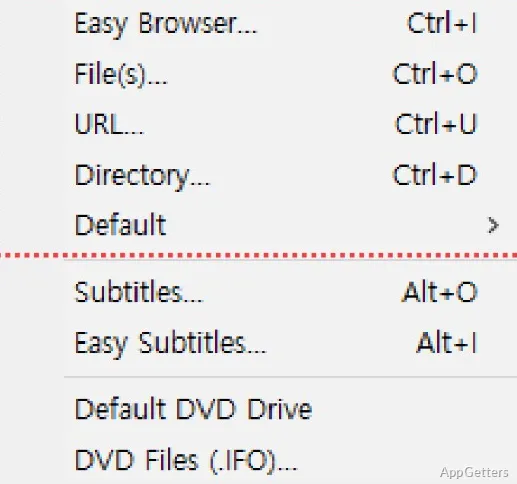
GOM Player supports subtitle searching, external subtitle loading, and synchronization adjustment. The documented F3 shortcut opens a subtitle file. For a local SRT file, matching its filename with the video filename also makes the pairing easier to recognize when both files occupy the same folder.

A subtitle that remains consistently early or late needs a timing offset. Drift that increases after twenty minutes usually points to a timing mismatch, possibly involving frame rate or a subtitle created for another cut of the film. Subtitle Edit is useful when the subtitle requires retiming rather than another temporary adjustment inside the player.

What 360-degree mode can and cannot do

The 360-degree viewing mode changes the camera direction inside compatible panoramic video. It does not transform an ordinary flat movie into genuine 360-degree footage. This mode also depends on suitable graphics support, so normal video playback does not prove that the computer can render interactive panoramic content correctly.

Repeated sections for study and review

Interval repeat is more precise than looping an entire file. Mark a segment, replay that passage, and adjust the range for a language lesson, music rehearsal, or close review of a short scene. The feature controls playback without changing or exporting the original media.

Read the Symptom Before Reinstalling

Playback failures become easier to isolate once the symptom is separated from the file extension. GOM Player for Windows sits between the media streams and Windows output systems. A black picture, silent audio, subtitle drift, and a frozen interface point toward different layers and should not receive the same response.

Sound plays while the picture stays black

Audio continuing behind a black frame shows that the container opened and at least one stream decoded. Focus on the video renderer, hardware acceleration, graphics driver, and video codec path. GOM support guidance for stuttering also refers to output methods and hardware acceleration, making those settings useful comparison points for a renderer-related black screen.

Alter one playback variable at a time, then replay the same short section. Hardware acceleration can improve demanding video, but a graphics driver or decoder conflict can make the accelerated path unstable. Comparing it with software decoding reveals more than changing several settings together.

The picture moves, then begins to stutter

A high-resolution file may start normally and fall behind during complex scenes. GOM’s support guidance directs Windows users toward the video output method, color-space quality setting, and hardware acceleration. Also play the file from an internal drive because a slow network share or unreliable removable disk can resemble a decoding problem.

One clip cannot establish the cause. A second file with the same resolution but a different codec helps separate computer load from a damaged encode or unusual codec profile. VLC Media Player can provide another decoder path for comparison without proving that either player suits every format better.

Silence from one file or every file?

Silence across all media usually points toward the selected Windows output device, mute state, exclusive audio behavior, or the player’s audio configuration. Silence from one movie suggests its audio stream or decoder instead. Choose the intended speakers or headset in the Windows volume mixer before adding another codec.

For a stubborn file, GOM documents a playback-information window available through Ctrl+F1. Copying those details gives support information about the active filters and media streams. That evidence is more useful than reporting only that an MKV file has no sound.

GOM.EXE remains active during an update

An installation error can appear when the player continues running as GOM.EXE in the background. End that process through Task Manager, or restart Windows before running the installer again. This is a process-lock issue, so downloading the same setup file repeatedly will not help while the earlier process remains active.

The subtitle begins correctly and drifts later

Repeatedly adjusting synchronization can hide a fixed offset, but it will not correct progressive drift. Note where the subtitle begins separating, identify the video frame rate, and determine whether the subtitle matches the same release. A different edit with an added logo or missing scene can also cause a sudden timing jump instead of gradual drift.

A codec pack made playback less stable

Reinstalling GOM Player for Windows does not remove every third-party filter registered elsewhere in Windows. A recently added codec pack may take priority over the decoder used previously. Remove that package through its normal Windows uninstaller, restart the computer, and replay the same media before adding another component.

Avoid modified players, cracked Plus editions, serial-key pages, and unknown mirror downloads. They do not resolve codec mismatches and may contain altered installers or unwanted components. The free edition already handles broad local playback, while the paid edition is relevant only when its separate features match the intended workflow.

Playback information before contacting support

Collect the file extension, video codec, audio codec, subtitle type, exact symptom, and the point where it occurs. Add the Ctrl+F1 playback details while the affected file remains open. Mention whether another file using the same codec plays normally because that comparison separates a general decoder failure from one damaged or unusual source.

A Practical GOM Playback Workflow

Keep the original media untouched, identify its container and streams, then separate subtitle timing from video rendering and audio output. GOM Player for Windows behaves more predictably when each layer is examined separately: the source file first, followed by the codec path, video renderer, and Windows device receiving the audio.

Software Details of GOM Player 2.3.120.5390

License
Free
Version
2.3.120.5390
File Size
32.78 MB
Downloads
2
Language
English
Category
Op. System
Windows
Developer
Last Updated
June 24, 2026
SHA256
4f48f89b972bb987dbe53c328d917bd31bd4d023d7c278040690ffd456066d1c

Version History

6 versions
2.3.119.5389
212.59 MB
May 26, 2026
Download
2.3.117.5387
205.77 MB
March 17, 2026
Download
2.3.116.5386
205.74 MB
February 24, 2026
Download
2.3.115.5385
32.09 MB
December 15, 2025
Download
2.3.114.5384
32.1 MB
November 20, 2025
Download

Leave a Comment

Your email address will not be published. Required fields are marked *

Software Icon
Security Report

Loading scan data...

Scroll to Top