Taking a snapshot on Windows is typically quite simple. However, the process can become a little dull, or one may want different features. Mostly, the default methods will be enough for fast screenshots. However, users usually find these quite limiting for annotating or sharing instantly. Better organization during the day is also often affected. Flameshot belongs to the family of apps that use a compact and simple yet very efficient approach. They try to fix these issues. Mainly known for their Linux fandom, a wide variety of players are discovering the Windows version. More people are resorting to swift, keyboard-dominated capture tools without the complications of massive editing suites. Speed, annotation, and enhanced workflow usability are some of the software’s key focus points. Image editing capabilities are not its main priority.
The Carving of Quick Screenshots
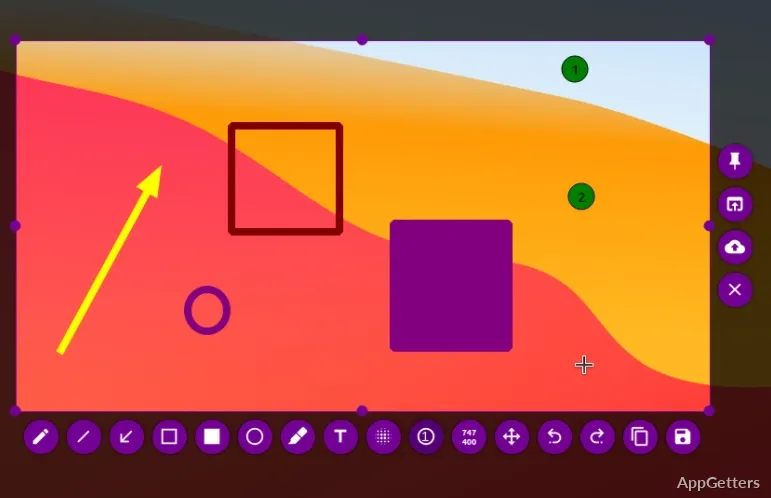
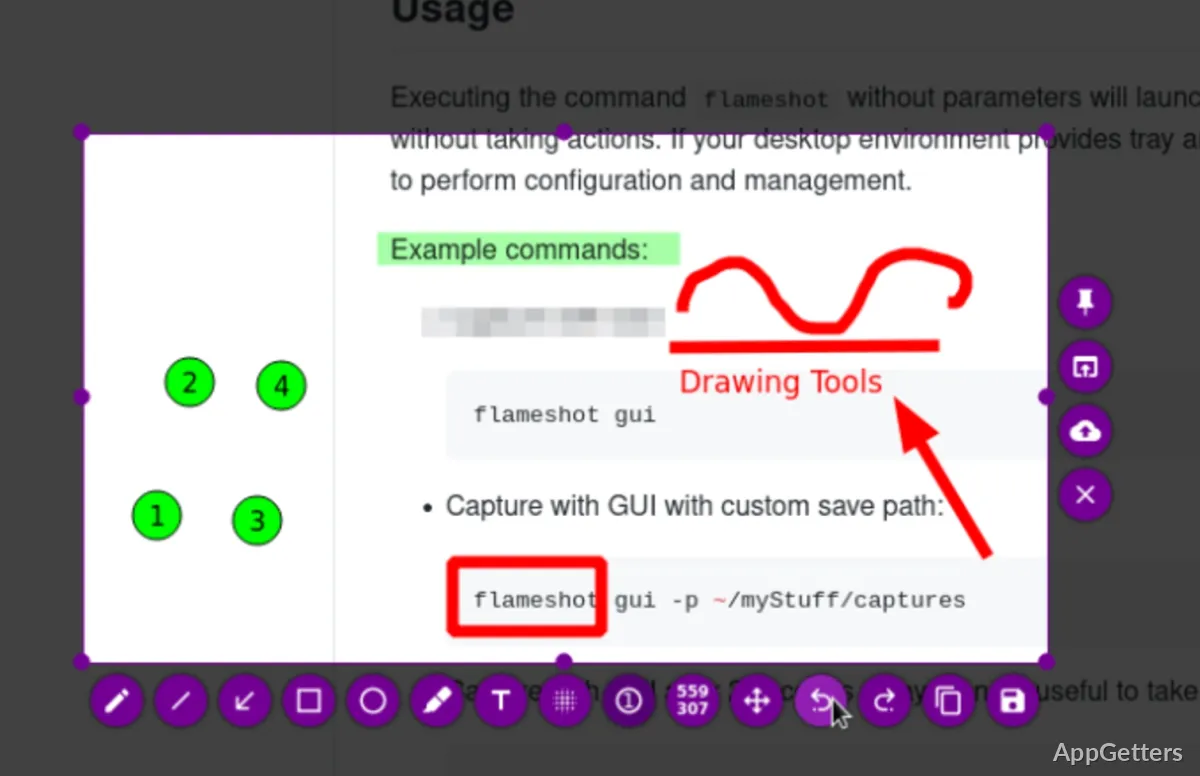
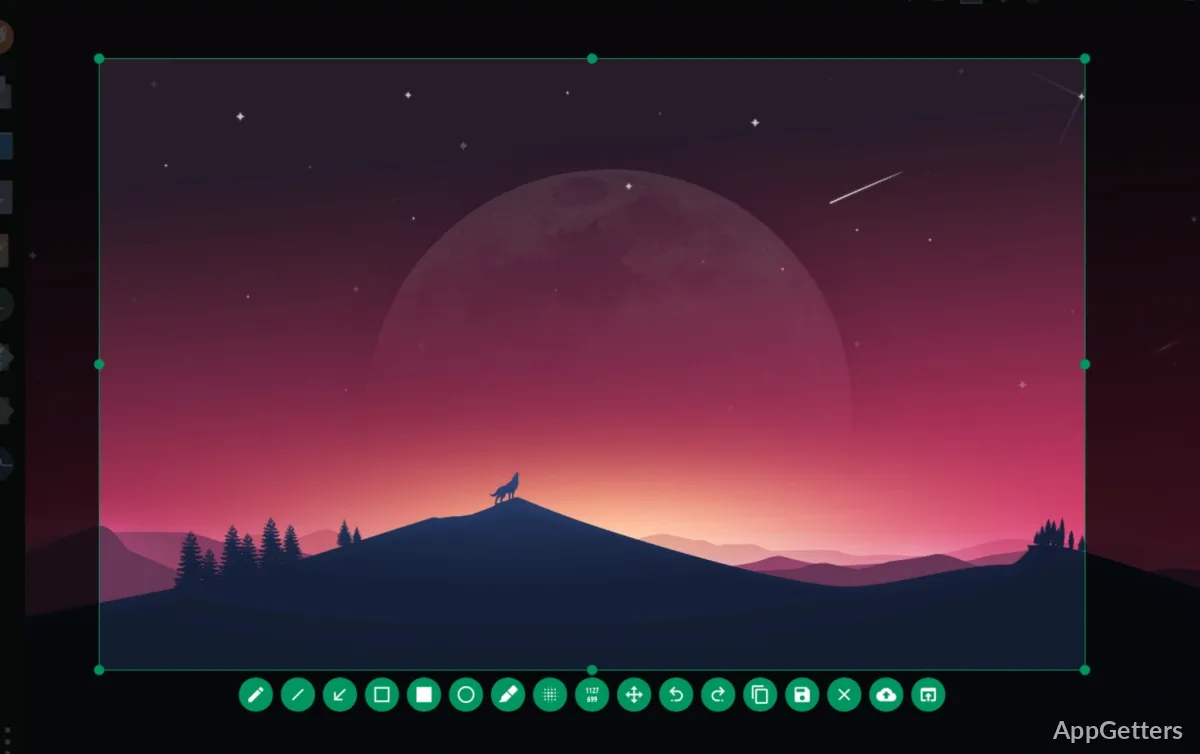
What can vividly be noticed with Flameshot on Windows is the swiftness of the capturing process. Another window featuring editing tools popping up after each screenshot is a practice that the software now hardly follows. Instead, the majority of tools are integrated into the screenshot interface itself. This makes it easy for the user to visually indicate with arrows or highlight text. It also allows blurring sensitive information or cropping selections immediately after the region has been decided.
This means that, for instance, a tech support person or someone documenting a computer error may not get distracted by unnecessary doubts throughout the day. Annotation tools are fluent, and at the same time, the users will not find the interface too cramped. This remains true even if they use all the editing options. Advanced users can even do away with menus as a result of keyboard shortcuts.
Furthermore, the utility very rarely exerts any pressure on the computer while running in the background. The user may not even notice it among other unnecessarily running apps.
A Few Excellent Features Without the Overwhelming Complexity
It is amazing how the creators kept Flameshot between extremely basic screenshot tools and fully featured image editors. The included features are sufficient for regular documentation jobs. At the same time, users will not have to face all that clutter.
You can upload screenshots immediately after taking them, copy screen captures directly to the clipboard, save images automatically, or even make brief changes before sharing. A very handy ‘blur’ tool is an excellent one to hide the face or any other recognition trait that may show up while making tutorials or dispatching support mails. Besides that, small things like this are very helpful time-wise. They are also useful for educators and pupils preparing a resource.
In addition, the program is so friendly even to beginners that it hardly ever scares them off. Just about everything that is possible is revealed at the outset, and the learning curve will not deter users who are unacquainted even with somewhat advanced screenshot utilities. A large part of the users who turn to Flameshot only for basic screengrabs keep using it afterward, mainly because of its user-friendliness.
How the ones on Windows differ
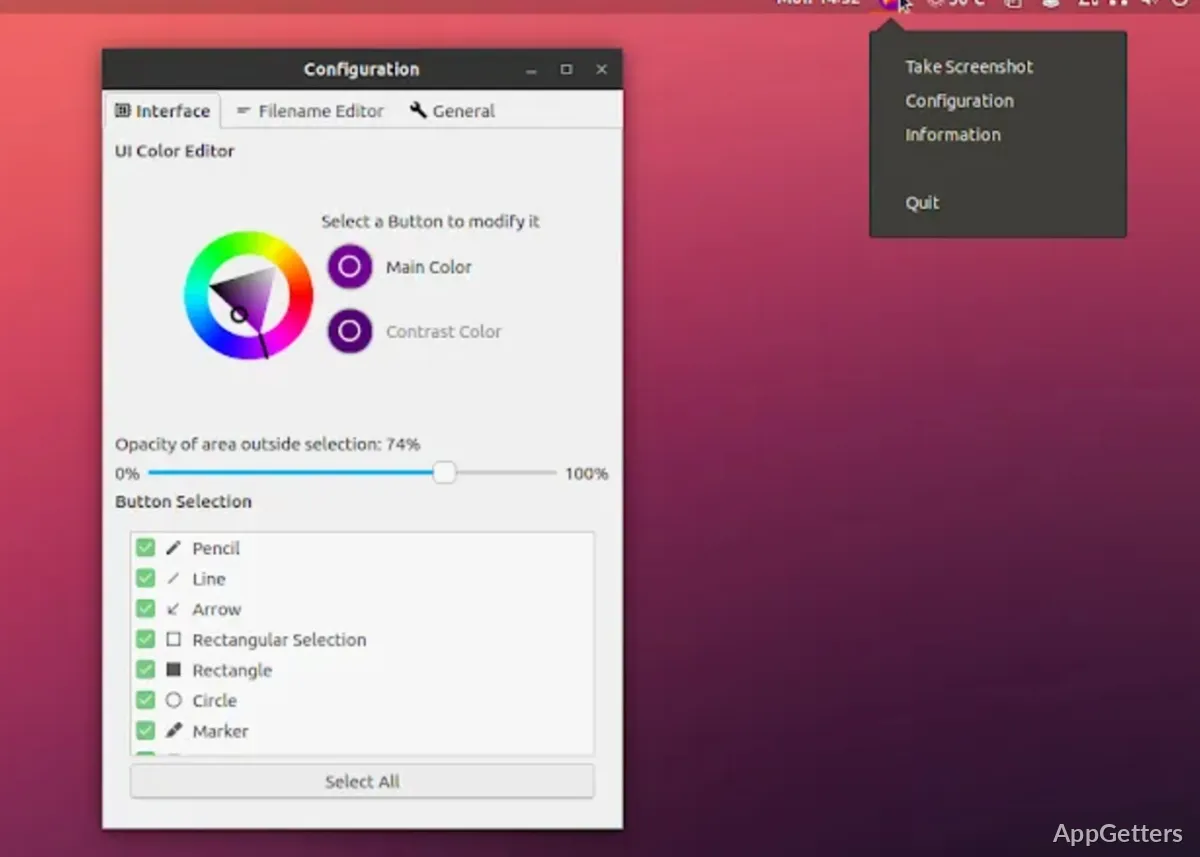
Many of the users will probably find the software quite stable so that they can make it a daily tool. However, sometimes they might miss the tight integration of some Windows-only screen-capturing tools. Users may also notice minor shortcuts and tray operations changing depending on their system configurations.
Likewise, some users find powerful file management systems or built-in cloud integrations present on large commercial screenshot platforms necessary. Flameshot keeps its approach quite minimalist, which is good for performance. At the same time, it may make it feel half-baked from the viewpoint of enterprise-level workflows.
The software, though, is still very dependable for day-to-day use. Capturing a screenshot is almost always very fast, and adding notes gets stored automatically. If you have set up the application well, it will not disturb you in the middle of your work very often. This compromise will please those who are more interested in expressing ideas through images quickly than in managing a project fully.
Where in the World of Windows Does Flameshot Belong?
High-volume users of screenshotting who want it to be a speedy, clean little thing, not getting in the way, would probably be the ones who will benefit most from Flameshot. Students doing papers, programmers writing bug reports, instructors preparing material, and workers sharing visual responses remotely are the ones who will most likely find it beneficial.
Flameshot probably wouldn’t be the tool you use if you want to do professional editing or cooperate on projects at the enterprise level, but that’s not its purpose at all. Actually, Flameshot is focused on making your regular screenshot tasks easier and quicker without using a lot of your computer’s memory or resources.
If you are using Windows and basic capture tools feel like a drag, slowing you down, but at the same time, you don’t want to have a big editing suite, Flameshot would be something like a compromise between the two. Quickness, handy and fast annotation tools, and a simple design are what make it a trustworthy alternative for daily visual communication.