When people run into the need for more than just a quick snapshot of their screen, taking screenshots on Windows can be quite a hassle. Built-in tools are fine for very few times of use. Mostly, they will annoy users when screenshots are expected to be part of tutorials, working documentation, online classes, technical support, or visual communication. The users end up with a habit of switching between different applications to achieve a single edited, annotated, and organized picture. With the help of Ashampoo Snap, such unnecessary efforts are cut down to a minimum. It combines screen capture, annotation, and lightweight recording tools in one working process.
The software addresses the issue of visually sharing information so broadly that, alongside those users who would like to take a screenshot only, there is a very big group of Windows users who can save a considerable amount of time if they use an integrated approach.
Designed for Things That Go Beyond Just Taking Screenshots
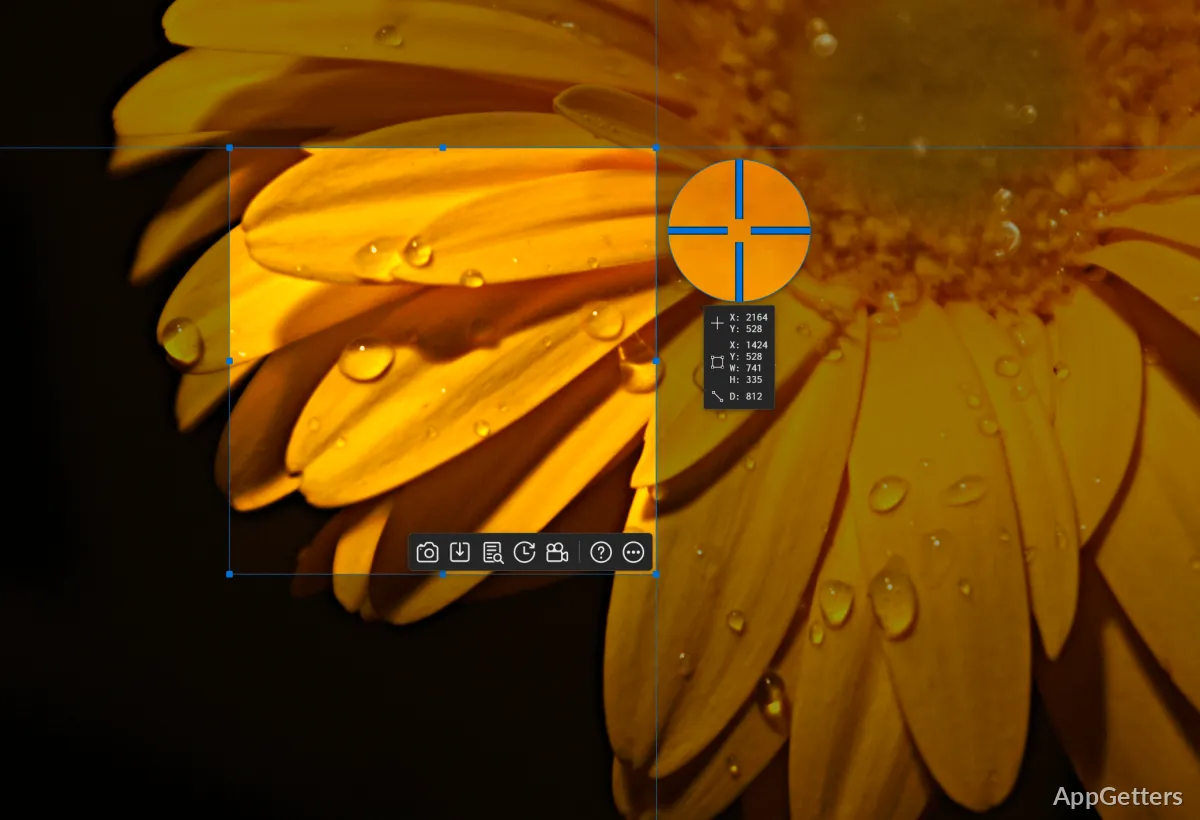
The capture process can be startlingly flexible during everyday use, among other things. This would establish a first impression of Ashampoo Snap. Without the users having to do a complicated setup, the software will allow the users to capture full-screen grabs, scrolling captures, selected regions, and individual windows. Thus, capturing long webpages or documents may be very beneficial to students, researchers, and office workers who are continuously collecting reference material.
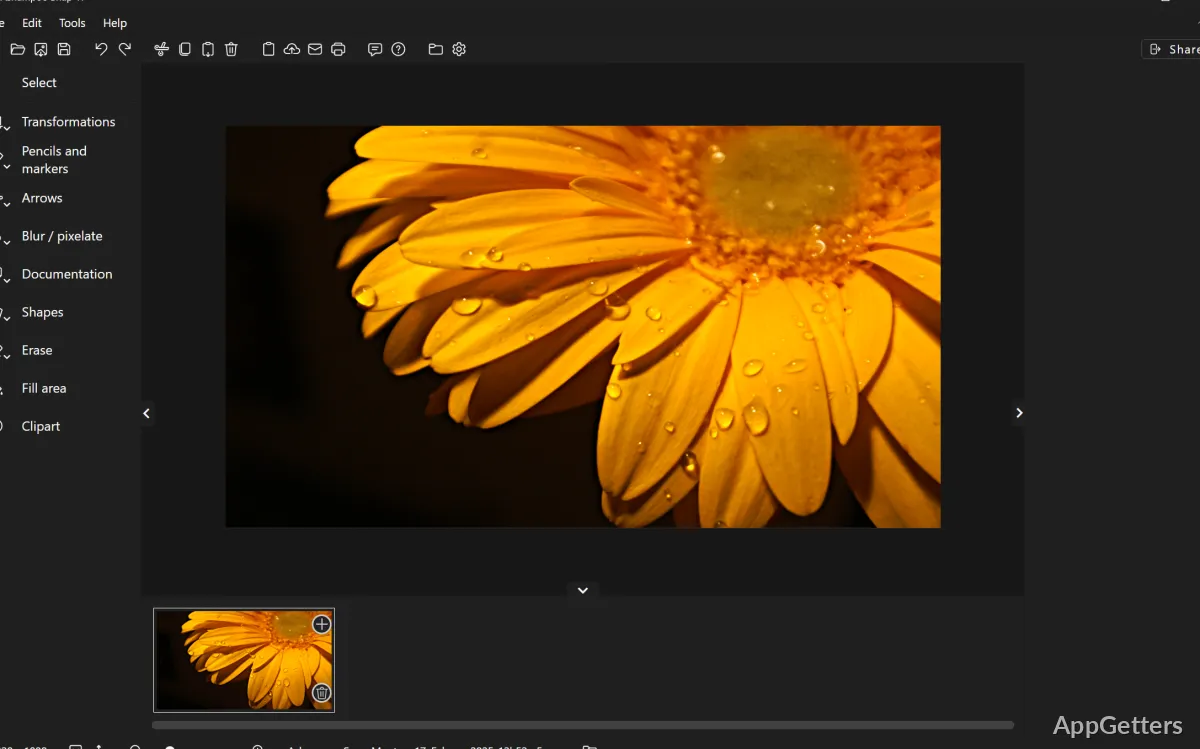
In fact, the whole experience heavily depends on the editing environment as well. If the users feel like it, they can work on an image right after the capture. Adding arrows, text, highlights, blur effects, or shapes can be done right away without the users switching from the program.
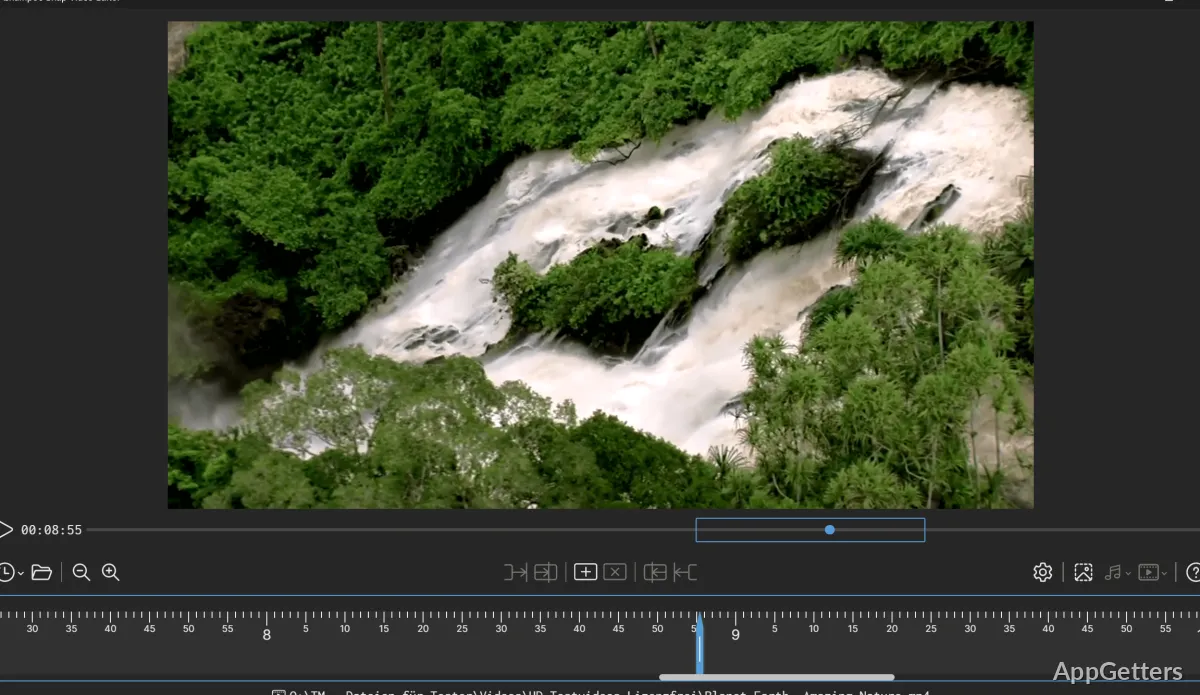
Another screen recording-related capability is definitely among the very useful ones for people producing walkthroughs or demonstrations. The feature does not aim at replacing professional video editing software. However, it delivers on the promise of short tutorials or descriptive clips quite well for regular office or educational use.
Workflow-Focused Windows Experience
Working around productivity rather than minimalism was the clear purpose behind the development of Ashampoo Snap. Having more options than a lightweight screenshot tool at their disposal, the user could feel somewhat lost. After a short learning period, most functions will be logically organized. Most probably, frequent users will like how many things can be done from one single workspace.
The software will hardly cause any sort of problem once integrated with the usual Windows workflows, too. The quick-access panel, keyboard shortcuts, and automatic capture detection will help to carry out the less interesting part of the work with minimum effort. It should be said that the users who take screenshots regularly throughout the day will find this small efficiency very important over time.
The result is, overall, stable and fine, even if you work with big image files or video capture on complex and high-res displays. However, simply by the fact of having more features, the software as a whole will also be a little heavier than the simple capture tools. Compared to the lightweight ones that are around only for the purpose of screenshots, you may be able to detect slower launching times or more memory usage on older systems.
Great Features But Also Some Limitations
Ashampoo Snap makes the most sense for users who often take screenshots. It is also useful for adding explanations, annotations, or recording themselves. In fact, teachers who prepare lessons and support personnel who document problems could benefit from the software. Content producers who make guides and remote employees who share visual feedback may also find its all-in-one structure useful.
On the other hand, not a single feature is recognized as essential in real-life use. Sometimes there is more than enough information on the screen. This can lead to quickly completed captures for those users who only want that. Having so many editing and exporting options available on the toolbar might be a little intimidating to beginners.
Cloud-hosted collaboration tools are probably less of a priority for most people when compared with browser-based platforms. Also, even if teams are very dependent on shared online workspaces, they may still want to use other external communication and file management services. A standalone local productivity project was the major point of the software. The cooperative environment part was of lesser concern.
Where Ashampoo Snap Works Best
Ashampoo Snap is really a great option available on Windows for users who do not simply take screenshots. It is especially useful for people who often need to explain something visually. Its main point is cutting down the number of separate tools used for capturing and marking up content. It also helps with recording and exporting during a normal day.
The balance between the two hasn’t been tilted much, and convenience and capability are weighed reasonably by the software. It is not the lightest screenshot utility available, nor is it a full multimedia production platform. Instead, it occupies a middle ground that suits practical, everyday documentation and communication tasks.
Home users, teachers, freelancers, and office professionals who very regularly rely on visual explanations will find faithful and reliable support in Ashampoo Snap’s workflow. This can help noticeably make the screen capture work more efficient than usual.