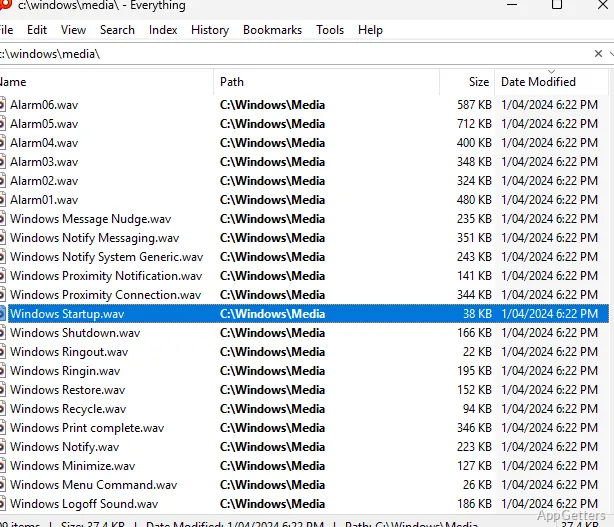
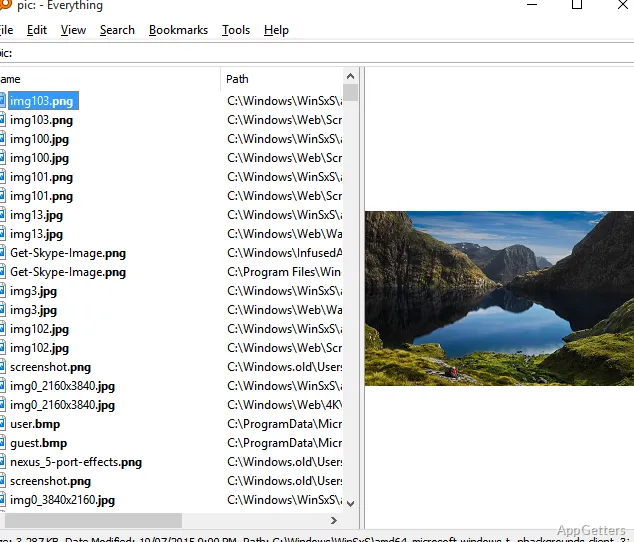
The search field in Everything filters a live list of matching file and folder names as you type. Everything builds an index of names on NTFS volumes, so searches query that index instead of reading every filename from scratch.
How does Everything find files so quickly?
At startup, Everything reads filename records from indexed NTFS volumes. It also monitors filesystem changes so the index can reflect additions, moves, and removals without waiting for a full rebuild. The index covers names and paths; searching inside files uses the separate content: function, which is slower because file contents are not indexed.
Type part of a filename or folder name in the search field to narrow the results immediately. The results list shows matching items, with columns such as name, path, size, and modified date. Selecting a result lets you open the item or its containing folder.
Which search operators and filters can I use?
A space between terms searches for results containing both terms. Use | for alternatives, ! to exclude a term, and * or ? as wildcards. Regular-expression searching is available by enabling it in the search options.
Field searches can narrow results by file type, location, or attributes. For example, ext:pdf limits results to PDF files, while path: limits matches to a folder path. Size and date functions can further restrict the list when a name search returns too many items.
- Use file: or folder: to limit results to files or folders.
- Use ext: to match a filename extension.
- Use dm: or dc: to search by modified or created date.
What happens when files change?
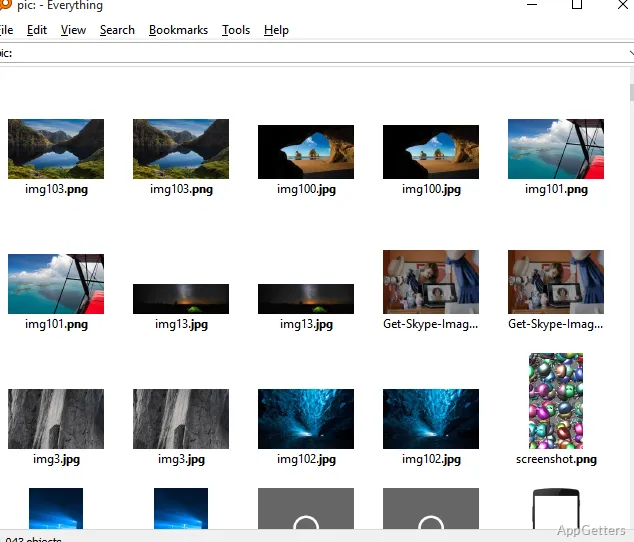
Everything monitors indexed volumes for filesystem updates and adjusts its results as names change. This keeps common searches current after creating, renaming, moving, or deleting files. The program’s compact results view also supports sorting, which can make a large set of matches easier to scan.
Pros
- Live results as search terms are entered
- Queries support wildcards, Boolean operators, and regular expressions
- Results can be filtered by path, extension, size, and dates
System requirements: Windows 7, Windows 8, Windows 10, Windows 11 · 32-bit and 64-bit
Does Everything search inside documents?
Its index covers file and folder names and paths. The content: function can search inside files, but more slowly, since contents are not indexed.
Can I search for only folders or a specific extension?
Yes. Use folder: to limit results to folders, or ext: followed by an extension such as pdf.
Can Everything show newly created or renamed files?
It monitors indexed volumes for filesystem changes and updates its index as items are added, moved, renamed, or removed.