Need a PDF from a program that has no Save as PDF option? Doro PDF Writer adds a free virtual printer to Windows, so anything you can print becomes a PDF, with optional passwords, copy and print restrictions, and PDF/A archiving.
How do you turn a document into a PDF?
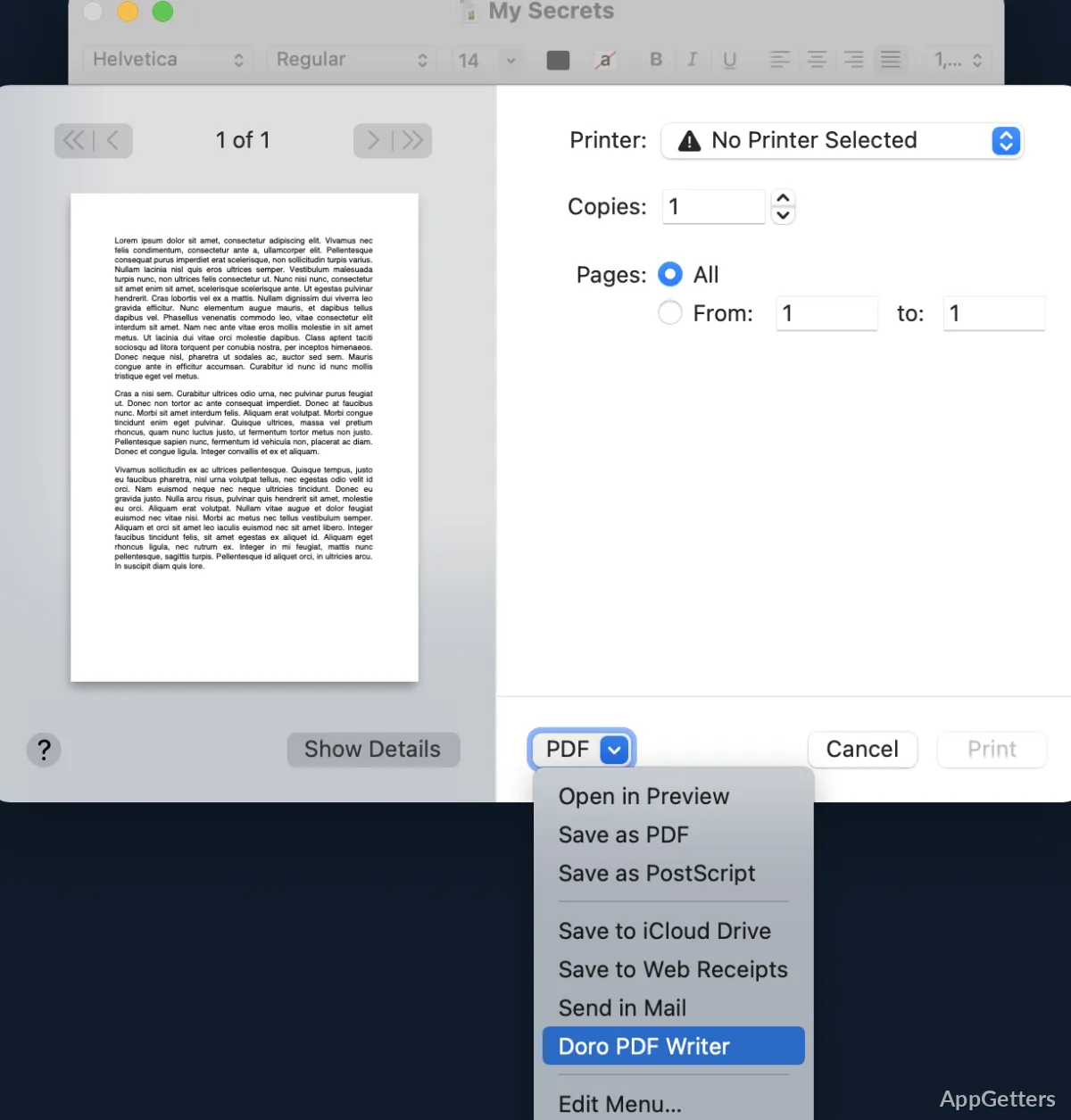
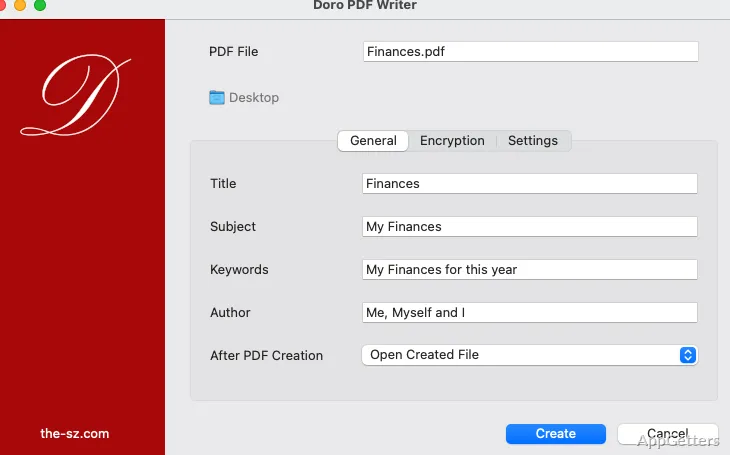
Open the document in an application that can print, such as a word processor, and choose Doro PDF Writer from its printer list. The app sends the document to Doro’s creation window, where you can choose the available options and click Create to produce the PDF.
The window also lets you fill in the title, author, subject and keywords, and save frequently used settings as profiles. Color documents and photos keep their colors.
What can you set before creating the file?
Doro’s creation window includes an option for making PDF/A-compliant files. PDF/A is intended for document preservation and archiving, so the setting is relevant when a document needs to follow that format.
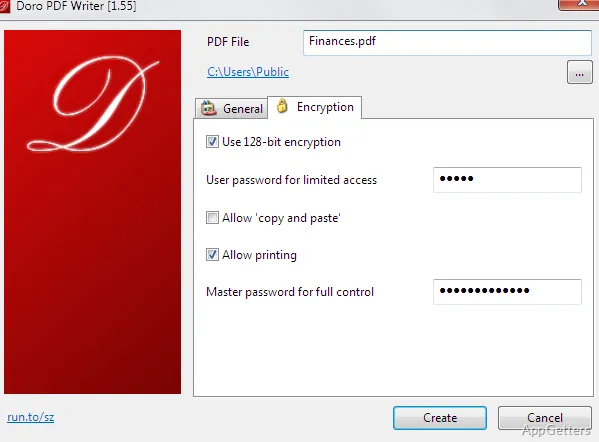
For sensitive files, Doro can apply 128-bit password encryption. Separate restrictions can prevent recipients from printing or copying content from the PDF.
- Enable PDF/A when the output needs to meet that format.
- Set a password to encrypt the document.
- Set a separate master password that controls the restrictions.
Can Doro create PDFs from any app?
The app must provide a Print command for Doro to receive its document. Select Doro PDF Writer as the printer in that app, then complete PDF creation in Doro’s window. This lets the same workflow handle documents from different print-capable programs without relying on each one to provide a dedicated PDF export control.
Pros
- Creates colored PDFs from print-capable applications
- Offers a PDF/A compliance option
- Supports password protection with 128-bit encryption
- Can restrict copying and printing
Cons
- Cannot edit, merge or split PDFs
- Only 128-bit encryption, no AES-256
System requirements: Windows 7, Windows 8, Windows 8.1, Windows 10, Windows 11 · 32-bit and 64-bit
Is Doro PDF Writer free?
Yes. It is free with no watermarks, banners or page limits.
Can a Doro-created PDF be password-protected?
Yes. Use 128-bit encryption with a user password, plus a master password that blocks printing or copying.
Can Doro merge or edit existing PDFs?
No. It only creates new PDFs by printing; use a PDF editor to combine or change files.