The drive-selection screen is where a recovery scan begins: choose a hard drive, memory card, or USB flash drive, then select the file types to search for. DiskDigger combines a file-system scan with a low-level search of free space, and displays recoverable results for browsing and recovery.
Choosing a scan and file types
After selecting a drive, choose to search for all file types or specify the kinds of files to find. A focused search can narrow the results when the missing files are known to be photos, documents, or another specific type.
The scan combines file-system parsing with a low-level search through free space. The first approach can use surviving file-system information, while carving looks for recognizable file data outside the file system or on a damaged disk. Results appear as they are found, so browsing can begin before the scan finishes.
Where do scan results appear?
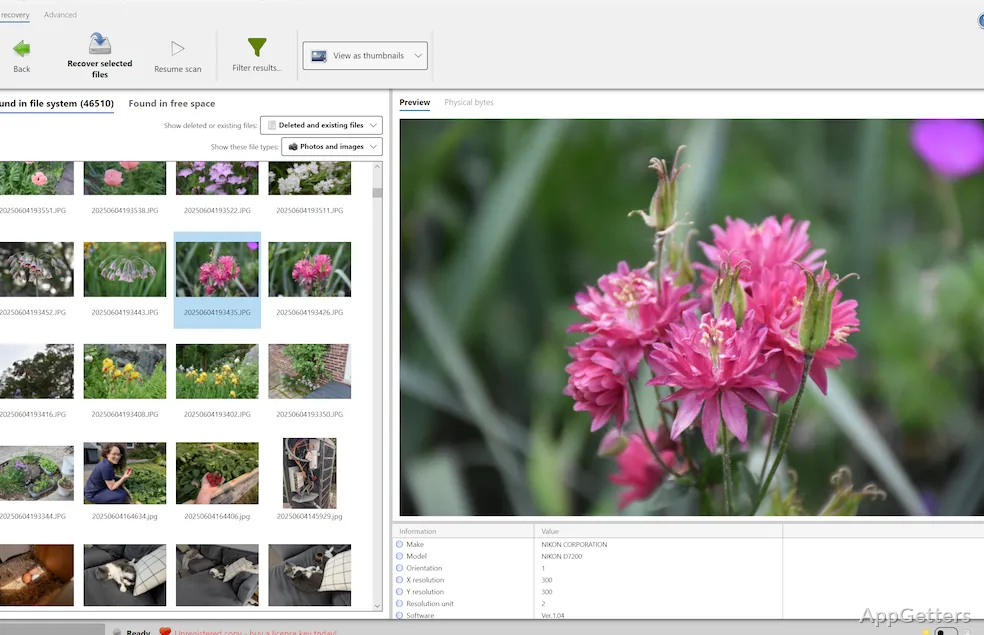
DiskDigger divides recovered-file results into two views:
- Found in file system contains items identified through the drive's file-system structures.
- Found in free space contains items located beyond those structures, including files found on corrupted disks.
Previewing and recovering files
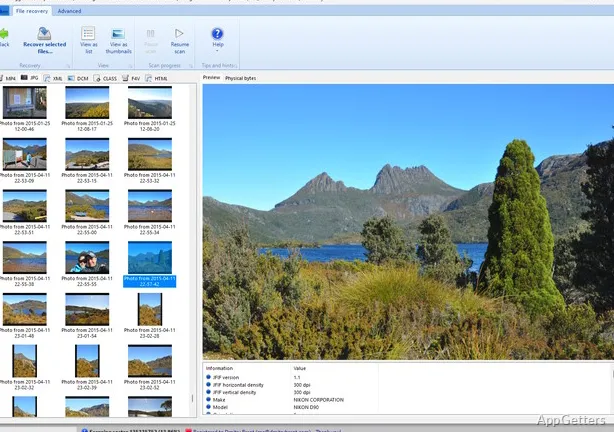
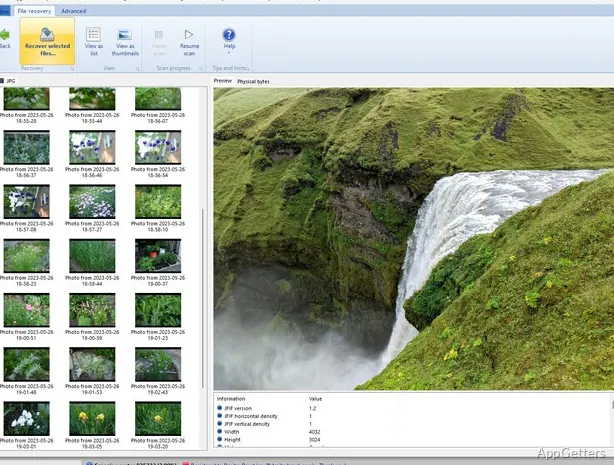
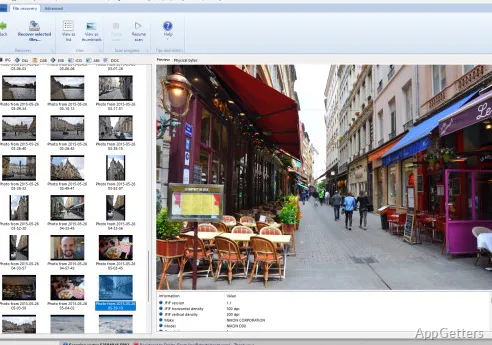
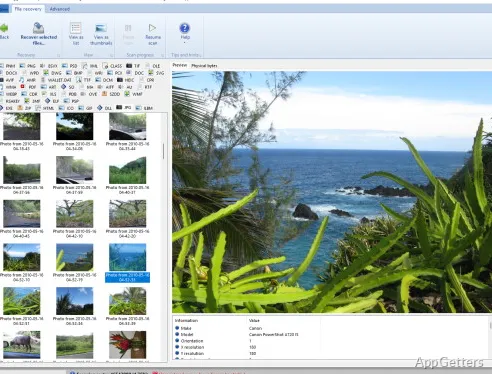
Browse the results and preview files when a preview is available. This is especially helpful for identifying images when filenames alone do not make the right file clear. DiskDigger also supports viewing results as a list, thumbnails, or a folder tree.
The two result views reflect different ways files are found: file-system information can provide context about a file, while a free-space find may have less of that context. A scan of a drive with TRIM enabled may have a lower chance of finding deleted data.
Pros
- Combines file-system analysis with free-space file carving
- Offers searches for all file types or selected types
- Separates results found in the file system and free space
- Previews recoverable files before recovery
Cons
- TRIM on many internal SSDs can reduce the chance of recovering deleted data
System requirements: Windows 7, Windows 8, Windows 10, Windows 11 · 32-bit and 64-bit · 4 GB RAM · Additional RAM may be required depending on disk complexity
What kinds of storage can DiskDigger scan?
It can scan hard drives, memory cards, and USB flash drives.
Can I preview files before recovering them?
Yes. DiskDigger provides previews for supported files in the scan results.
Why are results split into two views?
One view contains files found through file-system structures; the other shows files detected in free space or outside those structures.