For a lot of Windows users, transferring photos between an iPhone and a Windows PC looks like a complicated thing. Apple ecosystem is tightly integrated with macOS and its cloud sync. This often leaves Windows users with only file copying or cloud uploading methods. These methods are okay, but they rarely give a full picture of photo libraries. They also rarely give an easy way to organize them.
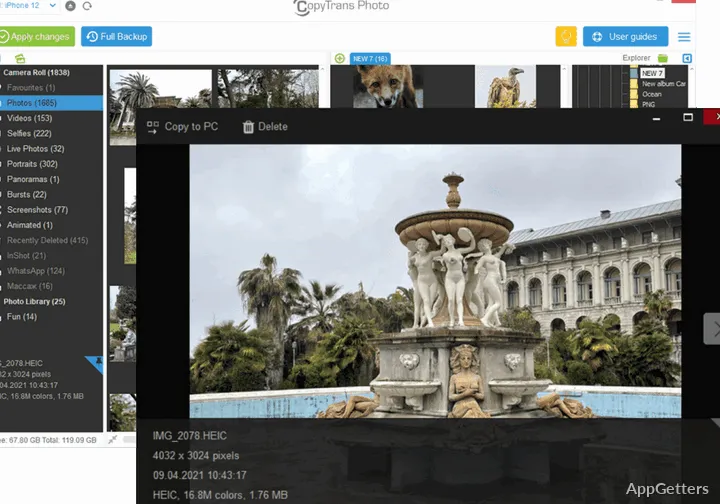
CopyTrans Photo was made to close the gap. This tool lets Windows users see and handle photos. It also lets them transfer photos between the computer and the iPhone or iPad. It does this in a better and more organized way. Instead of just copying files, it shows images in an album-style layout. This corresponds to how photos are presented on the device itself. This method assists users in visually understanding where pictures are and how the order works.
A More Visual Way to Organize Photos
When people start using CopyTrans Photo, one of the things that they really like is that there are two sections. On the left, you will see the photos that are stored on the iPhone. On the right, it will show the folders and images from the Windows PC. Thus, users are able to drag and drop images from one location to another. They can do this without using difficult menus.
As a matter of fact, this method makes it possible to create albums and back up photos. It also makes it possible to put big collections on a device to free up space. You can arrange the albums to look like the pictures that are stored on the phone. So when you transfer the files back and forth, it helps you keep your files in the same order.
Not only that. This strong visual presentation actually enables users to know exactly which items will be copied or deleted. This happens before changes are made. For a person working with hundreds or even thousands of images, this degree of accuracy may be a good way of decreasing errors. These usually happen when using regular file explorers.
Practical Use for Everyday Photo Transfers
For those who mainly use the camera of their phone but want to do photo management on Windows, CopyTrans Photo is a very handy tool. Students, amateur photographers, and regular users experience the need to archive photos. They also put photos in folders or transfer them to an external hard drive.
This program serves its role even when the user doesn’t want to involve cloud uploading or syncing services. The transfer of photos is done directly via a USB cable. This is a major plus for those who have really large photo libraries. It is also helpful for those who have limited internet data available to them.
Another very practical feature is that the focus is right on photo management. It is not about trying to replace the whole media ecosystem. Therefore, it neither manages nor controls music, apps, or backups. By sticking to photos only, the interface is kept quite simple. Thus, it is much easier for beginners.
Limitations and Things to Keep in Mind
CopyTrans Photo gives you workflow management that is better than simple file copying. But still, it is a must to have the device physically connected. If a user prefers wireless syncing or automatic cloud backup, then it’s probably a no-go. Services like iCloud cannot be completely replaced by this product.
Apart from this, the tool is quite a focused one. The main reason to buy this tool is to transfer photos. Therefore, if a user seeks a full-fledged solution for iPhone management, then additional software packages have to be considered for other tasks.
On the other hand, this kind of targeting may also be looked upon as a pro. By doing only one particular thing, managing and transferring photos, this app doesn’t have to deal with non-essential stuff. Thus, it remains very user-friendly. Even those users who don’t consider themselves very technical are able to figure out how to run it and do something with it.
Where CopyTrans Photo Fits in a Windows Workflow
For those who are often dealing with iPhone photos from Windows, CopyTrans Photo is a nice solution. It gives a way to see and manage photos on hard disks visually and more neatly. It works without being 100% dependent on both cloud and complicated syncing elements.
This tool is oriented toward users who prefer to work directly with their files. If you are the one archiving photos locally, manually organizing albums, or transferring large batches of images between devices, then it is very likely that you will find this workflow quite comfortable.
In fact, in many situations, the software is not operating like a full media manager. It works rather like a focused “medium” between iPhone storage and the Windows file system. If you are the kind of user who simply wants dependable photo transfers and better visibility of your image libraries, then such a focus can be just what you need.