BSPlayer for Windows Needs Subtitle Checks Before Default Use
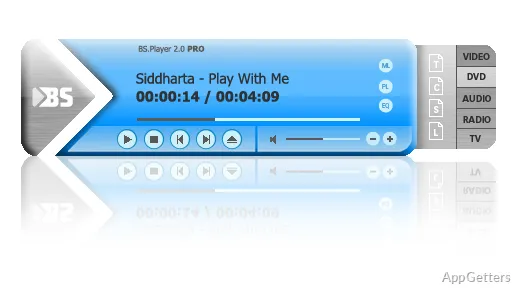
A movie can seem easy to play until the subtitle is missing, the sound track is wrong, or an older file refuses to open. BSPlayer for Windows is Webteh’s media player for local video, audio, subtitle search, playlists, skins, and direct file playback on a Windows desktop.
The player is often chosen by users who care more about subtitles and quick file opening than a large media-center wall. That focus makes the first test simple: open a normal video, check sound, load a subtitle, and enter full screen before treating BSPlayer as the main player for every file type.
Use the official BSPlayer source or the supplied download card when choosing the Windows package. Continue only when the file came from the official developer source or another trusted source you intentionally chose. Avoid modified installers, cracked editions, serial key pages, and unknown mirror downloads, especially for a player tied to codecs, subtitles, and online media.
Start With One File Before Touching Codecs
BSPlayer for Windows should be tested with one known local video before changing codec settings, downloading subtitles, opening DVDs, or trying streaming links. A short MP4 from a local folder checks the player window, timeline, volume, full-screen behavior, and file-open handling without adding problems from a damaged download or remote source.
Windows may show a security warning during setup. Check that the installer came from the official developer source before continuing. If the package name, download page, or setup prompt looks different from the file you meant to install, return to the official source or supplied download card.
A slow first launch does not always mean the player is broken. BSPlayer may be opening its interface, reading recent items, or waiting on a file path that no longer exists. Test from a plain local folder first, not from a network share, external drive, or unfinished download.
When the First Video Shows Nothing
A black window can come from the media file, display driver, selected renderer, missing component, damaged download, or unusual container. Try a smaller file next, then open the same video in another player. If only one movie fails, the file deserves attention before the whole player is blamed.
For a quick comparison, VLC Media Player can show whether the same video opens outside BSPlayer. If both players refuse it, the file may be incomplete, encrypted, corrupted, or encoded in a way that needs conversion.
Subtitle Downloading Depends on the Release Match
BSPlayer is known for automatic subtitle search and downloading when matching subtitles are available for the video being played. The match still depends on the title, file identity, release name, selected language, and available subtitle sources. A blank subtitle result does not automatically point to a broken Windows installation.
If no subtitle appears, check the file itself before changing player settings. Some movies already include embedded tracks, while others need an external subtitle placed beside the video. Use a matching file name when possible, because a subtitle for a different release can load and still be wrong.
Downloaded subtitles should not be trusted blindly for serious use. They may contain poor translation, missing lines, timing drift, wrong episode text, or text made for a different cut. Casual viewing can tolerate small errors, but study, publishing, or shared work needs manual review.
When Subtitle Timing Drifts
Subtitle drift often starts with a release mismatch. A different intro, frame rate, recap section, or edited scene can move every line after the first few minutes. Test another subtitle before adjusting the timing for the whole file.
If subtitle repair becomes a regular task, Subtitle Edit is a more useful companion than repeated trial-and-error in the player. BSPlayer can load and show subtitles, while a dedicated editor is better for retiming, format conversion, line cleanup, and translation review.
Audio Track Problems Can Look Like Playback Failure
A movie with picture but no sound does not always need a reinstall. Check the Windows volume mixer, the selected playback device, and the audio stream inside BSPlayer. HDMI, Bluetooth, headphones, and TV output can move sound away from the speakers you expect.
BSPlayer for Windows may open files with multiple audio tracks, commentary tracks, surround streams, or language tracks. If the wrong track is active, the video may sound silent, strange, or mismatched. Switch tracks before changing system audio drivers or adding codec packs.
Older AVI files and downloaded MKV files deserve file-by-file testing. Two videos with the same extension can use different codecs, subtitles, bitrates, or audio streams. The extension tells you the container; it does not tell you every stream inside the file.
Why Random Codec Packs Make Troubleshooting Harder
Adding a codec pack after one failed clip can make the next problem harder to trace. Test another file first, compare the same video in another player, and check the selected tracks. A PC with several old filters installed can behave differently from a fresh Windows setup.
Users who want deeper renderer and filter control may compare PotPlayer. BSPlayer is more often chosen for subtitle handling and familiar playback controls, while PotPlayer gives technical users a wider settings surface.
Free and Pro Labels Matter
BSPlayer has free and Pro edition information on its official pages, and feature labels can affect expectations. Some playback, capture, subtitle, streaming, or commercial-use details may depend on the edition or change on the current product page. Check the current page or installed player before assuming a feature belongs to your copy.
A missing feature can be a menu location, an edition difference, or a changed description on the official page. Before buying an upgrade, test a known good local file, another subtitle, another audio track, and the exact feature label inside the player or product page.
A paid edition cannot fix every playback problem. It will not repair a corrupted movie, mismatched subtitle, weak graphics driver, bad stream, or unsupported account-bound video source. Treat license checks separately from file checks so you do not spend money for the wrong reason.
Streaming and DVDs Need Separate Tests
Online video and streaming sources fail for different reasons than local files. A stream may depend on the source server, page changes, login rules, regional access, redirected URLs, or network conditions. If local files play but a stream fails, BSPlayer itself may not be the problem.
Start with a public link that does not need a private account. Open the same link in a browser and confirm that the source still responds. Paid, protected, age-restricted, or login-only videos make poor first tests because they can fail for account or website reasons outside the player.
DVD playback has its own variables: the disc, drive, region behavior, and physical condition of the media. Test another disc before changing player settings. A scratched disc or weak external drive can look like a BSPlayer fault even when local videos open normally.
Playlists and Old Video Archives
Playlists are useful only when the file paths still exist. If a playlist opens with missing items, check whether the files were moved, renamed, or stored on a disconnected drive. Rebuild a small playlist first before assuming the playlist feature is damaged.
Old AVI, WMV, and MPEG files should be tested as a group if they matter to your archive. Some older videos use audio or video streams that modern systems handle differently. Test several archive files before setting BSPlayer as the default for every old clip.
Skins Can Hide Controls
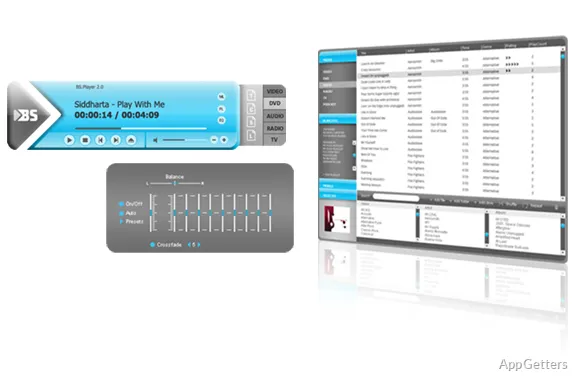
BSPlayer’s skinnable interface can change where buttons, menus, and playback controls appear. If play, pause, subtitles, full screen, or playlist buttons seem missing, switch to a plainer skin before assuming the player is broken. A decorative skin can make a familiar control harder to find.
Keyboard shortcuts and media keys depend on focus. Click the BSPlayer window once before testing shortcuts, then try again. A browser window, overlay, remote-control utility, notification panel, or another player can capture keys and make BSPlayer look unresponsive.
File associations should be changed slowly. Set BSPlayer for one file type first, then open several files from File Explorer. If Windows still opens another player, check Default Apps and file-type associations instead of reinstalling BSPlayer or changing unrelated playback settings.
When Another Player Fits the Job Better
BSPlayer makes sense when the main job is direct file playback with subtitle search, playlists, skins, and familiar Windows controls. It is less suitable for users who want a full living-room library, remote-friendly home screen, server-managed media sharing, or add-on-centered media browsing.
For a TV-style library, Kodi fits a different workflow because it focuses on media-center browsing, add-ons, large-screen navigation, and library presentation. BSPlayer stays closer to a desktop playback tool for people opening files directly from Windows.
Keep another player available until BSPlayer handles the files you actually watch. Test one subtitle-heavy movie, one old AVI or WMV file, one DVD source, one local music file, one high-resolution video, and one streaming source. That mix reveals more than a single sample clip.
Before Making BSPlayer Your Main Player
Changing the default player affects double-click behavior across Windows. Test real files first, then assign file types one at a time. Check subtitles, audio tracks, full-screen behavior, playlists, skins, and older files before letting every movie or audio file open in BSPlayer automatically.
If you upgrade from an older build, keep a copy of the installer or version details currently being used. For personal videos, keep the original media untouched before converting a copy or testing another playback tool. A player experiment should not overwrite a family clip, lecture recording, or edited project file.
BSPlayer for Windows works best when subtitle downloading, local playback, audio tracks, edition labels, skins, playlists, DVDs, and file associations are tested with real media. Install from the official developer source or supplied download card, check Pro labels before expecting paid features, and keep a fallback player ready for unusual files.