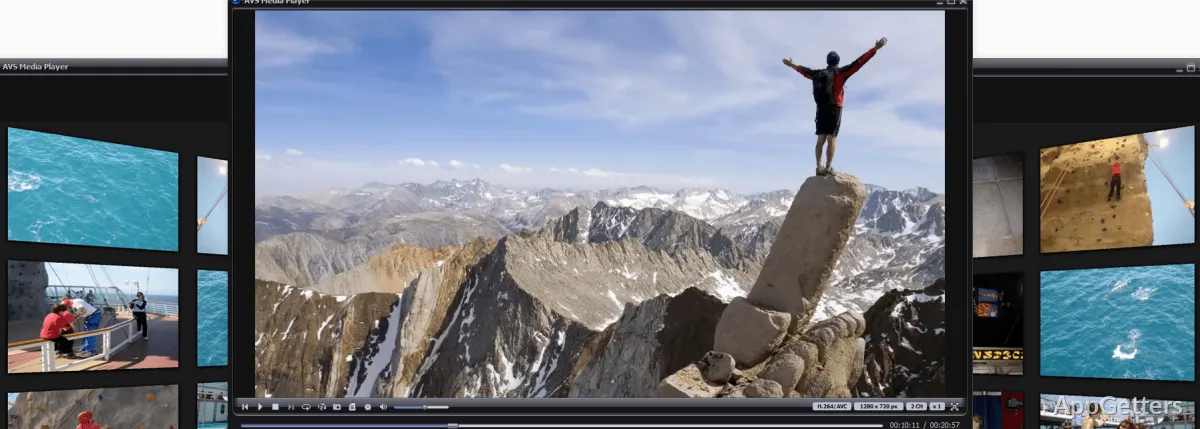
A media player can look simple until one file needs subtitles, another has the wrong audio track, and a folder of photos opens in a strange order. AVS Media Player for Windows is for local playback rather than editing, converting, or streaming-account management. It fits users who want a Windows player for videos, music files, pictures, playlists, snapshots, and speaker output checks.
AVS Media Player for Windows Is About Playback First
AVS Media Player comes from AVS4YOU and is presented as a free media player. Its job is to open and play media files, not to repair broken downloads or rebuild a damaged movie library. That difference matters when a file refuses to play. The player is the first viewing step, not a recovery tool.
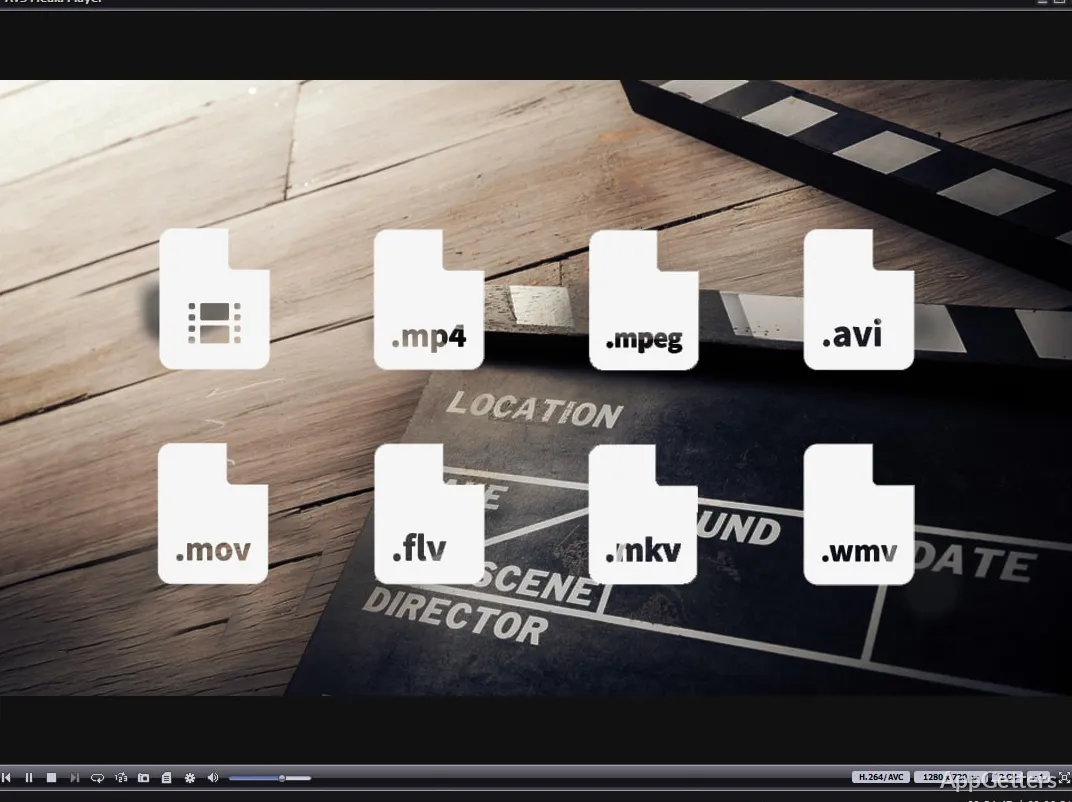
The official AVS4YOU product page describes support for common video, audio, and image formats. Video use can include files such as AVI, MPEG, WMV, MP4, MKV, and OGG. Audio use can include formats such as MP3, FLAC, WAV, M4A, AAC, OGG, and AMR. Picture viewing can include common image files such as JPEG, PNG, GIF, and BMP.
That format range is useful, but it should not be read as a promise that every file with one of those extensions will work. A broken download, unfinished copy, unusual codec, protected file, or mismatched extension can still fail. If the same file fails in another player too, the file itself deserves a closer look.
Download and Install Checks Before File Association Changes
Before installing AVS Media Player for Windows, compare the product name, Windows platform, and version shown on the download card with the official AVS4YOU product page. Avoid depending on version numbers copied from old software pages. Use the version screen inside the installed player when you need to confirm what is actually running on the PC.
Continue only when the installer came from the official developer source, the supplied download card, or another trusted source you intentionally chose. If Windows security or another protection tool shows a warning for the installer or one of its components, check the source again before continuing. Avoid modified installers, cracked editions, serial key pages, and unknown mirror downloads.
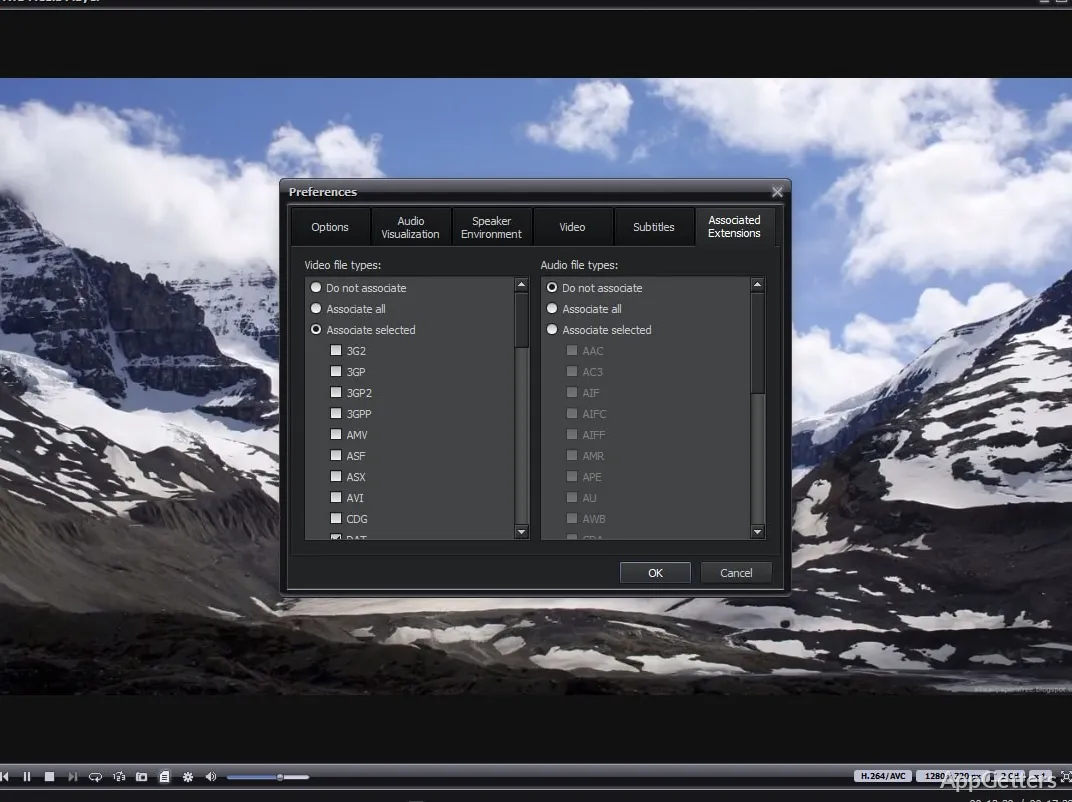
File associations deserve a slower decision than many users give them. If Windows asks which program should open videos, music files, or pictures, choose only the types you want AVS Media Player to handle. A player can be useful without becoming the default app for every media file on the PC.
After setup, test a few known files before changing defaults again. Open one short video, one music track, and one small picture folder. Then check sound, full screen, subtitles, snapshot behavior, and playlist loading. A first test with random damaged downloads can make a working player look unreliable.
Audio Comes First When the Picture Looks Fine
A video with no sound often points to Windows output, not the player installer. Headphones, monitor speakers, HDMI, Bluetooth devices, and virtual audio tools can all appear as separate outputs. Check the Windows volume mixer and the active playback device before reinstalling AVS Media Player. Then try a familiar file with known sound.
Some video files carry more than one audio stream. A movie may contain different languages, commentary, or a silent track. If the picture plays but the expected sound is missing, check the audio-track menu before changing system settings. The player may simply be playing the wrong stream inside the file.
AVS Media Player supports surround-sound configurations such as multi-speaker playback, but the result depends on the Windows sound device and speaker setup. A laptop speaker pair will not behave like an HDMI receiver or a multi-channel sound card. Start with low volume when changing speaker output, especially after switching from headphones to external speakers.
When volume changes sharply between clips
Different files are not mastered at the same loudness. A phone video, music file, DVD rip, and downloaded clip can all arrive with different audio levels. Lower the volume before switching files if the source is unknown. If only one file is too quiet or too loud, the file’s audio track may be the main reason.
Subtitles, Snapshots, and Picture Viewing Need Small Tests
Subtitle trouble usually begins with the subtitle source. A video may include an internal subtitle stream, or it may rely on a separate subtitle file stored beside the movie. If captions do not appear, check the selected subtitle track and the external subtitle filename. A subtitle file in the wrong folder may never load.
Snapshots are useful for saving a still frame from a video. They are not the same as video editing or screen recording. Pause on the frame you want, then use the snapshot control. Fast movement, low-resolution footage, or an interlaced source can still produce a weaker image than the frame looked during playback.
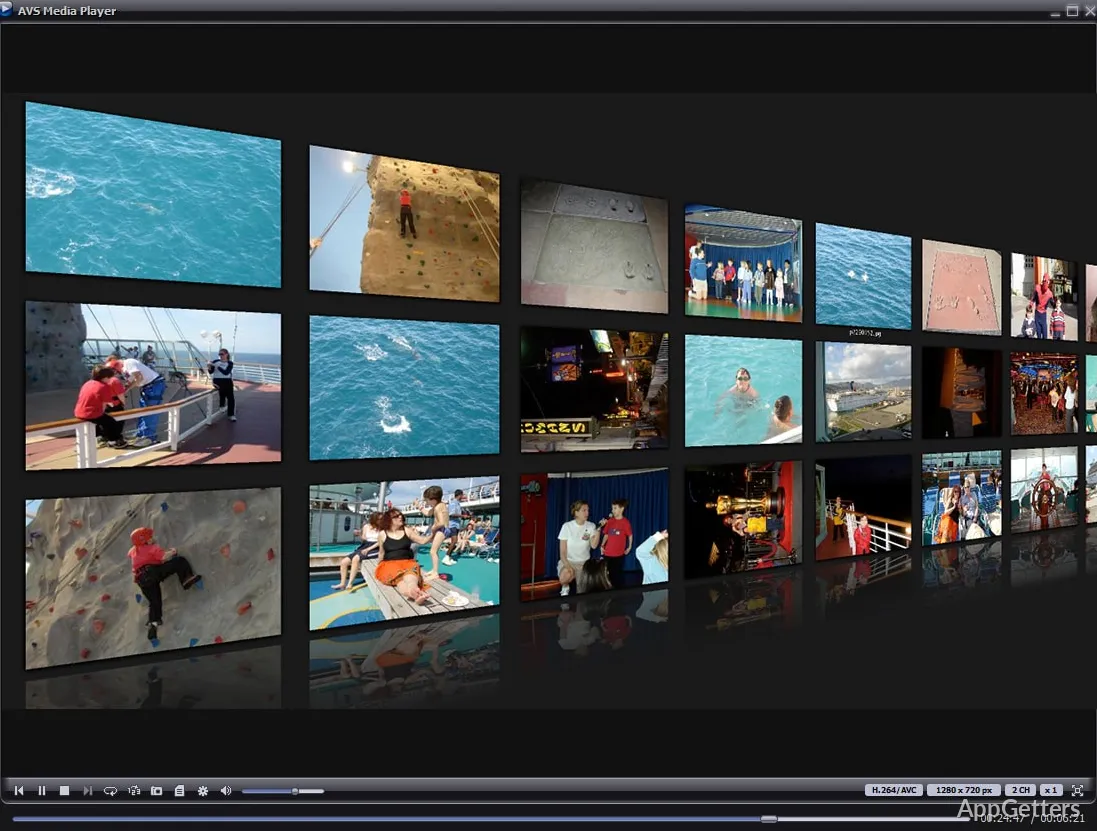
Picture viewing works better when the folder is tidy. A folder mixed with screenshots, icons, phone photos, and temporary images can make slideshow order feel random. Sort or separate the images first if the slideshow matters. AVS Media Player follows the folder it is given; it does not organize a photo archive for you.
Full Screen, Aspect Ratio, and Display Output
A movie not filling the screen is not always a problem. Wide videos, older square footage, phone clips, and monitor shapes do not always match. Black bars can preserve the original picture instead of stretching faces or cutting edges. If the image looks wrong, check fit and full-screen choices before blaming playback.
External displays add another layer. A laptop screen, HDMI television, projector, or docking-station monitor can each use different resolution and audio routing. If a video appears on one display but sound goes somewhere else, check the Windows display and sound settings together. Video and audio do not always follow the same output automatically.
Users who want another direct media player can compare it with VLC Media Player. Users who prefer detailed playback controls may also test PotPlayer. Those comparisons help when the question is player behavior, not when the file itself is incomplete or protected.
Files That Still Refuse to Play
AVS Media Player can open many common formats, but file names can mislead. A file ending in .mp4 or .mkv can still contain audio or video streams that a player handles differently. If one file fails, compare it with another file of the same type. If only that file fails, inspect the file before changing the whole player setup.
A format checker can be useful when the file source is unclear. MediaInfo can show the streams inside a media file, including codec and track information. That helps separate a real player issue from a file that contains an unusual video stream, missing audio, or a mismatched extension.
Codec packs should be approached carefully. Installing several overlapping codec tools can make Windows media behavior harder to understand. If most normal files already play, do not change system codecs just because one download fails. Test the problem file in another player, inspect the format, and change only what the evidence points to.
When a Player Is the Wrong Kind of Tool
AVS Media Player is not a video editor, converter, ripper, or repair utility. If a clip needs cutting, compression, format conversion, subtitle burning, or export changes, a player will not finish that job. Use a playback app to check the file first, then move to an editor or converter only when the task actually requires one.
Protected discs, restricted streams, and rights-managed files can behave differently from normal local media. A refusal to open that kind of content should not be treated automatically as a player defect. Use media only where you have the rights or permission to view it. Avoid tools or downloads that promise to bypass restrictions.
For a living-room library, network streaming, or server-style setup, a larger media platform may fit better than AVS Media Player. This player is strongest on a Windows desktop where the user opens local files directly, checks subtitles, chooses the audio track, creates a small playlist, or views a photo folder without building a full media center.
A Practical First Run for Local Media
Start with a known video, a known audio track, and a folder of a few pictures. Check sound output, subtitle selection, full-screen shape, snapshots, and file associations before changing many preferences. This keeps the first run focused. A single damaged download should not decide whether the player belongs on the PC.
If playback fails, split the problem by type. Silent video points first to output device or audio track. Missing subtitles point first to track selection or the subtitle file. A distorted picture points first to aspect ratio or display settings. A file that fails everywhere points back to the file itself.
AVS Media Player for Windows fits best as a direct local playback app: open the file, choose the right audio or subtitle track, keep the display shape honest, and use playlists or slideshows only when the folder layout makes sense. Once those habits are in place, the player is easier to judge on the media it was meant to handle.