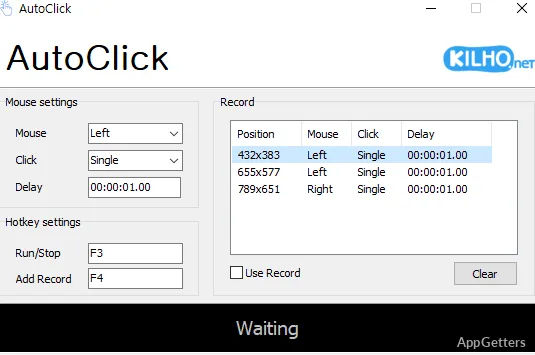
Need to repeat mouse clicks at set intervals or at several screen locations? AutoClick lets you configure click patterns with timing and coordinates, then run them with a chosen hotkey.
What can you set in a click pattern?
AutoClick’s Mouse Settings screen is where you choose the repetitive mouse task. A pattern can include click timing and screen coordinates, so you can direct clicks to specific positions and have them run in sequence.
Timing controls set how quickly clicks repeat. For tasks involving more than one location, add the relevant coordinates to the pattern instead of repeatedly aiming the pointer at each spot by hand.
How do you run a saved pattern?
After choosing a task in Mouse Settings, open Hotkey setting and assign a key. Press that configured key to execute the task.
- Set the click details, timing, and coordinates in Mouse Settings.
- Choose a trigger key in Hotkey setting.
- Press the configured key to execute the pattern.
What kinds of tasks fit AutoClick?
The controls suit repeated mouse actions in games and routine work, such as clicking the same interface location or moving through a sequence of set positions. Testers can also use coordinate-based patterns to repeat clicks on interface controls.
Pros
- Patterns can combine timing and screen coordinates
- Multiple click locations can run in sequence
- Hotkey setting gives a direct way to start a pattern
Cons
- Automatic updates are not supported
Can AutoClick click several screen spots in order?
Yes. Add several coordinates to a pattern and they are clicked one after another at the timing you set.
How do I start a click pattern?
Assign a key in Hotkey setting, then press it to run the pattern.