Want a quieter graphics card, or a few extra frames per second in games? ASUS GPU Tweak III puts clocks, fan behavior and live readings in one panel and provides monitoring and tuning tools for compatible graphics cards, from preset adjustments to manual control.
Monitoring at a glance
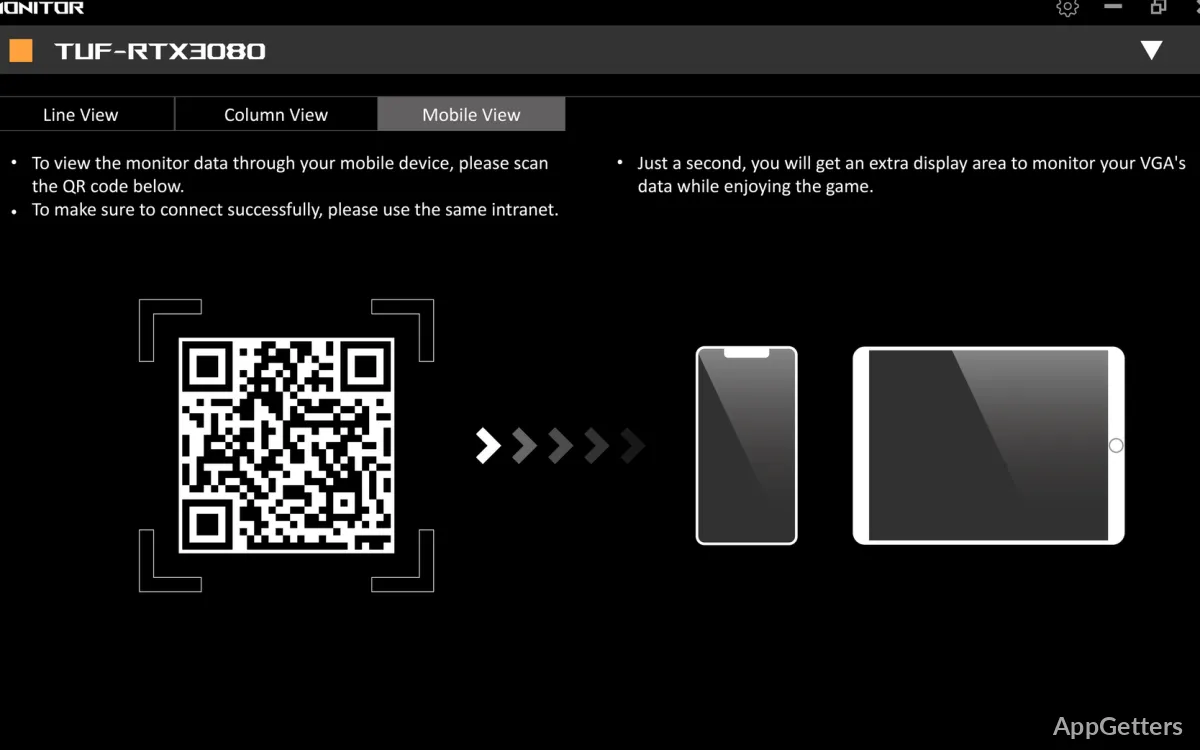
The Hardware Monitor tracks GPU readings and can also display fan RPM and system power metrics. Its panels are detachable, scalable, and rearrangeable, so readings can be arranged around the metrics being watched. Monitoring logs can be exported for later analysis.
For games and other full-screen applications, the built-in on-screen display places selected system information over the running program. Choose between two OSD styles and change the font, color, transparency, size and placement of each reading. A preview shows layout changes before returning to an application.
Tuning clocks and cooling
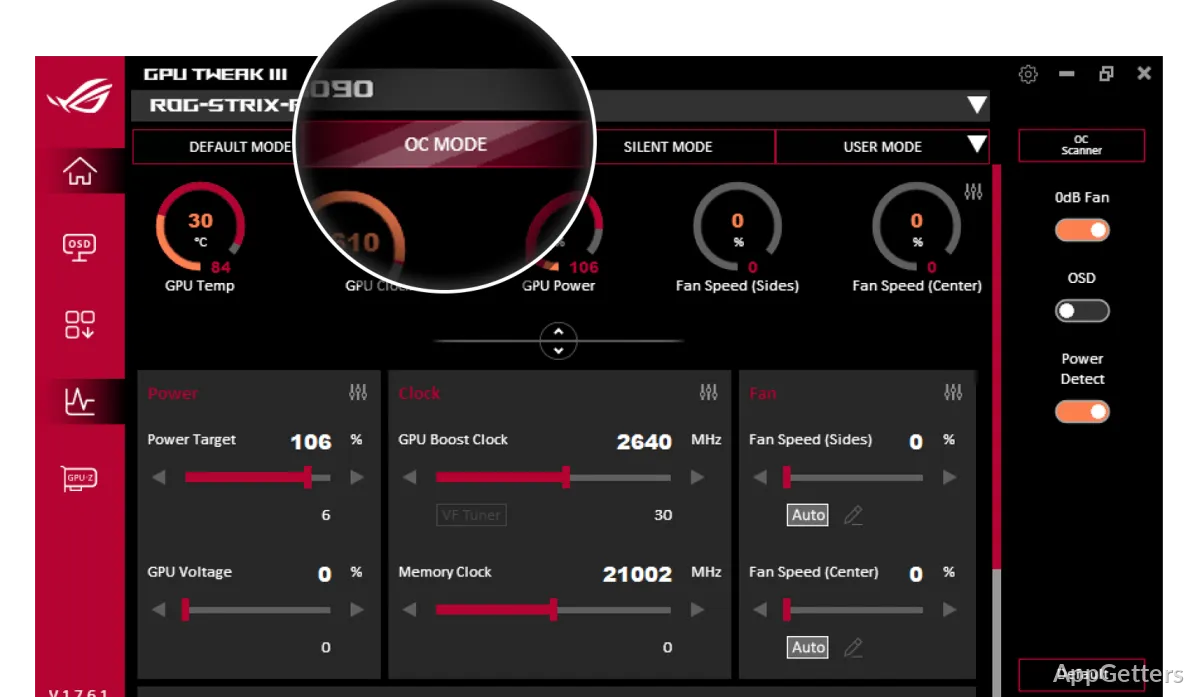
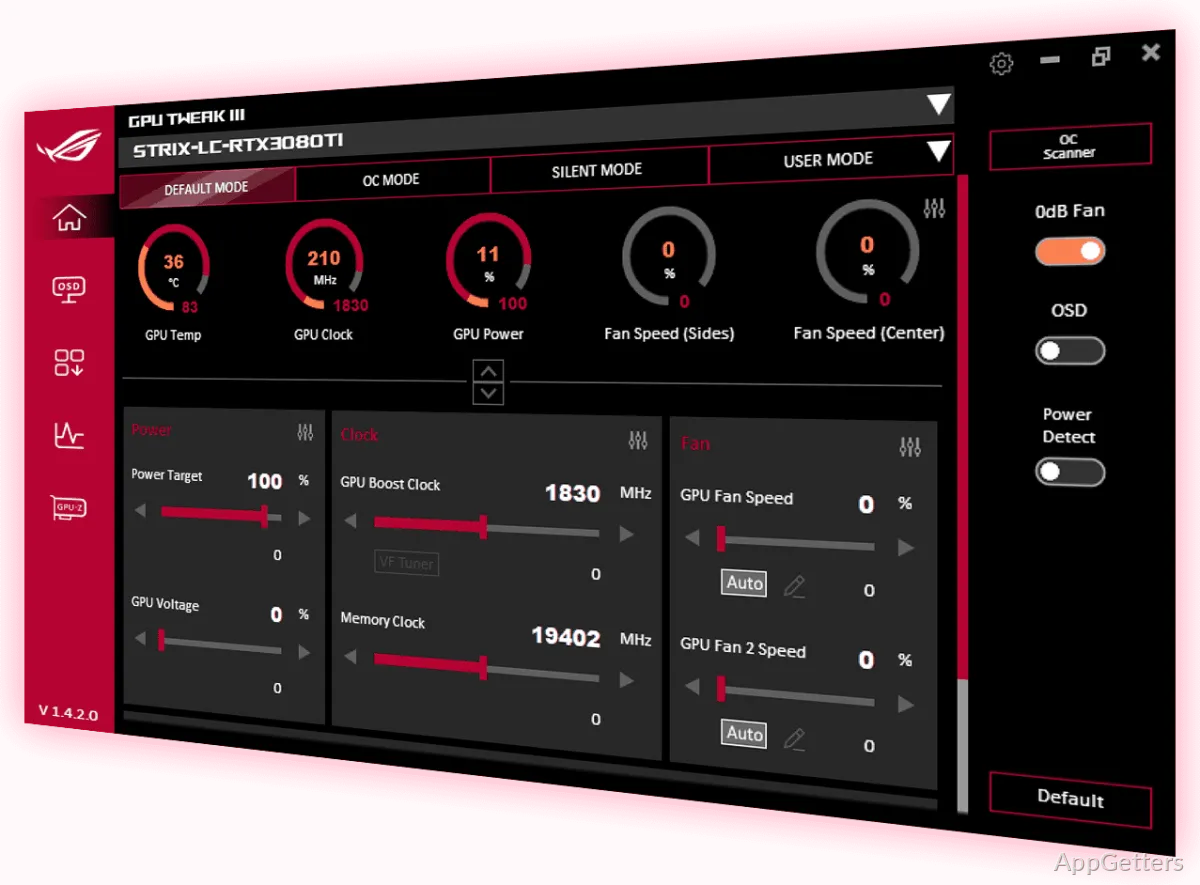
The Home screen offers preset profiles, sliders, and the OC Scanner. OC Mode raises the power target to allow higher boost frequencies, while Silent Mode reduces the power target and boost offset to lower fan speeds. OC Scanner automatically optimizes clock speeds on Nvidia graphics cards and saves its settings as a profile.
Manual tuning is available through sliders for power, clocks, and fans. The Voltage-Frequency Tuner provides more detailed control of the GPU boost curve, with toolbar controls and keyboard commands for editing it.
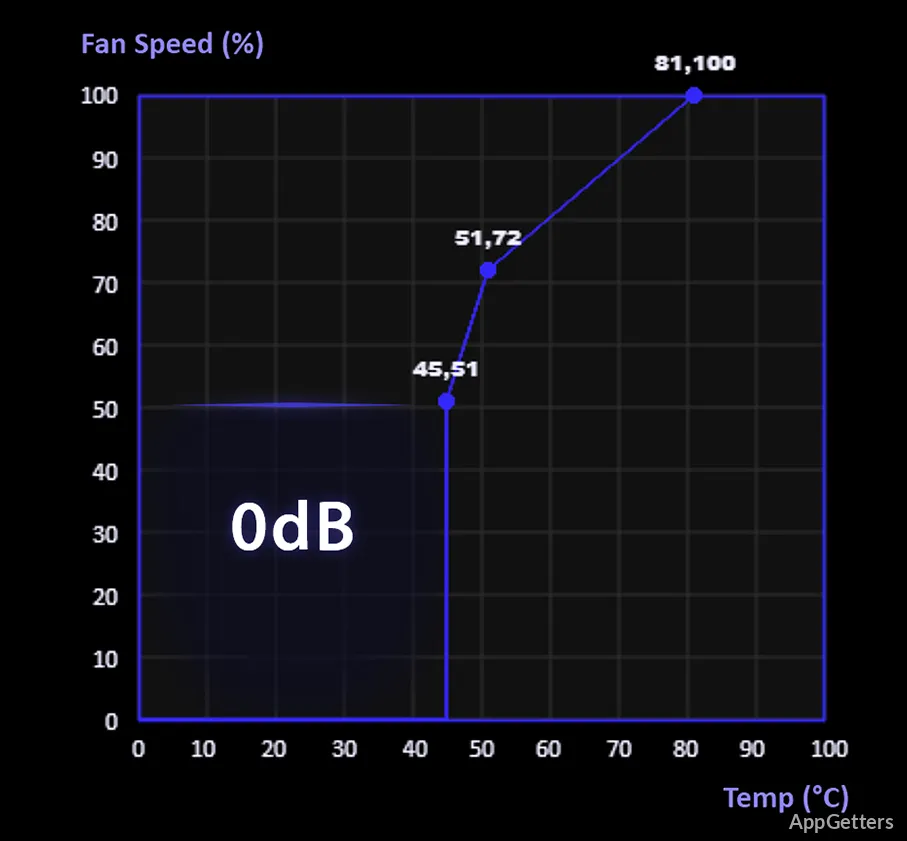
- Set GPU fan curves or fixed RPM values; system fans connected to FanConnect headers can also be controlled.
- Adjust hysteresis and update periods to change how fans respond to temperature changes.
- On supported ROG cards, 0dB operation can stop the fans while GPU temperature is low.
How do profiles work with applications?
Profile Connect links saved settings to selected applications. When a linked program launches, GPU Tweak III can load its assigned overclock settings, fan curve, and customized OSD layout.
- A monitoring plug-in can show additional system information, including motherboard, processor, and storage-device stats.
- Power Detector+ monitors 12VHPWR pin current on compatible graphics cards and pops up a warning if a pin carries no current at all or more than 9.2 amps.
Pros
- OC Scanner automates clock optimization for Nvidia graphics cards
- Profile Connect loads tuning and OSD settings for selected applications
- Hardware Monitor can be rearranged, resized, detached, and logged
- Fan curves support hysteresis and update-period adjustments
Cons
- Automatic overclocking with OC Scanner works only on Nvidia cards
System requirements: Windows 10, Windows 11 · 64-bit only · Minimum 2 GB RAM (4 GB or more recommended) · At least 200 MB available disk space · Discrete graphics card: NVIDIA GeForce 200 series or later, AMD Radeon HD 7000 series or later, or any GPU with DirectX 11 support
Can GPU Tweak III automatically overclock a graphics card?
Yes. On Nvidia cards, OC Scanner finds stable higher clock speeds by itself and stores the result as a profile.
Can fan behavior be adjusted manually?
Yes. GPU fans and system fans connected to FanConnect headers can follow your own temperature curve or run at a fixed speed.
Can settings switch automatically when a game starts?
Yes. Profile Connect can load a linked profile, including overclock, fan-curve, and OSD settings, when its target application runs.