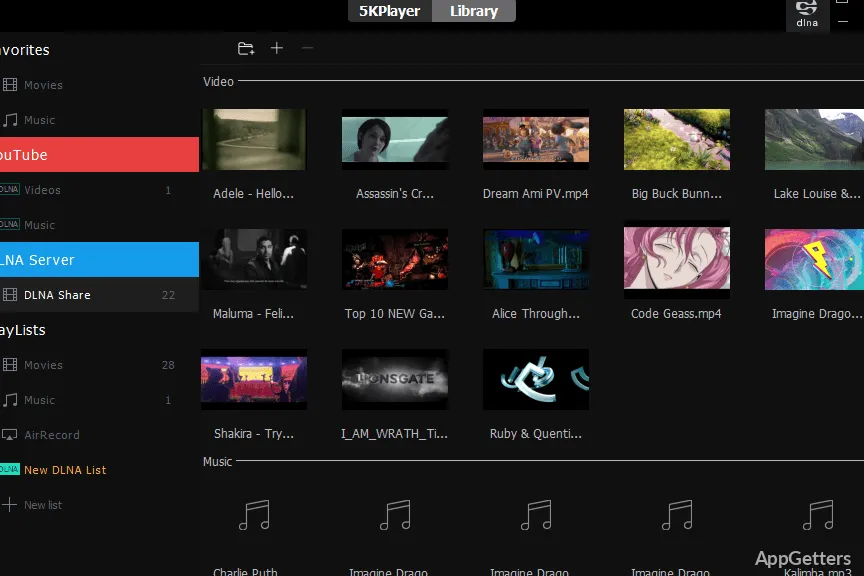
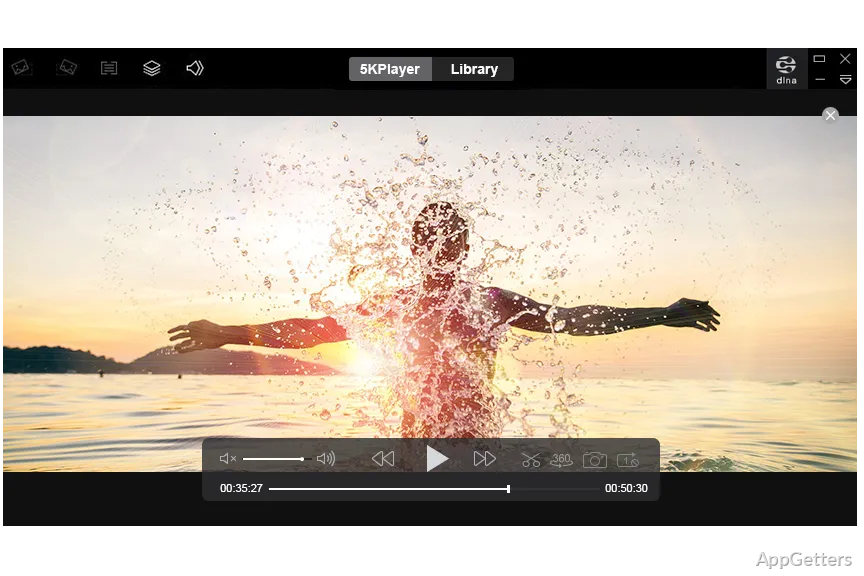
5KPlayer for Windows Works Best When the Playback Source Is Clear
A video player can look faulty when the real problem sits in the file, the display driver, the Wi-Fi route, or the device receiving the stream. 5KPlayer for Windows is a media player from DearMob and Digiarty Software that combines local video playback, music playback, DVD playback, AirPlay, DLNA streaming, and online video download features.
That mix is useful, but it also creates different kinds of troubleshooting. A 4K MKV file, an iPhone mirror session, a Smart TV DLNA stream, and an online video link do not fail for the same reason. Treat each part separately instead of changing every setting after one playback problem.
Use the official 5KPlayer source or the supplied download card when choosing the Windows package. Continue only when the file came from the official developer source or another trusted source you intentionally chose. Avoid modified installers, cracked editions, serial key pages, and unknown mirror downloads, especially for a player that can handle local files and network media.
Download Source, First Launch, and Build Checks
5KPlayer for Windows is offered for Windows users through the developer’s download pages, while exact package details can change over time. Check the download card, then compare it with the version shown inside the player after installation. Avoid depending on old version numbers copied from unrelated software pages or mirror sites.
Windows may show a security warning during setup. Check that the installer came from the official developer source before continuing. If the file name, download location, or installer prompt looks different from the source you intentionally chose, stop and get the package again from the official page or supplied download card.
After installation, open one ordinary local file before testing AirPlay, DLNA, DVD playback, or online downloading. A normal MP4 or MKV file gives you a quick baseline. If that file plays with picture and sound, the core player is working and later problems can be narrowed to the specific feature being tested.
When Setup Finishes but the App Feels Unresponsive
A slow first launch can happen when the player is scanning folders, initializing media areas, or waiting on Windows permissions. Give the first screen a moment, then test one file from a simple local folder. Avoid testing from a network share, external drive, or half-copied download as the first sample.
If the player opens but refuses every file, check whether Windows security or another protection tool shows a warning for the installer or one of its components. If only one file fails, test it in VLC Media Player before reinstalling 5KPlayer.
Local Video Problems Need File-by-File Testing
5KPlayer is promoted for high-resolution playback, including 4K, 5K, 8K, HEVC, HDR, and other demanding media types on supported systems. Those labels do not remove the limits of the PC. Codec support, bitrate, graphics drivers, storage speed, display mode, and audio device choice can all affect playback.
5KPlayer for Windows may play a small 1080p file while struggling with a heavy HEVC or HDR video. That difference does not prove the installation is damaged. Try a lower-resolution version, move the file to a local internal drive, and check whether the Windows graphics driver is current enough for the video path you are using.
If the picture appears but the sound is missing, check the Windows volume mixer and the player’s audio track selection. Some files contain multiple tracks, commentary audio, or surround formats. A movie can appear silent simply because the wrong track or output device is active.
Subtitles, Aspect Ratio, and Full-Screen Glitches
Subtitle trouble often comes from file naming, subtitle format, or the chosen text track. Keep an external subtitle file next to the video and use a matching name when possible. If the subtitle timing is wrong, test another file before assuming the player cannot handle subtitles.
Full-screen issues usually point to scaling, multiple monitors, refresh rate, or TV output settings. Move the player to the main display, enter full screen again, and check whether Windows is duplicating or extending the screen. Users who prefer deeper local playback settings may also compare PotPlayer.
AirPlay Receiver Setup Depends on Discovery
AirPlay is one of the features that separates 5KPlayer from a plain desktop player. The Windows PC can act as a receiver for supported Apple devices, so an iPhone or iPad can send screen content or media to the computer. The feature depends on local network discovery, not just internet access.
If the PC does not appear on the Apple device, check whether both devices are connected to the same router and network band. Guest Wi-Fi, VPN apps, public network profiles, and strict firewall rules can stop device discovery while normal browsing still works.
A mirror session that starts but lags usually points to Wi-Fi quality or PC load. Close heavy downloads, move closer to the router, and test a short video before using the setup for a meeting or family viewing. Audio delay can also come from Bluetooth speakers, TV output chains, or a busy wireless network.
Network Permission Prompts
AirPlay and DLNA features may need local network access. If Windows asks about network permission, read the program name on the prompt and confirm that it matches the expected player. A private network profile usually fits a home router better than a public network profile, but the choice depends on where the PC is connected.
Do not open router ports just to make local AirPlay work inside the house. Device discovery should happen within the same local network. If the Apple device and the Windows PC cannot see each other, fix Wi-Fi isolation, firewall behavior, or network profile settings before changing remote-access options.
DLNA Streaming Has Two Sides
DLNA can make the Windows PC share media with compatible TVs, consoles, and other devices on the local network. A DLNA device may see 5KPlayer but still refuse a specific file. The receiving device controls part of the playback, including which formats, subtitles, and audio types it can handle.
Test with a short MP4 file first. If that works, try a larger MKV, then a high-bitrate 4K video, then subtitles. This order shows whether DLNA discovery works before demanding files enter the test. A failed 4K file may only mean the TV or receiver cannot decode that format.
5KPlayer for Windows can organize media in its library, but library paths need to stay stable. Files on removable drives may disappear from the player after a drive letter changes. Keep frequently streamed media in a folder that will not move, especially if a TV or console depends on that library.
When the TV Sees the PC but Not the Folder
A missing folder can come from folder choice, file permissions, unsupported media type, or an incomplete library refresh. Start with a folder path that is easy to find and contains only one test video. Then add more media after the receiving device proves it can see and play the first file.
For a living-room interface with broader media-center behavior, Kodi may suit users who want libraries, add-ons, remote-style navigation, and TV-focused browsing. 5KPlayer is better viewed as a desktop player with wireless streaming features, not a full media-center replacement.
Online Video Downloading Can Change Without Warning
5KPlayer includes online video download functions, but website behavior can change at any time. A link that worked earlier may fail after a platform changes page code, login rules, region restrictions, or media protection. Test another public video link before deciding the Windows installation is broken.
Respect copyright rules, website terms, and account restrictions before saving online media. Avoid modified builds or plug-ins that claim to unlock protected videos. Private, paid, age-restricted, or DRM-protected content may not be a fair test of the downloader feature.
If a download starts but no file appears, check the destination folder, available disk space, and whether the file name contains characters Windows does not handle well. Also check whether a protection tool reports a warning for the download component. Continue only when the player package and its components came from a source you intentionally trust.
DVDs, Music, and Everyday Playback Habits
DVD playback still depends on the disc, drive, region behavior, and the condition of the media. If a disc does not open, test another disc before changing player settings. A scratched disc, weak external drive, or region mismatch can look like a 5KPlayer problem from the outside.
Music playback is usually simpler, but audio output can still move between speakers, headphones, HDMI, Bluetooth, and virtual devices. If music plays from one app but not from 5KPlayer, check the Windows volume mixer and the selected output route. Bluetooth delay can also affect video watching even when music sounds fine.
Users who only need a small local player may not need every feature in 5KPlayer. Users who want local playback, AirPlay reception, DLNA sharing, and occasional online download tests will get more value from the full package. The better choice depends on how many of those features you actually use.
Before Making 5KPlayer Your Main Media Player
Test 5KPlayer with a real sample set: one 4K file, one older AVI or WMV file, one music album, one DVD source, one AirPlay mirror session, one DLNA stream, and one public online video link. That mix exposes far more than opening one sample MP4.
If you upgrade from an older build, keep a copy of the installer or version details currently being used. For personal videos, keep the original media untouched before converting a copy or testing another player. A playback experiment should not overwrite a family clip, lecture recording, or edited project file.
5KPlayer for Windows makes the most sense when its local player, AirPlay receiver, DLNA sharing, DVD handling, music playback, and online video tools all match your viewing habits. Install from the official developer source or supplied download card, test local files first, then test wireless features on the same network before depending on it for regular viewing.